AI Summarizer Android App: Summarize Anything on Your Phone
You’re reading a 3,000-word article on your phone. It’s interesting, but you’re on a bus, your stop is coming up, and you just want the key takeaways. Or maybe a colleague forwarded you a wall of text in an email and you need the gist before your next meeting.
This is the problem I kept running into. I read a lot on my phone — news, research papers, long Reddit threads, work documents — and I always wished I could just get a summary without scrolling for ten minutes. So when I built Arc, the AI Summary & Reader feature was one of the first things I focused on.
In this tutorial, I’ll walk you through how to use an AI summarizer Android app to condense any content on your phone into bite-sized summaries — whether it’s a web page, an email, a PDF, or even a chat conversation.
What Is an AI Summarizer Android App?
An AI summarizer Android app uses large language models (LLMs) to take long-form text and distill it into a shorter version that captures the essential points. Instead of reading a 2,000-word article, you get a 200-word summary that tells you what matters.
There are two main approaches:
- Copy-paste summarizers: You manually copy text from one app, switch to the summarizer app, paste it in, and tap a button. Apps like QuillBot and AI Summarizer work this way.
- Screen-aware summarizers: The app reads what’s already on your screen and generates a summary automatically — no copy-paste required. This is how Arc AI Screen Assistant works.
The screen-aware approach is what I built Arc around, because the copy-paste workflow on mobile is painful. You’re selecting text with those tiny drag handles, hoping you got everything, then jumping between apps. It’s friction.
Why Most AI Summarizer Android Apps Fall Short
I tested a bunch of summarizer apps while building Arc, and most of them share the same limitations:
They force you to switch apps. You’re reading an article in Chrome, and you need to copy the text, open the summarizer app, paste, and wait. Then if you want to go back to reading, you switch again. That’s 4-5 steps for something that should take one.
They only handle pasted text. If you want to summarize an email in Gmail or a thread in WhatsApp, you’re out of luck — you have to copy everything manually, and formatting often gets mangled in the process.
They don’t understand context. A generic summarizer treats all text the same. But summarizing a news article is different from summarizing a legal contract or a group chat. You need different summarization strategies for different content types.
They’re not built for mobile workflows. Most summarizer apps are web tools wrapped in a mobile shell. They don’t integrate with how you actually use your phone. A proper AI summarizer Android app should work inside whatever app you’re already using.
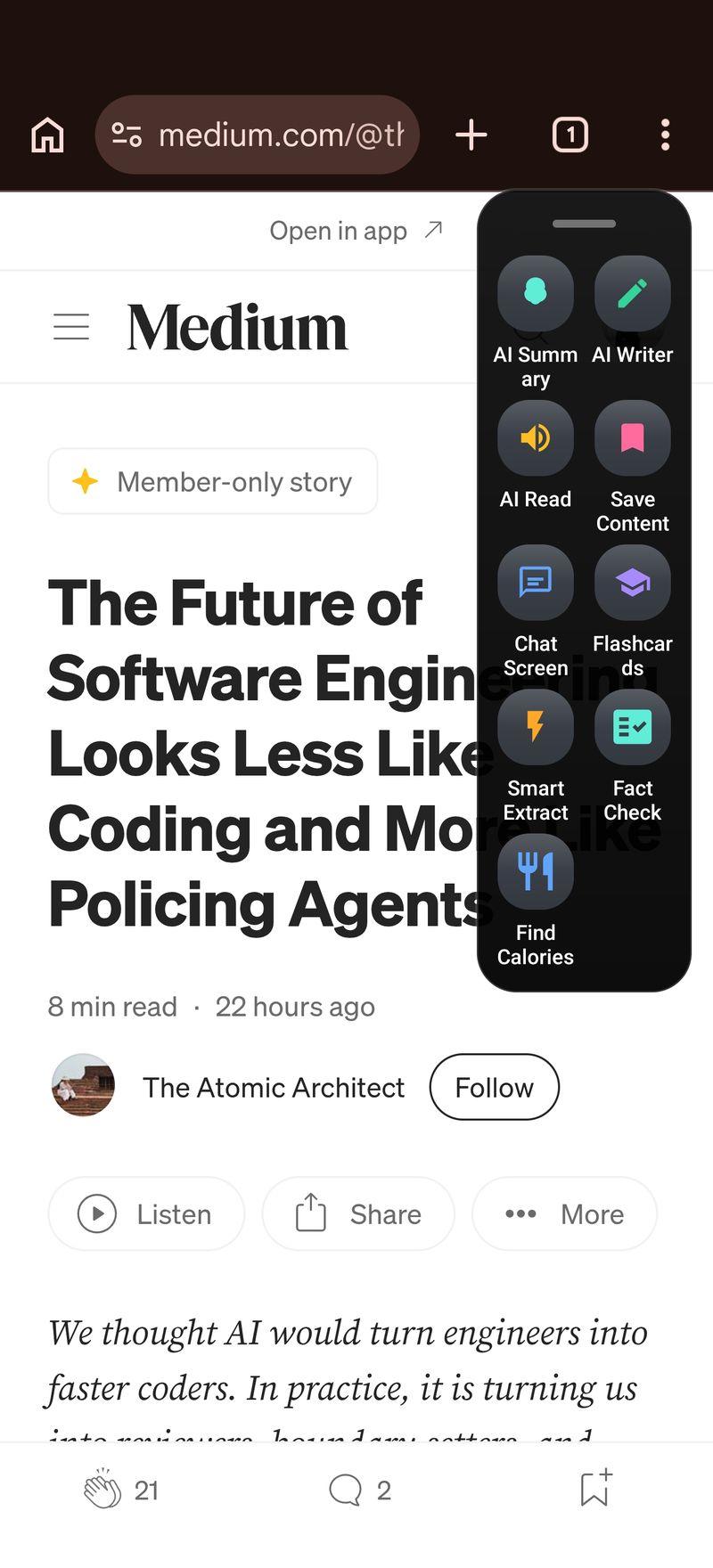
This is why I went with a floating overlay approach for Arc. Instead of another app you switch to, Arc lives as a sidebar you summon with a swipe. It sees your screen, understands the context, and gives you a summary right where you are.
How to Use an AI Summarizer Android App: Step-by-Step with Arc
Let me walk you through the actual workflow. I’ll use a real scenario — you’re reading a long news article in your browser and want a quick summary.
Step 1: Install Arc from Google Play
Download Arc AI Screen Assistant from the Google Play Store. It’s free to install. After the install, you’ll need to grant a few permissions:
- Accessibility service: This is what lets Arc read what’s on your screen. It’s the same permission that screen readers use — nothing scary, and Arc processes content on-device where possible.
- Display over other apps: This allows Arc’s floating sidebar to appear on top of any app you’re using.
- Notifications access (optional): Lets Arc extract OTPs and notifications for other features.
The setup wizard walks you through each permission with explanations, so you’re not blindly tapping “allow.”
Step 2: Open the Content You Want to Summarize
This is the part that’s different from other AI summarizer Android apps. You don’t need to copy anything.
Just open whatever you want summarized:
- A news article in Chrome or Firefox
- An email in Gmail
- A document in Google Docs or a PDF reader
- A long WhatsApp or Telegram message
- A Reddit thread
- Even a screen in a social media app
Arc works across any app on your phone because it reads the screen, not a specific app’s API.
Step 3: Swipe to Summon Arc’s Sidebar
Once you’ve got the content on screen, swipe from the edge of your screen (you can configure which edge in settings — I use the right edge). Arc’s floating sidebar slides in.
The sidebar shows several AI actions. Tap Summarize.
Step 4: Get Your Summary
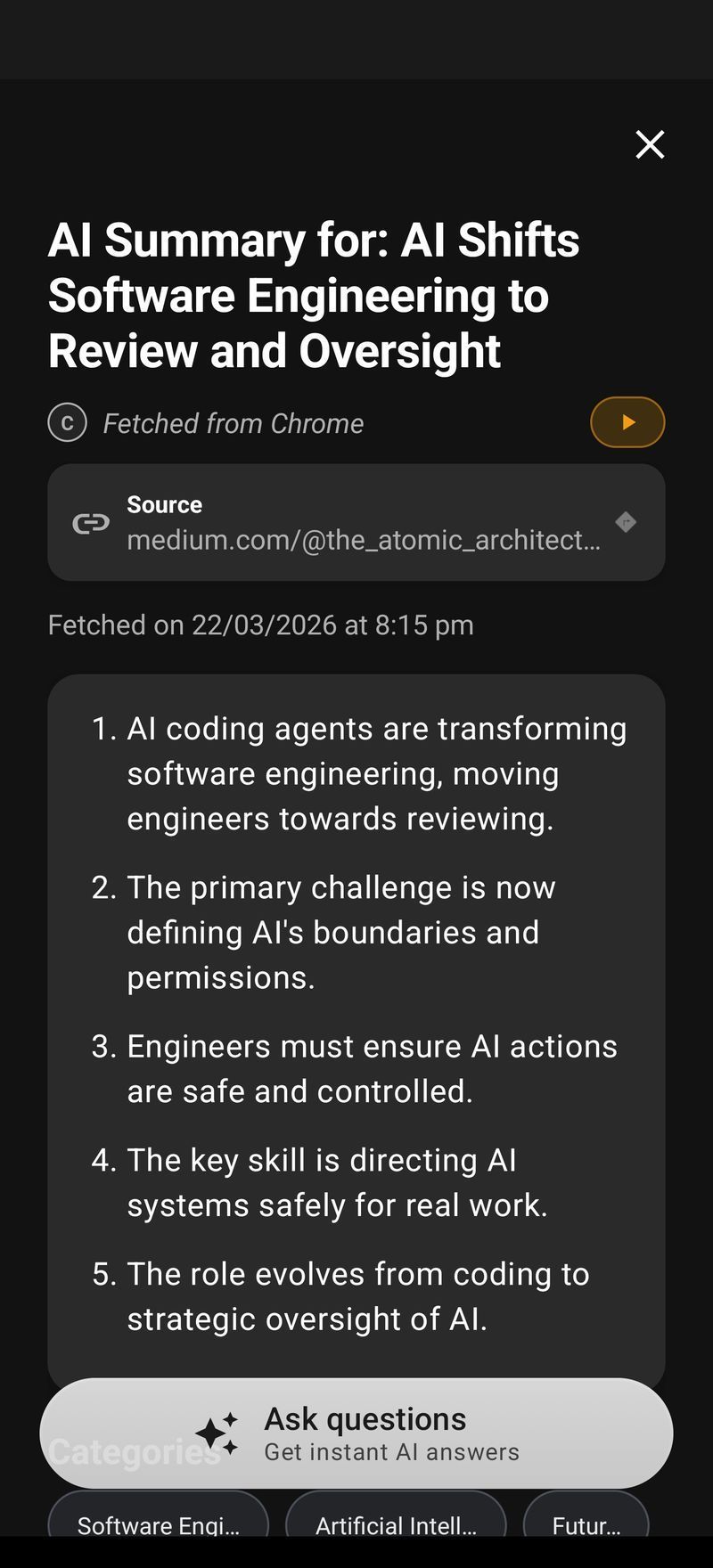
Arc reads the visible content on your screen and generates a summary. Depending on the content, you’ll get:
- A concise paragraph summary: The key points in 3-5 sentences
- Bullet points: When the content has distinct sections or arguments
- Key takeaways: For articles with clear conclusions
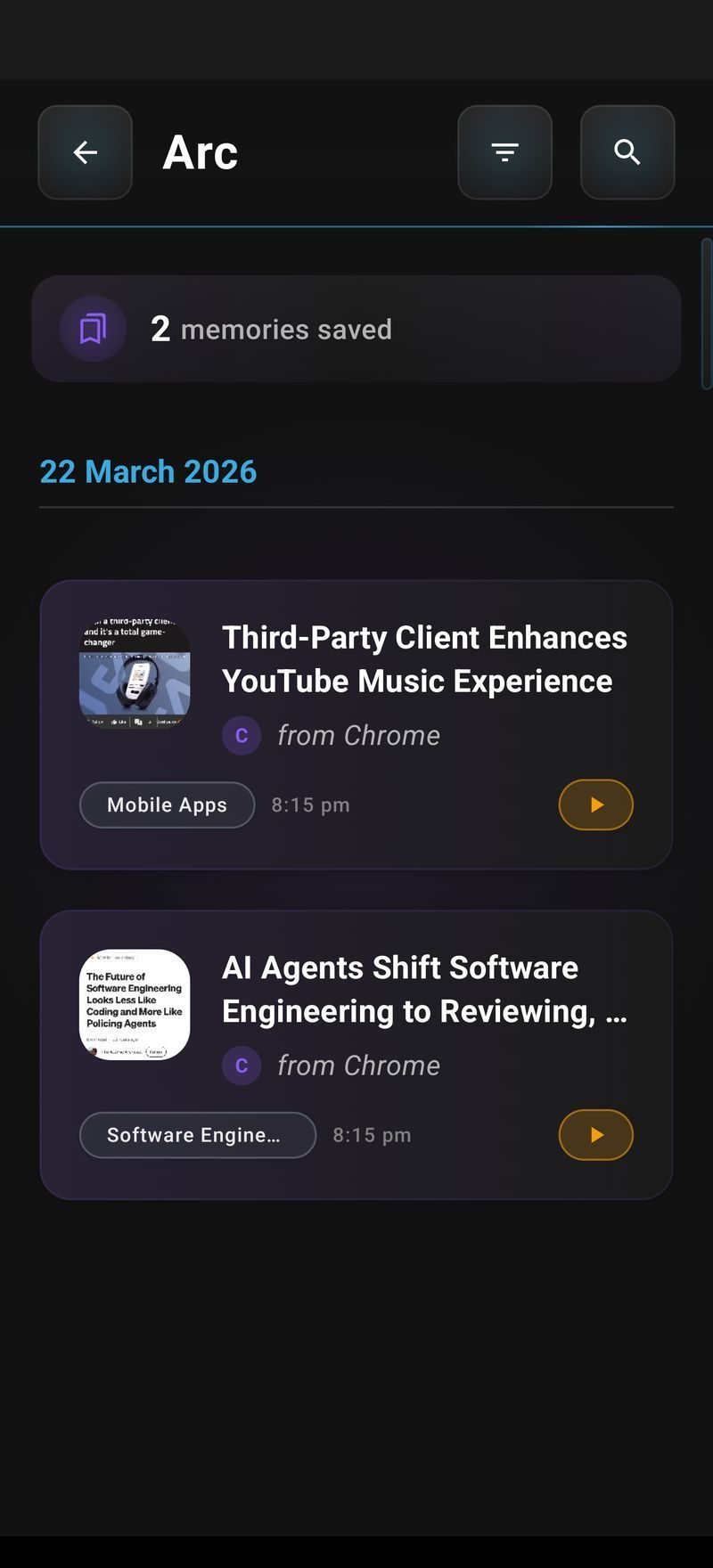
The summary appears in Arc’s sidebar panel. You can read it right there, or tap to expand it full-screen if it’s long. You can also copy it, share it, or save it to notes.
Step 5: Ask Follow-Up Questions
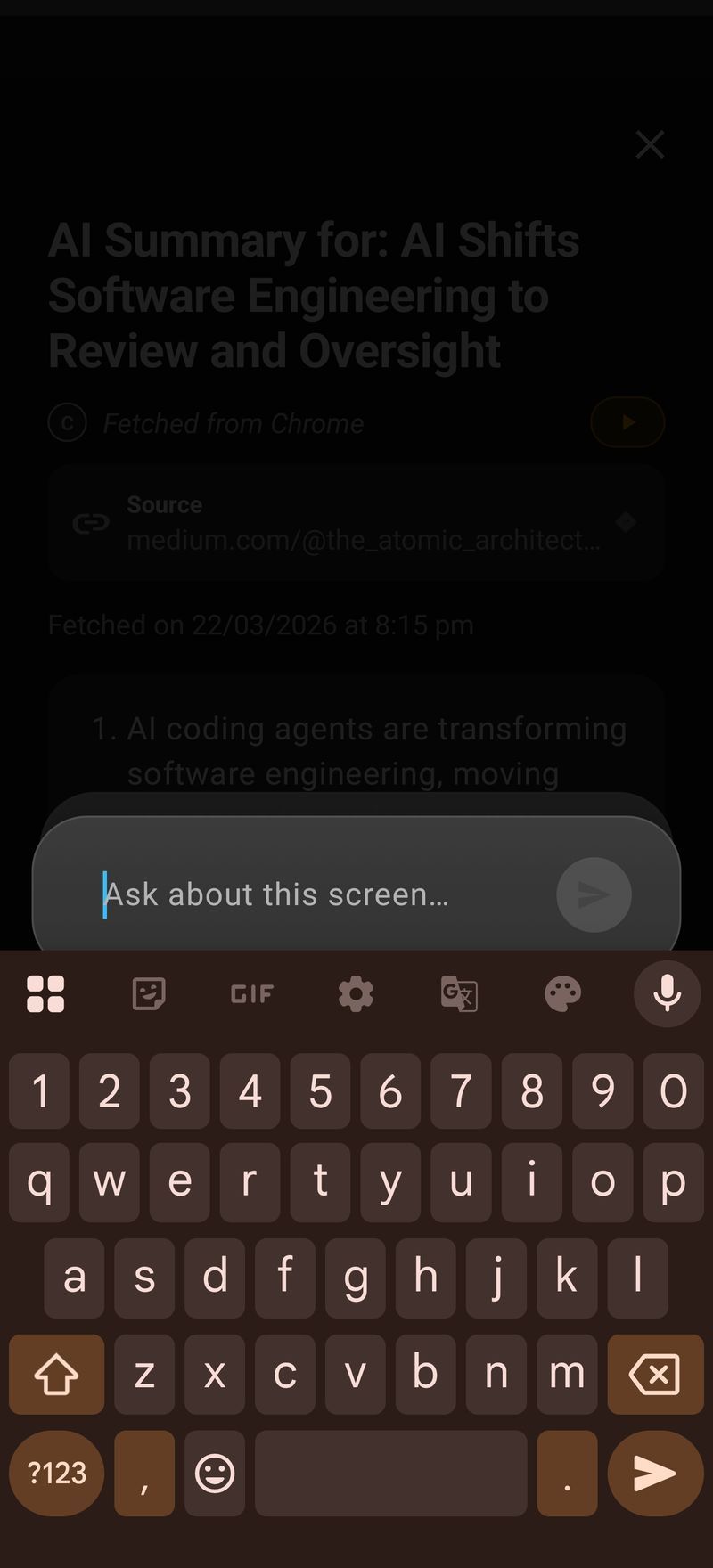
Here’s where Arc goes beyond a basic summarizer. Once you have the summary, you can ask follow-up questions in the same panel:
- “What’s the author’s main argument?”
- “Does this article mention any statistics?”
- “Can you explain the second point in more detail?”
Arc keeps the context of what’s on your screen, so it answers based on the original content — not just the summary. This is powered by Arc’s AI Summary & Reader capability, which combines summarization with conversational understanding. No other AI summarizer Android app offers this kind of follow-up conversation.
Use Cases: When to Use an AI Summarizer Android App
Let me share some real scenarios where I use Arc’s summarizer daily:
Summarizing Long Emails
Work emails can be paragraphs of context with one actionable item buried in the middle. I open the email in Gmail, swipe in Arc, hit Summarize, and get the key points. Then I use Arc’s AI Writer to draft a quick reply. The whole exchange takes 30 seconds instead of 5 minutes.
Digesting News Articles
When I’m catching up on tech news, I’ll have 10+ articles open in Chrome tabs. Instead of reading each one fully, I summarize them one by one with Arc. The swipe-summarize-swipe workflow is fast enough that I can get through all of them in a few minutes.
Summarizing Research Papers
Academic papers are dense. Arc’s summarizer handles them well because it can break down the abstract, methodology, and conclusions into separate bullet points. I often follow up with questions like “What was the sample size?” or “What are the limitations mentioned?”
Processing Group Chats
If you step away from a WhatsApp group for a few hours and come back to 200 messages, Arc can summarize the conversation. It identifies who said what, what was decided, and whether anyone asked you a question directly. This is something copy-paste summarizers can’t do at all.
Tips for Getting Better Summaries
After using Arc’s summarizer for months, here are some tips I’ve picked up:
Scroll to show the full content first. Arc reads what’s visible on your screen. If an article is long, scroll through it once before summoning Arc. This ensures the content is loaded and gives the AI more context to work with.
Be specific with follow-up questions. Instead of asking “tell me more,” ask “what does the article say about the cost of implementation?” Specific questions get specific answers.
Use summarize + ask together. The summary gives you the overview. Follow-up questions let you drill into specific parts. Together, they’re more powerful than either alone.
Summarize in sections for very long content. For a 10-page PDF, I’ll summarize each page or section separately rather than trying to do it all at once. The summaries are more accurate when the content is focused.
How Arc Compares to Other AI Summarizer Android Apps
I’m obviously biased here, but let me be honest about where Arc shines and where other tools might be better:
Arc is better for on-screen content. If you want to summarize something you’re already looking at — an article, an email, a chat — Arc’s screen-aware approach is faster and more natural. No copy-paste, no app switching.
Paste-based tools are better for specific text. If you have text in a format Arc can’t read on-screen (like a text file in a file manager), a paste-based tool like QuillBot might be more convenient. Arc can still handle it, but you’d need to open the file first.
Arc is better for context-aware follow-ups. Most summarizer apps give you one summary and that’s it. Arc lets you have a conversation about the content, asking questions and getting answers based on what’s on your screen.
Meeting summarizers are a different category. Apps like Summary AI are specifically built for recording and transcribing meetings. That’s not what Arc does — Arc summarizes text content on your screen. Different tools for different jobs.
FAQ
What is the best AI summarizer app for Android?
It depends on your workflow. For summarizing on-screen content like articles, emails, and chats without copy-paste, Arc is the best AI summarizer Android app available. For meeting transcription and summarization, Summary AI is purpose-built. For simple paste-and-summarize tasks, QuillBot works well. I recommend trying a couple and seeing which fits your daily usage.
Can AI summarizer apps work offline?
Most AI summarizer apps require an internet connection because they send text to cloud-based LLMs. Google’s ML Kit GenAI Summarization API can run on-device with Gemini Nano on supported Pixel devices, but it’s limited to specific text types. Arc uses a hybrid approach — some processing happens on-device for speed, with cloud LLMs for more complex summarization.
Is an AI summarizer accurate?
Modern AI summarizers are quite accurate for general content like news articles and emails. They can occasionally miss nuance in highly technical, legal, or scientific content. The best approach is to use the summary as a starting point and follow up with specific questions if you need detail. Arc’s conversational follow-up feature is designed for exactly this.
Can I summarize a PDF on my Android phone?
Yes. Open the PDF in any reader app (Google PDF Viewer, Adobe Acrobat, etc.), then swipe in Arc and tap Summarize. Arc reads the visible text on screen. For long PDFs, scroll through each section and summarize as you go. Alternatively, you can use Arc’s text extraction to pull text from the PDF and summarize it in one shot.
Are AI summarizer apps free?
Many AI summarizer apps are free with usage limits. Arc is free to download on Google Play with a free tier for basic summarization — making it a solid free AI summarizer Android app to start with. Premium features like extended summaries, follow-up questions, and AI writing are available with a subscription. QuillBot offers a free tier with ads, and AI Summarizer on Play Store is free with in-app purchases.
Get Started
If you’re tired of reading walls of text on your phone, give Arc a try. It’s the AI summarizer Android app I built for exactly this problem. Install it from Google Play, grant the permissions during setup, and the next time you’re staring at a long article — just swipe and summarize.
The AI Summary & Reader feature works across every app on your phone. No copy-paste, no app switching, just summaries when you need them.
You can also explore Arc’s other features like AI Writer for drafting replies and AI Workflow Automation for automating repetitive tasks on your phone.
Try Arc free on Google Play.