
AI Assistant for Mac: How Arc Compares to ChatGPT
Most AI apps on the Mac work the same way: the model lives in its own window, and you carry your work to it. Select, copy, switch apps, paste, explain what you want, wait, copy the answer back. Arc takes the other approach. Press Control+Space over any window and it reads what’s already there.
I’m Mamata, and I build Arc. This guide covers what a screen-aware AI assistant for Mac does, how it compares honestly with ChatGPT and Apple Intelligence, where it falls short, and how to set it up. Everything here works on macOS 14 or later, on Apple Silicon or Intel.
Three Kinds of AI Assistant on the Mac
“AI assistant” covers three quite different tools, and knowing which one you need saves an install:
- Chat apps (ChatGPT, Claude, Gemini in a browser or desktop app). The AI lives in its own window. Great for open-ended conversation and uploading files; anything already on your screen has to be copied in.
- Sidebar extensions. The AI lives inside one app, usually the browser. Useful in Chrome, absent in Mail, Preview, and Slack.
- Screen assistants. The AI floats over every app, because macOS gives it the frontmost window rather than one app’s content. This is the category Arc belongs to.
The enabling piece is macOS’s Accessibility API — the same system interface VoiceOver uses. With Accessibility granted in System Settings, an assistant can read the text of any window on demand: Safari, Chrome, Preview PDFs, Mail, Slack, Notion, Xcode. Arc reads only when you invoke an action; nothing runs between keystrokes, and password managers are skipped automatically.
How Arc Works on macOS
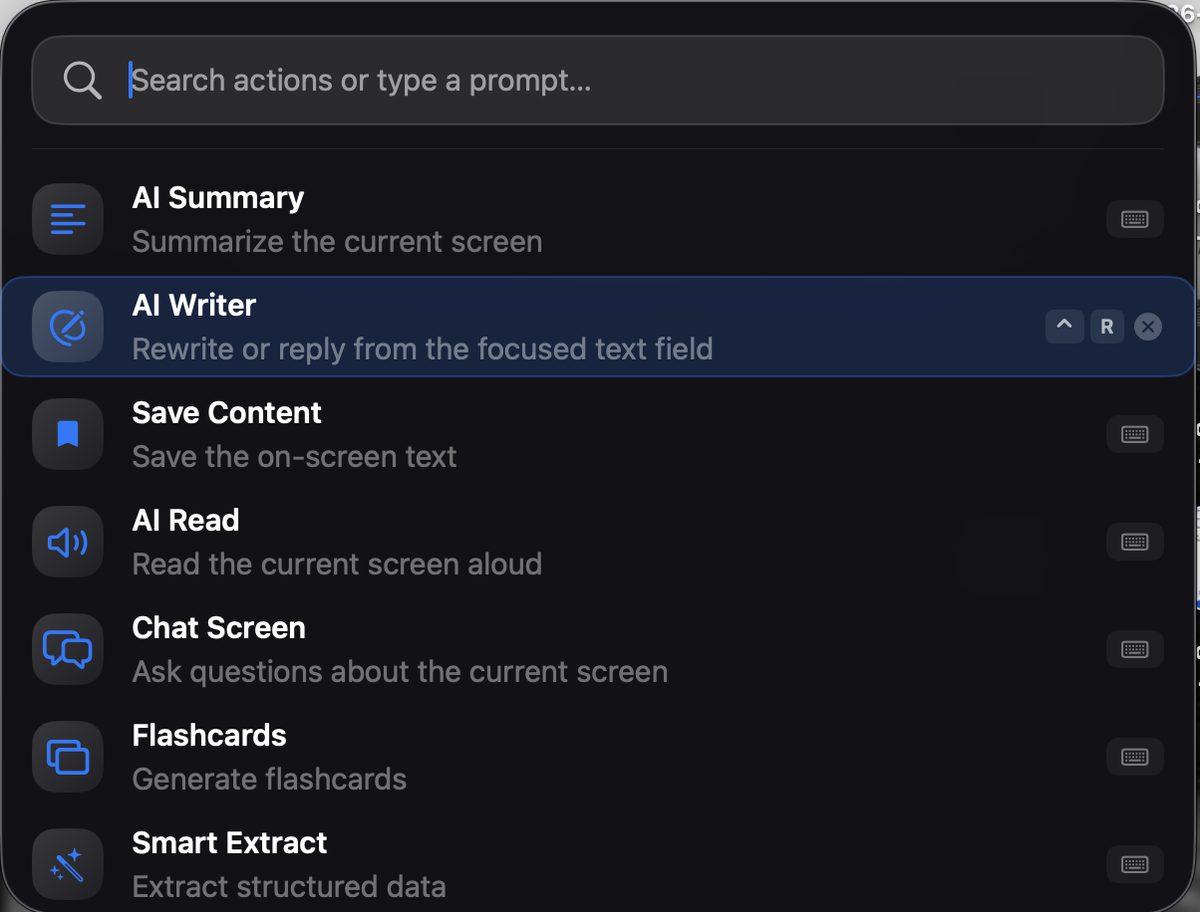
Arc runs in the menu bar. Press Control+Space from anywhere and a Spotlight-style panel appears over your current window. The panel doesn’t take focus, so the app underneath keeps its text cursor — which is what lets Arc write results straight back into the field you were typing in. Arrow down, press Return, and the result appears in a floating panel beside your work. The shortcut is remappable if Control+Space is already taken.
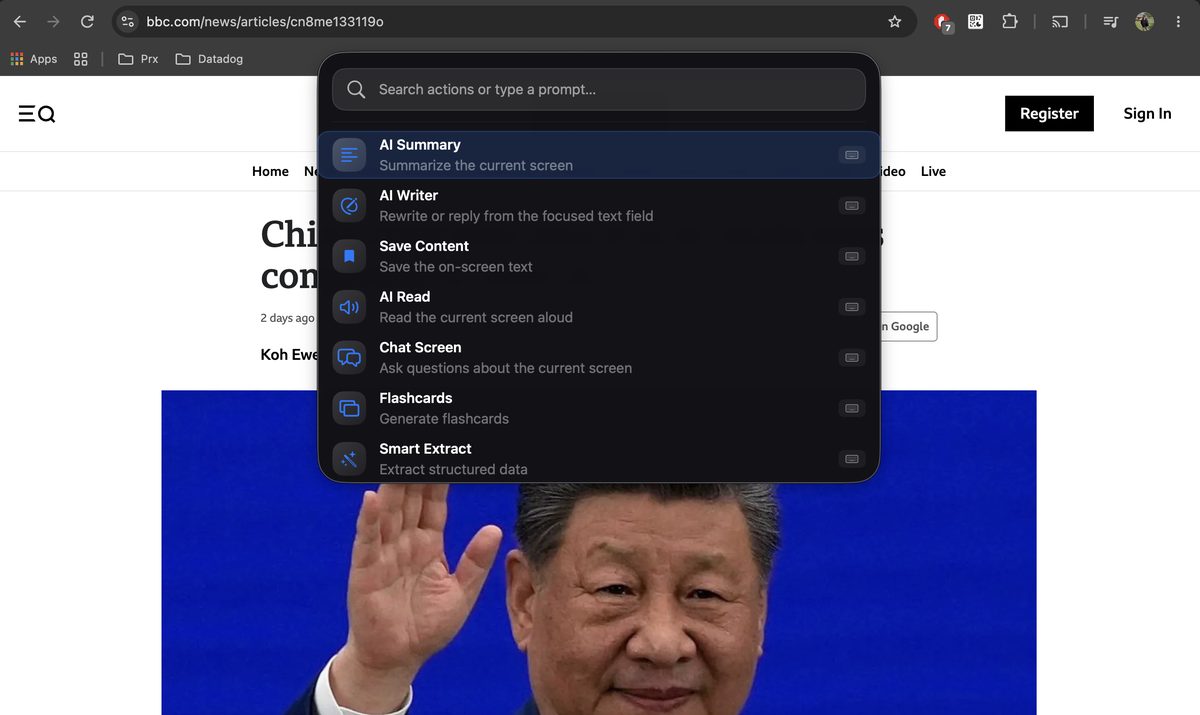
If you’ve used Arc on Android, the idea is the same with a different shape: a floating sidebar on the phone, a keyboard-first command panel on the Mac.
The seven built-in actions
Each action can be reordered, hidden, or bound to its own global shortcut:
| Action | What it does |
|---|---|
| AI Summary | Numbered key points from the frontmost window |
| AI Writer | Rewrites or replies from your focused text field |
| Save Content | Archives screen text + screenshot to a searchable library |
| AI Read | Reads the screen aloud in a natural voice |
| Chat Screen | Opens a conversation seeded with the current window |
| Flashcards | Generates a study deck from on-screen content |
| Smart Extract | Pulls events, deadlines, contacts, OTPs into real actions |
Summarize any window
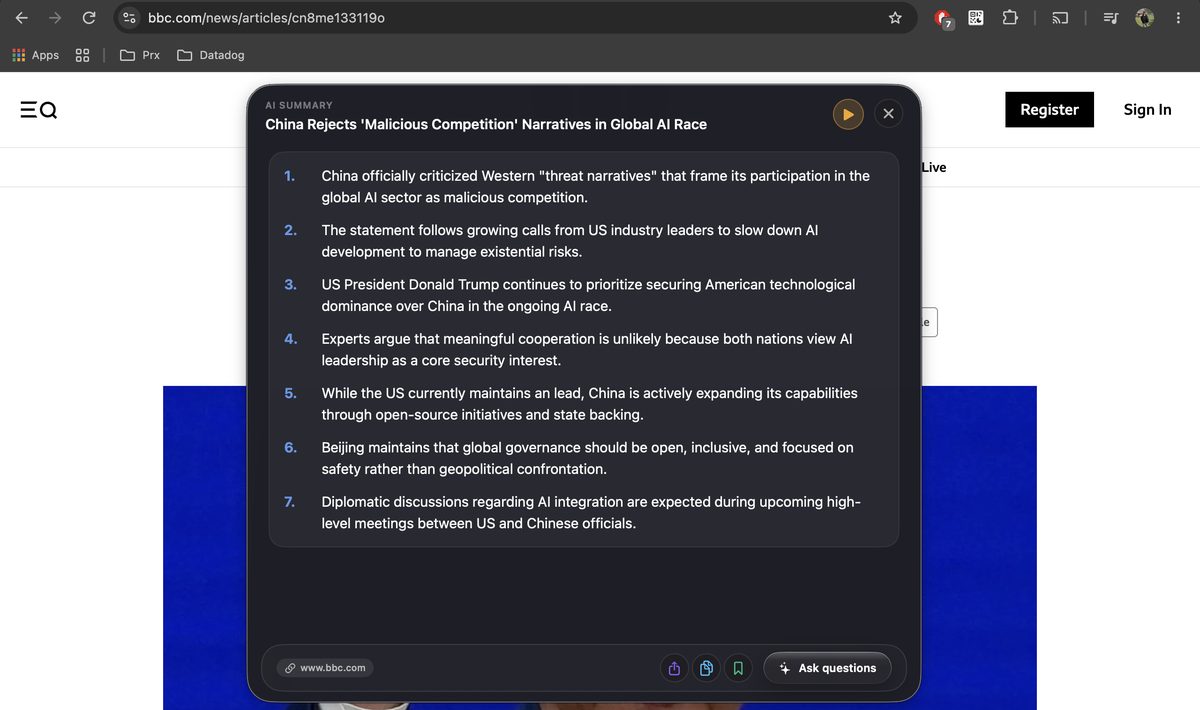
Reading a long article, a dense docs page, or a long email thread? Press Control+Space and choose AI Summary. Arc reads the window directly and shows numbered key points with a title, the source URL for browser content, and buttons to share, copy, save, or ask follow-up questions. The play button hands the summary to AI Read if you’d rather listen. For a step-by-step walkthrough, see how to summarize a PDF or any text on Mac.
Ask questions about the screen
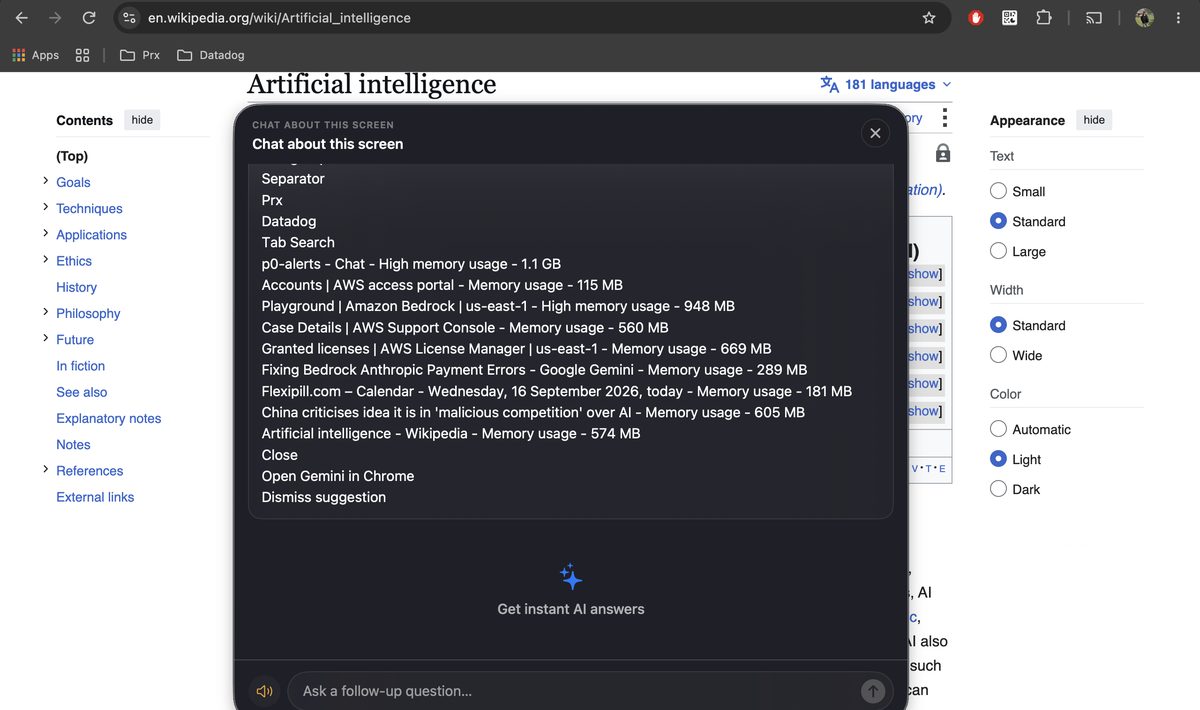
Chat Screen opens a chat seeded with the current window’s content, and the context is shown at the top so you can see exactly what the model is reading. Follow-ups keep that context, and sessions are saved under Active Chats with search. You can also type a question straight into the Arc menu and press Return. Good starting questions: “What are the risks listed here?”, “What does the data-sharing clause actually say?”, “Explain the third paragraph in plain English.”
Rewrite and reply in the app you’re typing in
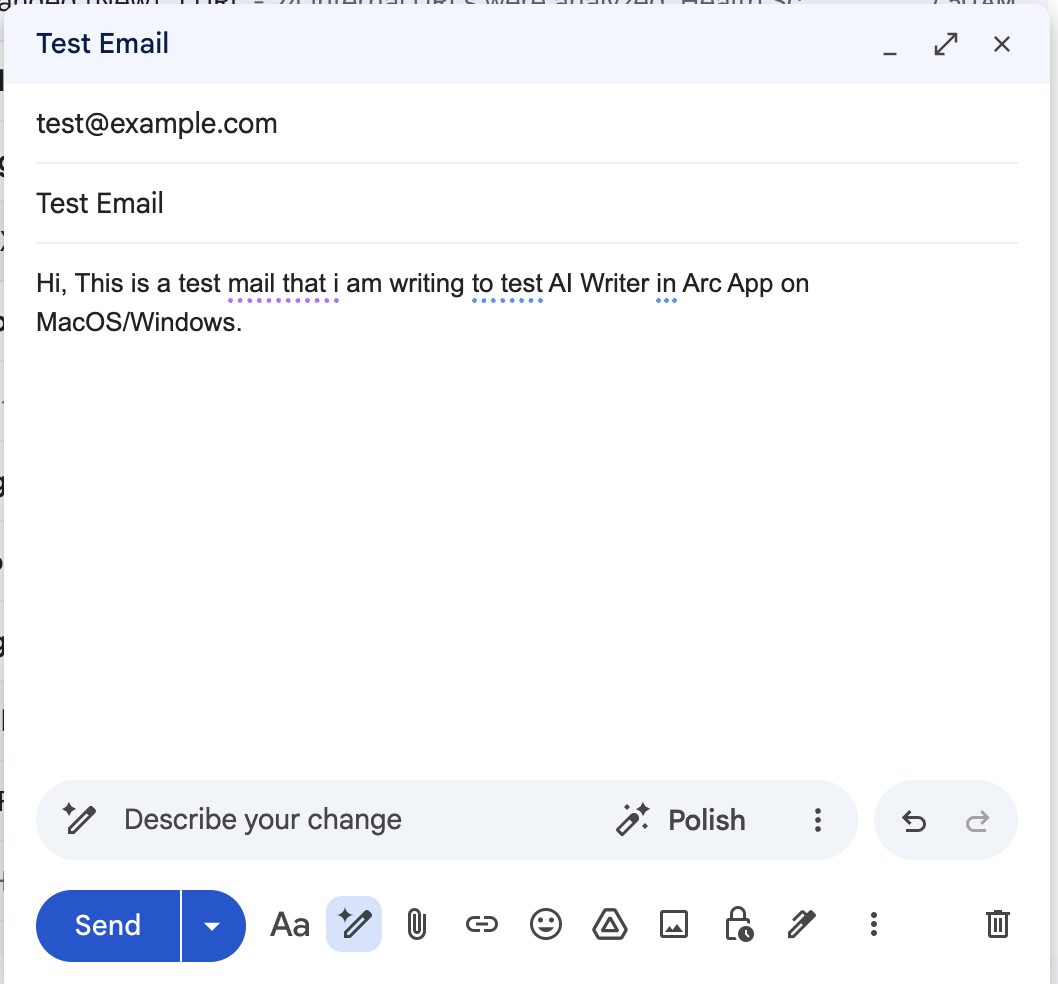
The AI Writer reads the text field your cursor is in — a Gmail reply, a Notion comment, a form — and Insert writes the result back into that same field. Its modes:
- Rewrite — Rephrase, Professional, Polite, Shorten, Elaborate, plus a custom instruction
- Fix Grammar — repairs mistakes without changing your voice
- Reply — Yes/Agree, No/Decline, Thank, Ask for details, Acknowledge
- Create Post — drafts for posts, reviews, and comments
Info Vault lets you store short notes about yourself — your role, preferred tone, the products you work on — and attach them as chips so output sounds like you rather than a generic template. Entries stay local and are only sent when you tap the chip. More detail is in the AI writing assistant for Mac guide.
Shortcuts that skip the menu
Any action can get its own global keyboard shortcut, and bound actions run without opening the menu. For example: ⌃S for AI Summary, ⌃R for Rephrase in place, ⌃H for Fix Grammar, ⌃E for Smart Extract. Binding takes a few seconds, and Arc warns you if a key is already in use.
If no built-in action fits, Arc Actions lets you write your own prompt with a {screen_text} placeholder, an optional screenshot region, and optional web search. The Community Actions catalog has 500+ shared prompts you can add and edit. See AI automation on Mac for worked examples.
Save now, read later
Save Content stores the screen’s text, a screenshot, the source app, and the URL in a searchable Saved Items library, where you can re-summarize, listen, or ask questions later. Pair it with Smart Extract to turn a confirmation email into a calendar event and reminder, or a meetup page into a contact and map pin.

Arc vs ChatGPT and Apple Intelligence
A fair comparison, since you may not need Arc at all:
- ChatGPT for Mac is the better choice for long, open-ended conversations, uploading files, image generation, and voice chat. It’s a chat window first; working on text in other apps still mostly means copying it in.
- Apple Intelligence is free on supported Macs, runs much of its work on-device, and its Writing Tools can proofread and rewrite in most text fields. If quick rewrites are all you need, try it before installing anything.
- Arc is the better fit when you want one shortcut that works on whatever window is in front of you: summarize a PDF in Preview, read an article aloud, reply in Gmail with a set intention, ask questions about a page, or run your own saved prompts with their own hotkeys. It’s also the same assistant on Android and Windows, with one subscription.
Notarized, and Not on the Mac App Store
Arc is signed with an Apple Developer ID and notarized by Apple, so it installs without an “unidentified developer” warning, and it updates itself through a signed update feed.
It isn’t on the Mac App Store because App Store apps must run in Apple’s App Sandbox, and the sandbox blocks the accessibility APIs that let one app read another app’s window. Those APIs are what Arc does; notarization plus a signed updater provides the safety checks without that restriction.
What Arc Doesn’t Do
Every tool in this category has tradeoffs:
- No background automation. Arc does nothing between keystrokes. For scheduled or unattended automation, use Shortcuts or an agent tool instead.
- One window per action. Comparing two documents means two invocations.
- It doesn’t edit files. Results land in the field you’re in or on the clipboard; it won’t reorganize folders or refactor code.
- It isn’t offline. The AI models run server-side, so you need a connection.
Setup
- Download Arc from arcassistant.app/macos/ — a notarized .dmg for macOS 14+, universal binary (Apple Silicon and Intel).
- Drag it to Applications and launch. Arc lives in the menu bar.
- Grant permissions: Accessibility (to read window text) and Screen Recording (for actions that capture a screenshot). Onboarding links straight to the right System Settings pane.
- Press Control+Space over any window. The onboarding “Try It” step opens the real menu so you can test it before you finish.
The free tier includes 7 requests per week on the basic features, with no ads. The app is available in 10 languages. If you also use Arc on Android or Windows, one sign-in and one subscription cover all of them, and saved items can back up to Google Drive (off until you turn it on). An iOS version is in development.
FAQ
What is the best AI assistant for Mac?
It depends on the job. For open-ended conversation, file uploads, and voice chat, the ChatGPT Mac app is excellent. For quick rewrites inside any text field, Apple Intelligence’s Writing Tools are free on supported Macs. Arc is built for a third job: acting on whatever window is in front of you — summarize it, read it aloud, rewrite the field you’re typing in, or ask questions about it — from one shortcut, Control+Space. Many people use a chat app and Arc side by side.
Is there a free AI assistant for Mac?
Yes. Arc for Mac is a free download with 7 free requests per week on the basic features — no account required, no ads. Apple Intelligence is also free on supported Macs. For heavier use Arc has a subscription, and one subscription covers Android, macOS, and Windows.
Can an AI assistant read my screen on any MacBook?
Arc runs on any Mac with macOS 14 (Sonoma) or later. It’s a universal binary, so it runs natively on Apple Silicon and Intel Macs — MacBook Air, MacBook Pro, Mac mini, iMac. It reads a window only when you invoke an action, never in the background.
Does Arc read my screen all the time?
No. Arc reads the frontmost window only at the moment you invoke an action. There is no background monitoring, no polling, and no keystroke recording. The first time Save Content runs, Arc asks for consent before storing a screenshot, and you can capture a region instead of the whole screen.
Why isn’t Arc on the Mac App Store?
App Store apps must run inside Apple’s App Sandbox, which blocks the accessibility APIs that let one app read another app’s window — and that is the core of what Arc does. Instead, Arc is signed with an Apple Developer ID, notarized by Apple, and updates itself through a signed update feed.
Will it slow my Mac down?
No noticeable impact in normal use. The panel isn’t running until you summon it, and the AI work happens server-side rather than on your CPU.
How is this different from screen-share AI tools?
Screen-share assistants are built around meetings: they join a call and answer questions about the shared screen. Arc works on your local windows all day — a PDF in Preview, an article in Safari, an email thread in Mail — whether or not you’re on a call.
Download Arc for Mac free and try Control+Space on a window you’d otherwise copy into a chat app. Prefer your phone? Get Arc on Google Play.
Further reading: Apple’s Accessibility framework · Apple Intelligence on Mac.