AI Read — Text to Speech for Every Screen
Built for dyslexia, low vision, and ADHD. One tap reads any screen aloud — articles, PDFs, emails — in natural voices, 100+ languages auto-detected. No copy-paste, no uploads.
Accessibility isn't a feature. It's the design.
Arc is built accessibility-first — WCAG 2.1 AA, full TalkBack support, dyslexia/low-vision/ADHD friendly. AI Read isn't an add-on; it's how the app works.
If text on a screen costs you something to read — effort, time, confidence — you already know the routine: select the text, copy it, switch apps, paste it, press play. A dozen taps just to hear a paragraph. That routine is exactly what a good text-to-speech app should make disappear.
Arc is designed from the ground up for people who read differently:
- If you have dyslexia, decoding a wall of text takes real effort, and every extra step makes it worse. AI Read collapses the routine to one action — the page you're already looking at starts talking. No copying, no reformatting, no "upload your document" step.
- If you have low vision, you shouldn't have to zoom, squint, and scroll to follow text. Screen-aware TTS reads the visible content in a natural voice while you listen — and you can turn the speed up well past comfortable reading pace once you're used to it.
- If you have ADHD, a wall of text is a motivation problem as much as a reading problem. Audio is easier to start and easier to stick with — and Arc can summarize a long document first so you know what you're getting into before you commit.
- If you're a student with a disability, you need tools that work inside the apps your coursework actually lives in — the LMS, the PDF reader, the browser — not a separate "accessibility app" you're expected to shuttle text into. Arc reads whatever app is in front of you.
The accessibility commitment runs through the whole app, not just the speech engine. Arc targets WCAG 2.1 AA, works with TalkBack (every UI element labeled), keeps touch targets at a minimum of 48dp, respects your system font size and contrast settings, and on desktop binds every action to a keyboard shortcut — because reaching for a small target with a mouse is its own barrier.
One action, any screen, speech starts immediately.
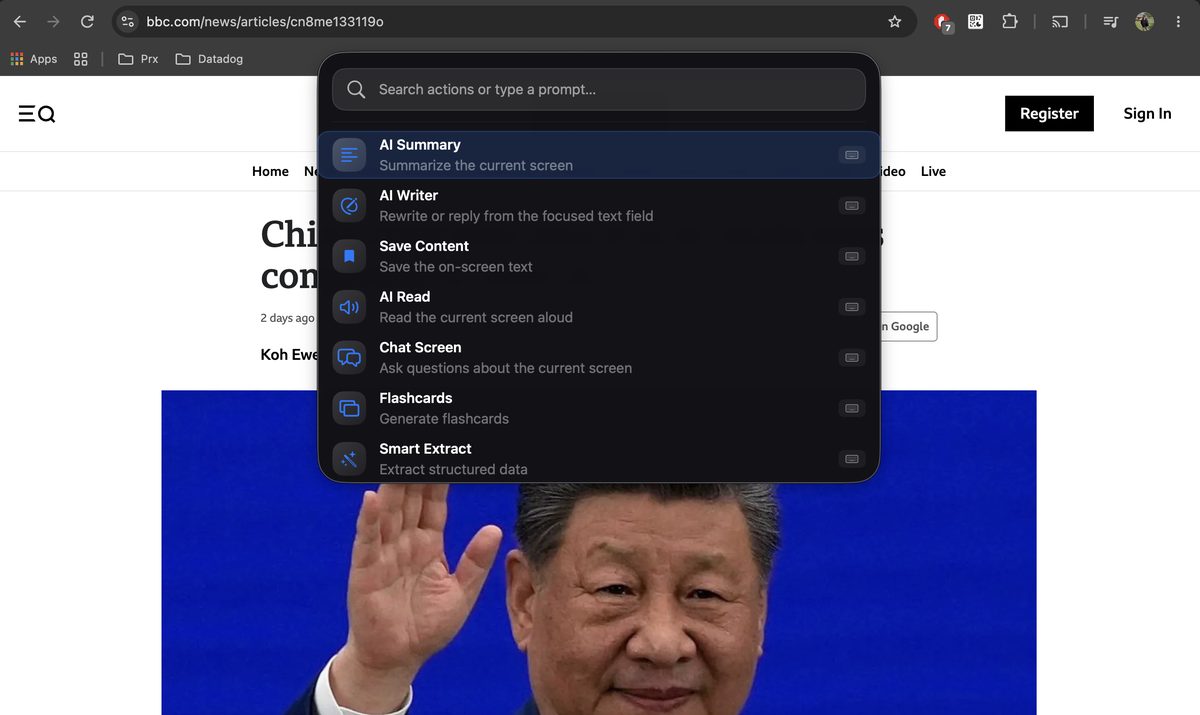
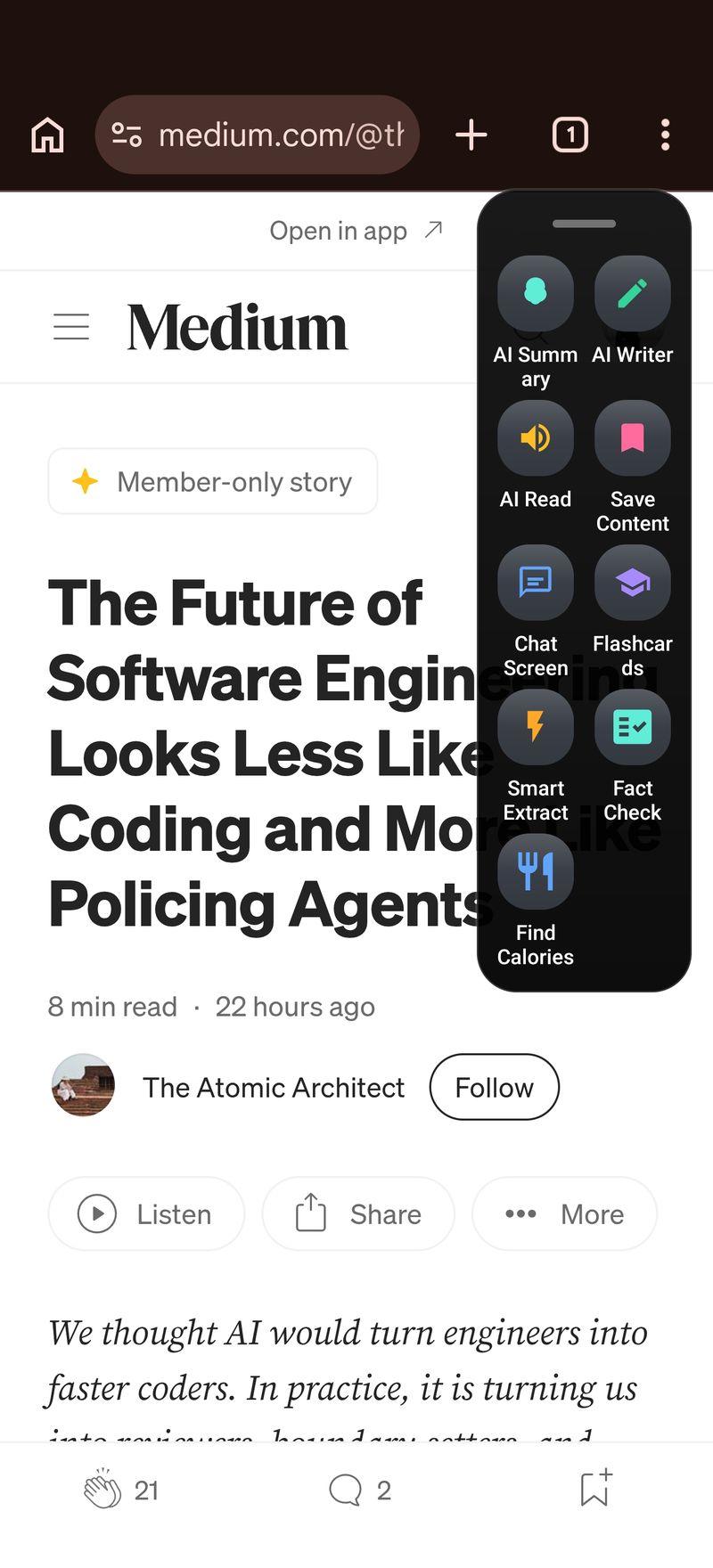
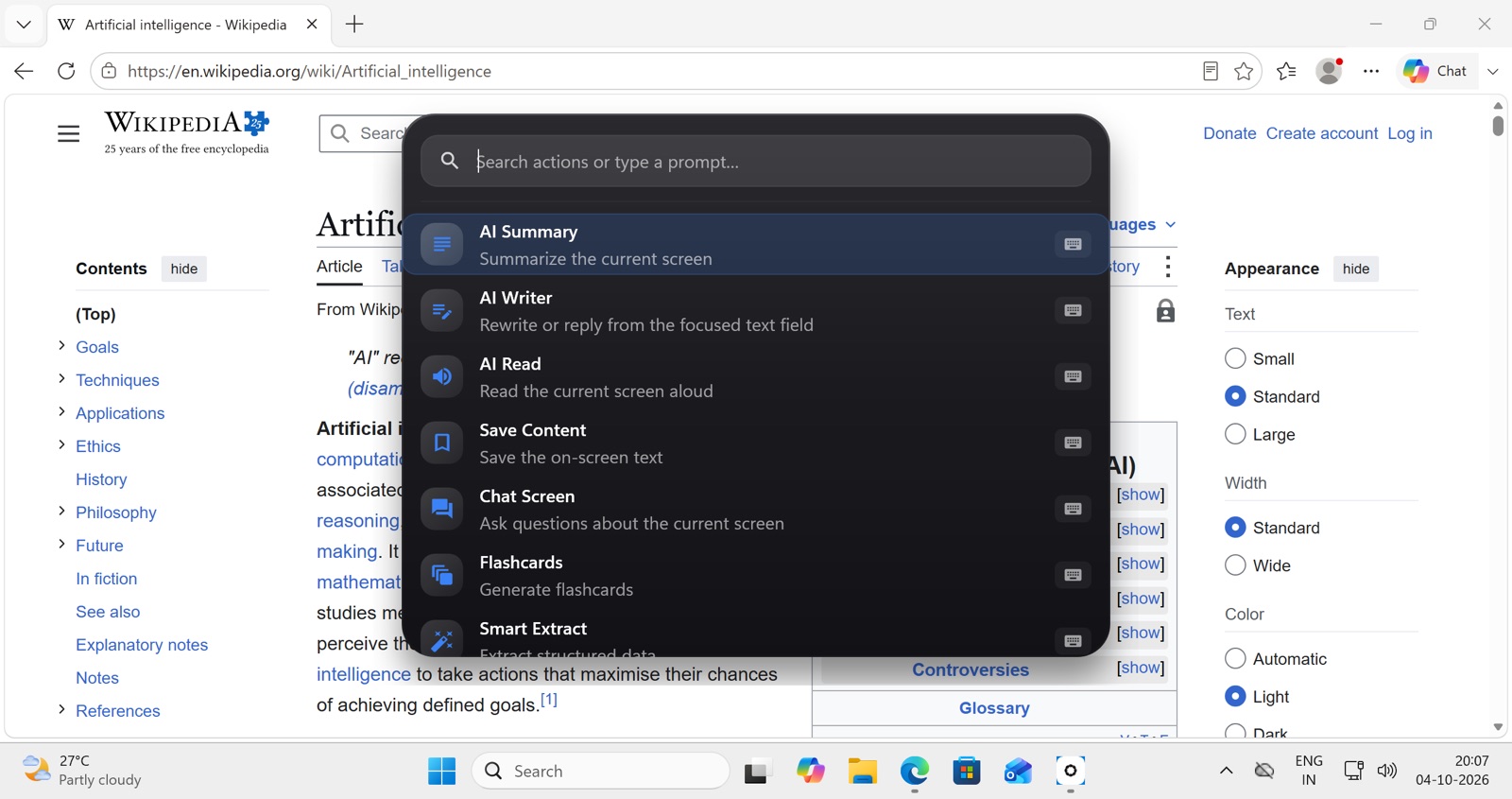
Most TTS workflows start with logistics: open the other app, paste the text, find the play button. AI Read has none of that. You're looking at something readable — an article, a long email, a PDF, documentation, a saved summary. You invoke Arc (on desktop it's Ctrl + Space, then pick AI Read; on Android, a tap from the Arc menu). The menu dismisses, no window opens, and Arc starts reading the frontmost screen aloud.
That "no window" detail matters. The flow doesn't pull you out of what you were doing — no result panel to close, no player screen to dismiss. Speech starts, you keep your place, and invoking AI Read again stops it: hands-free consumption of whatever is in front of you, with zero visual interruption.
Because Arc reads the screen rather than a paste buffer, it works everywhere your content lives: the browser, your email client, a PDF reader, a chat thread. And it reads on demand only — no background monitoring of your screens. When you don't ask, nothing happens.
🎧 Reads any screen, instantly
Summon Arc and it reads the frontmost window aloud — article, email, PDF, docs. No result window, speech starts immediately.
🌍 100+ languages, auto-detected
Arc detects the language and picks the best installed voice for it automatically. Multilingual content? Handled.
🎚️ Speed and pitch, your way
Two sliders in Settings with a Test Speech button. Tune the pace once; every read follows it.
⏸️ Real pauses between list points
Numbered and bulleted lists are spoken as separate utterances — "1… 2… 3…" never runs together into one breathless sentence.
🎧 Background playback
Listen while you walk, cook, or commute. Speech plays in the background — nothing on screen needs to stay open.
♿ TalkBack compatible
WCAG 2.1 AA, labeled controls, 48dp touch targets, system text scaling — Arc works with the accessibility tools you already use.
The voice matters as much as the reading.
A robotic voice is the reason many people try text-to-speech once and never again. For dyslexic and low-vision listeners especially, voice quality decides whether TTS becomes a daily tool or a demo you uninstall — so this is where AI Read puts deliberate effort.
Automatic language detection and voice selection
You never pick a language or a voice before reading. Arc detects the dominant language of the text on screen, then picks the best installed voice for that language automatically. Reading a Japanese article in an English interface? Arc finds the best Japanese voice installed. If nothing is installed for that language, it falls back to the closest voice in the same language family rather than refusing. The selection follows a strict order — highest-quality voice tiers first, then any installed voice for the exact language, then a family match — so you always get the best available sound.
Natural voices are a free download — and Arc points you at them
Here's the thing most TTS apps won't tell you: the difference between a robotic voice and a natural one is usually just which voice the OS has installed. Modern desktop systems ship excellent neural voices as free downloads — Premium/Enhanced voices on macOS, Natural/Neural voices on Windows — but most people never install them, so most apps quietly use the compact default and sound terrible.
Arc doesn't stay silent about it. If only the low-quality system voice is installed for your language, a Voice Quality card appears — in Settings and once as a nudge on the Arc menu — explaining that better voices are a free OS download, with a Get Voices button that opens the OS voice-download settings directly. Download a voice, and Arc picks it up immediately, no restart. The difference on your next read is the difference between a robot and a reader.
Speed, pitch, and list-aware reading
In Settings → Speech you get two sliders — Speed and Pitch — plus a Test Speech button that speaks a sample sentence at your current settings, so you can dial it in by ear. Values save immediately.
The other detail you'll notice within the first minute: AI Read reads lists like a person reads lists. Plain TTS engines read "1. Point one 2. Point two" as one run-on statement. Arc splits numbered and bulleted items into separate utterances with a real pause between points, while keeping prose sentences whole — never broken mid-clause. For study material and how-to content, that pause is the difference between following the steps and hearing a blur.
Who Arc reads for.
| If you... | Arc helps by... |
|---|---|
| Have dyslexia | Reading any screen aloud — no copying into another app |
| Have low vision | Screen-aware TTS with natural voices, no zoom-and-squint |
| Have ADHD | Listen while moving; summaries before long texts |
| Are a student | Turn readings into audio for commutes; flashcards from any PDF |
| Commute or exercise | Background playback of saved articles |
| Speak any of 100+ languages | Auto-detection picks the right voice automatically |
A few of these are worth spelling out, because the pattern is always the same: remove a step, and reading happens.
For dyslexia: remove the transfer step
Every extra step between "text exists" and "text is read" is a place to lose momentum — and every app switch breaks focus. AI Read collapses the workflow to one action on the screen you're already on. You can also listen to a summary of a long document before deciding to read it in full — triage by ear, then commit. And the same app turns any reading into flashcards, so revision doesn't require handwriting either.
For low vision: hear it instead of hunting for it
Zooming, panning, and tracking a magnifier across a document is slow and tiring. With AI Read, the content comes to you as speech at whatever pace suits you — and because it reads the actual screen in any app, it works in the PDF reader and the browser and the email client alike. Pair it with TalkBack on Android or VoiceOver on Mac and Arc itself stays fully navigable without vision.
For students with disabilities — and students generally
Coursework arrives as PDFs, papers, and long web pages in exactly the apps Arc reads. The practical loop: listen on the commute, let Arc summarize the chapter before the seminar, extract the key details from a syllabus email, and generate flashcards from anything that needs to stick for the exam. The same accessibility features that remove barriers for disabled students make faster, lower-effort studying for everyone — which is why they're built in, not bolted on.
How it compares to other text-to-speech apps.
Typical TTS apps share a shape: their own app, a paste box or a file upload, and a monthly bill. That shape forces the copy-paste routine you're trying to escape. AI Read breaks it:
| Arc | Typical TTS apps | |
|---|---|---|
| Copy-paste needed | ❌ Reads the screen directly | ✅ You paste text in |
| Works inside any app | ✅ Floating menu / hotkey | ❌ Own app only |
| Language auto-detect | ✅ 100+ languages | Often manual |
| Reads PDFs on screen | ✅ | Often needs upload |
| List-aware pauses | ✅ Built in | ❌ Usually run-on |
| Also summarizes & extracts | ✅ Full assistant | ❌ TTS only |
| Price | ✅ Free tier | Often $8–15/mo |
Two rows deserve honest comment. First, "reads the screen directly": dedicated TTS apps can't see your screen — that's why they need the paste; Arc is a screen-reading assistant by nature, so the paste step doesn't exist. Second, "full assistant": a TTS app reads; Arc also summarizes what it reads, extracts the dates and contacts from it, saves it, and quizzes you on it later. If all you want is a paste box with a voice, any number of apps do that.
On price: most serious TTS tools charge monthly, often $8–15, and the free tiers meter your minutes. Arc's free tier is generous, AI Read is included, and there are no per-minute charges — the optional premium subscription removes limits rather than unlocking basics.
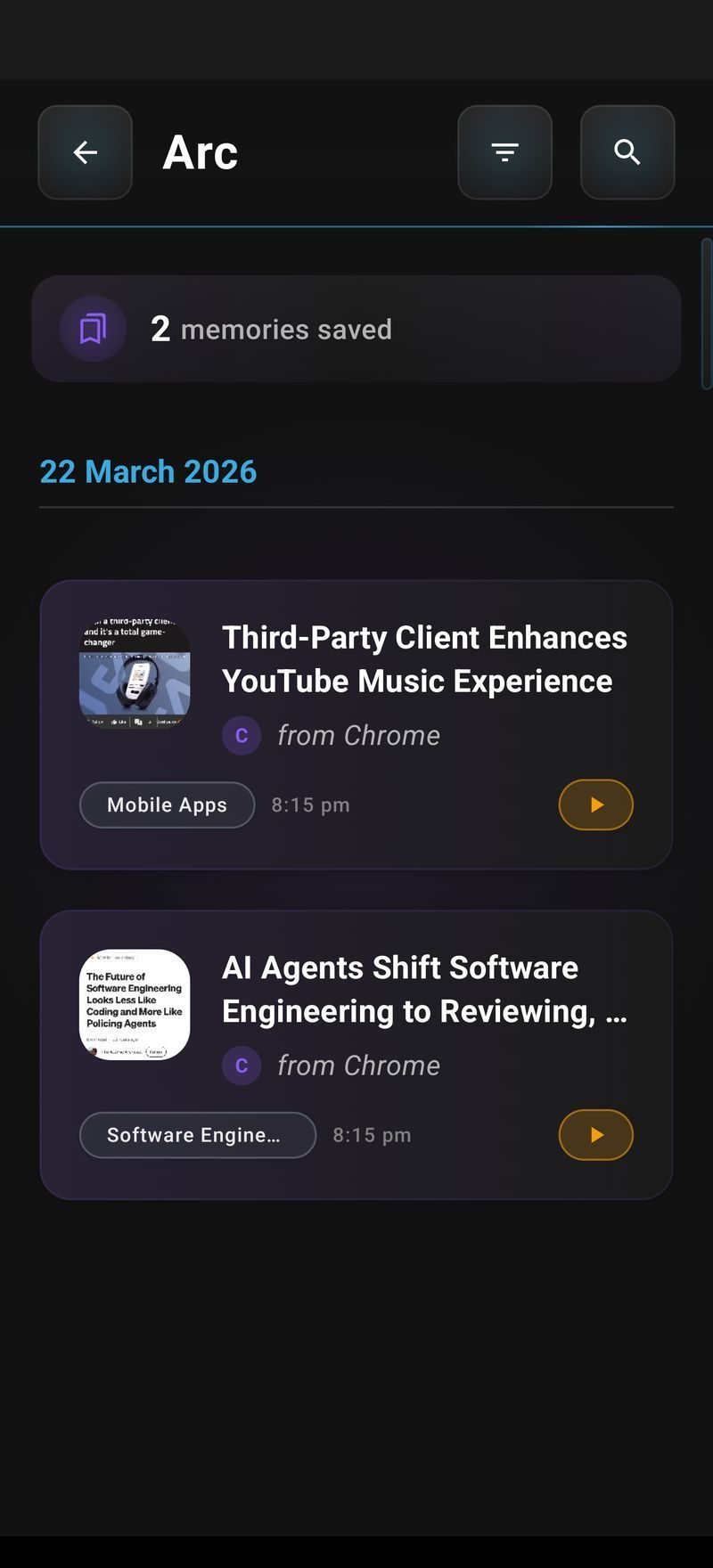
Every saved item has a play button.
Reading the current screen is only half of it. The same speech engine powers play buttons throughout Arc, which turns your library into a listening queue:
- AI Summary results: a play button in the top corner of every summary panel — listen to the summary instead of reading it, without leaving the panel.
- Saved Items rows: every saved article or summary has a speaker button right on the row. Tap it and the item reads aloud immediately — you don't even have to open the detail view.
- Library detail view: opened an item? The play control is there too.
- Chat responses: Arc's answers have a speaker control, so long explanations can be heard rather than read.
The practical effect: save an article in the morning, and on your walk home your saved list is a podcast of things you chose. Every summary you asked Arc for becomes audio with one tap. For listeners who find reading expensive — dyslexia, low vision, eye strain, or just tired eyes at the end of a workday — the library quietly becomes the audio version of your reading list. And it's the same engine everywhere: one set of speed and pitch settings governs all of it.
Common questions
Is this text-to-speech app free?
Yes — AI Read is included free with generous daily usage. An optional premium subscription removes limits. No per-minute charges.
Is Arc good for dyslexia?
Yes — that's a core design goal. Arc is built to WCAG 2.1 AA with TalkBack support: one tap reads any screen without copying text anywhere, and it also summarizes long texts so you can listen before reading.
Can it read PDFs aloud?
Yes — open the PDF, invoke AI Read, and Arc reads what's on screen. Works with textbooks, papers, contracts, any document visible on screen.
Which languages does it support?
100+ languages with automatic detection — Arc picks the highest-quality installed voice for whatever language it detects on screen, and falls back to a close match if nothing is installed.
How do I get better-sounding voices?
The natural voices are free OS downloads. Arc detects when only the basic voice is installed and its Get Voices button opens the OS voice settings directly — Premium/Enhanced voices on macOS, Natural/Neural voices on Windows.
Is there a text-to-speech app for iPhone?
The iOS version is coming soon. Arc for macOS is available today, and Arc for Android works on all modern Android phones.