
How to Read Screen Aloud Android: 4 Ways, 2 Minutes
Your eyes are tired, the article is 3,000 words, and you just want your phone to read it to you. So you search how to read screen aloud Android — and Google sends you to a support page, a YouTube walkthrough, and a Reddit thread where half the answers stopped working three Android versions ago. I built Arc AI Screen Assistant, and this exact problem is the reason I started. This post walks through every way to make an Android phone read text aloud: what each route does well, where it stops short, and real setup steps for each.
Quick frame before the steps: every method below is free. Three are built into Android itself. The fourth is Arc, which reads text in any app from a floating sidebar — it’s also released on Mac, where the same features run behind a Control+Space shortcut, so if you split time between an Android phone and a Mac you get the same workflow on both.
How to Read Screen Aloud Android: 3 Built-In Routes
Android answers the “read this aloud” request in three places: Select to Speak, Chrome’s Read Aloud, and TalkBack. All three answers to how to read screen aloud Android already ship with your phone, so try them before installing anything. They differ in setup effort, what apps they cover, and how much they reshape the way your phone behaves.
Method 1: Select to Speak — how to read screen aloud Android without extra apps
Select to Speak is Google’s tool for hearing specific things on screen, not the whole interface. This is the official route for how to read screen aloud Android ships with, and it works on any Android 9+ phone from Samsung, Pixel, Xiaomi, Motorola, or essentially anyone else.
Setup, once:
- Open Settings → Accessibility → Installed apps (some phones just call it Select to Speak).
- Toggle Select to Speak on and confirm it should display the shortcut.
- Follow the permission prompts — screen access so it can extract text, plus the floating red control.
Use, every time:
- Tap the control, then tap any text to hear just that line.
- Drag a box across a paragraph or a whole card to hear the full block read back.
- Drag your finger across multiple items to queue them.
- Play, pause, and jump controls appear at the bottom while it reads, and each sentence highlights as it’s spoken.
Strengths: no install, works in nearly every app, reads photos and screenshots with OCR on most devices. Friction: the red floating button sits on top of everything, the voice is your system TTS voice only, and the menu steps to trigger it cost a tap or two every single time. For occasional use it’s great. If you use it daily, the ritual gets old — which is usually when people go searching how to read screen aloud Android a second time.
Method 2: Chrome Read Aloud — how to read screen aloud Android in the browser
If “screen” mostly means web pages for you, Chrome has a native listener built in on current versions:
- Long-press the text until Chrome highlights it in teal.
- Tap the three dots in the selection menu.
- Tap Read aloud — Chrome reads the page, highlighting the sentence it’s on, with speed and voice controls under the player.
On some Chrome versions the long way is the overflow menu → Listen. Both land in the same reader.
This is the best-quality route for articles: no accessibility mode, no floating button, decent playback controls. The catch is right there in the name — it’s Chrome. If the text you want read is in a news app, an email client, a PDF reader, or any non-Chrome window, this route simply doesn’t run there. If how to read screen aloud Android means “only web pages,” stop here. If it means “any app,” keep going.
Method 3: TalkBack — when how to read screen aloud Android means hands-free
TalkBack is Android’s full screen reader, designed for blind and low-vision users, and it’s the most powerful of the three built-ins:
- Settings → Accessibility → TalkBack, toggle it on.
- Navigation changes immediately: swipe right to move through items, double-tap instead of single-tap to activate, two-finger scrolling.
- Open a screen and TalkBack announces what’s under your finger; use its reading controls to jump by headings or paragraphs.
Know what you’re switching to before you enable it: TalkBack changes every gesture on the phone while it’s active. Many people searching how to read screen aloud Android want occasional listening, not a relearned phone — and TalkBack’s gestures will genuinely slow you down if you use voice guidance only casually. Enable it for deep accessibility needs; use Select to Speak for targeted listening.
How to Read Screen Aloud Android in Any App With Arc
Now the method that handles the “any app, any window, no mode switch” case. Arc is a floating sidebar that lives above every app on your phone — Chrome, Gmail, PDF readers, news apps, in-app browsers. Its Read-aloud feature extracts the raw text currently on screen, so it even works in apps that never bothered to support text selection.
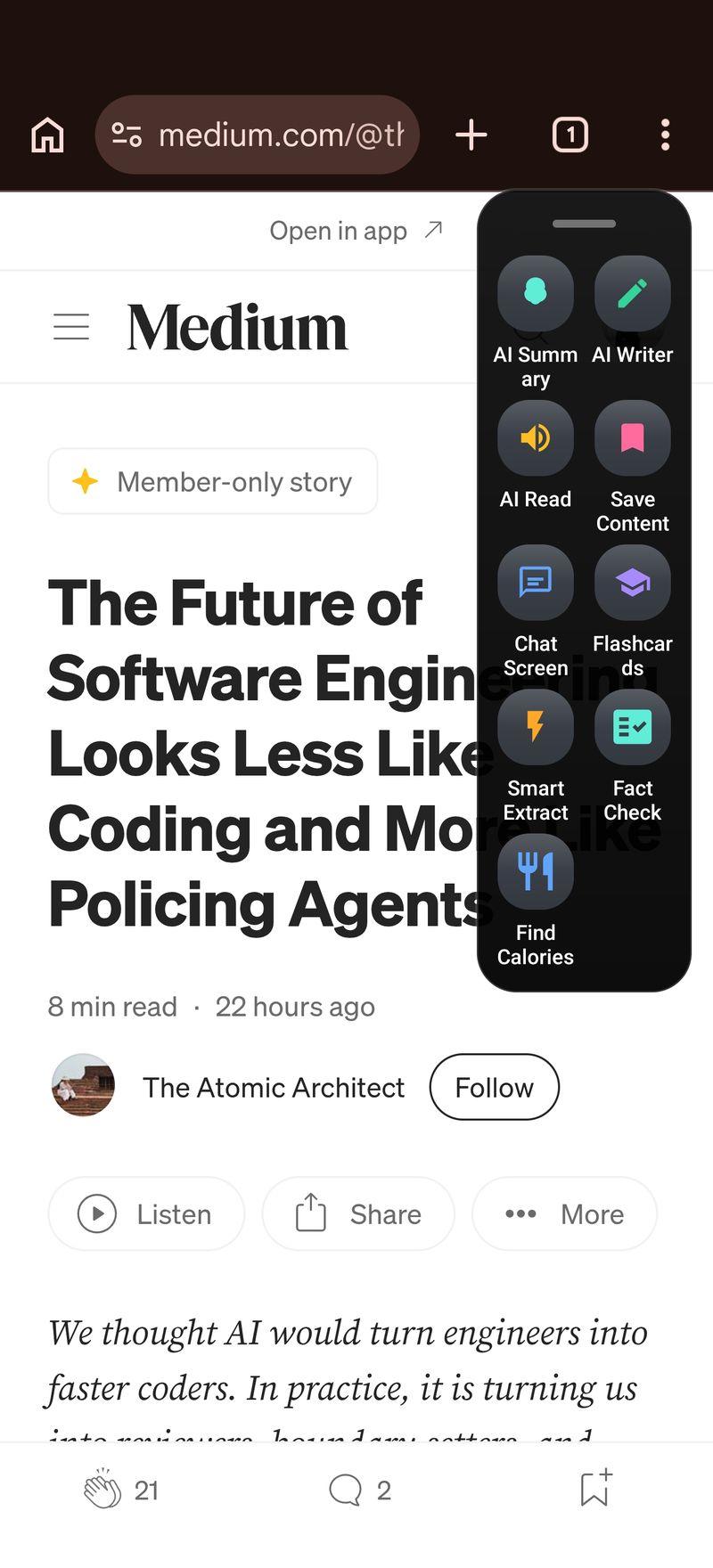
Here’s how to read screen aloud Android with Arc, start to finish:
- Install Arc from Google Play and pick Arc for Android setup — the sidebar enables during onboarding in about a minute.
- Open the app containing your text — article, email, PDF, whatever it is.
- Tap the floating tab at the screen’s edge. The sidebar slides open over what you’re reading.
- Tap Read (the speaker icon). Arc pulls the visible text off the screen and starts reading with progress controls.
- Adjust and save. Speed and voice live in the player. Anything worth keeping lands in Arc’s library for later.
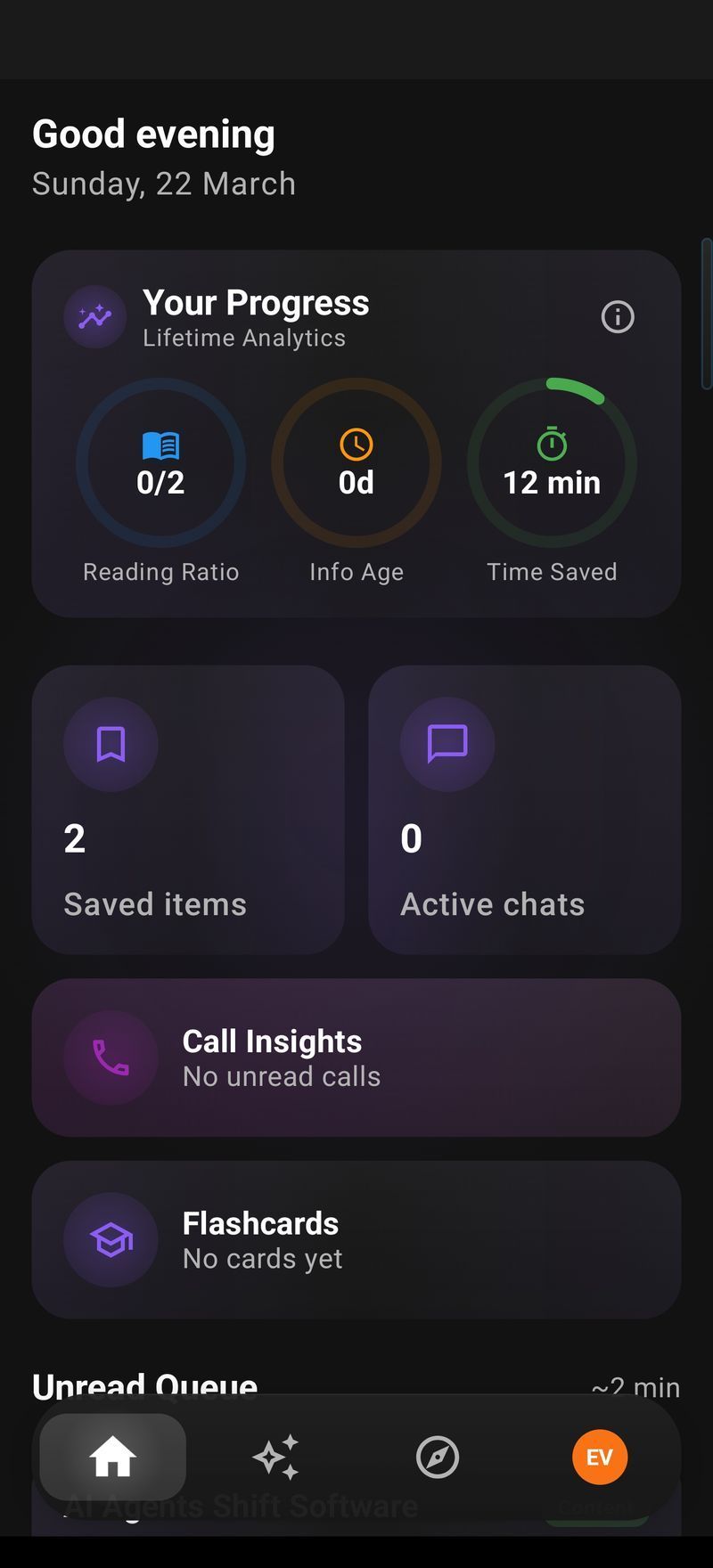
That’s the whole answer to how to read screen aloud Android in Arc: no selection menu, no accessibility toggle, and it works the same whether the text lives in Chrome or in an app Google’s tools can’t reach. On Mac it’s the same feature behind Control+Space — see the Arc for Mac page — so the habit transfers between devices.
Why I built it this way: the built-ins are either app-locked (Chrome), mode-heavy (TalkBack), or ritual-heavy (Select to Speak’s floating button and menus). A sidebar that watches the actual screen content fits how people actually read — mid-article, mid-email, mid-scroll.
How to Read Screen Aloud Android Faster: Smart Extract, Summaries, and Speed
Reading aloud solves access. The next level question is throughput — a 3,000-word article at normal speech rate is 20 listening minutes. Arc pairs its read-aloud with tools that cut the listening time:
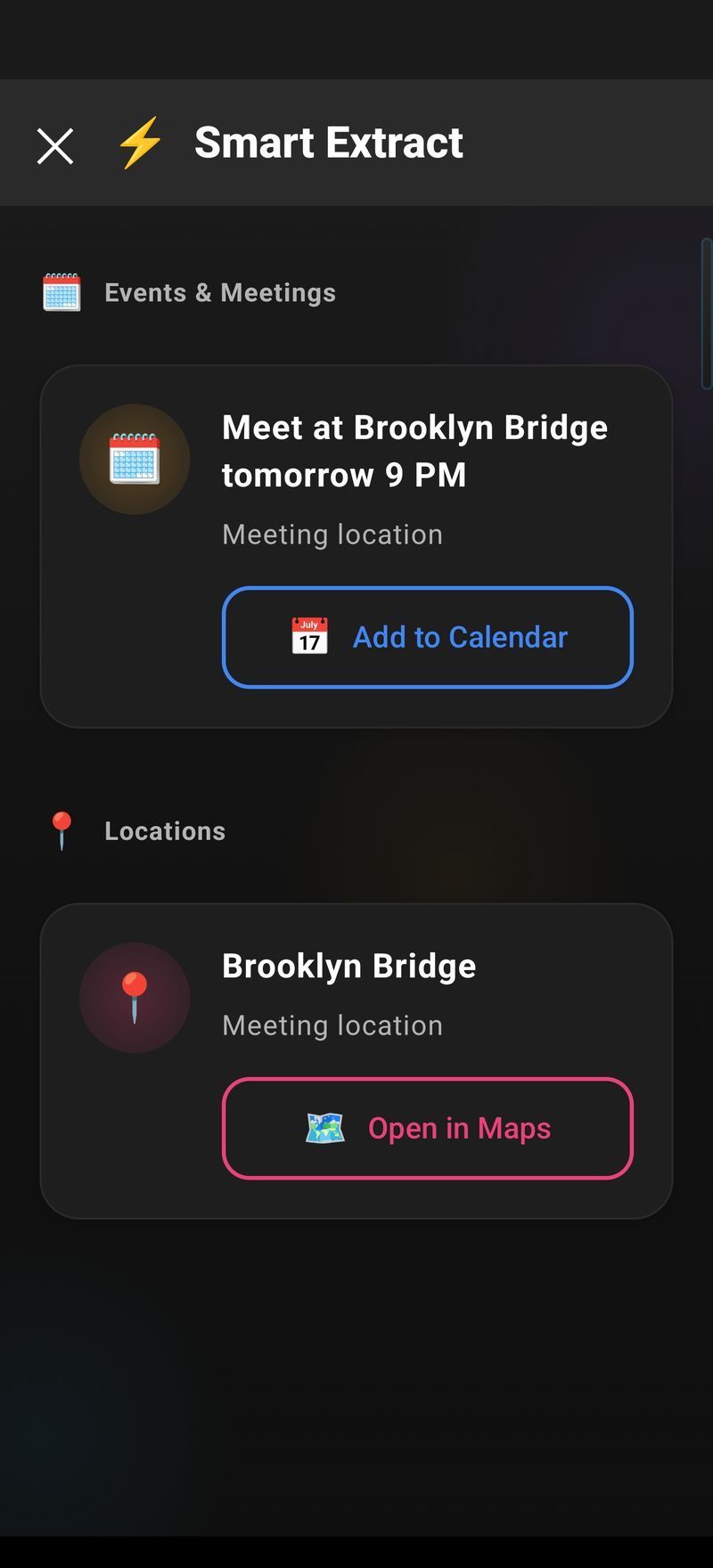
Smart Extract. Tap it to pull the messy screen content — headers, ads, nav cruft included — into clean, structured text. If a page reads badly aloud (tables, sidebars), Smart Extract cleans it before the voice ever starts. You can save the extract as flashcards too.
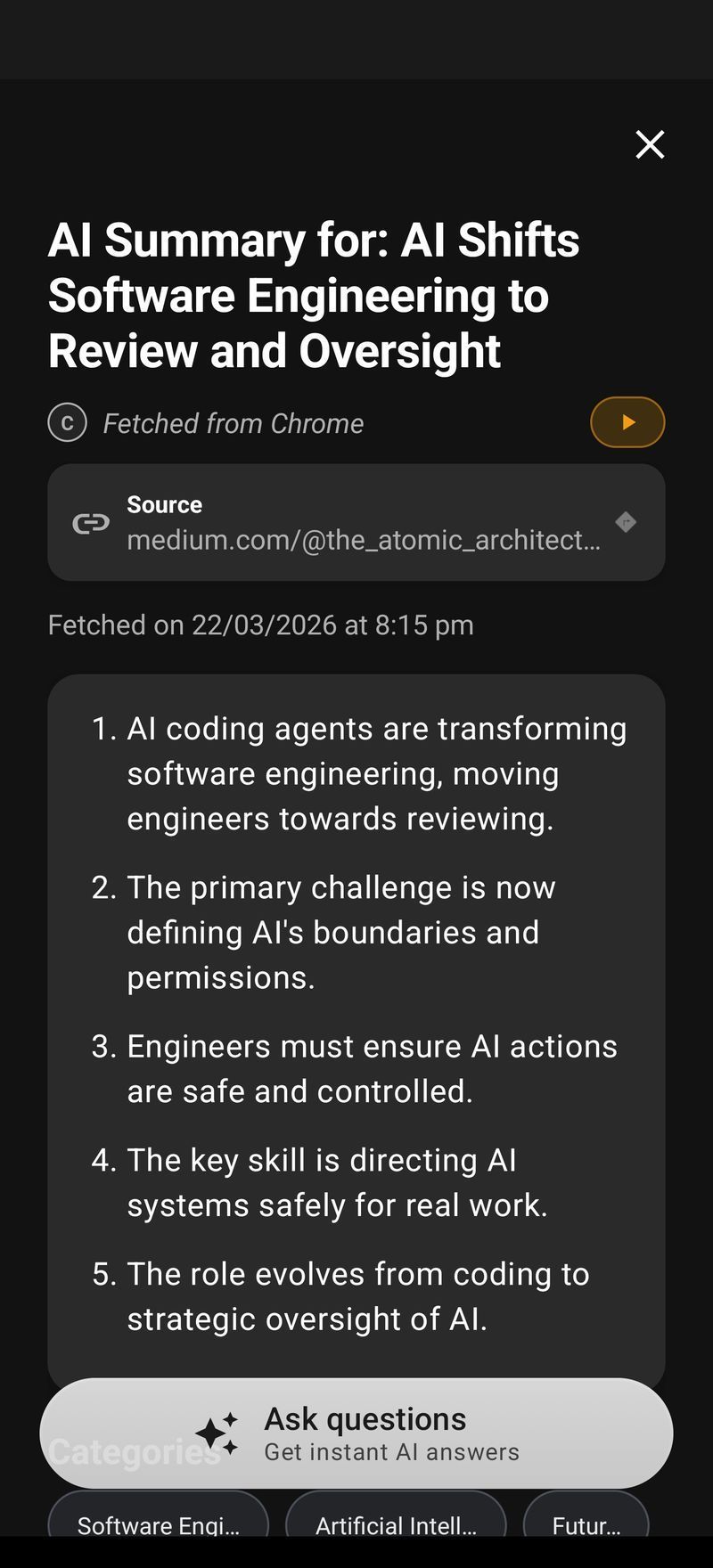
AI Summary, then read the summary. This is the honest 5x trick: summarize first, then listen to the 300-word distilled version instead of the full 3,000. The AI Summary & Reader flow keeps summaries in a library you can re-read or re-listen to anytime.
Speech rate on the player. 1.5x is where most people settle — comprehension holds and the time halves. The read-aloud player in Arc remembers your setting between sessions.
So when the goal is time, not just access, how to read screen aloud Android becomes three moves: summarize, extract clean text, listen at speed.
Picking Your Setup in 30 Seconds
- Web pages only, occasionally → Chrome’s Read Aloud. Zero setup.
- Accessibility-first, all apps, all day → TalkBack (and pair it with AI Summary & Reader if summaries help you digest faster).
- Occasional reads in random apps → Select to Speak. It’s built in and handles photos.
- Daily reading in any app, with summaries and a library → Arc’s floating sidebar. Try Arc free on Google Play — the sidebar setup takes a minute, and the same reading stack runs on Mac with Control+Space.
- Text you’d rather rewrite than read → open the sidebar’s AI Writer instead; rewrite for clarity, then read aloud the cleaner version.
FAQ
How to read screen aloud Android free?
Three free ways without installing anything: Select to Speak (Settings → Accessibility), Chrome Read Aloud (select text → Read aloud), and TalkBack for a full screen reader. Arc’s sidebar is also free to start and covers any app, not just Chrome.
How to read screen aloud Android without Select to Speak?
If you don’t want its floating button: in Chrome use select-text → Read aloud; in any other app, use Arc’s sidebar Read feature — it reads the on-screen text directly, no selection needed.
How to read screen aloud Android for PDFs and images?
Select to Speak reads visible PDF text, and on Pixel/Samsung builds it OCRs images too. Arc extracts raw screen text above your PDF reader and reads it, and Smart Extract cleans broken PDF columns before listening. (Tip: if a PDF opens in Adobe’s viewer, Arc still reads what’s rendered on screen.)
Why is my Bluetooth speaker or headphones silent during reads?
Audio routes to the connected device. If the reading is silent, either your headphones took over the output or media volume is at zero — raise media volume (not ringer) side of things or disconnect Bluetooth, then replay.
Does reading a screen aloud work on Mac too?
Yes — Arc’s Mac app runs the same reading, summarizing, and rewriting features with a Control+Space overlay. Full details on Arc for Mac.
Can I save what it read for later?
Yes. In Arc, summaries, extracts, and saved items all land in the built-in library, so a long read today becomes a re-listen or a summary review tomorrow.