Read Screen Aloud Android App: Set It Up in 2 Minutes
You’re halfway through a 4,000-word article on your phone when your eyes give out. Or you’re cooking with both hands busy and the recipe lives in a browser tab. Or it’s 11pm, lights off, and you still have three long emails to get through. In all three cases the fix is the same: have your phone read the screen aloud while you listen.
Android has shipped the raw ingredients for years — text-to-speech, Select to Speak, TalkBack. But there’s a big gap between a phone that can mechanically speak whatever you select and a proper read screen aloud Android app that turns listening into an actual workflow: capture any screen, hear it spoken, summarize it if it’s too long, and save it for later. That gap is why I built Arc, and in this guide I’ll walk you through both routes — the free built-in tools and the screen-aware assistant — so you can pick what fits.
What “Read Screen Aloud” Actually Means on Android
When people go looking for a way to make their phone read text aloud, they usually land on one of three tools:
- Select to Speak — a built-in accessibility feature that reads whatever you tap or drag a box around.
- TalkBack — Android’s full screen reader, designed for non-visual navigation of the entire interface.
- Third-party TTS readers — apps like @Voice Aloud Reader that read files, web pages, and pasted text.
All three genuinely work. For a quick one-off — “speak this paragraph” — Select to Speak is often all you need. The question is what happens when you want to do this fifty times a week across Chrome, Gmail, WhatsApp, news apps, and PDFs. That’s where the built-ins start to creak.
The built-in route: Select to Speak in four steps
If you just want to try listening to your screen today, this is the fastest setup on any Android phone:
- Open Settings → Accessibility → Select to Speak and toggle it on.
- Grant the screen-capture permission when the prompt appears.
- An accessibility button shows up on screen. Tap it, then tap a specific item or drag a rectangle across the text block you want spoken.
- A playback bar appears with play, pause, and speed controls. Adjust the speed slider until the pace works for you.
TalkBack works differently: once enabled, it changes how you navigate the whole phone — swipe to move between items, double-tap to activate. It’s a superb accessibility tool, but it’s a mode you enter and exit, not something that layers quietly on top of normal scrolling. Most readers I’ve talked to don’t want their entire interaction model to change just to hear one article. They want the screen read aloud, then to keep moving.
Where built-in TTS stops short
After a week of relying on Select to Speak as a daily reader, the friction shows up in the same places every time:
- It reads, but doesn’t digest. A 3,000-word page takes roughly 20 minutes to listen to. There’s no “give me the 60-second version first.”
- Selection friction. Dragging a rectangle around an article body — dodging menus, ads, and comment sections — gets old fast, especially on a phone.
- Nothing sticks. If you hear something worth remembering, there’s no library to return to, no summary attached.
- No follow-up. You can’t ask a question about what was just read. The text talks; you can’t talk back.
None of these are flaws — the built-ins were designed as accessibility features and they’re excellent at that job. But “read screen aloud” as a daily workflow — commute listening, research triage, hands-busy multitasking — needs more. So when you graduate from “make this paragraph talk” to wanting a full read screen aloud Android app workflow, here’s the setup I’d recommend.
Arc: the read screen aloud Android app that also understands your screen
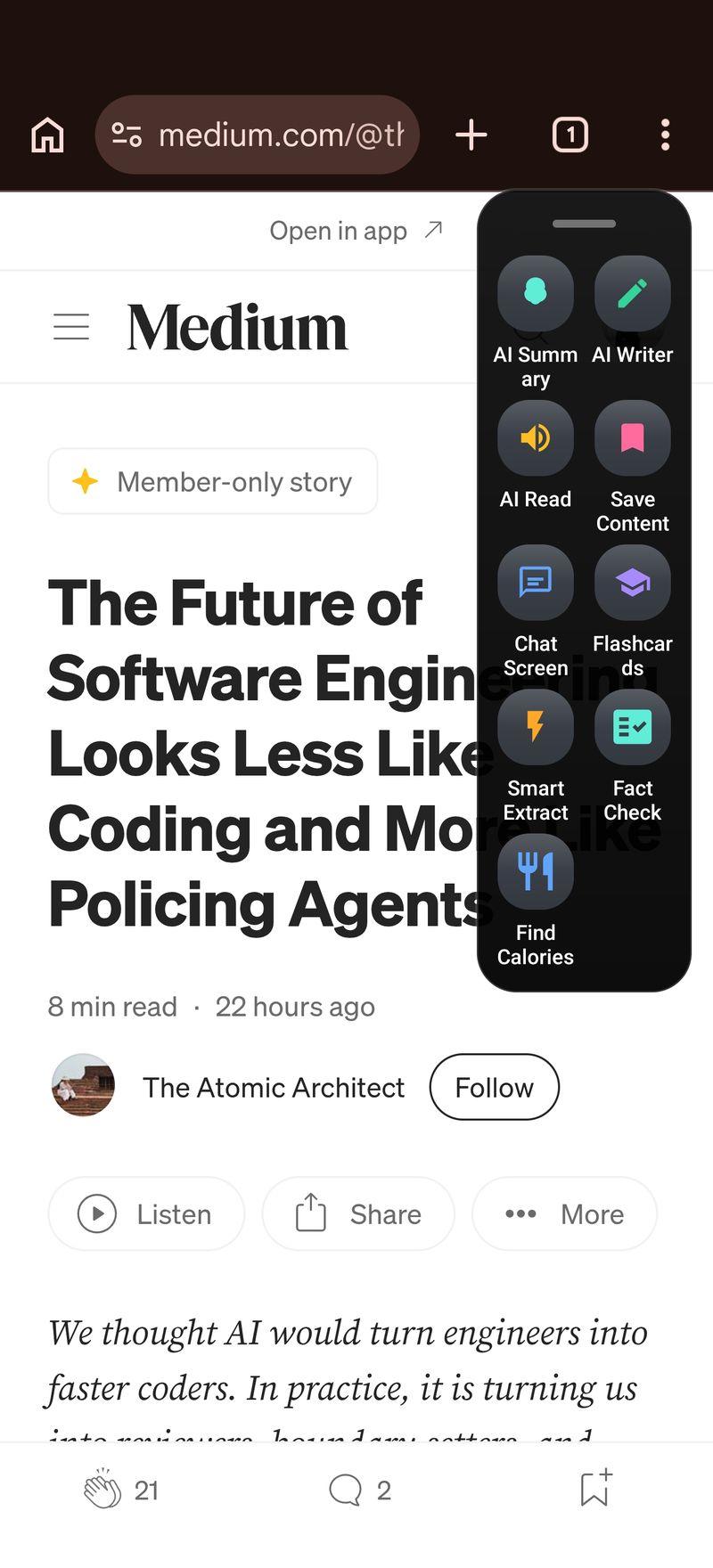
Arc is a floating AI sidebar that lives over every app on your phone. Tap its edge and it expands over whatever you’re looking at — a Chrome article, a Gmail thread, a PDF, a group chat — with one tap to capture the screen and act on it. Arc for Android works system-wide, so there’s no copy-paste detour and no app-switching.
Every read screen aloud Android app needs the same two permissions: accessibility access (to read screen content) and a speech engine (to speak it). Arc adds a third layer the built-ins don’t have — an LLM that reads the screen with you. That means you can:
- Listen to the full text of any captured screen, with speed control
- Summarize first, then decide whether the full listen is worth it
- Ask follow-up questions about the content in plain language
- Save the capture to a searchable library, summary attached
And if you also work on a Mac, Arc exists there too — summoned with Control+Space over any window, with the same capture-then-listen flow. One assistant, both platforms.
How to read your screen aloud with Arc, step by step
This read screen aloud Android app setup takes about five minutes, start to finish.
Step 1: Install and grant screen access
Grab Arc from Google Play (link at the end of this post), open it, and accept the two setup prompts: enable Arc in Accessibility settings, and allow it to display over other apps. No account juggling — the free tier gets you going immediately.
Step 2: Capture the screen you’re on
Open whatever you want to hear — an article, an email, a long chat — and tap the floating sidebar. Hit capture, and Arc ingests the visible screen content in a couple of seconds. This is the part that feels different from Select to Speak: one tap grabs the whole page cleanly, headings and body text included, with no dragging selection boxes around ads.
Step 3: Listen, or summarize first
Now you choose. Want the full text read aloud? Tap play and listen at your preferred speed. Facing a wall of text? Ask Arc for an AI Summary & Reader pass first — key points in a few seconds — and only commit to the full listen when the summary earns it. That triage-before-listen habit is the single biggest time-saver in this flow; I use it for newsletters constantly.
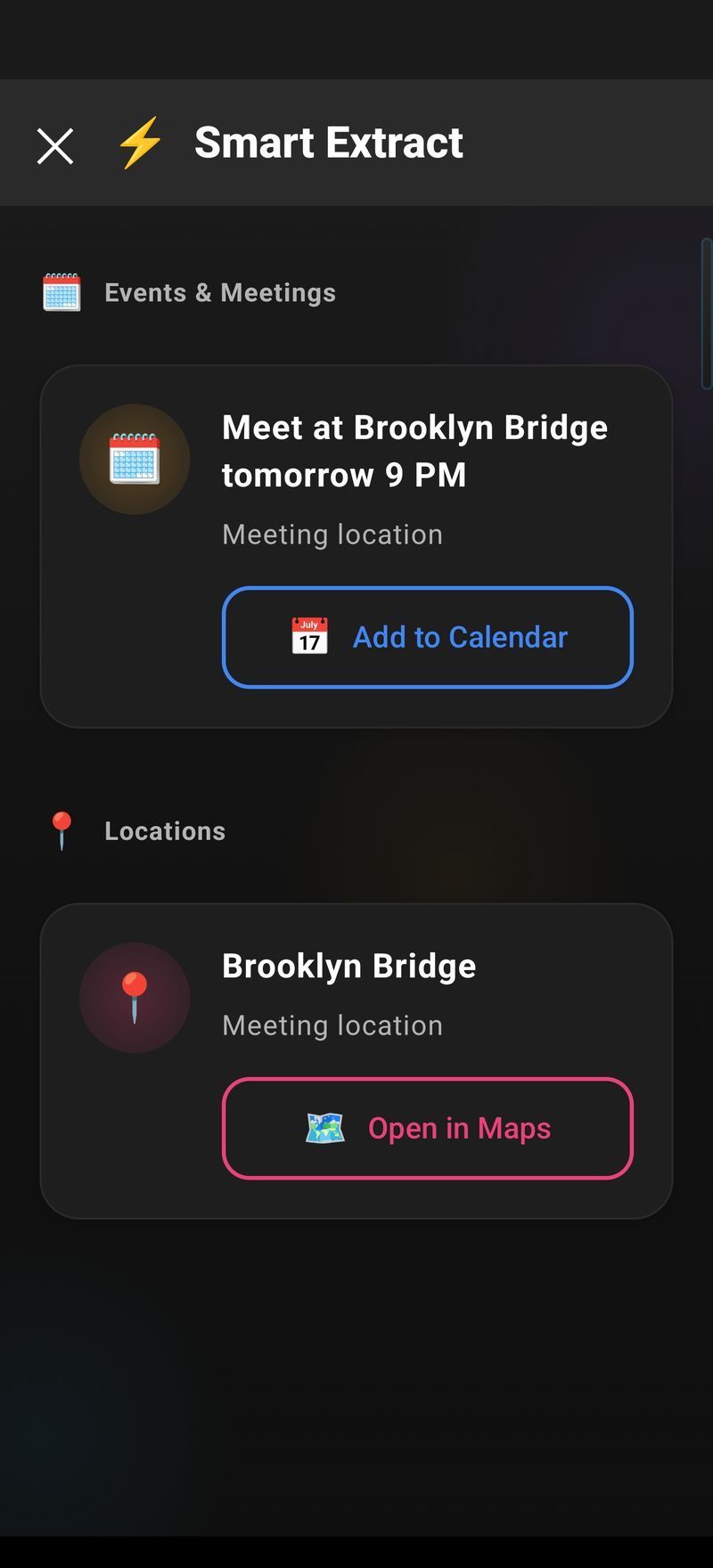
Because an LLM is in the loop, you can also do things no speech engine can: “explain the second point simpler,” “what is the author actually recommending,” “pull out just the numbers.” The screen becomes something you can converse with, not just something that talks.
Step 4: Save anything worth a second listen
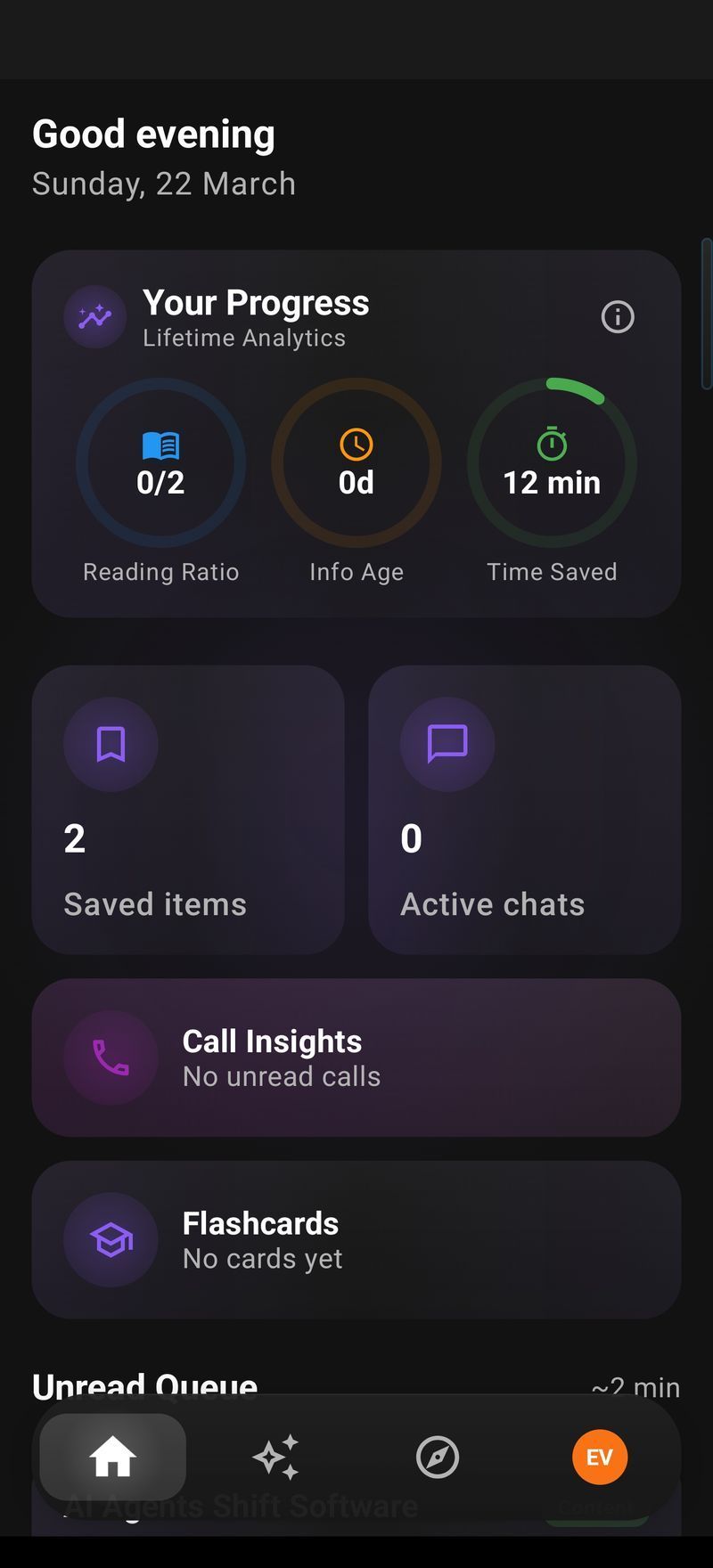
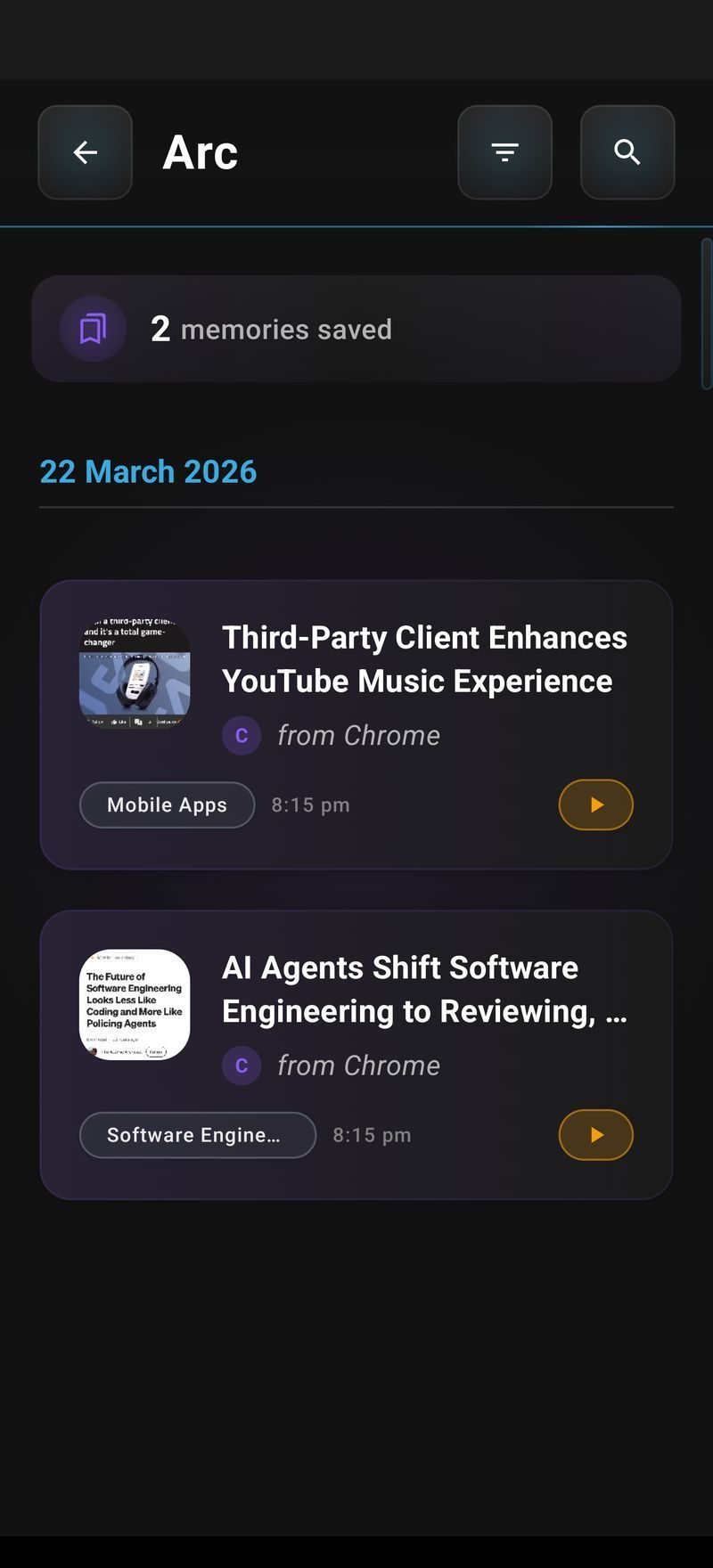
Tap save and the capture — with its summary — lands in your Arc library. Tomorrow’s commute, the gym, the third re-read of a confusing doc: it’s all still there, searchable. The AI Summary & Reader library has quietly become my second brain for exactly this reason.
Built-in tools vs Arc: a quick comparison
| Select to Speak / TalkBack | Arc | |
|---|---|---|
| Setup | Built-in, instant | About one minute |
| Works in any app | Yes, with selection friction | Yes, one tap, no selection |
| Summarizes before reading | No | Yes |
| Follow-up questions | No | Yes |
| Saves captures to a library | No | Yes |
| Also available on Mac | — | Yes, Control+Space |
The honest take: if you occasionally need a paragraph spoken, stay with Select to Speak — it’s free, instant, and already on your phone. If listening is becoming part of how you get through content every day, a dedicated read screen aloud Android app earns its install.
Tips for listening instead of reading
A good read screen aloud Android app only helps if it fits the gaps of your day. Six habits that made this stick for me:
- Summarize long pages first. If a capture runs past ~800 words, get the summary before committing to the full listen.
- Bump the speed to 1.2–1.5x. Comprehension holds up better than you’d expect, and long articles stop feeling long.
- Pair it with motion. Commutes, cooking, walking the dog — listening shines when your hands and eyes are busy.
- Use earbuds for private content. Email threads and chat screenshots in public: earbuds, always.
- Save on the first pass. One tap now beats hunting for the article in your browser history tomorrow.
- Ask instead of re-reading. “What are the three action items here?” beats scrubbing back through audio.
FAQ: Reading Your Screen Aloud on Android
What is the best read screen aloud Android app?
For pure accessibility navigation, TalkBack is excellent and built in. For reading content — articles, emails, PDFs — with summaries and a save library, I’d point you at Arc: one-tap screen capture, read-aloud, AI summaries, and follow-up questions in one floating sidebar. If you only need occasional paragraph-by-paragraph speech, Select to Speak costs nothing.
Can my Android read to me without installing anything?
Yes. Select to Speak (Settings → Accessibility → Select to Speak) reads anything you select, and TalkBack provides full spoken navigation. Both ship on every modern Android phone.
Can a read screen aloud Android app work inside any app?
The right one, yes. TalkBack and Select to Speak work system-wide, and Arc’s floating sidebar sits over any app — Chrome, Gmail, WhatsApp, PDFs — because it reads the screen itself rather than waiting for each app to support it.
Is there a free read screen aloud Android app?
Select to Speak is free and already on your phone. Arc is free to download from Google Play, with a free tier to start, so you can test the capture-listen-save flow before deciding it belongs in your routine.
Does Arc work on iPhone or Mac?
The Mac app is live now — same capture, summarize, and listen flow, summoned with Control+Space. An iOS version is in development; you can join the waitlist at arcassistant.app.
Reading will always have its place. But a surprising amount of what lands on your phone — newsletters, long emails, documentation, that one 5,000-word essay — doesn’t actually need your eyes. It needs five minutes of your ears. Install Arc, grant the two permissions, and the next wall of text you meet becomes a tap and a listen.
Try Arc free on Google Play — the read screen aloud Android app I use every day.