Turn Any Screen Into Flashcards
Reading a Wikipedia article, a textbook PDF, lecture notes or API docs? One tap and Arc turns it into a free flashcard deck — question, hint, and answer for every card — ready to study before the tab closes.
From screen to study deck in one action.
You know the drill. You've got a 40-page lecture PDF open, an exam on Thursday, and the "proper" workflow says: read the chapter, decide what matters, write a question for it, write the answer, add a hint if you're feeling generous, repeat until Sunday. Most people give up somewhere around page six and just re-read the PDF, which feels like studying and isn't.
Arc skips the writing part. Whatever is on your screen — a Wikipedia article, a textbook chapter, lecture slides, API documentation, a compliance training module — becomes a full flashcard deck in one action:
1️⃣ Open your study material
A Wikipedia article, textbook PDF, lecture slides, API docs, training modules — anything on screen works. No upload step, no file conversion.
2️⃣ Invoke Flashcards
Arc reads the screen and generates a complete deck — question, hint, and answer for each card — in seconds, not an evening.
3️⃣ Preview, study, save
Study the deck immediately. Like it? Save it to your library with the source app attached. Not quite right? Regenerate — bad decks never enter your library.
On the desktop apps, you summon Arc with Ctrl + Space and pick Flashcards. On Android it's a tap from the Arc menu. Either way, Arc reads what's in front of you and a click-through progress overlay appears while the deck is generated. A moment later the viewer opens right over your material — no switching apps, no losing your place.
The first thing you see is not a form asking you to configure anything. It's the deck itself: an AI-generated title like "Introduction to Artificial Intelligence", the source app and card count underneath (Google Chrome · 5 cards), and the first card showing its question face. You can start studying before you've decided whether to keep the deck.
PDFs become decks without any conversion.
The "PDF to flashcards" workflow people usually describe online involves exporting your PDF, uploading it to a converter website, waiting in a queue, downloading the result, and importing it into a study app — three services where one would do. If your PDF contains anything you'd rather not hand to a stranger's upload form (course readings you paid for, an unpublished paper, a company training document), you simply don't do it.
Arc works on what's already on your screen. The PDF is open — in a browser, in Preview, in any reader — and you generate the deck from the visible content. Nothing is uploaded to a converter. Nothing is added to a processing queue. You never leave the page.
- Lecture slides: the professor's 80-slide deck becomes a deck you can actually drill before the midterm.
- Textbook chapters: dense assigned reading turns into question-answer pairs that force real recall instead of passive re-reading.
- Papers and documentation: a research paper or an API reference you need to know by Friday — on screen, one action, studyable deck.
- Onboarding material: that 60-page "Welcome, here's our process" document becomes a quiz you can retake until the process is actually in your head.
And it's not just PDFs. Any readable screen converts: news articles, Wikipedia deep-dives, wiki pages at work, email threads, your own notes. If you can read it, Arc can quiz you on it.
Built for actual studying.
Generating a deck is the easy half. A flashcard maker lives or dies on what studying feels like, so this is where Arc puts its effort — starting with the cards themselves.
🃏 Three faces per card
QUESTION → HINT → ANSWER. Try from memory, peek at the hint, then flip. That middle step makes you think instead of just reading the answer.
⌨️ Keyboard study mode
Space flips, H shows the hint, ← → page through, Esc closes. Your hand never leaves the keyboard.
📚 Deck library
Every deck saves with its title, source app, and card count. Search decks, track review counts, delete one or fifty.
👁️ Preview before saving
Study the whole deck first — only save if it's good. A one-keystroke regen gives you a second take on the same material.
🖱️ Mouse-friendly too
Chevrons page, clicking the card flips, a counter pill shows 1 / 5, 2 / 5 — keyboard-first without being keyboard-only.
🌍 Any subject, any language
Powered by Google Gemini — history, medicine, law, code, languages. 100+ languages detected automatically.
The three-face card: question, hint, answer
Most flashcards are two-sided: question on the front, answer on the back, and a very short trip between them. Arc's cards have three faces, and the middle one changes how studying feels.
You see the question. Try to answer it from memory. Not quite there? Press H and a hint appears — not the answer, a nudge toward it. That moment of straining toward the answer with a little help is exactly where memory gets made. From the hint face, flipping takes you to the full answer. If you knew it cold, skip the hint entirely and flip straight through.
The face cycles are simple: question → answer → question, or question → hint → answer. Nothing to configure. It's the difference between recognition ("oh yeah, I knew that") and recall ("give me a second… the three tiers are…"). Recall is the part that survives until exam day.
Keyboard-first study mode
On Mac (and soon Windows), the study loop is built for the keyboard because studying is a rhythm, and reaching for a mouse breaks it:
- Space flips the card — answer, then back to the question.
- H reveals the hint face.
- → advances to the next card, ← steps back to the one you fumbled.
- Esc closes the viewer.
A counter pill in the corner shows 2 / 5 so you always know where you are in the deck, and there are on-screen chevrons for mouse users — nobody is locked out either way. The viewer works as a floating panel or inline in the main window, and both paths behave identically.
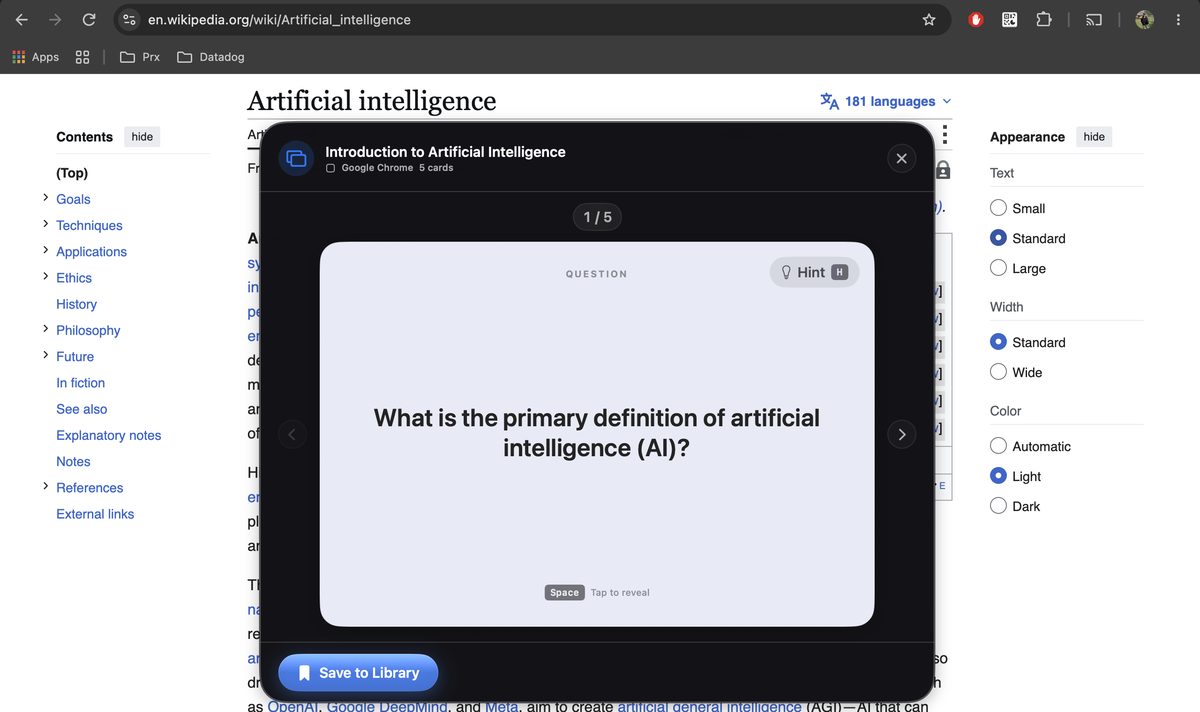
The flashcard viewer: question face first, hint on H, Space to reveal the answer.
A deck library with review counts
Saved decks live under Flashcards in the main window sidebar. Each row shows the deck title, the app it came from, how many cards it holds, and — the part that matters in week three — a Reviewed counter showing how many times you've actually studied it.
That counter quietly answers the question every student asks the night before an exam: which decks have I drilled and which have I been avoiding? The immunology deck you've reviewed six times and the Spanish verbs deck sitting at zero are both right there in black and white. It's lightweight progress tracking — no scheduling algorithm to configure, just an honest tally.
The library is practical, too: a Search decks… field filters the list as you type, and decks can be deleted individually with the trash icon or in bulk with the selection circles — a confirmation tells you exactly how many you're about to remove before anything disappears.
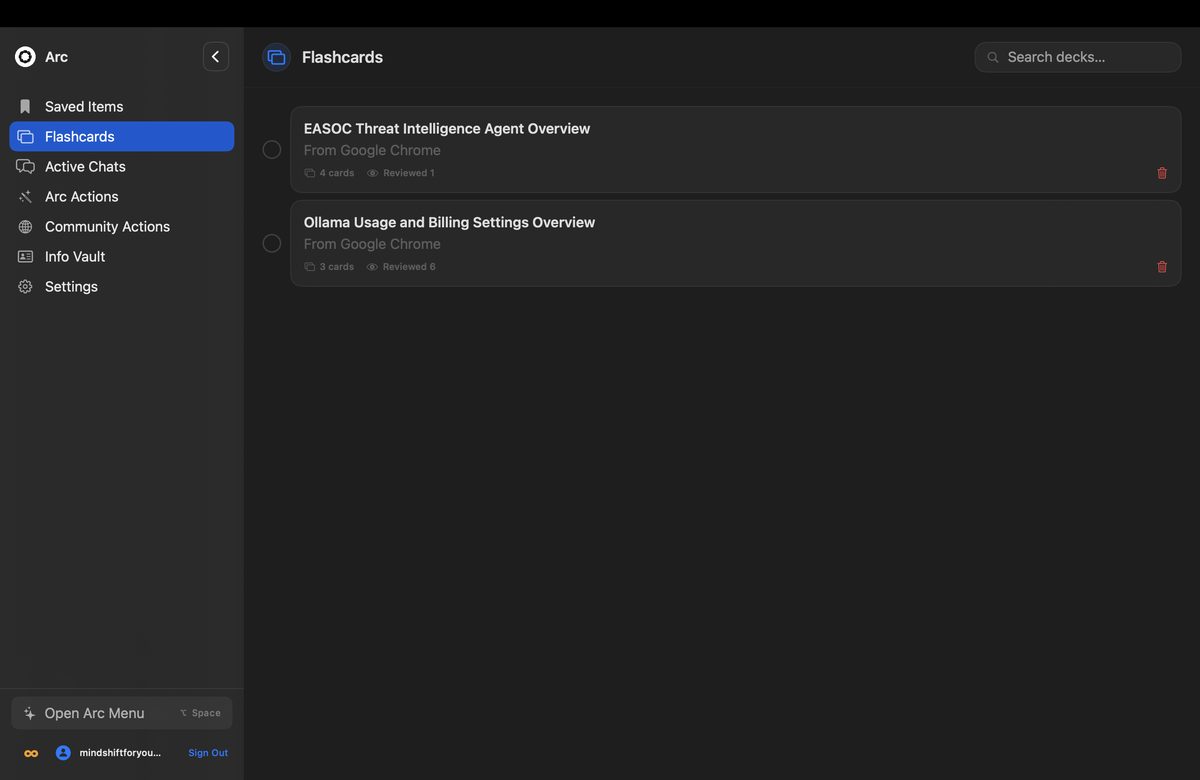
The deck library: every deck with its source app, card count, and reviewed tally.
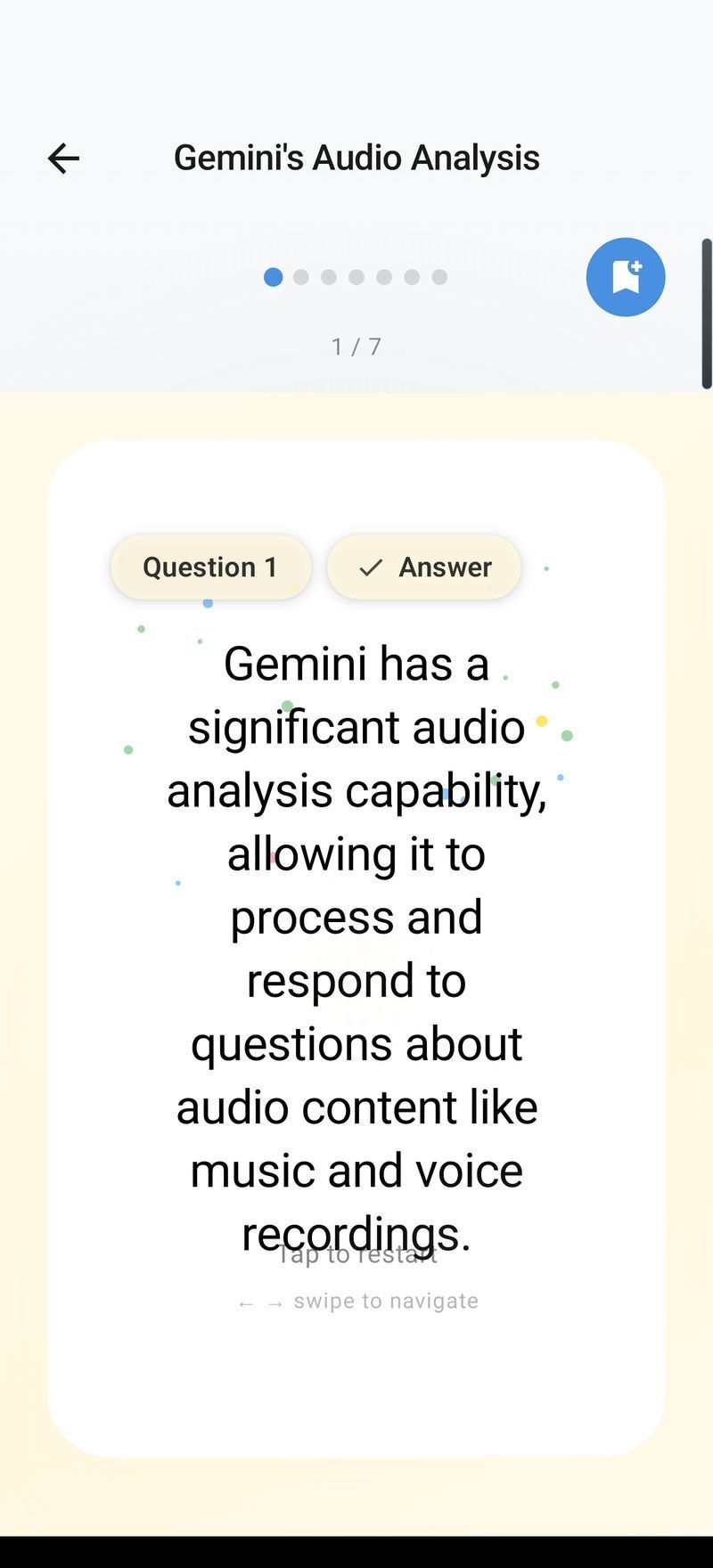
Preview before you save
Here's the part that keeps a deck library worth opening in month three: the viewer opens the moment a deck is generated, before anything is saved. You study the deck first — every card — and only press Save to Library if it's actually good.
If the questions missed the point, close it without saving and invoke Flashcards again on the same screen — a fresh deck costs one keystroke. Bad decks never enter your library, so what's in there stays worth studying. When you do save, the deck keeps its title, its source app, and its card count — so "From Google Chrome · 5 cards" stays attached, and you always remember where a deck came from.
Arc vs Anki: generation versus scheduling.
Anki is the elephant in every flashcard conversation, so let's be direct about it. Anki is excellent software with a fifteen-year track record, and its spaced-repetition scheduling is still the gold standard for moving knowledge into long-term memory. If your problem is "I have good cards and need to know exactly when to see each one again," Anki is a great answer.
But look at where Anki's effort goes. The decks. Somebody — usually you, at 11pm, with a textbook open — writes every card by hand. Arc attacks that bottleneck instead: point it at any content on screen and get a studyable deck in seconds. The comparison is really about two different jobs:
| Arc | Anki | |
|---|---|---|
| Card creation | ✅ Automatic from any on-screen content | ❌ Written by hand (or imported) |
| PDF to flashcards | ✅ One action, no upload | ⚠️ Via import tools and add-ons |
| Hints on cards | ✅ Built into every card | ⚠️ Possible, but manual per card |
| Spaced repetition | ⚠️ Simple reviewed counters | ✅ The gold standard (FSRS) |
| Setup effort | ✅ None — it works on your screen | ⚠️ Learning curve, deck config |
| Price | ✅ Free tier included | ✅ Free (iOS app paid) |
Seen that way, they're not really competitors — they cover different halves of the studying problem. Arc is the generation engine: zero-effort decks from whatever you're already reading, with a hint layer most hand-written decks never get. Anki is the scheduling engine: long-term retention for material you've committed to for months or years.
Plenty of students run both. Arc to turn this week's lecture PDFs into decks tonight; Anki for the boards or finals material that needs spaced repetition across six months. And if you've bounced off Anki before — the deck options, the add-ons, the import formats — Arc is the low-friction way to get actual recall practice going this week, with nothing to configure.
One honest limitation: Arc's Reviewed counter is a tally, not a scheduling algorithm. It tells you which decks you've neglected; it won't compute the optimal interval for card 47. If long-term spaced repetition is your core need, that's a reason to keep Anki in your stack. Arc's bet is that the bottleneck for most people isn't scheduling — it's that they never have enough cards to schedule.
Printable flashcards, on your terms.
Sometimes you want paper. The night before an exam with a dying laptop battery, or in a room where a phone is a distraction, printed cards still win. Arc decks are built for in-app study, but every card is plain text — question, hint, and answer — so nothing stops you from copying a deck out for printing or export whenever you want paper cards.
And for everyone who'd rather never touch a printer: decks are part of Arc's Google Drive backup, so a deck generated on your Android phone shows up in your desktop library after a restore, and decks generated on Mac merge back down to your phone. Your library follows you across devices.
Perfect for exam season.
| Study scenario | How Arc helps |
|---|---|
| Lecture PDFs | Open the PDF, generate a deck, study immediately |
| Wikipedia deep-dives | Turn any article into a Q&A deck in one tap |
| Training modules at work | Compliance docs become quizzes you actually remember |
| Language learning | Flashcards from any article in your target language |
| Exam revision | Review-count tracking shows which decks need another pass |
| Certifications | Vendor docs and study guides become drills, one chapter at a time |
Common questions
Is this flashcard maker really free?
Yes — Arc is free to download and includes generous flashcard generation on the free plan. Deck generation counts against a weekly quota, and an optional premium subscription removes limits.
Can I convert a PDF to flashcards?
Yes — open the PDF on your screen, invoke Flashcards, and Arc generates a deck from what's visible. Works with lecture slides, textbook chapters, and papers. No upload or conversion step.
Can I print my flashcards?
Decks are designed for in-app study mode, but every card is plain text — question, hint, and answer. Copy any deck out for printing or export whenever you need paper cards.
Does it work on Mac or Windows?
Arc for macOS is available now (free, notarized, macOS 14+) with keyboard-first study mode — Space to flip, H for hint, arrows to page. The Windows version is coming soon, with the same viewer and the same keys.
How is this different from Anki?
Anki is great for long-term spaced repetition of decks you build by hand. Arc skips the building: point it at any content and get a studyable deck in seconds, with hints on every card. Many students use both — Arc to generate, Anki to schedule.