AI Shortcuts — Your AI Actions, One Keystroke Away
Summon Arc with a tap or keystroke, run any action on the current screen, done. Build your own commands, or pick from 500+ community actions.
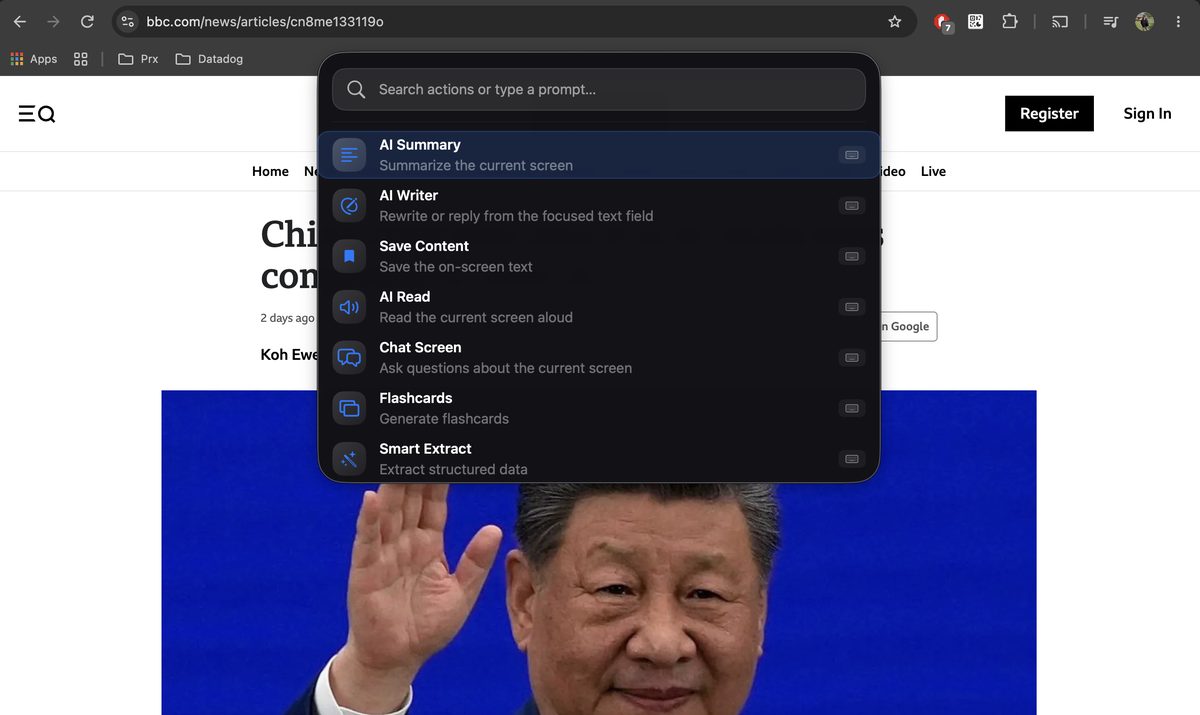
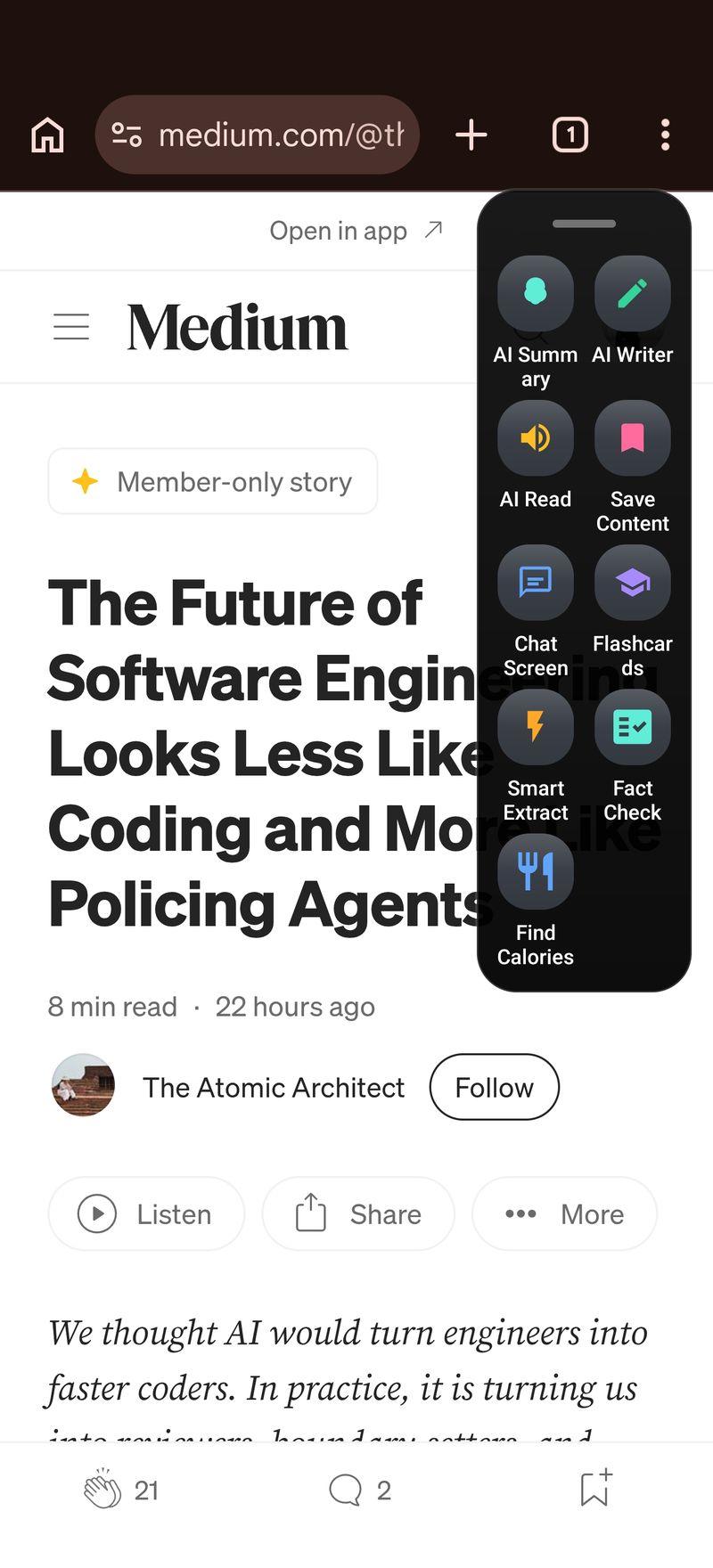
The Arc menu on macOS, summoned over Chrome. On Android the same actions live in the floating sidebar you swipe in from the screen edge.
One invocation. Every AI action.
Most AI tools live in their own app or their own tab. Arc flips that around: it's a floating AI assistant that appears on top of whatever you're already doing, runs one action on the current screen, and gets out of the way. No copy-paste, no app-switching, no new window to manage. The invocation is the shortcut — everything else is the same short list of actions you've arranged the way you like.
📱 Android: swipe from the edge
The floating sidebar slides out over any app. One swipe, every action — and it plays nicely alongside Samsung Edge Panel, OnePlus Shelf, and OPPO Smart Sidebar.
💻 macOS: ⌃ Space anywhere
A Spotlight-style panel appears over any window, reads what's on screen, runs the action, and disappears. Esc dismisses it. It never steals focus from the app underneath.
🪟 Windows: Ctrl + Space
Coming soon — the same Arc Menu, keyboard-first, over every app on Windows. The desktop feature set is already documented; the Windows build is on its way.
📱 iPhone: Action Button & back-tap
Coming soon — bind Arc to the Action Button or a double-tap-on-back gesture and it opens over any app you're in, iOS-style.
⚡ Built-in actions
AI Summary, AI Writer, Save Content, AI Read, Chat Screen, Flashcards, and Smart Extract — all one invocation away, reorderable, and individually toggleable.
🛠️ Your own actions
Write a prompt once — "extract the dates from this invoice", "find the calories in this meal", "fact-check this claim" — and it lives in the menu forever.
A floating AI assistant that never steals your focus
The desktop Arc menu is built as a non-activating panel, and that one design decision changes how the whole thing feels. When you press ⌃ Space, the panel fades in over your current window — but your app keeps its focus and your text cursor stays exactly where it was. macOS doesn't flip you to another Space. Your half-typed email doesn't lose its blinking caret. If you change your mind, Esc dismisses the panel and there's no residue on screen, as if nothing happened.
This isn't a cosmetic detail. It's what makes AI Writer possible: Arc reads the text field you're typing in, generates a rewrite or a reply, and writes the result back into that same field. That only works if the field is still focused while Arc works — which is why the panel never activates itself.
The rest of the interaction is keyboard-first, deliberately. The search field is focused the moment the menu opens, with the first action already selected. Type to filter, press ↑ / ↓ to move, Return to run, Esc to bail out. You never have to touch the mouse if you don't want to.
Arc also behaves like a system utility rather than an app you have to babysit. Close the main window and Arc keeps running in the background — a menu-bar item on macOS, a tray icon on Windows — with the hotkey alive from any app. While an action runs, a small click-through overlay shows its name; you can keep working underneath it.
And the summon key itself is yours to change. If ⌃ Space already belongs to Spotlight or your input method, open Settings → Activation, press Record, and pick a different combination. Arc detects conflicts with its own actions and names the one that owns the key, so you never end up with two actions fighting over the same shortcut.
The built-in actions, straight out of the box
Every invocation starts from the same short list. These seven ship with the app, and every one of them can be enabled, disabled, reordered, or bound to its own keyboard shortcut:
| Action | What it does (as the menu describes it) |
|---|---|
| AI Summary | Summarize the current screen |
| AI Writer | Rewrite or reply from the focused text field |
| Save Content | Save the on-screen text |
| AI Read | Read the current screen aloud |
| Chat Screen | Ask questions about the current screen |
| Flashcards | Generate flashcards |
| Smart Extract | Extract structured data — events, contacts, meeting links, OTP codes, and more, each with a one-click action |
Custom actions and community actions don't live in a separate menu — they're interleaved into this same list, in one shared order that you control with drag-to-reorder. Disable Flashcards if you never study. Drag your "Summarize email" action to the top. The menu is a personal shortlist, not a fixed product menu.
Keyboard-first, from summon to result
Three small touches make the menu fast in practice, not just in theory:
Search filters by name and description. Typing "summarize" finds AI Summary even though that word only appears in its subtitle. Custom actions filter in the same pass, so with twenty actions of your own, three letters is usually faster than scrolling.
The search box doubles as a prompt box. Type a question no action matches — "what are the risks listed here?" — and the menu shows a single hint: Press Return to ask this as a question. Press Return and Arc reads the current screen, attaches it as context, and opens a chat with your question already asked. The answer streams in, and follow-ups stay in context. It's the fastest "ask about this screen" box you'll ever use, and you never had to create an action first.
Every action can skip the menu entirely. Each row in the Arc menu carries a keyboard icon. Click it, press the combination you want — ⌥ S, say — and from then on that key runs the action headlessly: no menu, no panel, just the result. Arc suspends its other shortcuts while the recorder listens, so the capture is clean, and it rejects a combination that's already bound, telling you which action owns it.
On Android, the same philosophy shows up as the floating sidebar: swipe, tap the action, done. The platform differs; the "one invocation, one action" idea doesn't.
Custom AI actions: write the prompt once
Arc Actions are your own AI shortcuts. Name one, write a prompt, pick an icon, save — and it appears in the Arc menu immediately, ready to run against whatever is on screen. Unlimited actions, and building one takes under a minute. The form has five fields: Name, Prompt, an icon picker with dozens of options shared across Android, macOS, and Windows, two checkboxes (Capture a screenshot region and Enable web search), and an optional per-action keyboard shortcut.
The {screen_text} placeholder
When you write a prompt, you control exactly where the screen content lands using {screen_text}:
You are a senior editor. Rewrite the following in plain English, max 120 words:

{screen_text}

Then list any claims that need a citation.
At run time, Arc substitutes the text it read from the screen at that exact spot. If you omit the placeholder entirely, the screen content is still sent — it's simply appended as context instead of spliced into the middle. Under the hood the placeholder is stripped before the request leaves your device, so an action behaves identically either way. The result: full control over prompt structure if you want it, zero ceremony if you don't.
Screenshot-backed and web-search-backed actions
Some prompts need eyes, not just text — "what does this chart show?", "read the label on this package", "critique this layout". Tick Capture a screenshot region and each run of the action starts with a region selector: drag a rectangle around the relevant part and the cropped image travels with the prompt. The very first screenshot triggers an explicit consent dialog, and if you decline it, text-only actions keep working. Enable web search is the other option — it augments the prompt with live results, which is how "fact-check this claim" and "is this pricing still accurate?" work.
Bind it, order it, iterate on it
Your most-used action doesn't need the menu at all: bind it to a global shortcut and it becomes a single-keystroke command from any app. Everything stays editable — rename it, tweak the prompt as you learn what works, change the icon, disable it without deleting. Changes apply on the next run.
500+ Community Actions: borrowed prompts that work
If you'd rather not write prompts at all, the Community Actions catalog has 500+ ready-made ones, published by the Arc team and by Arc users. Every card shows the actual prompt — not a marketing description — so you know exactly what an action does before you add it. Cards carry a Verified badge for actions the team has reviewed, creator attribution, upvote counts so the useful ones rise, and capability tags up front: a Screenshot tag means the action captures part of the screen, a Web tag means it searches. Informed consent before adding, not a surprise on first run.
Adding is one click. The action appears in your Arc menu immediately and behaves exactly like one you wrote yourself — fully editable, reorderable, bindable to its own shortcut. Filter the catalog by language, category (analysis, health, accessibility, writing, and more), and recency (last 7 days, last 30 days, or all time), or just search. The catalog is shared with the Android app, and anything you publish yourself shows up for users on every platform.
| Community action | What it does |
|---|---|
| Fact Check | Checks the claims on your screen, with web search for sources |
| Find Calories | Estimates calories and protein from a meal on screen |
| Gluten Allergy Scan | Flags gluten risks in ingredients and menus |
| Describe Image | Screenshot-backed descriptions of charts, photos, and designs |
| Link extractor | Pulls every link out of the current page, ready to copy |
The catalog grows from real, in-use prompts rather than a curated launch set — and your own actions can be published back with your name on them.
Arc is live on Android and macOS today. Windows and iPhone versions are coming soon.
One tap. Any app. Any action.
Free download. Build your first custom action in under a minute.
Get Arc FreeCommon questions
How do I open Arc with a shortcut?
On Android, swipe from the screen edge — the floating sidebar appears over any app. On macOS, press ⌃Space and the Arc menu appears over any window; Esc dismisses it. Windows uses Ctrl+Space (coming soon). On iPhone, you'll be able to bind Arc to the Action Button or a double-tap-on-back gesture.
Can I create my own AI shortcuts?
Yes. Arc Actions let you write any prompt once — "extract the dates", "explain this error", "find calories in this meal" — pick an icon, and it appears in your menu. You can add a screenshot region, enable web search, reorder it, and on desktop bind it to its own global keyboard shortcut so it runs without opening the menu at all.
What are Community Actions?
A catalog of 500+ ready-made actions built by the Arc team and other users — fact checkers, calorie counters, translators, link extractors, allergy scanners. Every card shows the real prompt before you add it, with capability tags for screenshot and web access. One tap to add, and added actions are fully editable.
What is a non-activating panel, and why does it matter?
The Arc menu appears over your current app without ever activating itself — your app keeps keyboard focus and your text cursor stays in place. That means Arc can read the field you're typing in and write results back into it, and macOS won't flip you to another Space when you summon it. Esc dismisses the panel with no residue.
Can I bind an action to skip the menu entirely?
Yes — on macOS every built-in, custom, and community action can be bound to a global keyboard shortcut from the keyboard icon on its menu row. Pressing that key runs the action headlessly: no menu, no panel, just the result. Arc detects conflicts between shortcuts and names the action that already owns a combination.
Is it free?
Yes — Arc is free to download, custom actions are free, and Community Actions are free. There's a generous weekly usage allowance on the free plan; an optional Pro subscription removes the limits and works across Android, macOS, and Windows on one account.