AI Text Reader Mac: Listen to Any Window
You want your Mac to read to you. A long article in Safari, a PDF in Preview, a wall of text in Mail — and your eyes are done for the day. You search for a solution and find two dead ends: the built-in Option+Esc voice that sounds like a 2004 answering machine, and a pile of subscriptions that want $139 a year to read text at 2x speed.
There’s a third path, and it’s the one I take every day: an AI text reader Mac users can summon over any window with one keystroke, that reads the real text on screen with a natural voice — and then, when you don’t actually need to hear all 4,000 words, summarizes it instead. That’s Arc. I’ll show you how to set it up in about two minutes, how to use it on web pages, PDFs, email, and study notes, and how it compares to the alternatives you’re probably weighing.
Arc is an AI screen assistant — it sees the frontmost window, so you never copy-paste anything into a reader. If you want the full picture of its reading and summarizing features first, they’re documented on the AI Summary & Reader page.
What an AI Text Reader Mac App Should Actually Do
Before the steps, let’s define the bar, because “text reader” means wildly different things across the App Store.
One you actually keep installed has to:
- Work system-wide. Safari, Chrome, Preview, Mail, Obsidian, Slack — any app. A reader that only works inside its own sandbox fails the moment your reading lives elsewhere.
- Grab the text itself. Selecting, copying, pasting into another app is three steps of friction every single time. The reader should come to your screen, not the other way around.
- Sound human. The robotic default voice is why people abandon built-in TTS. Natural speech is what makes listening sustainable past the first paragraph.
- Know when reading is overkill. Some text deserves listening; some deserves a summary. A modern AI text reader does both from the same panel.
Arc does all four, and it’s the only Mac reader I know of that pairs screen-aware text-to-speech with AI summarization in one keystroke. Here’s how to set it up, step by step.
Step 1: Install Arc and Grant Screen Access
Download Arc free from arcassistant.app/macos/ and drag it into Applications. On first launch, macOS asks for two permissions: Screen Recording (so Arc can read the text in the frontmost window) and Accessibility. Grant both in System Settings when prompted — takes under a minute.
That’s the whole install: no account requirement, no upload of your documents anywhere — the reader runs entirely on your Mac.
Step 2: Set Your Global AI Text Reader Shortcut
Open Arc’s settings and confirm the global shortcut — Control+Space by default. This is the keystroke that summons Arc over whatever window is frontmost. If you’ve remapped it, fine; just pick something you can hit without looking, because the entire point is never breaking your reading flow.
Test the AI Text Reader Over a Web Page
Open any article in Safari. Press Control+Space. Arc’s panel appears next to the page, already loaded with the text it pulled from the window.
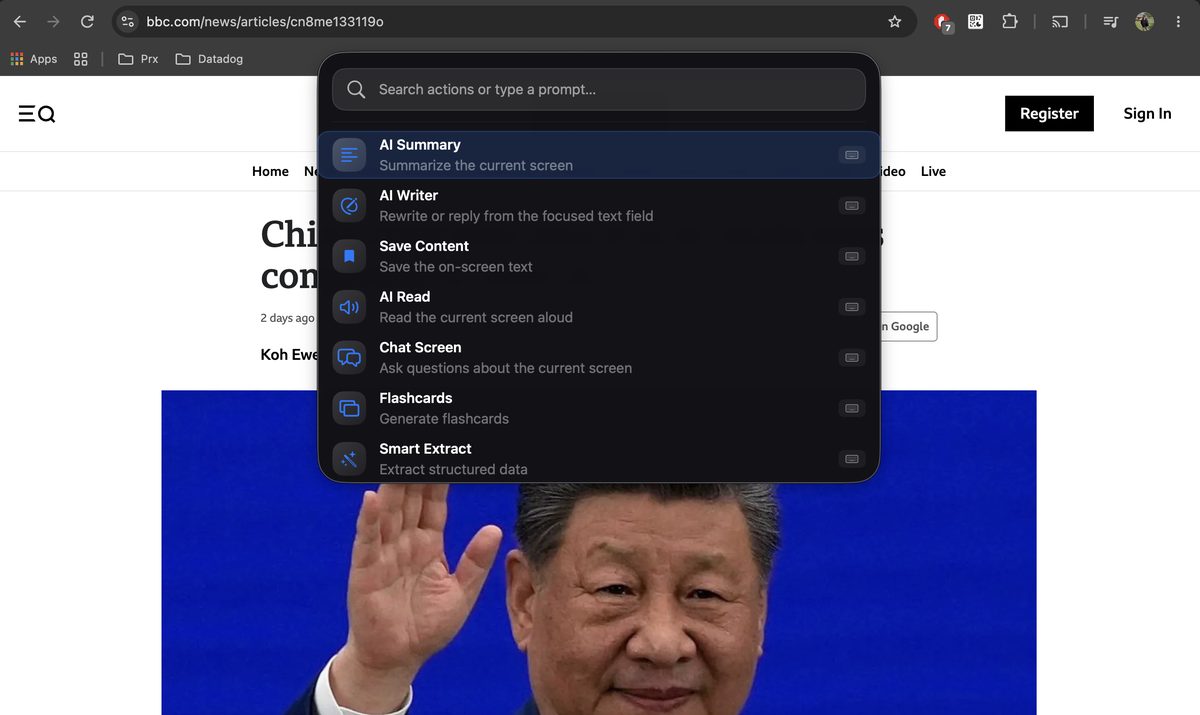
From here you have the two reading options, and knowing when to use each is the whole skill. The panel also keeps a chat input, so after a read-through or summary you can ask things like “what’s the cancellation penalty in section 8?” and get an answer grounded in the text on screen:
- Read it aloud. Arc speaks the actual on-screen text with a natural AI voice — paragraphs, not fragments. Good when the content matters in full: contracts, documentation, long-form journalism.
- Summarize instead. Good when 4,000 words should be 400. The summary takes seconds, and you can follow up with questions about the text in the same panel.
Step 3: Read PDFs and Email Without Copy-Pasting
This is where a screen-aware reader earns its keep versus every upload-a-file alternative.
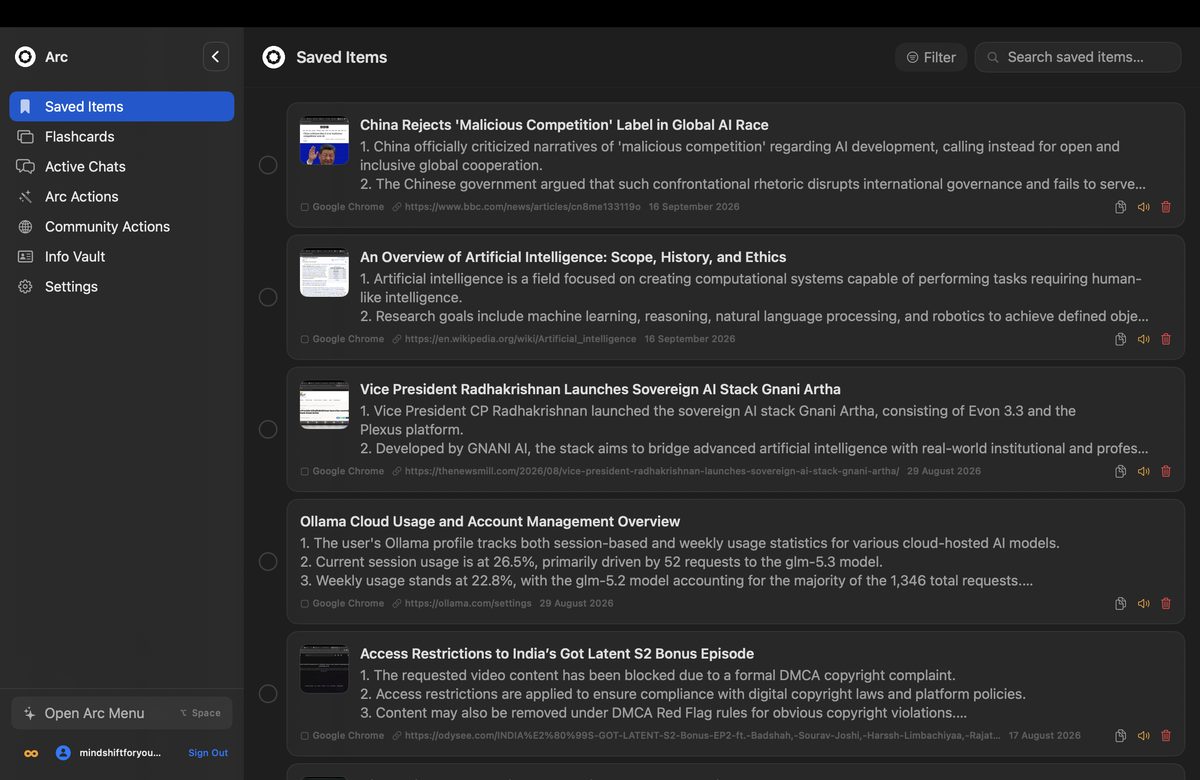
PDFs in Preview: open the PDF, press Control+Space over it, and the AI text reader reads what’s visible — no OCR gymnastics, no dragging the file into a web app, no worrying about where your contract ends up. For a 60-page vendor agreement last week, the summary came back in about ten seconds as five bullets covering term, price, and renewal. I saved it with one click, and it landed in the saved items library with a screenshot of the source page — so three weeks later I can find the clause I need without re-opening the PDF.
Email in Mail: open the thread, press Control+Space, summarize. A nine-reply vendor negotiation thread condenses to who-decided-what in about five seconds, and follow-up questions pull exact dates from the replies.

Study notes: press Control+Space over your notes and Arc can turn them into flashcards — question on the front, answer on the back — filed into decks you review later. Passive listening becomes active recall, which is the difference between having heard your notes and knowing them.
Step 4: Build the Habit With Saved Items and Shortcuts
The one you stick with is the one that keeps what it produced. Two features make the habit stick:
- Saved items. Every summary, extraction, or captured passage can be saved to a library inside Arc. When you read a recipe, a spec, or an apartment listing you’ll need later, one click files it away with a screenshot of the source.
- Custom shortcuts. Beyond Control+Space, you can assign a dedicated hotkey to a specific action — for example, one key that always opens AI Writer on the selected text. I have a shortcut bound so anything I capture can be rewritten or replied to without touching the mouse.
- Community Actions. If you don’t want to design your own, the Community Actions browser has ready-made ones other users published — extract contact details from a page, pull the price and specs out of a listing, draft a summary in a specific format — and installing one takes a click.
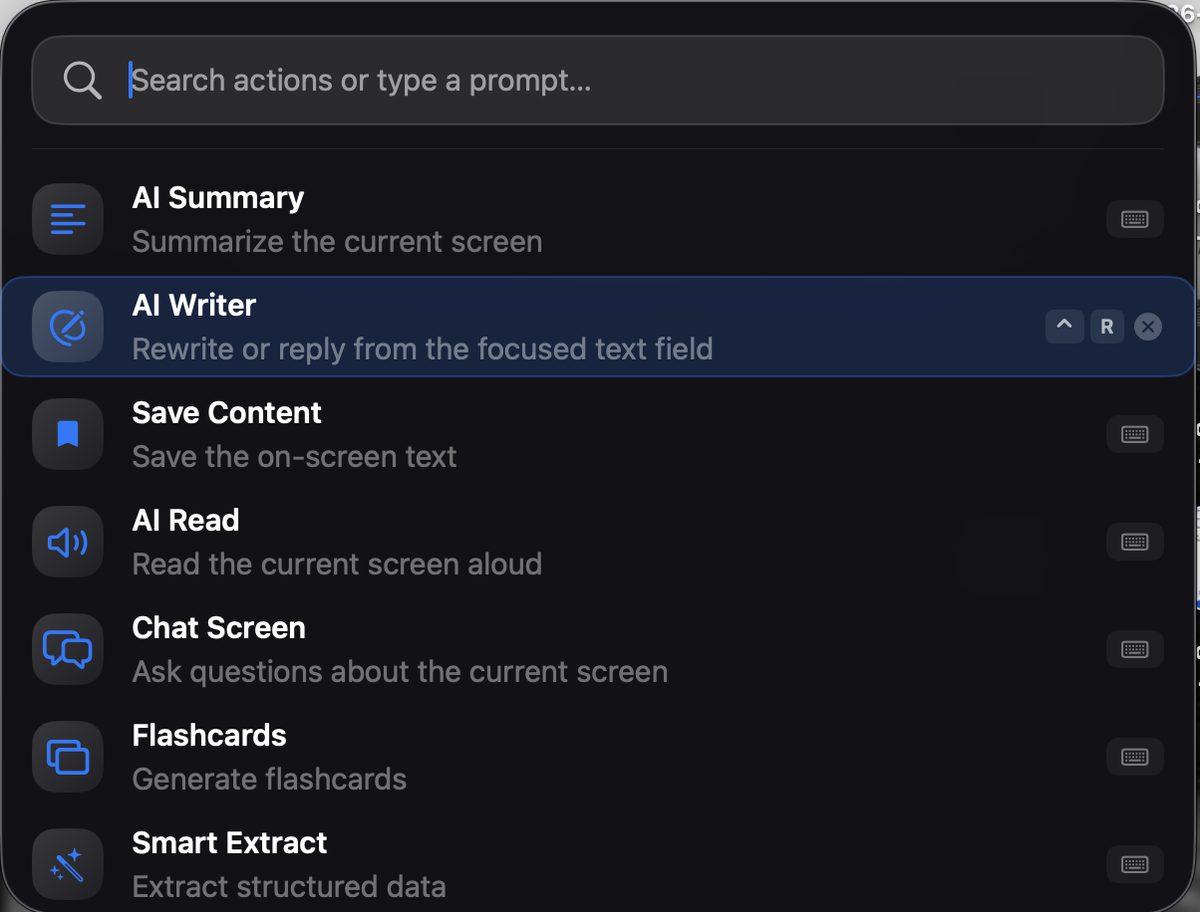
That last screenshot points at Arc’s AI Writer, the writing companion to the reader, which is the natural companion: when the reader hands you a draft — a reply you’d dictate, a paragraph you’d rephrase — the writer cleans it up in context. Reader in one ear, writer for the response.
The Alternatives, Honestly
Every comparison in this category ends up naming these, so here’s the straight take from someone who ships a competing product:
- Built-in Spoken Content (
Option+Esc). Free, instant, works everywhere — and the voice is the reason you’re reading this post. No comprehension, no summaries, no memory of what it read. Use it for a single paragraph in a pinch. - Speechify and friends. Polished voices, 2x-4x speed, solid mobile apps. Subscription pricing built around premium voices, and it works through its own apps and extension rather than reading whatever window is frontmost.
- Speech Central and library readers. Great for ingesting documents, RSS, and ebooks you add to a library. Less useful for the “read this exact window right now” case.
- Voice Dream-style reader apps. Strong accessibility pedigree for files you import. Same limitation: your text has to come to them.
Every one of these asks you to move text or pay monthly. A screen-aware reader is the only category that treats whatever is already on your screen as the input — which, if you think about when you actually want text read aloud (mid-article, mid-PDF, mid-email), is exactly when you don’t want to go hunting for a copy button.
FAQ
How do I get text read to me on a Mac?
Three ways. Built-in: System Settings → Accessibility → Spoken Content → enable Speak Selection, then press Option+Esc on selected text. Better voices: install an AI text reader like Arc, press Control+Space over any window, and choose the read-aloud option — no text selection needed, and the voice is natural rather than robotic.
Can a MacBook Air read text aloud?
Yes. Every Mac, including the MacBook Air, has built-in Spoken Content under Accessibility settings, and it runs fine on Apple Silicon — TTS is a lightweight workload. For a better voice plus summaries of what was read, Arc runs comfortably on any Apple Silicon MacBook Air and Intel Macs from the last several years.
What’s the best AI text reader for Mac?
The honest answer depends on your reading material. For documents and ebooks you collect into a library, Speech Central is solid. For reading whatever window is in front of you — web pages, PDFs, email — Arc is the only one that works system-wide from a single keystroke and pairs reading with AI summaries, and it’s free to start.
Does Arc work on Apple Silicon (M1/M2/M3/M4)?
Yes, and that’s the target platform — the panel snaps open fast, which matters when you’re invoking it dozens of times a day. The same app also runs on Intel Macs.
Is there a free AI text reader for Mac?
Arc is free to start with no subscription required to try the core loop: press Control+Space over any window, read it aloud or summarize it. The built-in Spoken Content feature is also free forever, if you can live with the voice. Paid options like Speechify run on premium voice subscriptions.
Does this exist on iPhone or Android too?
Arc started on Android — the same floating assistant reads and summarizes anything on an Android phone screen, and it’s on Google Play today. An iOS version is in the works; if you want the same control+space feeling on your phone, the Android app is the closest thing right now.
Your Two-Minute Setup
Install Arc, grant the two permissions, press Control+Space over any window, and pick read-aloud or summarize. That’s the entire learning curve — about two minutes from download to your first summary, and the average article I read now takes half the time it used to because I summarize first and read only the parts that matter. If you’ve been putting off “reading” a stack of PDFs because reading them means sitting down, a setup like this turns commute time, coffee time, and eye-rest time into reading time.
Download Arc for Mac free from arcassistant.app/macos/ — Control+Space, and any window on your screen becomes something you can listen to.