AI Writer Mac: Rewrite, Reply, and Insert in Any App
You typed a rough paragraph into a Gmail compose window, and now you want it to sound like a professional wrote it. The default Mac workflow is a mess: select the text, switch to a ChatGPT tab, paste, wait, copy the result, switch back, paste over your draft — and repeat the whole dance for every single email. The formatting breaks, the cursor loses its place, and halfway through your third message you’re managing browser tabs instead of writing.
There’s a simpler loop, and it’s the one I use all day: an AI writer Mac users summon over whatever app they’re already typing in, one that reads the draft straight out of the text field, rewrites it, and writes the result back into the same field. No copying, no tab switching, no lost cursor. That’s Arc’s AI Writer, and this guide walks through the whole thing — install, first rewrite, replies, grammar fixes, personalization, and the one-keystroke shortcut that skips the panel entirely.
Arc is an AI screen assistant — it sees the frontmost window on your Mac, which is what makes in-place writing possible. The full feature rundown lives on the AI Writer page; here I’ll show you the actual day-to-day workflow.
What an AI Writer Mac App Should Actually Do
Before the steps, let’s set the bar, because “AI writer” means very different things across the App Store. A real AI writer Mac setup needs to:
- Work system-wide. Mail, Gmail in Chrome, Slack, WhatsApp Web, Outlook, a CRM form — your writing lives everywhere, so the writer has to live there too. A tool that only works inside its own editor fails immediately.
- Grab the draft itself. If you have to select, copy, and paste before the AI even sees your text, the tool has added friction to the exact problem it was supposed to remove.
- Write the result back. The round trip only counts as done when the polished text lands back in the original field, in the original app.
- Handle more than rewrites. Fixing grammar, replying to a thread, and composing a post from scratch are different jobs that need different controls.
- Sound like you. Generic AI output is easy to spot. The writer should know your role, your projects, and your tone.
Arc’s AI Writer does all five. It’s the same engine that ships in Arc for Android, adapted for the desktop with keyboard-first controls. Here’s the setup, start to finish.
Step 1: Install Your AI Writer Mac Setup in Two Minutes
Download Arc free from arcassistant.app/macos/ and drag it into Applications. On first launch, macOS asks for two permissions: Screen Recording (so Arc can read the text in the frontmost window) and Accessibility (so it can write text back into other apps). Grant both in System Settings when prompted — under a minute, and it’s the only configuration the app truly needs.
No account is required to start. Open any app with a text field and you’re ready for step two.
Step 2: The Core AI Writer Mac Flow — Rewrite in Place
This is the flow you’ll use eighty percent of the time. Say you’ve got a rough email draft in Gmail:
- Leave your cursor in the text field — don’t select anything, don’t copy anything.
- Press Control+Space, Arc’s global shortcut, from anywhere.
- Arc’s menu appears over the app. Select AI Writer and press Return.
- The AI Writer panel opens over your draft — and the draft is already in it. Arc auto-fetches whatever was in the focused field into the Selected Text box.
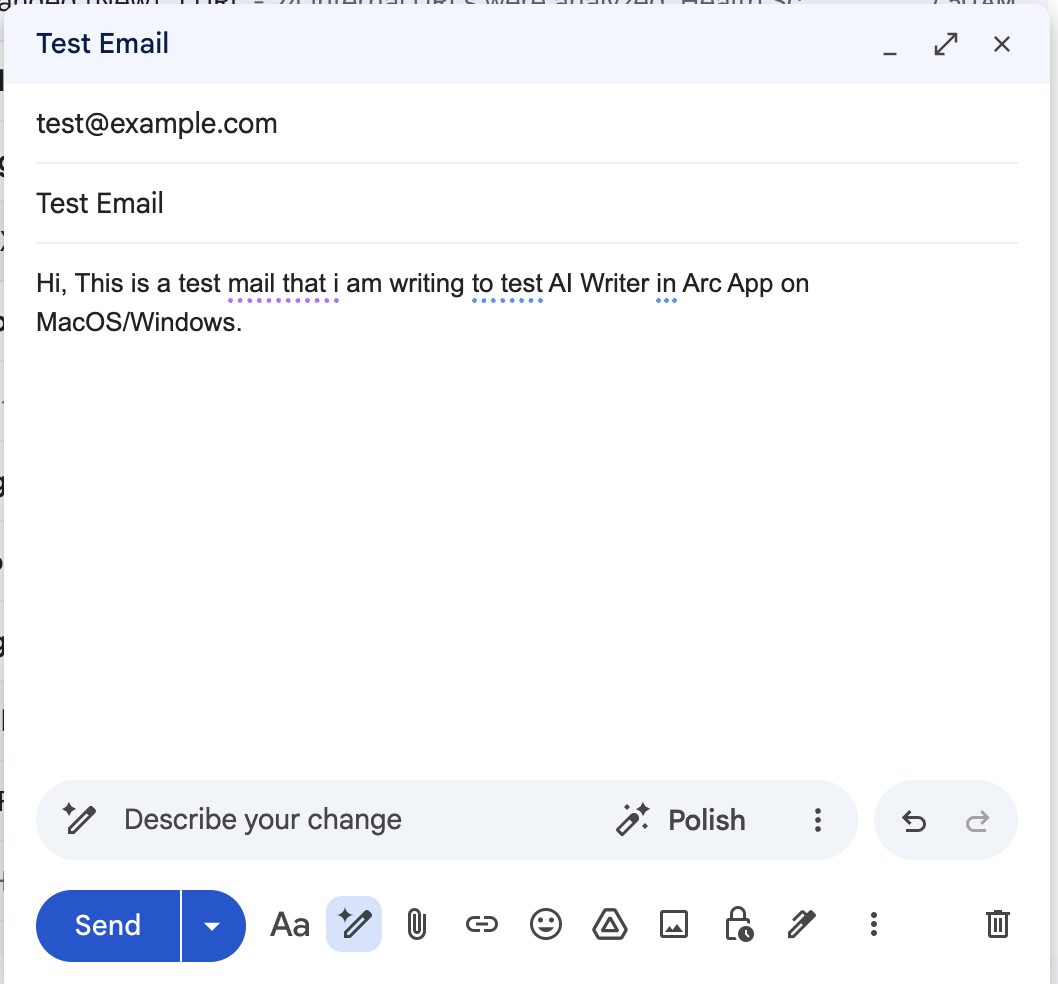
- Pick a mode and a tone. For rewrites there are six: Rephrase, Professional, Polite, Shorten, Elaborate, Custom. Writing to a client who’s annoyed with you? Polite. Turned three paragraphs into nine? Shorten.
- Click Generate. The rewritten version appears in the output pane in a few seconds.
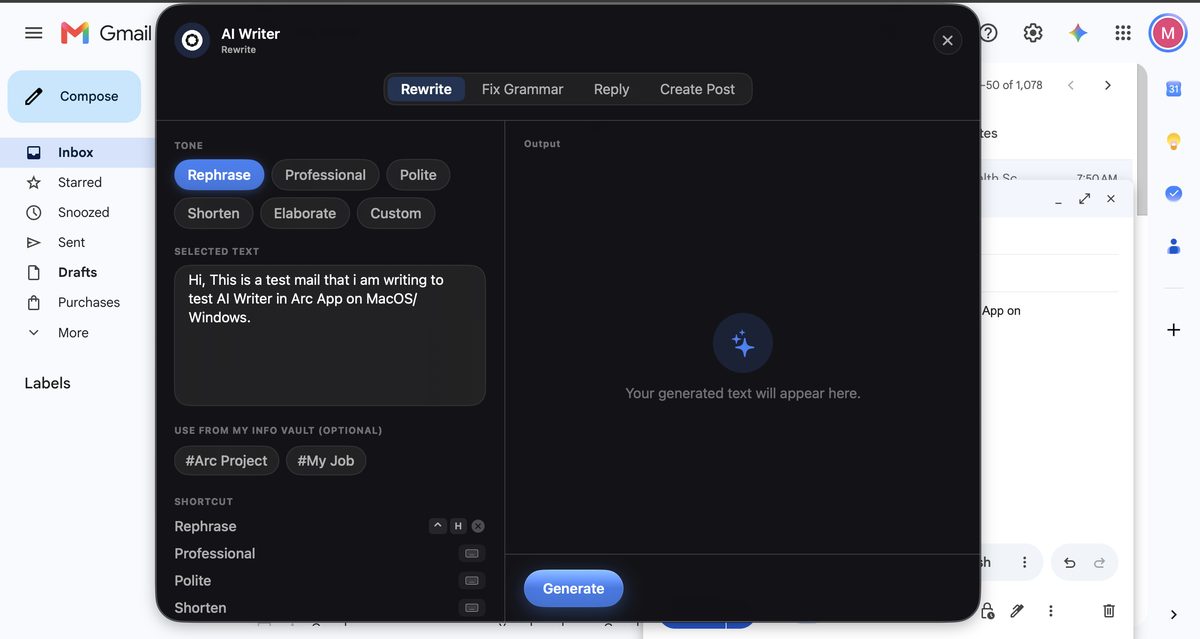
- Not happy with the take? Click Regenerate — every generation is kept, so you can step back and forth through the versions and pick the one that reads best.
- Click Insert. The panel closes and Arc writes the final text into the original field, replacing the rough draft. Gmail reacts as if you’d typed it yourself — “Draft saved” appears at the bottom, exactly like a normal edit.
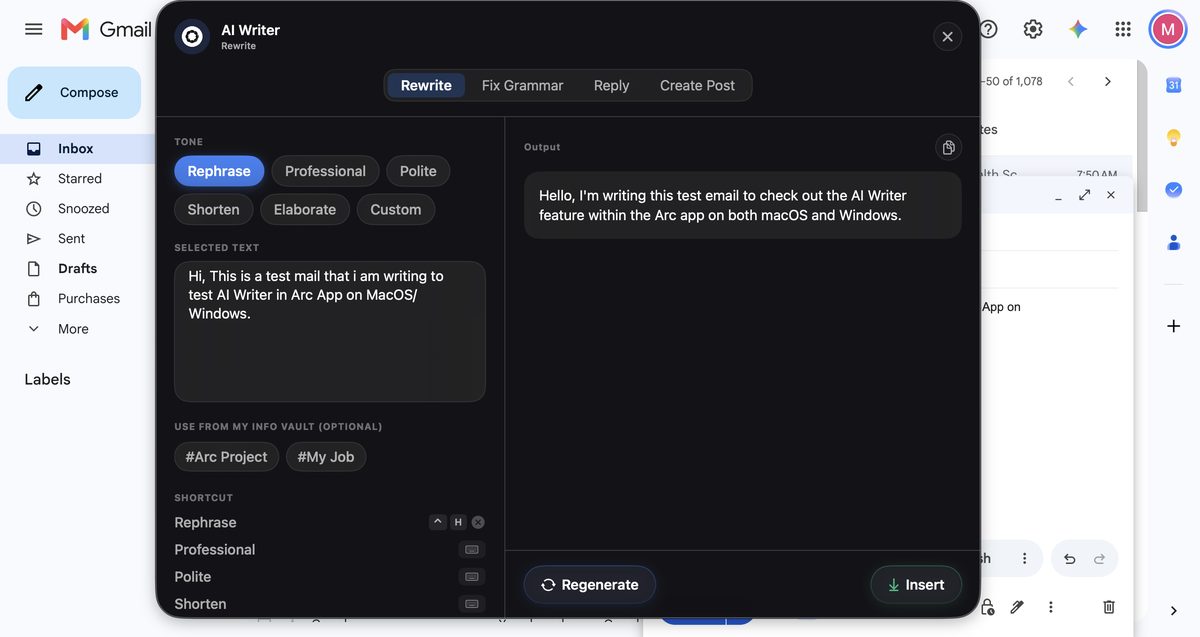
That’s the whole loop: read the field, generate, write it back. This AI writer Mac workflow replaces the copy-paste-to-ChatGPT detour with two keystrokes, and because the panel is non-activating, your cursor and scroll position never move while it’s open.
Fix Grammar Without Rewording
Sometimes you don’t want a rewrite — you want the same message with the typos gone. The Fix Grammar mode is built for exactly that: it corrects spelling, agreement errors, and punctuation while keeping your voice and phrasing intact. Invoke the panel the same way, switch to the Fix Grammar tab, Generate, Insert. Ten seconds for a draft you’d otherwise proofread three times.
Reply to a Thread With One Tap
Replying is a different job than rewriting, so it has its own mode. Open the thread — email, Slack, a support ticket — then summon AI Writer and switch to the Reply tab. Arc extracts the conversation from the screen and classifies who said what, so the reply is written from your side of the exchange. If it mislabels a message, you can flip the attribution.
Then pick from five one-tap intentions: Yes/Agree, No/Decline, Thank, Ask for details, Acknowledge. Generate, review, Insert. A reply that would take three minutes of careful typing takes about ten seconds, and it references the actual thread instead of a vague “regarding your message.”
Create a Post or Review From Scratch
The fourth mode, Create Post, writes from nothing. Choose Post or Review, then pick the target platform — Reddit gets conversational paragraphs, X gets something concise with hashtags, LinkedIn gets thought-leadership framing, and store reviews get the right tone for Google Play or the App Store. Describe what the post should say, Generate, then Insert or Copy. Same panel, zero tab-switching.
Step 3: Make the AI Writer Mac Output Sound Like You
Generic output is the biggest complaint about AI writing tools, and Arc attacks it with Info Vault — a place to store entries about your role, projects, and preferences. In the AI Writer panel, the “Use from my Info Vault” row shows a chip for each entry. Tap one or two — say, #My Job and #Arc Project — and their contents travel with the generation request as context.
The difference is immediate: instead of “I’m happy to help with the project,” you get “Happy to take the API migration next sprint” — because the vault entry said your team calls it the API migration and you own that sprint. Attach the chips once and the AI writer Mac output stops sounding like a template and starts sounding like you wrote it on a good day.
Step 4: Skip the Panel Entirely With Shortcuts
Once you know which fix you always want, bind it. AI Writer has twelve bindable sub-actions — Fix Grammar, each of the five rewrite tones, each of the five reply intentions, and Create Post. Open Arc’s shortcut settings, assign a combination like Control+R to Rephrase, and from then on the flow collapses to one keystroke: select text anywhere, press Control+R, and the panel never opens. Arc reads the field, rephrases, and writes the result straight back.
One caveat from the design: the Custom tone isn’t bindable, because it needs free-text instructions that a headless shortcut can’t supply. Everything else is fair game. This is the setting that turns the AI writer Mac workflow from a tool you visit into a reflex you don’t notice.
AI Writer Mac vs. the Alternatives
Worth a quick comparison, because the options look similar and behave very differently:
- A ChatGPT tab. Most capable model, worst workflow. Every edit costs a select-copy-switch-paste-switch cycle, and the context of the app you’re writing in — the thread, the form, the recipient — never makes it across.
- Browser grammar extensions. They fix spelling in the browser and stop there. No rewrite tones, no reply generation, and nothing at all in native apps like Mail, Notes, or Slack’s desktop client.
- iA Writer — not what it sounds like. If you searched for an AI writer on Mac, half the results are for iA Writer, a well-regarded markdown editor with no AI generation at all. Different product, different problem: it’s for focused drafting, not for rewriting text inside other apps.
Arc’s position is the intersection: system-wide like an extension, capable like a chatbot, and the only one of the three that inserts the result back into the field you started in. If you also want the reading side — summaries and text-to-speech over any window — that’s covered in the AI Summary & Reader guide, and both features ship in the same app.
FAQ: AI Writer on Mac
Is Arc an AI writer Mac app that works in any app?
Yes — anywhere macOS exposes a text field. That covers native mail clients, browsers (Gmail, Outlook Web, WhatsApp Web, LinkedIn), Electron apps like Slack and VS Code, terminals, and note apps. Apps that expose no text field fall back to a clipboard-based capture path, so there’s almost always a way in.
What’s the difference between an AI writer Mac tool and iA Writer?
iA Writer is a markdown editor for focused drafting — excellent at it, but it contains no AI rewriting. An AI writer Mac tool like Arc works over other apps: it captures the draft from whatever field you’re typing in, rewrites or replies, and inserts the result back. If you want a place to write, use iA Writer. If you want the writing fixed everywhere you already write, use Arc.
Can I use Arc’s AI Writer on Mac for free?
Yes. Arc downloads free from arcassistant.app/macos/ and the AI Writer is included — install it, grant the two permissions, and you can run the first rewrite within two minutes of opening the DMG.
Does it work in Gmail, Slack, and WhatsApp Web?
Yes — those are precisely the apps it’s built around. The Reply mode is particularly useful in Slack and WhatsApp Web, where Arc extracts the message thread from the screen so the generated reply answers the right person from the right side of the conversation.
Can I run a rewrite without opening the Arc panel?
Yes — bind any of the twelve sub-actions to a global shortcut (Fix Grammar, Rephrase, Shorten, Thank, and so on). Then it’s one combination from any app: Arc rewrites the focused field headlessly and writes the text back, no panel, no clicking.
Try Arc’s AI Writer on Your Mac
The core loop takes two minutes to set up and about ten seconds per use after that: Control+Space, AI Writer, Generate, Insert. Download Arc for Mac free from arcassistant.app/macos/, grant the two permissions, and put ⌃Space to work on the next draft you’d rather not polish by hand. Android users get the same AI Writer in Arc for Android — grab it free on Google Play.