AI Screen Assistant Windows: Arc Is Coming to Your PC
Windows has more AI in it than ever — Copilot in the taskbar, AI search, an assistant bolted onto every first-party app. And yet the thing I actually want still doesn’t exist natively: an assistant that can see the window I’m already working in and act on it. Every time I want a summary of a long document open in Edge, the workflow is still select → copy → switch apps → paste → wait → copy the answer back. Decades in, the clipboard is still the API between me and my own screen.
I’m Mamata, and I build Arc. Arc is an AI screen assistant — it reads whatever window is frontmost and acts on it: summarize it, read it aloud, rewrite the text you’re typing, run a prompt you wrote yourself. It’s live on Android, it shipped on Mac this month, and the number one question in my inbox since the Mac launch has been the same one: when does this come to Windows?
The answer: it’s in beta, and it’s closer than it sounds. macOS and Windows are the same codebase and the same feature set — the AI screen assistant Windows users keep asking for is the identical application, and what’s left is platform plumbing, not features. This post is a walkthrough of what the AI screen assistant Windows build does on day one, with real previews of the interface, what remains before the beta opens, and how to be first in line.
What an AI Screen Assistant Windows App Should Actually Do
Before the preview, the bar — because “AI assistant for Windows” describes everything from chatbots to wallpaper apps. Here’s the checklist I hold Arc to:
- It works over every app. Edge, Chrome, Word, Outlook, Slack, Teams, PDF readers, the legacy Win32 utility your company still runs — your content lives everywhere, so an AI screen assistant Windows app has to see all of it, not just its own window.
- It reads the window itself. No selecting, no copying, no pasting into a chat box. The assistant reads the frontmost window directly through the platform’s accessibility layer.
- It never steals focus. If summoning the assistant moves your cursor, dumps your scroll position, or flips you to another desktop, you’ll quietly stop using it within a week.
- It acts, not just chats. Summarizing, listening, rewriting the draft in the focused field, extracting dates and action items — different jobs that need purpose-built outputs, not one chat thread.
- It runs your prompts. A fixed feature list is a ceiling. You should be able to bind your own instructions to the screen content and fire them with a keystroke.
Arc answers all five on Mac today, and the AI screen assistant Windows build inherits every one of them, because it’s the same program. Here’s what that looks like.
A Preview of the AI Screen Assistant Windows Beta
Since the Windows and Mac apps are identical, these previews from the shipping Mac app are exactly what the AI screen assistant Windows version will look like on your desktop: same dark glass panels, same flows, same shortcuts — with Ctrl+Space as the Windows summon key instead of Control+Space.
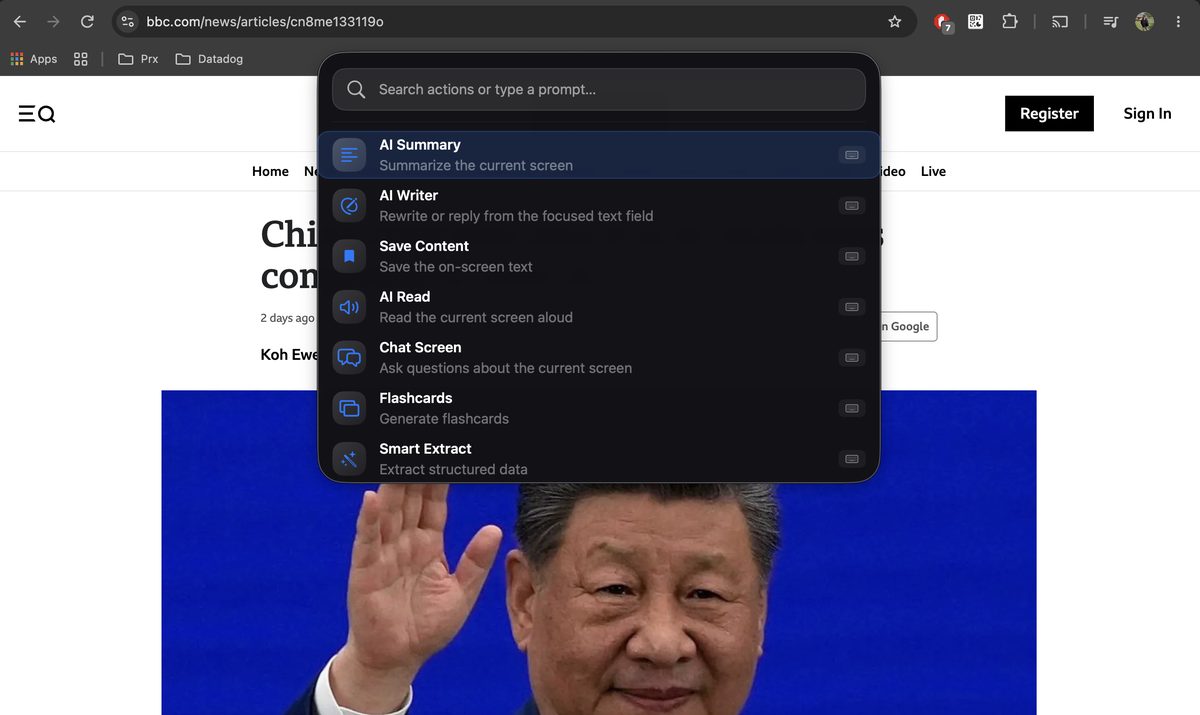
One Hotkey Over Any Window
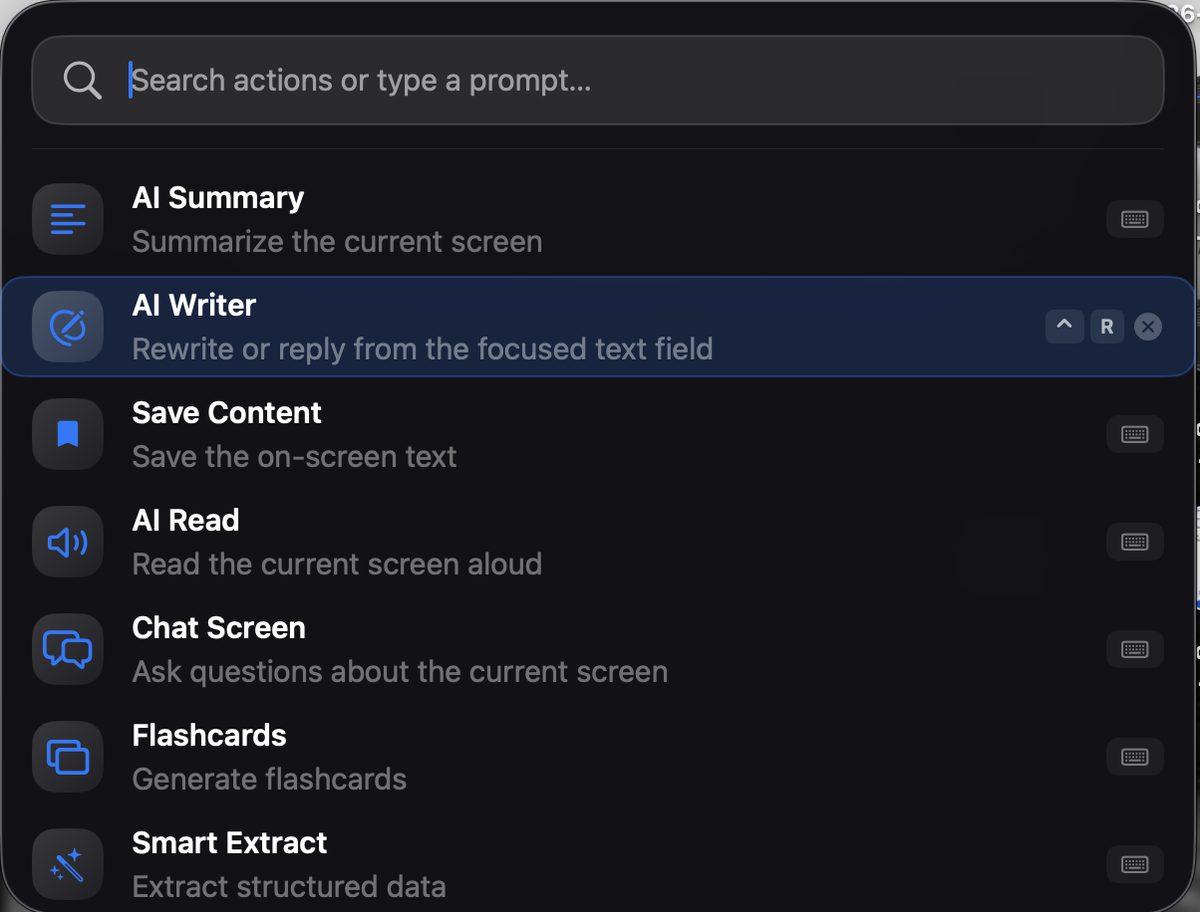
Press Ctrl+Space in any app and the Arc menu appears — a centered, Spotlight-style panel floating over whatever you’re working on. The panel is non-activating: your cursor and focus stay in the app underneath, and Esc dismisses it with no residue. The search field doubles as a free-text prompt box, and the built-in actions are listed right there: AI Summary, AI Writer, Save Content, AI Read, Chat Screen, Flashcards, Smart Extract. Each one can be reordered, disabled, or bound to its own global shortcut, so the menu you see is the one you arranged.
Summarize What’s On Screen
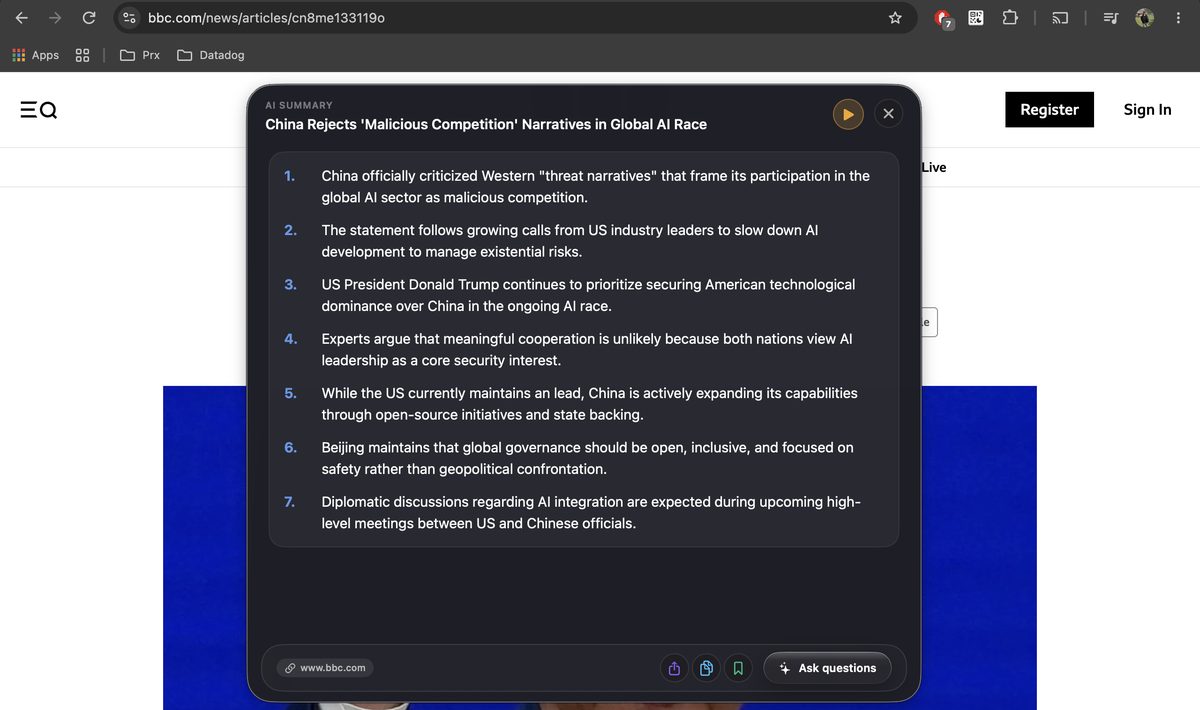
Pick AI Summary and Arc reads the frontmost window — a long article in Edge, a forty-message thread in Outlook, a documentation page, a PDF — and returns a numbered summary in a couple of seconds. The panel shows an AI-generated title, the key points, and a source chip, with Listen, Copy, Share, Save, and Ask questions in the footer. Nothing was copied or pasted to get there; the summary of the screen you’re looking at appears over that same screen.
If you also want a paste-anywhere summarizer, the AI Summary & Reader page covers the web tool — same engine, no install.
Listen Instead of Reading
AI Read turns the screen into speech, and it’s the feature I use most on long documents. Choose it from the menu and no window opens at all — Arc detects the language on screen, picks the best installed voice for it, and starts reading the article, the email, or the summary you just generated. Speed and pitch are adjustable in settings with a test button, and lists are spoken as separate points with real pauses between them, so a numbered summary doesn’t blur into one sentence. Invoke it again to stop. Hands-free, zero visual interruption.
Write Inside the App You’re Typing In
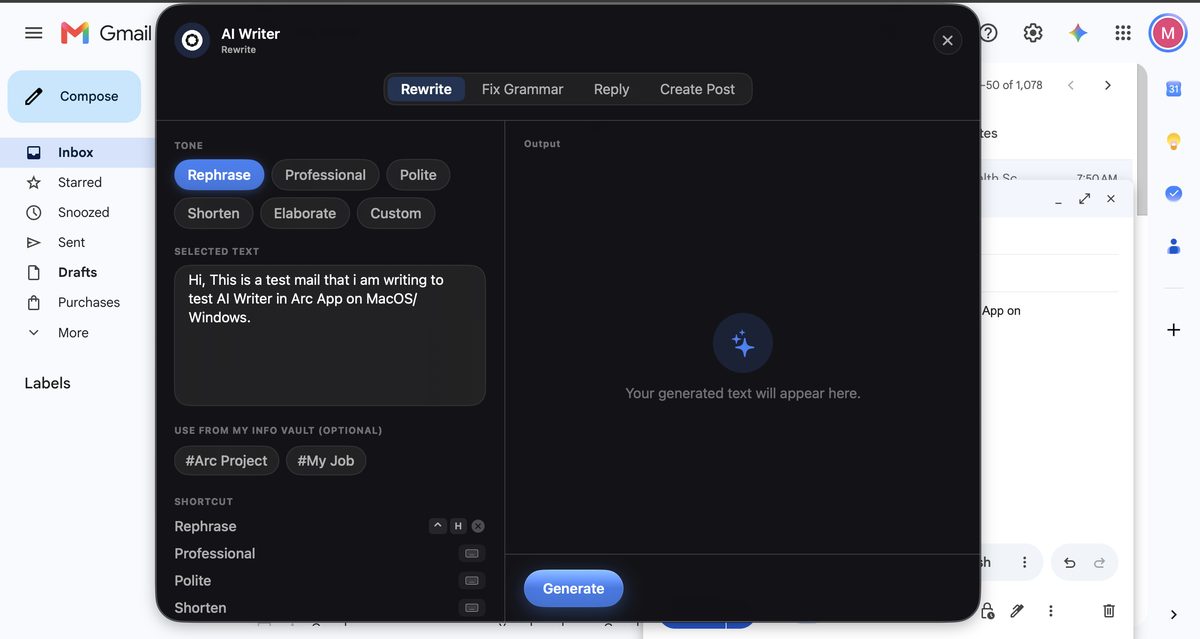
AI Writer saves me the most time on weekdays. Leave your cursor in any text field — a Gmail draft, a Slack message, a CRM form — summon Arc, and your draft is pulled straight into the AI Writer panel. Four modes: Rewrite with six tones (Rephrase, Professional, Polite, Shorten, Elaborate, Custom), Fix Grammar, Reply with five one-tap intentions (Agree, Decline, Thank, Ask for details, Acknowledge), and Create Post for Reddit, X, LinkedIn, and store reviews. Generate, review the output, click Insert, and the polished text is written back into the original field of the original app — the round trip never leaves the app you started in.
This is also where AI Workflow Automation territory begins: the same panel runs chained steps for the routines you repeat every day, not just one-shot edits.
Your Own Actions, Your Own Keys
Arc Actions are where the assistant stops being a product and starts being yours. An action is any prompt you write with a {screen_text} placeholder — “extract every action item and deadline from this thread,” “translate the on-screen text to Hindi,” “turn this error message into a bug report.” Bind it to a global shortcut and it runs headless against the current window; no panel, no clicks. You can publish actions to the community catalog or install ones other people wrote, and the community browser is filterable by language.
Everything It Touches Gets Saved
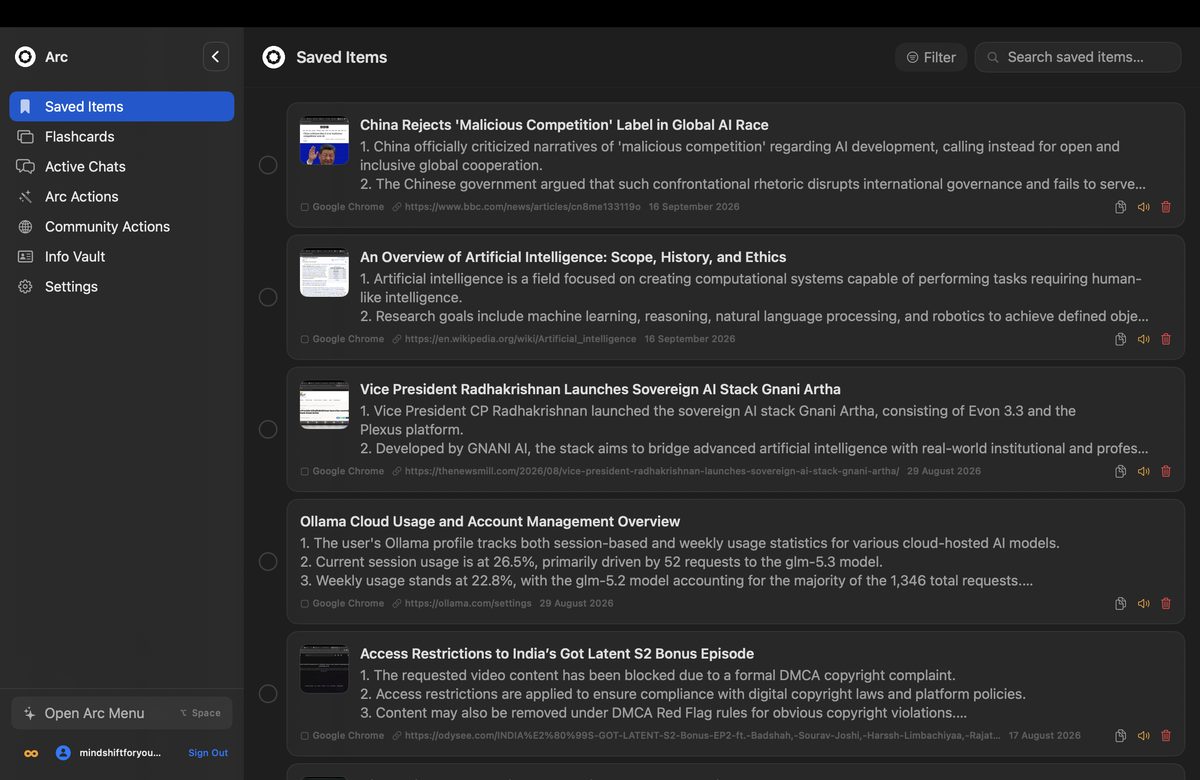
Save Content captures the on-screen text together with its screenshot, source app, and URL into a searchable, filterable library — one action, no selecting. Info Vault stores entries about your role, projects, and tone that AI Writer attaches to generations, so output sounds like you instead of a template. Flashcards turns study material on screen into review decks. Smart Extract pulls structured things — dates, prices, code blocks — with per-item follow-ups like Add to Calendar and Copy Code.
What’s Left Before the AI Screen Assistant Windows Beta Opens
Full transparency, because I’d rather under-promise: the application itself is done — every feature above ships on Mac today. What remains is the platform plumbing that makes the identical build feel native on Windows:
- Hotkey registration — Ctrl+Space has to summon Arc reliably on both Windows 10 and 11 without colliding with whatever else claimed it.
- Capture permissions — wiring the window-reading layer through the Windows accessibility APIs across both OS versions.
- Installer signing — so you don’t fight SmartScreen on install day.
That’s the whole list. When those pass, the beta opens, and the AI screen assistant Windows waitlist gets the first invites. Join it on the Windows page and you’ll get exactly one email when it does — no newsletter, no other mail.
How It Compares to Copilot
The obvious question, so here’s the honest take. Copilot is a good chatbot, but it lives in its own panel: to get help with content, you paste the content in. An AI screen assistant Windows users actually keep using has to invert that — the assistant comes to the window, reads it, and acts where you are. Copilot can’t read your focused text field and write a reply back into it; Arc can, in any app, with your own prompts bound to global keys. They coexist fine — I use both — but for the screen-focused jobs, one of them was built for it.
Get In First
If you’re on Mac, download Arc free from arcassistant.app/macos/ and press Control+Space anywhere — the whole flow you just read about runs live today. On Android, Arc on Google Play has the floating-sidebar version of the same assistant. And if you’re waiting on Windows, join the AI screen assistant Windows waitlist now: beta invites go out in signup order, and being early costs ten seconds.
FAQ
Is there an AI screen assistant for Windows?
Not released yet — Arc for Windows is in beta. The Mac app, which is the identical application, is available today at arcassistant.app/macos/, so you can see exactly what the Windows build will do before you sign up.
When will the AI screen assistant Windows beta open?
Once hotkey registration, capture permissions, and installer signing are verified across Windows 10 and 11. macOS and Windows share one codebase, so no features are left to build — it’s verification work. Join the waitlist on the Windows page to be notified the day it opens.
Will the AI screen assistant Windows 10 and Windows 11 versions both be supported?
That’s the plan — both are part of the beta verification work, since the window-reading and hotkey layers behave slightly differently across the two versions. Same feature set on each.
How is this AI screen assistant Windows app different from Copilot?
Copilot runs in its own panel and expects you to paste content into it. Arc reads the frontmost window directly — Ctrl+Space, choose an action, done — and writes results back into the app you’re using, with custom actions bound to your own shortcuts.
How much will Arc for Windows cost?
Same as every platform: freemium. The free tier gives you 7 requests per week on basic features, and a premium subscription unlocks unlimited summaries, text-to-speech, AI chat, and workflow automation. There’s no Windows-specific upsell.