AI Text Reader Android: Listen to Any Screen (2026 Guide)
Your eyes are tired but the reading isn’t done. A 3,000-word longread is open in Chrome, a stack of newsletters sits in Gmail, and a PDF contract just landed in Drive. You could squint through all of it — or you could have an AI text reader on your Android phone read it to you while you walk the dog, cook, or lie down with your eyes closed.
Here’s the catch: most “text reader” apps make you send the text to them first. Share the article, copy the email, upload the PDF, wait for it to import. On a phone, that friction is exactly what stops the habit from forming. I built Arc because I wanted the opposite: point at whatever is already on my screen and hear it — no importing, no switching apps. In this guide I’ll show you how an AI text reader actually works on Android, how to set one up in about two minutes, and how to build a listen-instead-of-read workflow around it.
What an AI text reader Android app actually does
An AI text reader Android app captures text from your screen (or your files) and reads it aloud with a synthesized voice. The “AI” part matters — you’re not stuck with the robotic system voice. Modern AI voices handle punctuation, pacing, and dozens of languages, and the reader can automatically detect what language the text is in and pick a matching voice.
But the real dividing line between apps is where the text comes from:
- Import-based readers (Speechify, NaturalReader, ElevenReader): you share a link, upload a PDF, or paste text into the app, and it reads from its own library. Great for books and long documents, but every single article costs you a share-and-wait round trip.
- Built-in accessibility tools (Select to Speak, TalkBack): read whatever you tap on any screen, no importing. But the voice is the basic system TTS, there’s no library, and there’s nothing beyond “speak this selection.”
- Screen-aware AI readers: the reader lives in an overlay that sees whatever app you’re in. Tap once, and the text on that screen is read aloud — with an AI voice — and optionally summarized or saved.
The third category is where Arc sits, and it’s the difference between “an app I use occasionally” and “how I consume half my reading now.” It’s the AI text reader Android has been missing.
Setting up Arc as your AI text reader in 3 steps
Arc is a free AI screen assistant for Android (with a Mac version too — more on that later). It’s the fastest AI text reader Android setup you’ll find — two minutes:
Step 1: Install Arc and grant screen access
Install Arc from Google Play, open it, and follow the first-run prompts. Arc asks for two permissions, and both make sense once you see what they do:
- Screen capture / accessibility access — this is what lets Arc read text from other apps, like Chrome or Gmail, without you copying anything.
- Display over other apps — this puts Arc’s floating sidebar one swipe away, always.
No account creation walls, no credit card. The free tier is genuinely usable.
Step 2: Open the sidebar over any app and start listening
Now go do whatever you were doing. Reading an article in Chrome? A long email in Gmail? A message thread in WhatsApp? Swipe in Arc’s floating sidebar from the edge of the screen:
- The sidebar expands over your current app — your app stays visible underneath.
- Pick AI Read from the sidebar menu.
- Arc captures the text currently on screen, detects its language automatically, and starts reading with a natural AI voice.
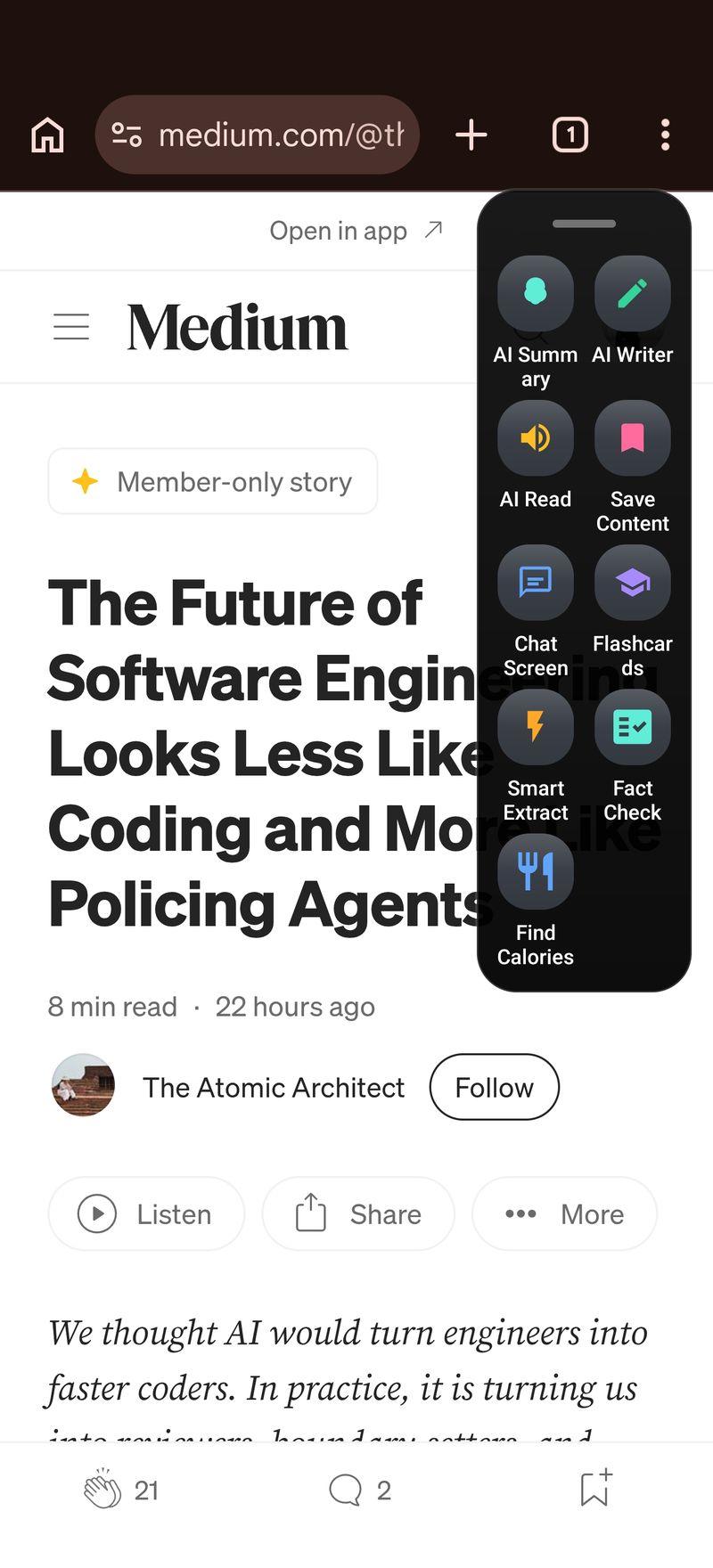
That’s the whole flow. No share sheet, no paste, no “uploading your document.” The text that’s already on your screen becomes audio in a couple of taps — which is what makes an AI text reader Android users keep coming back to, fifty times a day instead of twice a week.
Step 3: Listen with background playback
While the audio plays:
- Leave the app freely. Playback continues in the background, so you can lock the phone, open Spotify, or start replying to a message while the article reads itself to you.
- Control it from the notification. Android shows a persistent media notification with play/pause and stop. Tap it to jump back.
- Adjust speed and voice. Speed the narration up when the content is light, slow it down for dense material. You can pick voices and set auto voice selection so, say, a Spanish article gets a Spanish voice automatically.
- Multi-language by default. Arc detects the language of the text on screen — you don’t have to touch settings when you switch from an English news site to a German PDF.
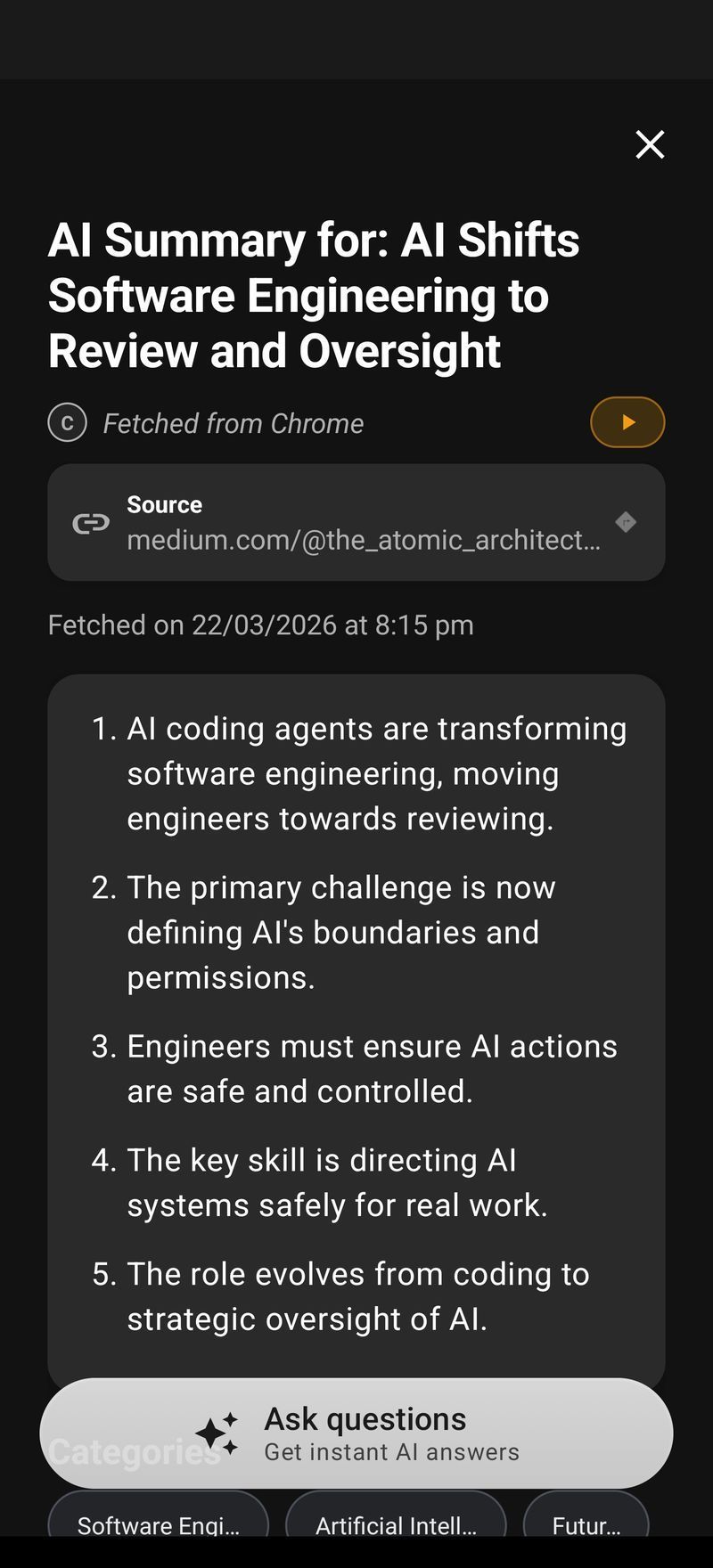
If the article is 4,000 words and you only have ten minutes, don’t listen to all of it. Tap AI Summary in the same sidebar first, then hit the Listen button on the summary. You get the 40-second version spoken aloud, and the full text is one tap away if you want depth. The whole summary-and-listen loop lives in Arc’s AI Summary & Reader.
Three screens I listen to with Arc every day
Abstract feature lists don’t tell you much, so here’s what this looks like in practice on my own phone:
The 3,000-word article in Chrome
Open the sidebar, tap AI Read, lock the phone. At the default narration speed, 3,000 words is roughly 18-20 minutes of audio; I run it at 1.5x, which brings it to about 13. If I only care about the argument and not the anecdote that opens it, I tap AI Summary first — six to eight bullet points — and press Listen on that instead. Under a minute, and I still know whether the piece deserves a full read.
The email thread I’d rather hear than parse
A Gmail thread nine replies deep is where basic Select to Speak falls apart: it will happily narrate signature blocks, “Sent from my iPhone” lines, and legal footers with the same robotic patience. Arc’s capture grabs the actual content, so the narration is mostly signal. And when the thread ends with a question aimed at me, I switch to AI Writer in the same sidebar, get a drafted reply, and paste it in — the reply flow is covered in Arc’s AI Writer.
The German PDF that landed in Drive
Arc detects the language of the text on screen and picks a matching voice, so a German document gets a German voice without me opening a single settings page. Mixed-language days — English news, Spanish chat, German contract — just work.
Build a listening queue: read later becomes listen later
This is the part that turns an AI text reader Android install into a daily habit. When you find something you want to hear but don’t have time for right now:
- Open the sidebar and hit Save. Arc captures the content into your library — the Unread Queue on the home screen.
- Later, open the Unread Queue and tap the speaker icon on any saved item. It reads aloud immediately, no need to open the detail view.
- Keep browsing the queue while audio plays in the background and line up the next item — a persistent notification keeps play/pause and stop one tap away the whole time.
A 20-minute commute at 1.5x speed clears two or three saved articles. That’s the entire newsletter backlog gone before the train stops.
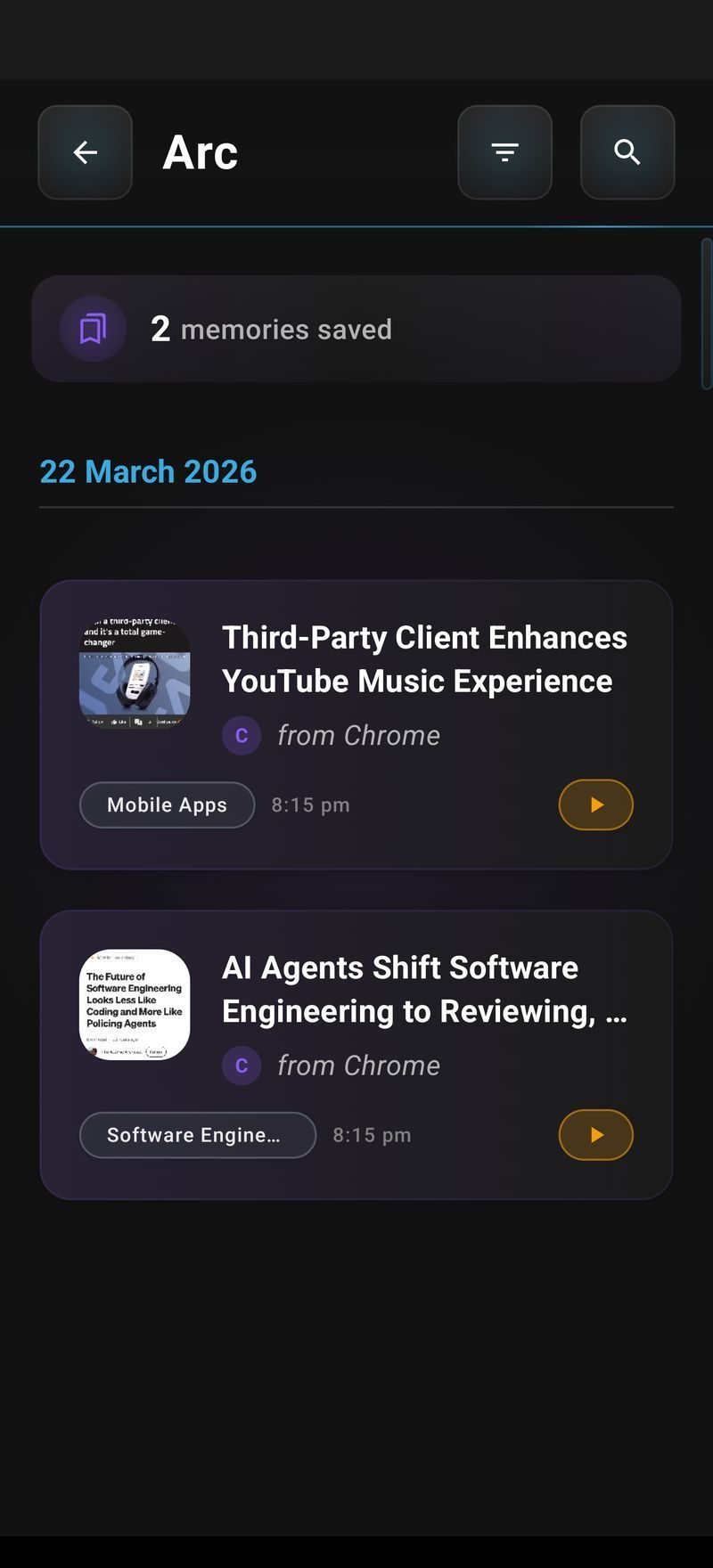
So the workflow becomes: skim during the day, save the good stuff, listen on the commute or at the gym. It’s the read-it-later habit, but with your eyes free.
AI text reader vs built-in Select to Speak: when to use which
Honest answer: you don’t have to choose. They overlap less than you’d think.
| Situation | Best tool |
|---|---|
| Read one paragraph you’re pointing at, right now | Select to Speak |
| Long article, email, or document in any app | Arc AI Read (AI voices, background playback) |
| Dense text you don’t have time for | Arc AI Summary, then Listen |
| Hands-free while cooking/commuting | Arc background playback |
| Full non-visual phone navigation | TalkBack |
Select to Speak is a marvel for what it is, and it’s already on your phone. But it’s a voice-and-a-button, nothing more. An AI text reader Android app like Arc adds the parts that make listening sustainable: natural voices, summaries, a save-for-later queue, and zero copying overhead. And because Arc’s sidebar works over every app, one setup covers Chrome, Gmail, WhatsApp, PDFs, and everything else.
Who gets the most out of an AI text reader Android app
- Commuters and walkers — clear the newsletter backlog with your eyes on the pavement.
- People with dyslexia, low vision, or eye strain — listening removes the wall of text without the clunky step of sending everything to a separate app. If accessibility is your main use case, Arc’s reading and summary features were designed for exactly this.
- Multilingual readers — automatic language detection means mixed-language feeds just work.
- Anyone with reading fatigue — summarize first, listen to the short version, read the full text only where it matters.
And on Mac?
Arc isn’t Android-only. The macOS app ships the same core idea: press Control+Space over any window — Safari, Mail, Preview, VS Code — and capture, read aloud, or summarize the text on that screen. If you split your day between phone and laptop, the Mac version fills in the desktop half of the same workflow.
FAQ
Is there an app that reads text to you on Android?
Yes — several. Your phone’s built-in Select to Speak (Settings → Accessibility → Select to Speak) reads tapped text with the system voice. For natural AI voices plus summaries and a save-and-listen queue, Arc reads any screen via its floating sidebar with no importing.
How do I get my Android phone to read text aloud?
Fastest built-in route: Settings → Accessibility → Select to Speak, turn it on, then tap the accessibility button and select text to hear it. For AI-voice narration of whole screens with background playback, install Arc, grant it screen access, and choose AI Read from the sidebar over any app.
What is the best free AI text reader Android offers?
For a screen-aware AI text reader Android users can start with free, Arc is the pick: download it from Google Play, and the core loop — capture a screen, hear it read aloud, summarize it — works on the free tier. Built-in Select to Speak is also completely free and is worth trying first if you only need occasional read-alouds.
Can an AI text reader read text from images or screenshots?
Yes. Because Arc reads what’s actually rendered on your screen, it handles text inside images, scanned PDFs, and app UIs that normal copy-and-paste can’t touch — if you can see it on screen, the sidebar can capture and read it.
Does the AI text reader work in other languages?
Arc detects the language of the text on screen automatically and selects a matching voice, covering dozens of languages. You can switch between an English article and a Spanish chat message without touching any settings.
Reading fatigue is a real bottleneck, and it’s one you can simply route around. Install Arc free on Google Play, grant screen access once, and from then on every screen on your phone is one swipe away from being read to you — or summarized first, if it’s too long. That’s the most practical AI text reader Android has right now.