AI Writer Android App: Write, Rewrite & Reply in Any App
You’re typing a reply on your phone with two thumbs, deleting half of it, retyping, and still not happy with how it sounds. Meanwhile the person on the other end is waiting. An AI writer Android app fixes this — but most of them make you copy your text into a separate app, generate something, then copy it back. That’s five steps to save two.
Arc takes a different approach: it’s an AI writer Android app that lives in a floating sidebar over whatever you’re doing. You stay in WhatsApp, Gmail, or wherever you are, tap one button, and the result lands on your clipboard ready to paste. Here’s how to set it up and get real work done with it.
What an AI Writer Android App Should Actually Do
A lot of AI writing apps on Google Play are just chat wrappers — you open the app, describe what you want, wait for output, and manually move the text wherever it needs to go. That works for drafting an essay. It’s clunky for everyday messaging.
The features that matter for a phone-first AI writer Android app:
- Works inside other apps — WhatsApp, Gmail, Instagram DMs, LinkedIn, Slack, any text field
- Reads the conversation context — so replies make sense without you re-explaining the thread
- Multiple modes — rewrite for tone, grammar fix for quick proofreads, reply generation for messages
- One-tap result — copy and paste without leaving the screen you were on
Arc checks all four. It’s a screen assistant for Android that bundles AI Writer, summarization, read-aloud, and custom actions into one floating sidebar. The Arc for Android page covers every feature in detail; this post focuses on the writing part.
Getting Started: Install and Open the Sidebar
- Install Arc from Google Play and grant it overlay permission — that’s what lets the sidebar float over other apps.
- Open any app with a text field. I’ll use WhatsApp for this walkthrough.
- Tap the small floating tab on the screen edge to expand the sidebar.
- Tap AI Writer.
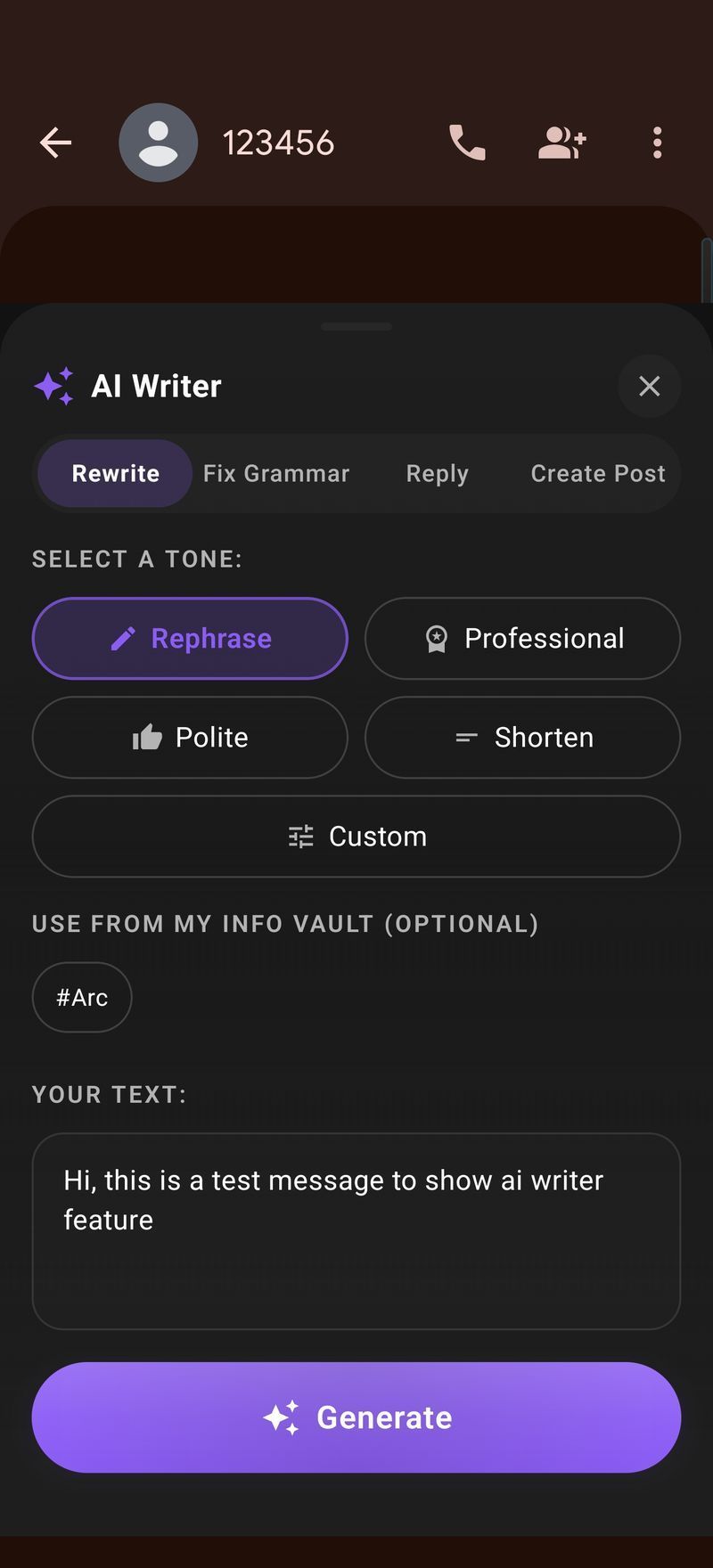
A bottom sheet slides up with four tabs: Rewrite, Fix Grammar, Reply, and Create Post. If your cursor was in a text field when you opened it, Arc auto-fills the textbox with whatever you’d already typed. That detail matters — it’s the difference between “AI tool” and “AI tool that knows where you are.”
The Four Modes of Arc’s AI Writer Android App
Each tab solves a different writing problem — the full AI Writer feature page documents every option, and here’s how I use all four in a normal week.
Rewrite: Change the Tone, Keep the Meaning
Rewrite is the mode I use most. Paste or auto-fill your text, then pick a tone:
- Rephrase — cleaner, clearer version of what you wrote
- Professional — turns “hey can you send the docs?” into something you’d send a manager
- Polite — softens blunt messages before you send them at 11pm
- Shorten — condenses a paragraph into a tweet-length version
- Elaborate — expands a two-line stub into a full explanation
- Custom — type your own instruction, like “simplify for a non-technical audience”
Tap Generate, get the rewrite in 2-3 seconds, then copy it or regenerate for an alternative. A real example from yesterday: I had a rough note to a client that read “running late, will push the call to 4 instead of 3 hope thats ok” — Professional mode turned it into a message I was comfortable sending.
Fix Grammar: Proofread in Under Two Seconds
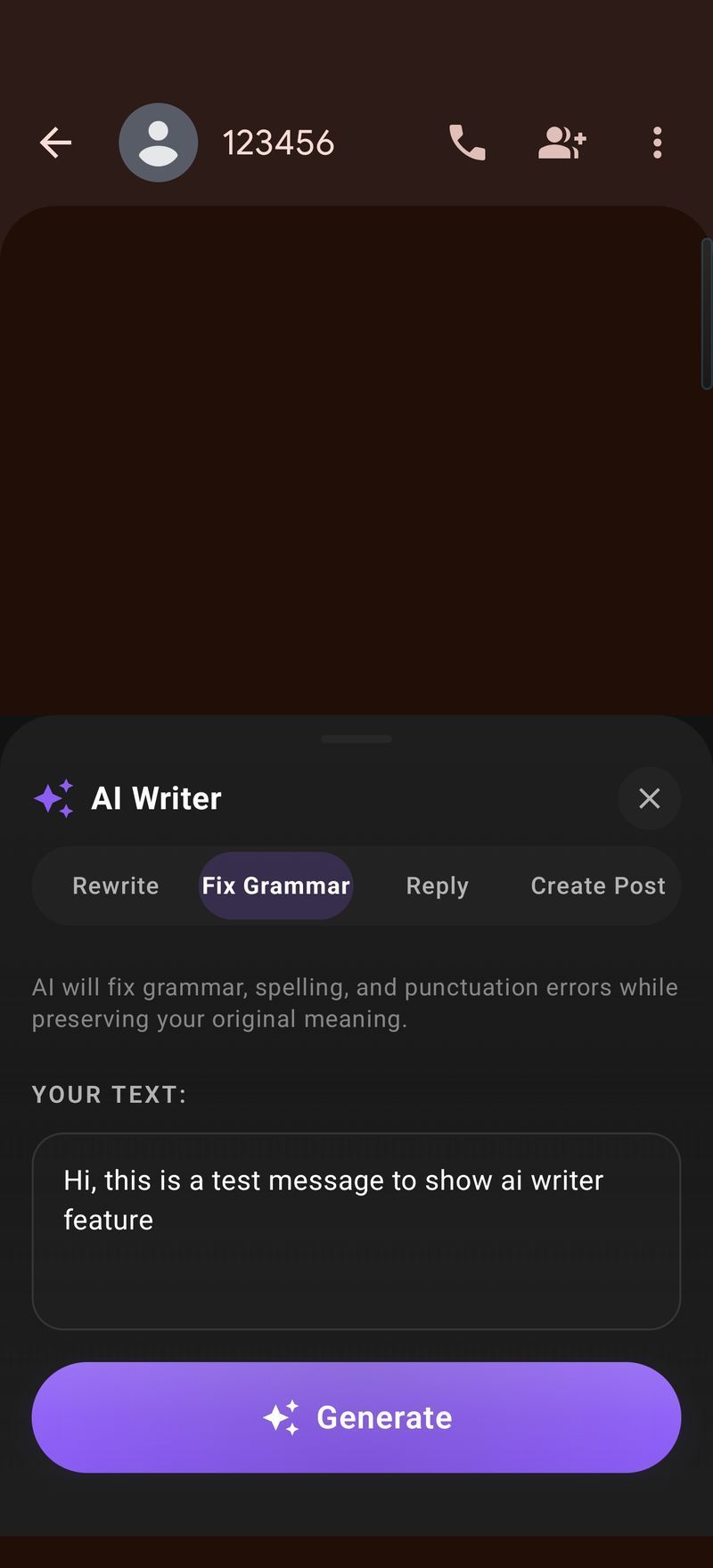
The Fix Grammar tab is deliberately simple: one box, one button. Paste your text (or let Arc pull it from the field), tap Fix Grammar, and get back the same message with spelling, grammar, and punctuation corrected — your tone intact, not rewritten into corporate speak.
It runs in under two seconds, which makes it usable mid-conversation. If you type quickly in a second language, this is the mode worth installing the app for on its own. And when text is already clean, it just says “no errors found” instead of mangling it.
Reply: Answers That Read the Conversation
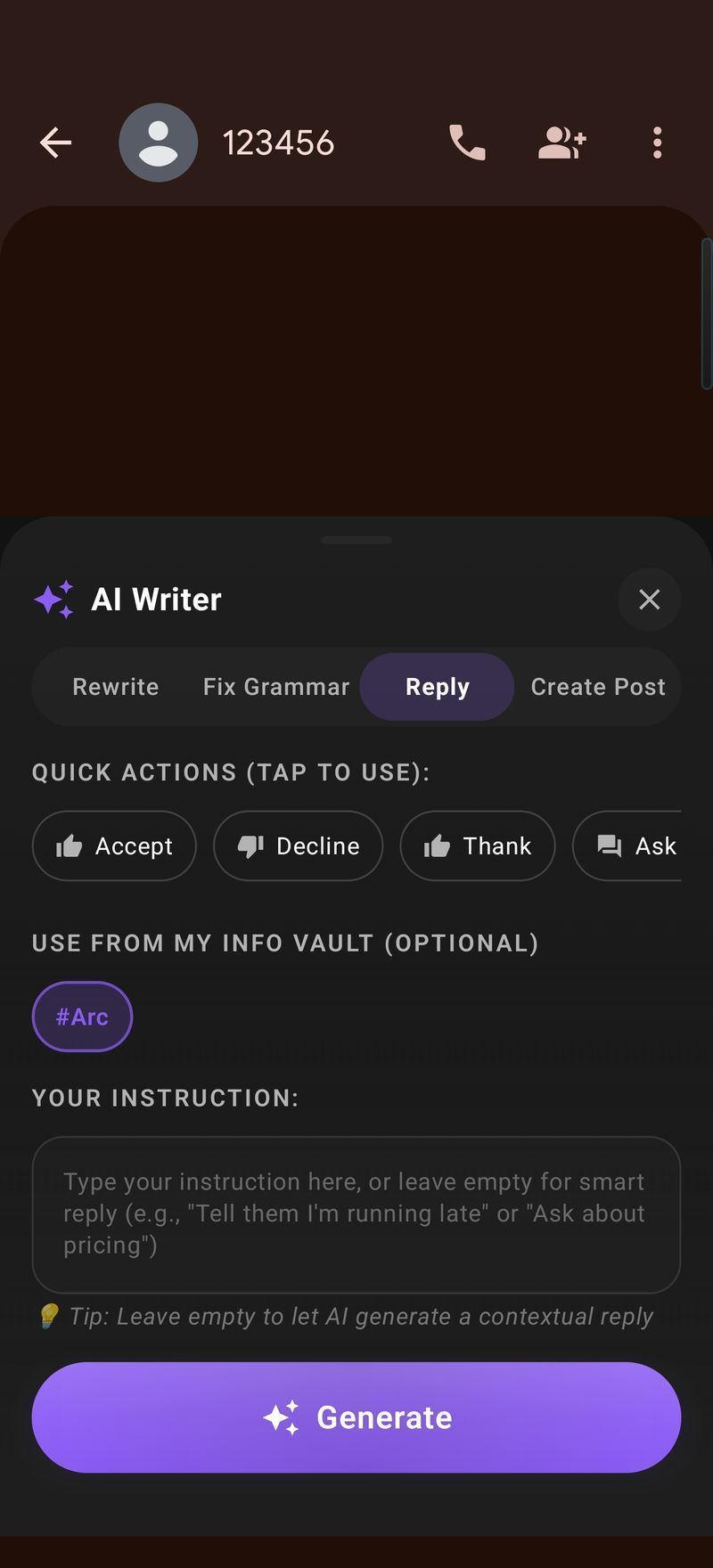
Reply mode is the one that surprises people. When you open AI Writer on a chat screen, Arc extracts the conversation — including who said what — and shows you the context it understood. Then you pick a reply type: Yes/Agree, No/Decline, Not Interested, or Custom with your own instructions.
For chat apps like WhatsApp and Telegram, Arc identifies messages by their alignment (left side = them, right side = you), which works reliably even in long threads. For email apps like Gmail, it uses the conversation flow to infer who’s writing to whom.
So the flow for a lunch invite becomes: open sidebar → tap AI Writer → the thread is already captured → tap Yes → a reply that references the actual question gets generated → copy → paste → send. Ten seconds, and it never left WhatsApp.
Create Post: Reviews and Social Captions
The fourth mode generates short-form posts — product reviews, social captions, comments. Type what the post is about, pick the platform, and get a draft you can tweak. It’s built for moments like “I need to leave a Google review for this café but I don’t want to think about it right now.” The generated post mentions what you actually experienced, not generic praise, because you feed it two or three specifics — the coffee was good, the staff remembered your order, the Wi-Fi was fast — and it shapes them into something postable.
Standalone Writing Apps vs. Arc’s AI Writer Android App
Worth being honest about the trade-offs, because “AI writer” means two different things on Android:
- Standalone apps (the chat-window kind) are better for long-form drafting — essays, blog posts, 1,000-word briefs. You sit down with a blank page and iterate. If that’s your job, tools built around documents will serve you well.
- A system-level AI writer Android app like Arc is built for the writing you do dozens of times a day inside other apps: replies, quick emails, corrections, short posts. It sacrifices the document editor to be present everywhere else.
The two overlap less than you’d think. Most people’s phone writing is the second kind — short, contextual, and time-pressured. That’s the gap Arc is built for, and it’s also why the sidebar approach matters: the fastest writing tool is the one already open over your screen.
If your reading load is as heavy as your writing load, pair it with AI Summary & Reader, which summarizes long articles and reads any text aloud on Android and Mac.
Making It Yours: Info Vault and Custom Instructions
Two things take the output from generic to yours:
- My Info Vault stores your details — name, role, preferred sign-off, links. Replies pull from it, so generated emails end with your actual signature instead of “Best regards, [AI].”
- Custom instructions in Rewrite mode let you define recurring preferences once, like “keep it under 50 words, no exclamation marks.”
Arc also keeps your previous generations so you can reuse a reply style that worked. The same personalization powers the reader tools and the AI Workflow Automation side — custom actions that chain summarize, rewrite, and extract steps into one tap for the things you do repeatedly.
Does This Work on Mac Too?
Yes. Arc runs on macOS with the same AI Writer modes (Rewrite, Fix Grammar, Reply, Create Post), invoked with a Control+Space shortcut over any window — Gmail in Chrome, a note in Obsidian, whatever you’re writing in. The Arc for Mac page has the details, and a Windows version is in the works for PC users.
FAQ: Using an AI Writer Android App
Is there an AI writer app that works inside WhatsApp and Gmail on Android?
Yes — that’s Arc’s core design. Most AI writing apps are standalone chat windows, but Arc’s AI Writer works over any app with a text field, including WhatsApp, Gmail, Telegram, Instagram, and LinkedIn. It auto-fills your draft text and copies results back to your clipboard.
What can an AI writer Android app actually help me write?
In Arc: rewrites in six tones (professional, polite, shorter, longer, rephrased, or fully custom), one-tap grammar fixes, contextual replies to messages and emails, and short posts like reviews and social captions. It’s built for everyday writing — the replies, emails, and comments that fill a phone day — rather than long documents.
Is Arc’s AI Writer free?
Arc is free to download from Google Play and includes free daily usage of AI Writer and every other tool. There are daily limits on the free tier, with paid plans if you end up running it all day.
Does the AI reply generator read my whole conversation?
When you open AI Writer on a chat screen, Arc captures the visible conversation so the reply fits the context — who asked what, and how the thread has been going. The context preview is expandable, so you always see exactly what it read before anything gets generated.
Can I use an AI writer on Android without switching apps?
That’s the point of the floating sidebar. Arc sits as a small tab on your screen edge in every app. Expand it, tap AI Writer, generate, copy — and you’re back in the same text field you started in. No app-switching, no copy-paste gymnastics.
Writing on a phone will never be fun, but it can be fast. Try Arc free on Google Play and see how much of your typing you can hand off.