Text to Speech AI Android App: Hear Any Screen in 2 Min
Your phone already talks. Android has shipped a text-to-speech engine since Cupcake, and Select to Speak can narrate whatever you tap. So why do people keep searching for a dedicated text to speech AI Android app? Because the built-in voice sounds like a GPS from 2012, it reads everything on the page — menus, buttons, cookie banners — and it stops at speaking. It can’t summarize what it just read, save it for later, or turn a 4,000-word newsletter into something you can finish on a commute.
I’m Mamata, I build Arc, an AI screen assistant for Android — the Mac app is live too — and the reading side of Arc is what a modern text to speech AI Android app should be: capture any screen, hear it spoken in a natural AI voice, and decide whether it deserved your ears in the first place. Here’s what actually separates an AI TTS app from what’s already on your phone, and how to set one up in about two minutes.
Built-in TTS vs a text to speech AI Android app: what actually changes
Let’s be concrete about the difference, because “AI voice” gets thrown around loosely.
- Voice quality. Built-in engines produce flat, robotic delivery. Cloud neural voices handle emphasis, pauses at punctuation, and question intonation — the difference you notice within ten seconds of listening.
- What gets read. Select to Speak reads exactly what you select, including navigation and buttons. A screen-aware app extracts the main content and filters out menus, ads, headers, and cookie banners.
- Long content. A 3,000-word page is roughly 20 minutes of audio. Built-in TTS commits you to all of it; an AI app can give you a 60-second summary first so you only listen to what’s worth it.
- Retention. Built-in tools leave nothing behind. A proper reader app saves captures to a library you can re-listen to days later.
- Languages. Instead of one engine with manual voice swaps, on-device language detection picks a native-sounding voice automatically — Chinese content gets a Chinese voice, Spanish gets Spanish, across 100+ languages.
- Speed. A proper rate slider (0.5x–2x) with playback that continues in the background while you use other apps.
That last point matters more than people expect: background playback. If the voice goes silent the moment you leave the app, it’s not a listening tool — it’s a demo.
The three routes on Android, honestly compared
- Select to Speak (built-in, free). Settings → Accessibility → Select to Speak. Tap or drag a box around text, it gets spoken. Perfect for occasional one-off paragraphs. No content filtering, no memory, no speed control worth using.
- Speechify (the category giant). Polished, 60M+ users, genuinely good voices. The free tier keeps you on standard voices at 1x speed; premium runs about $139/year with word quotas on the premium voices. If you listen to books for hours daily and want their premium voices, it’s a reasonable buy.
- Arc (screen-aware, my app). Free to download with a free tier. The distinction isn’t just the voice — Arc sees your screen the way an assistant does, so listening plugs into a workflow: extract → listen → summarize → save. You’re not importing files or pasting text anywhere, which is what most text to speech AI Android app setups get wrong.
If you’re a casual user, #1 costs nothing and works. If listening is becoming how you get through content every day — commute, gym, cooking, email triage — #2 or #3 earns its install. The rest of this post is how I’d set up Arc as your text to speech AI Android app in four steps, and most of it applies to Arc for Android generally.
Step 1: Install Arc and grant the two permissions
Grab Arc from Google Play and open it once. Two permissions make the whole thing work, and both are grant-once:
- Accessibility service — this is what lets Arc read the text on whatever app you’re in. Without it there’s no screen awareness at all. Arc prompts you straight to the right Settings page; toggle it on.
- Display over other apps — this powers the floating sidebar that follows you across Chrome, Gmail, WhatsApp, and everything else.
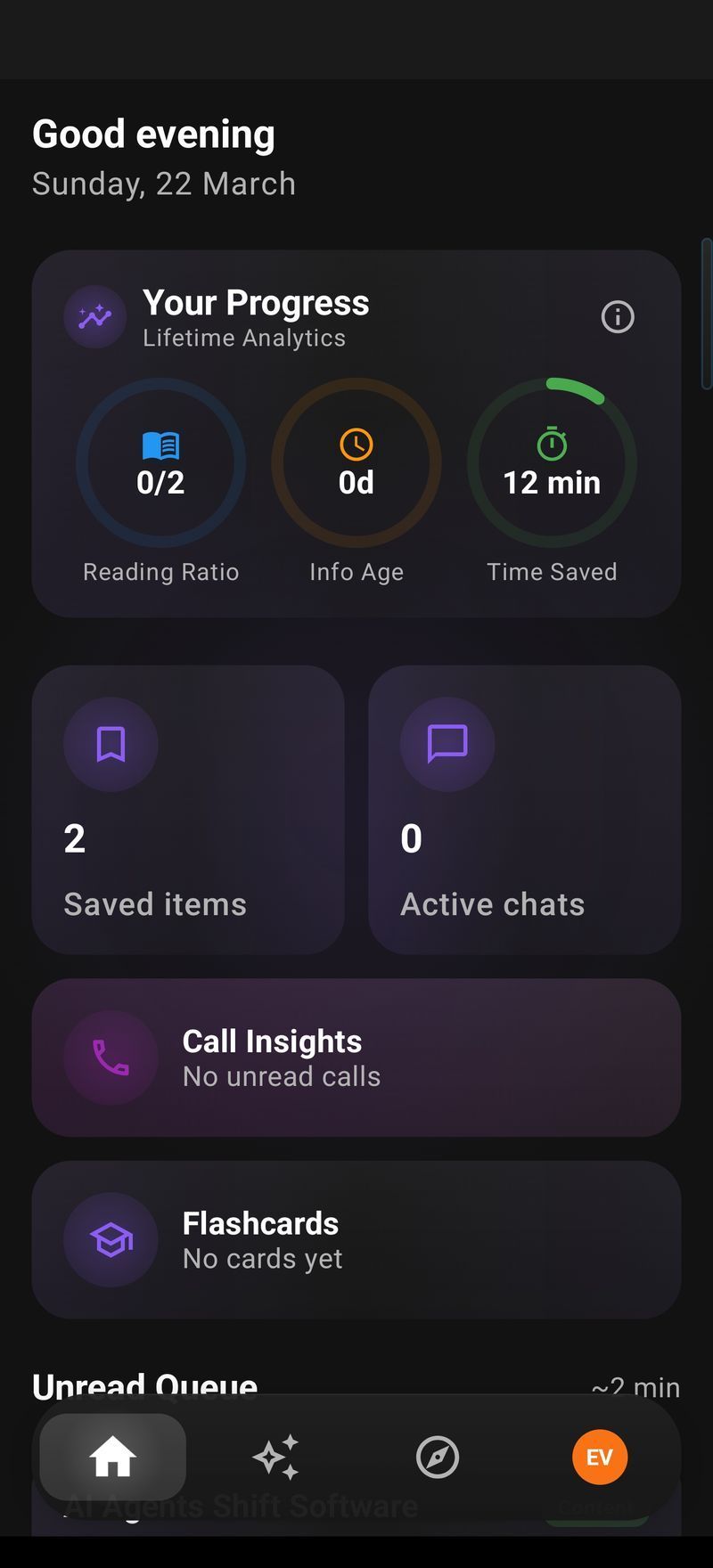
That’s it. No account juggling, no file imports. The app opens on a dashboard where everything you capture will live.
Step 2: Open the floating sidebar on any app
This is the part that makes it feel like magic the first time. Open literally anything with text — a long Reddit thread, a news article, a PDF in Drive, a Gmail. Tap Arc’s floating bubble at the edge of the screen and the sidebar slides out over the app.
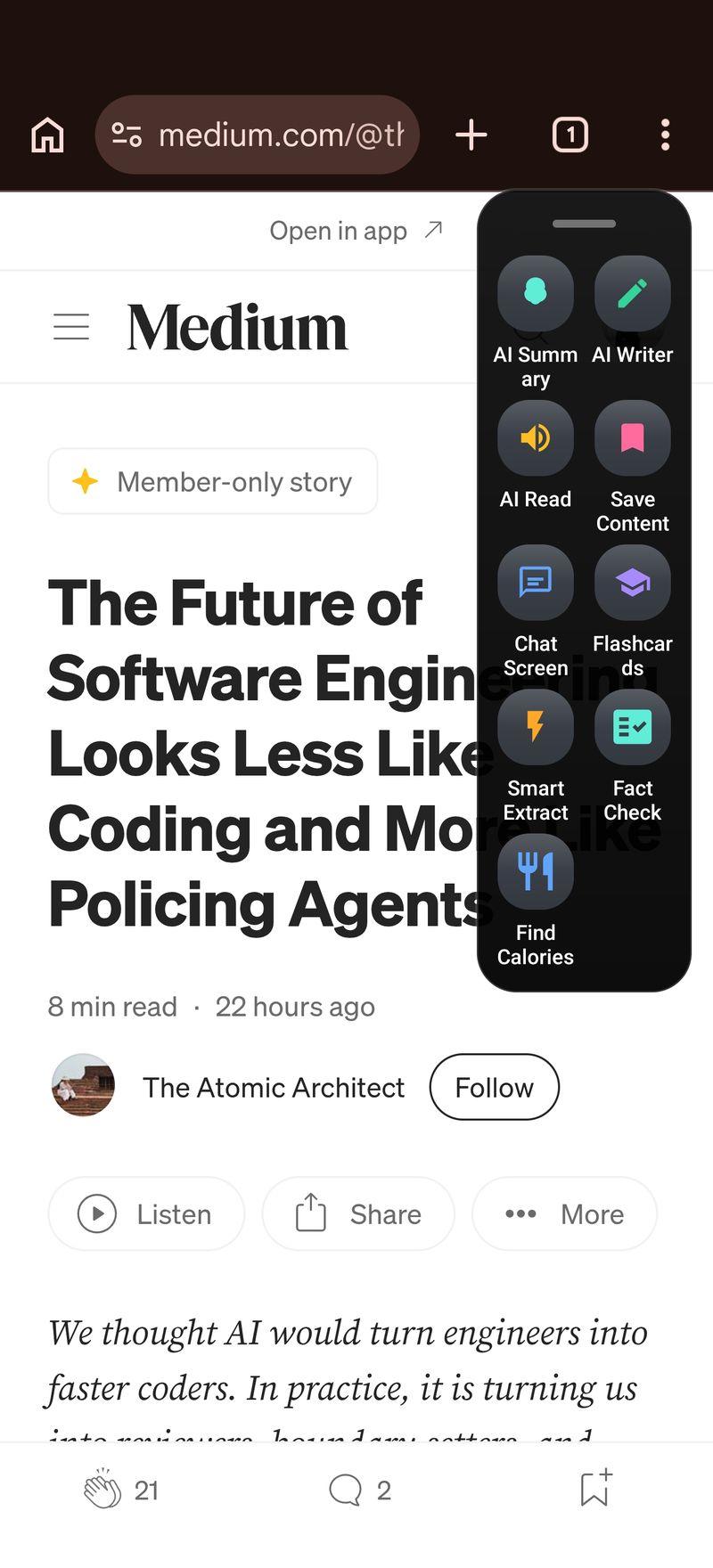
Tap AI Read. Arc captures the screen through the accessibility service, extracts the readable content, filters out the navigation and ad clutter, detects the language, picks a matching natural voice, and starts speaking — in under a second from tap to audio. That’s the difference between a TTS engine and a real text to speech AI Android app: the app understands what it’s reading, not just that it should read.
Step 3: Control playback without returning to the app
Start listening, then hit home and do something else. Arc keeps playing as a foreground service, and a media notification appears with play/pause and stop — lock screen and Bluetooth headset controls work too. This is how the commute use case actually survives: podcast app in one ear, a captured article in the other, phone in your pocket.
Two settings worth 60 seconds of your time (Settings → Speech Settings):
- Speech rate — 0.5x to 2x slider. I keep newsletters at 1.2x and documentation at 1x. Preview the voice before committing. Most people evaluating a text to speech AI Android app should test rate control first — it’s where cheap apps fall apart.
- Auto voice selection — leave it ON. Arc detects the content language per capture and picks a native voice. If you read multilingual content — English articles, Hindi news, a Chinese summary — this is the feature that makes it sound right instead of like a tourist attempting pronunciation.
Summarize first, listen second
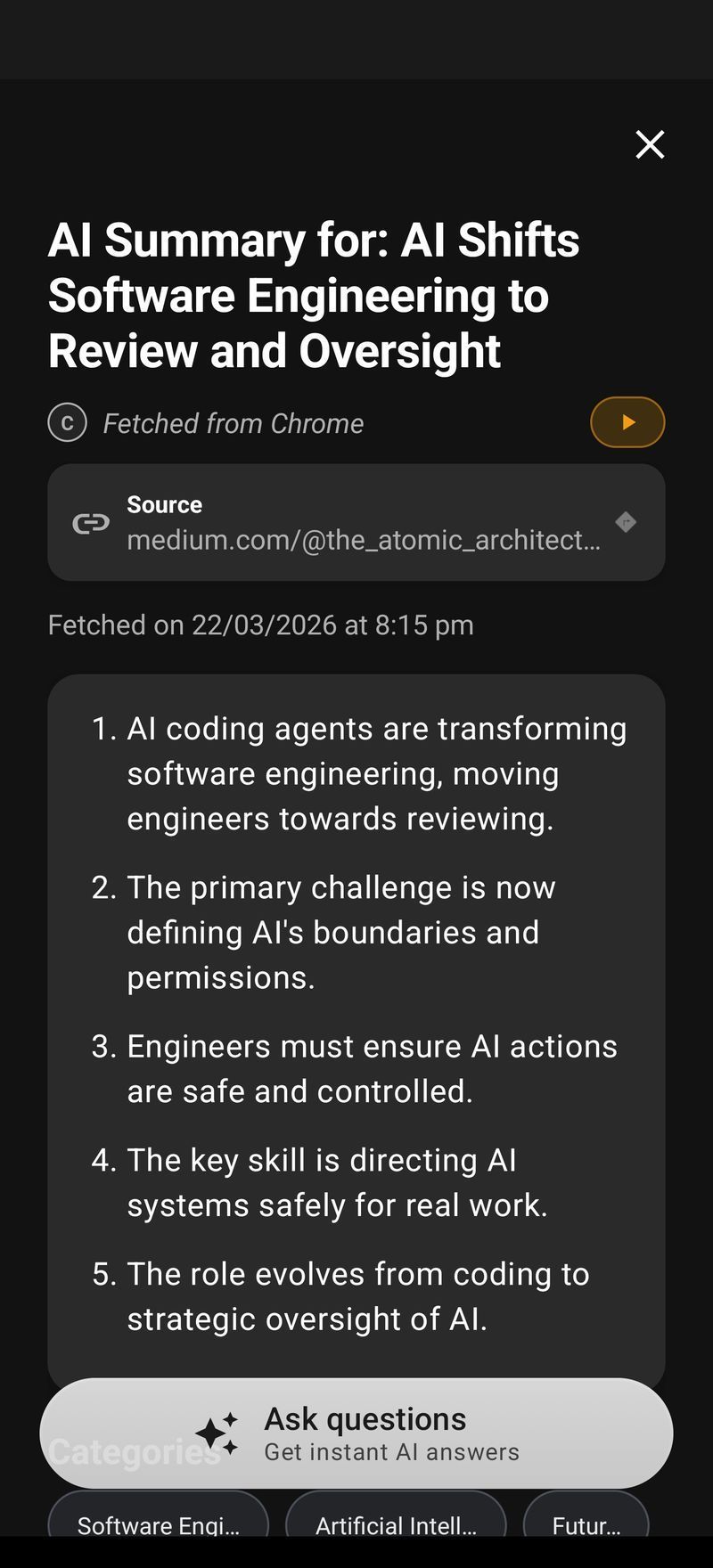
Here’s the habit that changed how much I listen to. Before playing a long capture, tap the summarize action instead. In a few seconds you get the key points, spoken or read — and then you decide whether the full 20-minute listen is worth it. Arc’s AI Summary & Reader does exactly this pairing: triage with a summary, commit with a listen. It’s the single biggest time-saver in the whole flow.
Step 4: Build a listening library
Every capture can be saved to Arc’s library. Open the Summaries tab later and each saved item has a Listen button right on the card — no need to open the detail view, playback starts on the tap, and only one item plays at a time so switching is instant. This is the part no generic text to speech AI Android app bothers with: your listening history becomes a reusable queue.
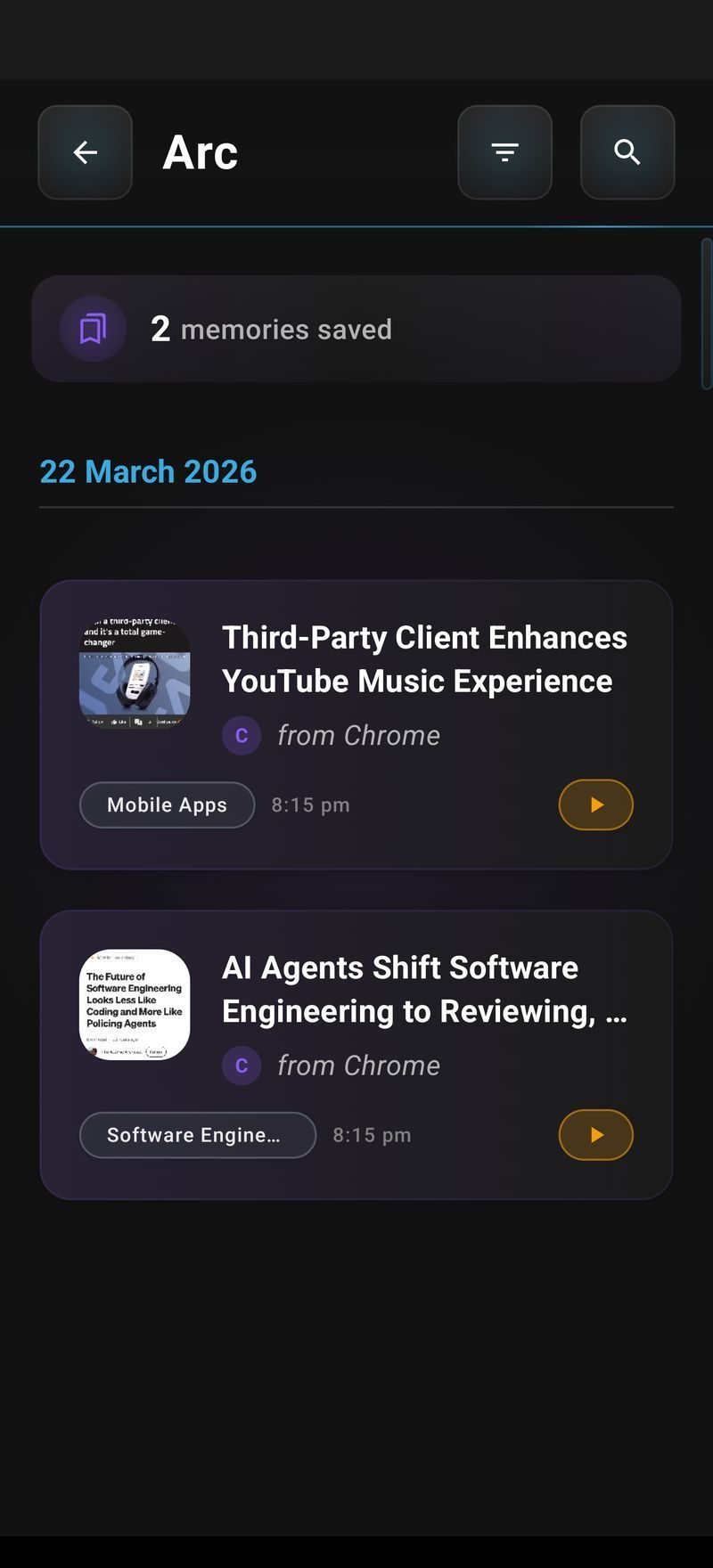
This turns “read it now or lose it” into a queue. Morning: capture five articles while skimming feeds. Commute: listen to all five without touching a screen. It’s the closest thing Android has to a DVR for reading.
Tips that make AI listening actually work
- Match speed to content type. News at 1.3x, technical docs at 1x, anything you’ll act on at 1x so it sticks.
- Use summarize-first for anything over ~800 words. Full reads are for content you already know you want.
- Save mid-scroll. The capture takes one tap; deciding to read it later is cheaper than deciding now.
- Use it for your own writing. Listening catches awkward sentences that your eyes skip over — run your draft through Arc’s AI Writer for a rewrite pass, then listen to the result before sending. Edit by ear; it’s an underrated final check.
- Turn on auto voice selection if you touch more than one language. It just works, and manual voice switching is nobody’s hobby.
One more platform note, because I get this question weekly: Arc is also on Mac — same capture-then-listen flow, summoned over any window with Control+Space. And if you’re on Windows or iPhone, both versions are in development with waitlists open.
FAQ: text to speech AI Android apps, answered
Is there a free text to speech AI app for Android?
Yes. Select to Speak is built in and free forever. Arc is free to download with a free tier that covers the capture-listen-save flow, so you can judge the voice quality before paying anything.
What is a text to speech app, exactly?
Software that converts written text into spoken audio. On Android it ranges from the built-in engine that narrates selections, to AI apps that read whole screens in natural neural voices with playback controls, speed adjustment and content summarization.
Which is the best text to speech AI Android app?
For whole-screen listening with a workflow — capture, summarize, save, background playback — Arc is the strongest fit, and it’s the app I build. For hour-long audiobook sessions with premium voices, Speechify’s premium plan is the established choice. Match the tool to the listening pattern.
How do I make my Android read text aloud in a natural voice?
Install an app with cloud neural voices rather than relying on the system engine. With Arc you tap the floating sidebar, choose AI Read, and it speaks in a natural voice with the language detected automatically — setup is two permission grants.
Does text to speech work offline on Android?
The built-in system engine works offline with lower-quality standard voices. AI-quality neural voices are cloud-based, so they need a connection; Arc falls back to the device voice offline.
If you’ve been putting up with the robot voice because switching felt like work, that’s the part to reconsider — setup is two toggles, and the first capture-to-listen takes under two minutes. Try Arc free on Google Play and hear the difference on the next wall of text you meet.