AI Screen Assistant Android: Arc Works in Every App
I built Arc because of a specific frustration. I’d be reading a long article in Chrome, want a summary, and realize the only way to get one was: select the text, copy it, switch to a chatbot app, paste, hit enter, read the answer, switch back. Seven taps for a two-second question. Multiply that by every app on my phone and you get why I started building the AI screen assistant Android was missing.
The pitch is simple: the AI should come to the screen you’re already on. Not the other way around.
What Does an AI Screen Assistant Android App Do?
An AI screen assistant is an app that can read what’s currently on your screen and act on it — no copying, no pasting, no app-switching. Instead of a chat bubble living in its own silo, the assistant overlays the app you’re already using and works with the content that’s already there.
The distinction matters more than it sounds:
- A chatbot answers questions you type into it. You bring the context to it.
- A screen assistant answers questions about what you’re looking at. The context is already there.
On Android, this is possible because of two OS capabilities: the accessibility service, which lets an app read on-screen text after you explicitly grant permission, and overlay permission, which lets an app draw its interface on top of other apps. Any AI screen assistant Android users can trust needs exactly those two permissions — and Arc asks for exactly those two, nothing more.
Meet Arc: Built for Exactly This
Arc is a free AI screen assistant Android users install from Google Play. It adds a floating sidebar that stays available in every app — a thin, semi-transparent bar resting on the screen edge. Swipe inward and it expands into an action panel: AI Summary, AI Writer, AI Read (text to speech), Save Content, Chat Screen, plus any custom actions you’ve added.
Tap an action and Arc works on whatever is under it. Summarize the article in Chrome. Rewrite the email draft in Gmail. Read the PDF aloud. Extract text from a screenshot someone sent you. All without leaving the app you were in.
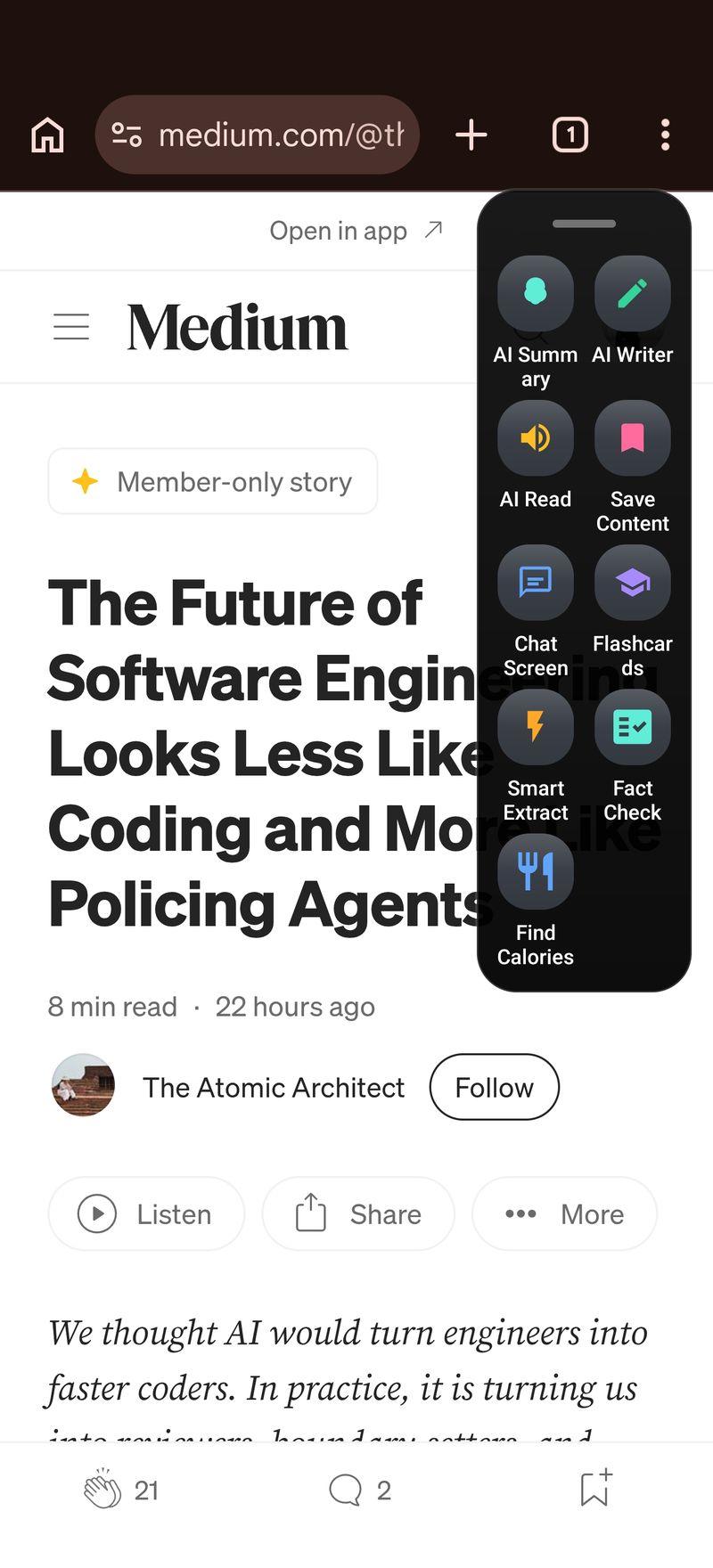
One swipe, wherever you are
The sidebar is system-wide. It shows up over Chrome, Gmail, WhatsApp, Kindle, Reddit, YouTube comments, banking apps, PDF viewers — anything that renders text. Arc also plays nicely with device-native sidebars: on Samsung you can hook it into the Edge Panel, on OnePlus into the Shelf, so it feels built-in rather than bolted on.
It auto-hides when you don’t need it, and you can drag it to whichever edge stays out of your thumb’s way. That sounds minor; after a week of use you’ll notice it’s the difference between using the assistant and uninstalling it.
What “screen-aware” actually means
When you tap AI Summary on a news article, Arc reads the article itself — the one on your screen, at the scroll position you’re at — not a paragraph you had to paste into a box. The result lands in a panel over the app, and you can save it to your summary library for later.
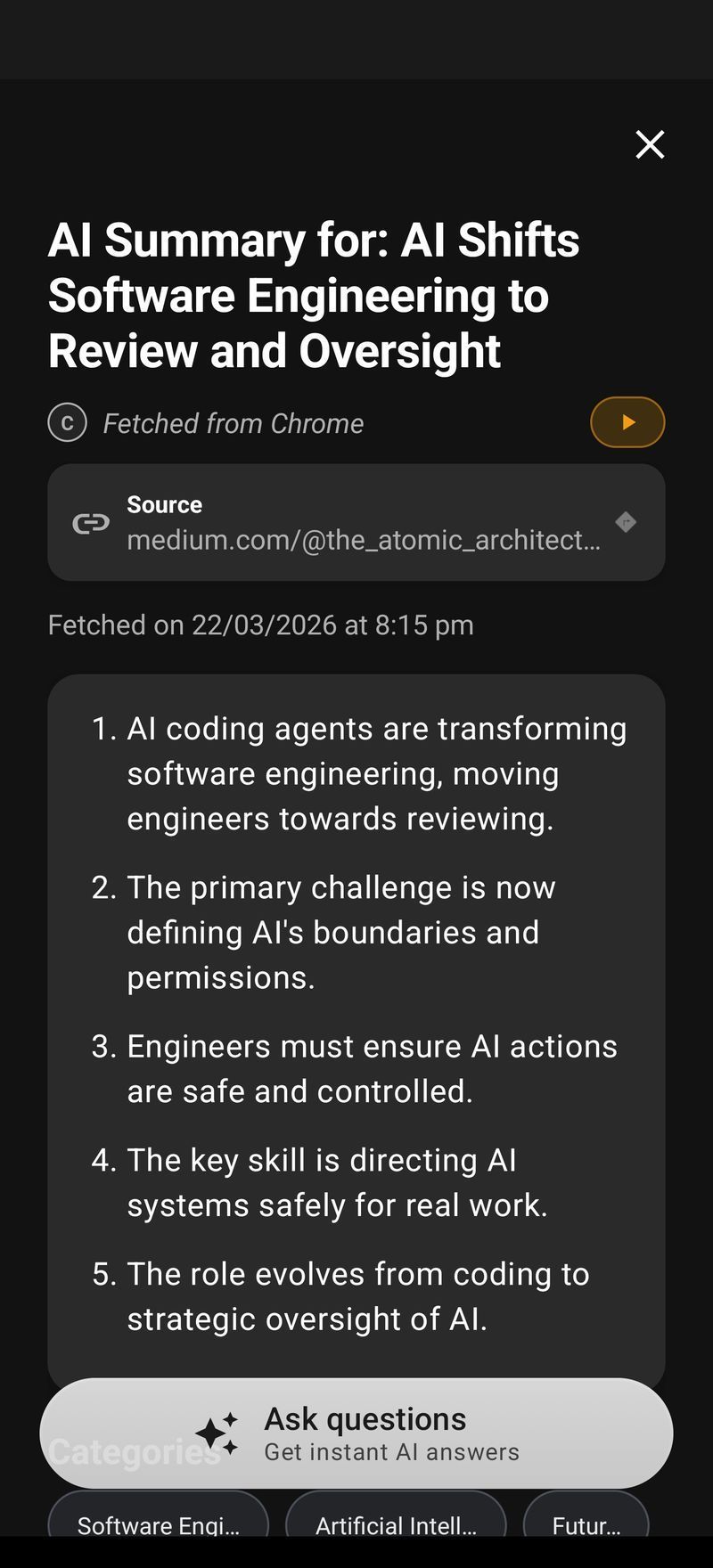
This is the core loop of a good AI screen assistant Android users stick with: see what I see, act immediately, get out of the way. Everything else is details.
What Your AI Screen Assistant Android Sidebar Can Do
Summarize anything on screen
Long articles, 40-message email threads, Terms & Conditions, documentation pages, research abstracts. Tap AI Summary and get the short version in a few seconds. Summaries are saved to a library in the app, so a month later when you remember “there was that one article about…”, it’s searchable. Arc’s AI Summary & Reader page walks through the full workflow.
Extract text from anywhere
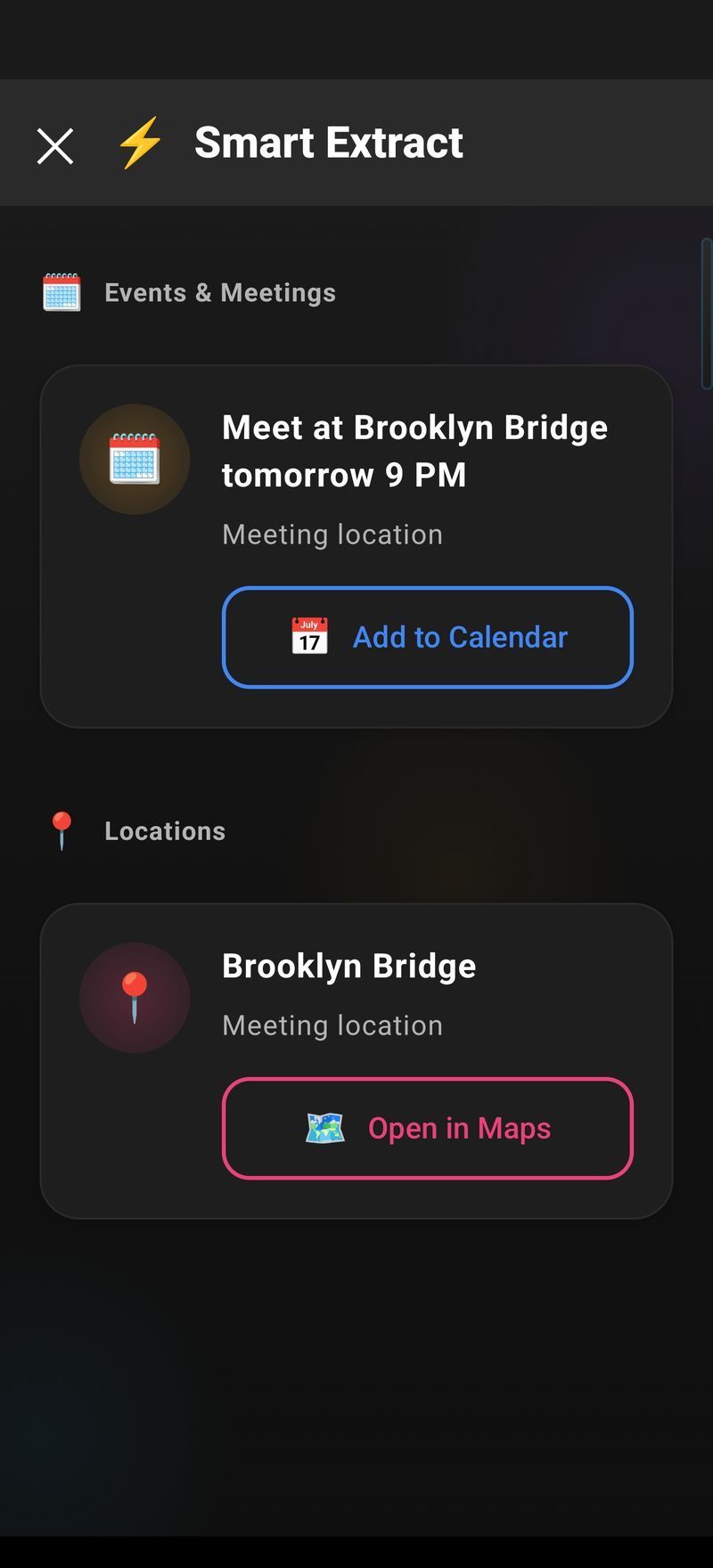
Sometimes you don’t need a summary — you need the raw text. Smart Extract pulls text out of images, screenshots, and app screens that don’t let you select anything. A screenshot of a Wi-Fi password, a photo of a business card, a shipping confirmation inside an image message: one tap, and it’s selectable text you can copy or save.
Write and reply without leaving the app
AI Writer has modes matched to what you’re doing: Reply drafts a response to the email or message on screen, Rewrite reworks selected text (shorter, more formal, whatever you need), Fix Grammar cleans up what you typed, and Create Post drafts longer content from a prompt. The output drops straight into the text field you were in. That last part is the whole point — an AI screen assistant that makes you leave the conversation to draft the reply has already failed.
Hear any screen read aloud
AI Read turns on-screen text into speech — articles while you cook, messages while you drive (parked, please), documentation while your eyes are tired. It’s screen-aware TTS, so it reads the thing in front of you rather than a file you imported first.
Ask questions about what you’re looking at
Chat Screen opens a conversation grounded in the current screen. “Explain this error message.” “What are they actually offering in this email?” “Compare these two product specs.” Because the assistant already has the screen content, you skip the entire “here’s the context” preamble.
Automate the repetitive parts
Custom Actions are the feature I keep expanding myself. Define a reusable instruction — “extract all prices from this screen and format as a list,” “summarize this thread in 3 bullet points,” “translate this message to casual English” — and it becomes a one-tap button in your sidebar. There’s also a community library of actions other users have published, so you can browse and grab useful ones instead of writing your own.
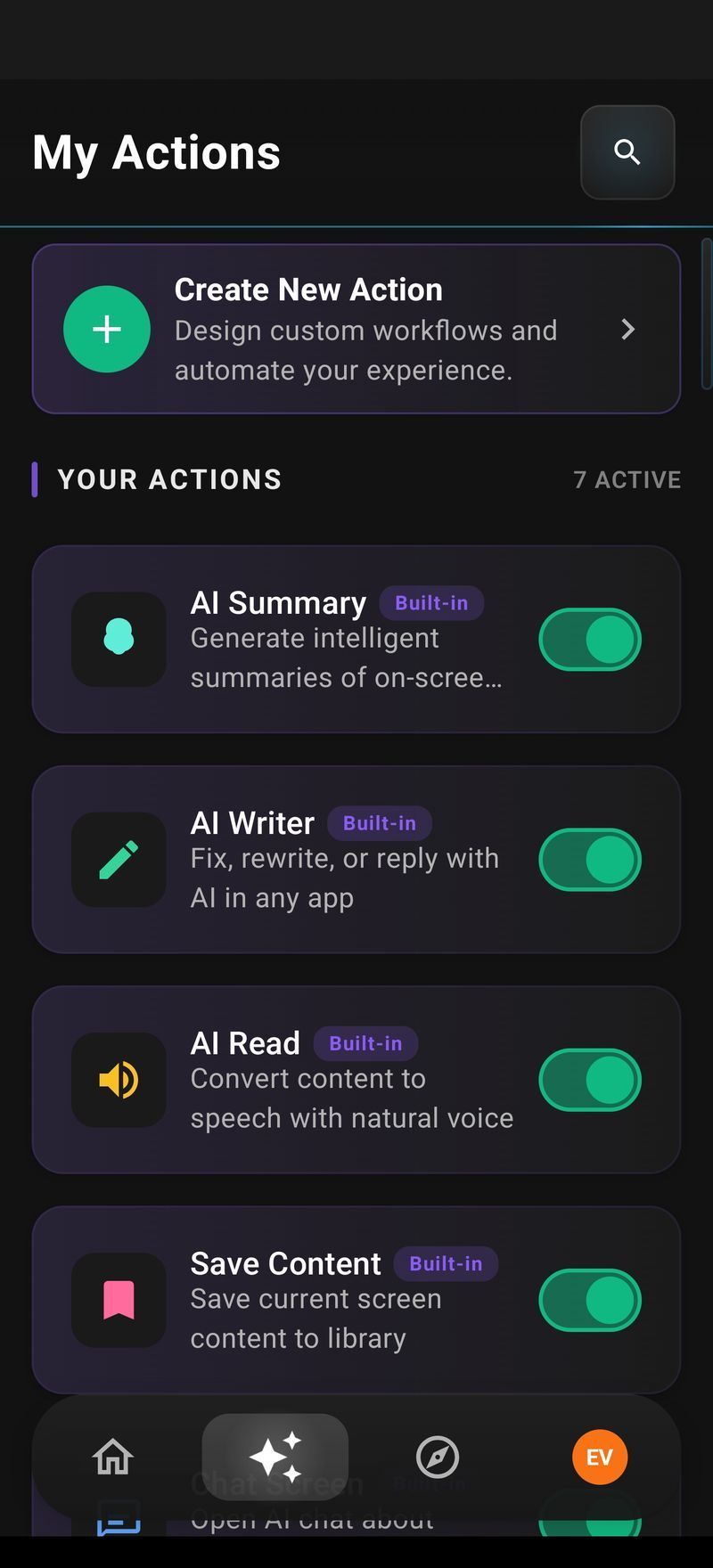
If you want to see how far this goes, the AI Workflow Automation page covers chaining actions into real workflows.
Setting Up the AI Screen Assistant Android App: About Two Minutes
- Install Arc free from Google Play.
- Grant two permissions during onboarding: Accessibility (so Arc can read screen content on demand) and Display-over-apps (so the sidebar can draw over other apps). Nothing else is requested.
- Pick your sidebar mode — Arc’s own floating sidebar, or integration with your device’s native sidebar (Samsung Edge Panel, OnePlus Shelf).
- Swipe in from the edge in any app. Tap an action. Done.
From install to first AI summary is genuinely under two minutes on a mid-range phone — I’ve timed it on a three-year-old device.
How It Compares to Gemini and Other Android AI
Google’s Gemini is a strong general-purpose chat assistant, and Circle to Search is handy for lookups. But neither gives you a persistent action panel that follows you across every app with one-tap summarize, rewrite, read-aloud, and extract. They’re assistants you visit; Arc is an AI screen assistant Android keeps one swipe away in every app.
They’re not mutually exclusive, either. I use Gemini for open-ended research and Arc for the moment-to-moment work of actually getting through text — which is most of what a phone is used for. If you’re weighing options, my honest framing: chat assistants answer questions; a screen assistant clears the screen. You’ll know within a day which one you reach for more.
And on Mac
Arc also runs on macOS with the same idea: press Control+Space over any window — a PDF, a browser, an email — and the same panel appears. If you split time between phone and laptop, the workflows feel identical. See Arc for Mac for the full rundown, or the Arc AI Screen Assistant homepage for everything in one place.
FAQ
What is an AI screen assistant Android app?
An app that overlays your current app and can read or act on the content displayed there — summarizing, rewriting, reading aloud, extracting, or automating — without you copying text into another app. Arc is one example; the category is distinct from chatbots because an AI screen assistant Android app works with live screen content.
Does Arc work in every app?
Yes. Because it’s a system-wide overlay, it works over Chrome, Gmail, WhatsApp, Kindle, Reddit, PDF readers, notes apps, anything showing text. If the text is on the screen, Arc can summarize, rewrite, read, or act on it.
How is an AI screen assistant different from Google Assistant or Gemini?
Google Assistant and Gemini are general chat assistants — you ask questions in their own interface. A screen assistant like Arc overlays your current app and operates on what’s displayed: tap AI Summary on the article you’re reading, Reply on the email you have open. Different tool for a different job; plenty of people use both.
Is Arc free?
Yes. Arc is free to download from Google Play with the core features usable out of the box. There’s an optional upgrade for heavier usage.
Does Arc read my calls or personal data?
No. Arc requests exactly two permissions: Accessibility (to read on-screen text when you invoke an action) and Display-over-apps (to draw the sidebar). It doesn’t intercept calls, messages, or notifications in the background.
Try Arc free on Google Play — or explore the full feature list on Arc for Android.