
Screen Reader AI App Android: Read Any Screen in 3 Steps
Your phone can already read the screen to you — Android ships with TalkBack and Select to Speak. So why do people still search for a screen reader AI app Android users actually enjoy listening to? Because the built-in tools read like a robot reciting a phone book: flat system voice, constant mode switching, and no memory of what you heard thirty seconds ago. The new wave of AI screen readers fixes the voice and adds brains — but most of them still make you send the text somewhere before it gets read. This guide covers what a screen reader AI app actually does, the three ways to get one on Android, and how to set one up in about three steps.
Quick honesty check, since I make one of these: I’m the developer of Arc, an AI screen assistant for Android and Mac. Everything below about setup, voices, and playback applies to Arc — a screen reader AI app Android and Mac both have — while the comparison parts apply to every option out there. Judge accordingly.
What a screen reader AI app Android actually needs to do
A screen reader AI app Android users will stick with has to do two jobs at once. First, it captures the text already on your screen — articles, emails, PDFs, chat threads — without you copying or sharing anything. Second, it reads that text aloud with a modern AI voice that handles punctuation, pacing, and dozens of languages, instead of the flat system voice. And the AI half does things a plain text-to-speech engine can’t: summarize a wall of text before reading you the short version, translate while it reads, or answer questions about the screen you’re both looking at.
That last part is the real dividing line. Classic accessibility screen readers are built for operating the phone without sight. AI readers are built for consuming what’s on the screen — a longread, a newsletter, a contract — with your eyes free. That’s the job a screen reader AI app Android users actually want done: reading, not just announcing.
TalkBack vs. a screen reader AI app: different jobs
TalkBack is excellent at its actual job: non-visual navigation. Gestures move focus between buttons, double-tap activates, and every element on screen gets announced. If you can’t see the screen at all, that’s the tool — nothing else comes close.
What TalkBack isn’t built for is listening to a 3,000-word article while you cook. For content consumption, a screen reader AI app Android users pick for listening is the better fit: it narrates the whole content of the screen start to finish, keeps playing in the background while you switch apps, and speeds up to 2x when you just want the gist. Most people searching for a screen reader want the second job done well. Keep TalkBack for navigation; use an AI reader for reading.
Three ways to get a screen reader AI app on Android
Option 1: Built-in accessibility tools — free, already installed
Select to Speak reads whatever you tap, and TalkBack reads the screen item by item, both with the system voice. Zero setup, works on every phone, and for the occasional “read me this paragraph” they’re fine. The ceiling is low, though: robotic voice, no background playback, no summaries, no memory of what you saved.
Option 2: Import-based AI readers — share, wait, listen
Apps like Speechify and ElevenReader ask you to share the article or upload the PDF into their library first, then they read it from there. For books and planned long-form listening, that model works. But for the “I’m looking at this right now” case, the friction compounds: share, wait for the import, switch apps, find where you were. The free tiers also cap listening time, with unlimited listening locked behind a subscription.
Option 3: Screen-aware AI readers — the overlay approach
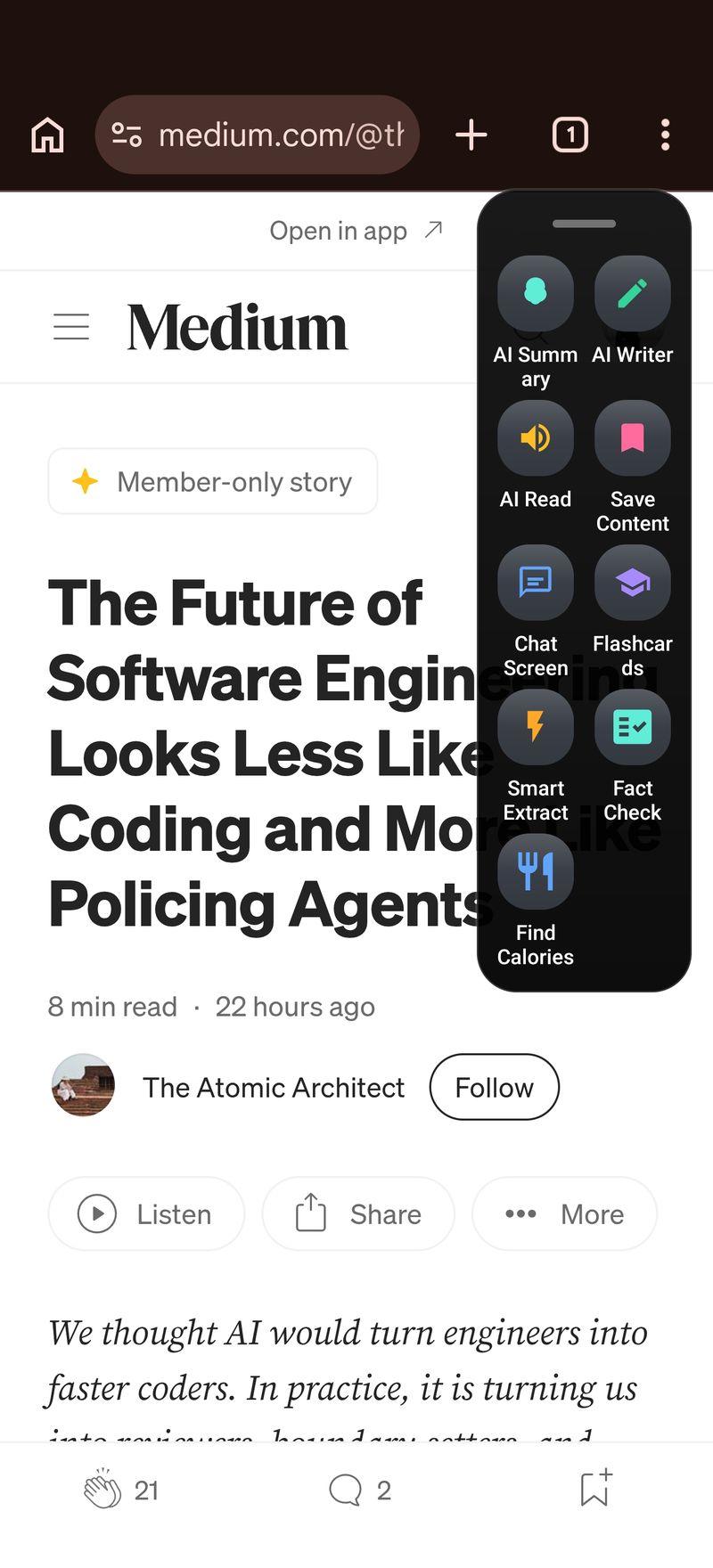
A floating overlay sits on top of whatever app you’re in, reads its text on demand, and gets out of the way. No share sheet, no import screen. This is the category I built Arc in: a free AI screen assistant that lives in a floating sidebar available in every app on your phone — and on Mac, where the same reading flow runs behind a single Control+Space shortcut in Arc for Mac. It’s the screen reader AI app Android was missing for the “read what I’m looking at right now” case.
Setting up a screen reader AI app Android in 3 steps
Setup takes about two minutes on any recent Android phone.
Step 1: Install Arc and grant screen access
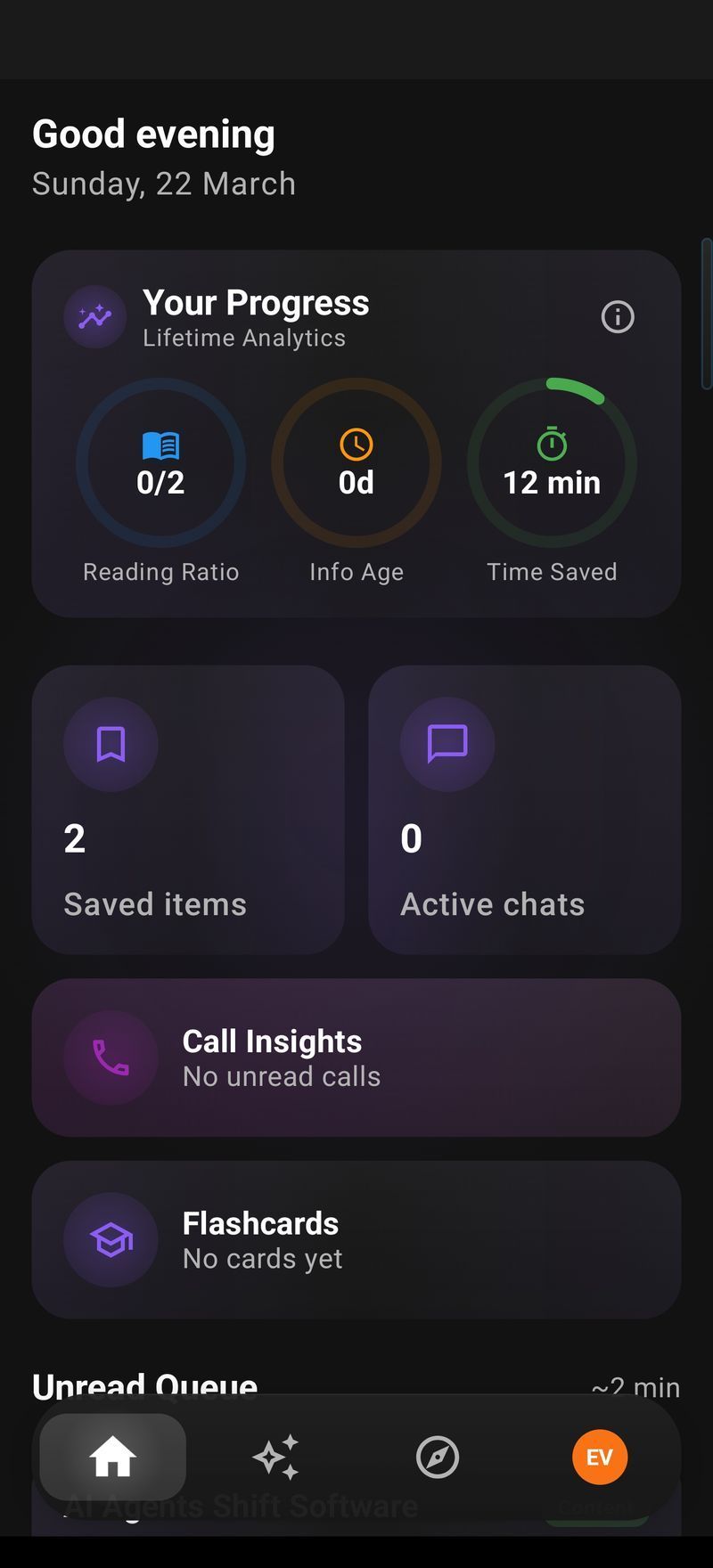
Install Arc free from Google Play, open it, and grant the screen-detection access it asks for. That single permission is what lets Arc read the text of whatever app you’re in — it reads on demand when you tap, it doesn’t continuously watch your screen. You’ll land on Arc’s home dashboard, which doubles as the library for everything you save: the AI Summary & Reader page holds your summaries and saved items, each with a Listen button right on the card.
Step 2: Open anything and tap AI Read
Go back to whatever you were reading — a long article in Chrome, an email thread in Gmail, a PDF in your viewer — expand the floating sidebar, and tap AI Read. Arc extracts the readable content (articles, body copy, messages — not buttons, menus, or ads), detects the language, and starts narrating within a second or two. This is where a screen reader AI app Android users rely on either earns its keep or doesn’t: the distance between “text on my screen” and “voice in my ears” should be one tap, not four steps.
Step 3: Tune the voice, then let it play in the background
In Settings → Speech Settings, set the speech rate anywhere from 0.5x to 2.0x, adjust pitch, and tap Preview to hear the combination before you commit. Auto voice selection is on by default: Arc detects the content’s language and picks a matching voice, so a Hindi article gets a Hindi voice and a Spanish newsletter gets a Spanish one, across 100+ languages. Then leave the app — playback continues as a background service, with play/pause/stop controls in the notification, on the lock screen, and via your Bluetooth headset buttons.
Summary first, voice second
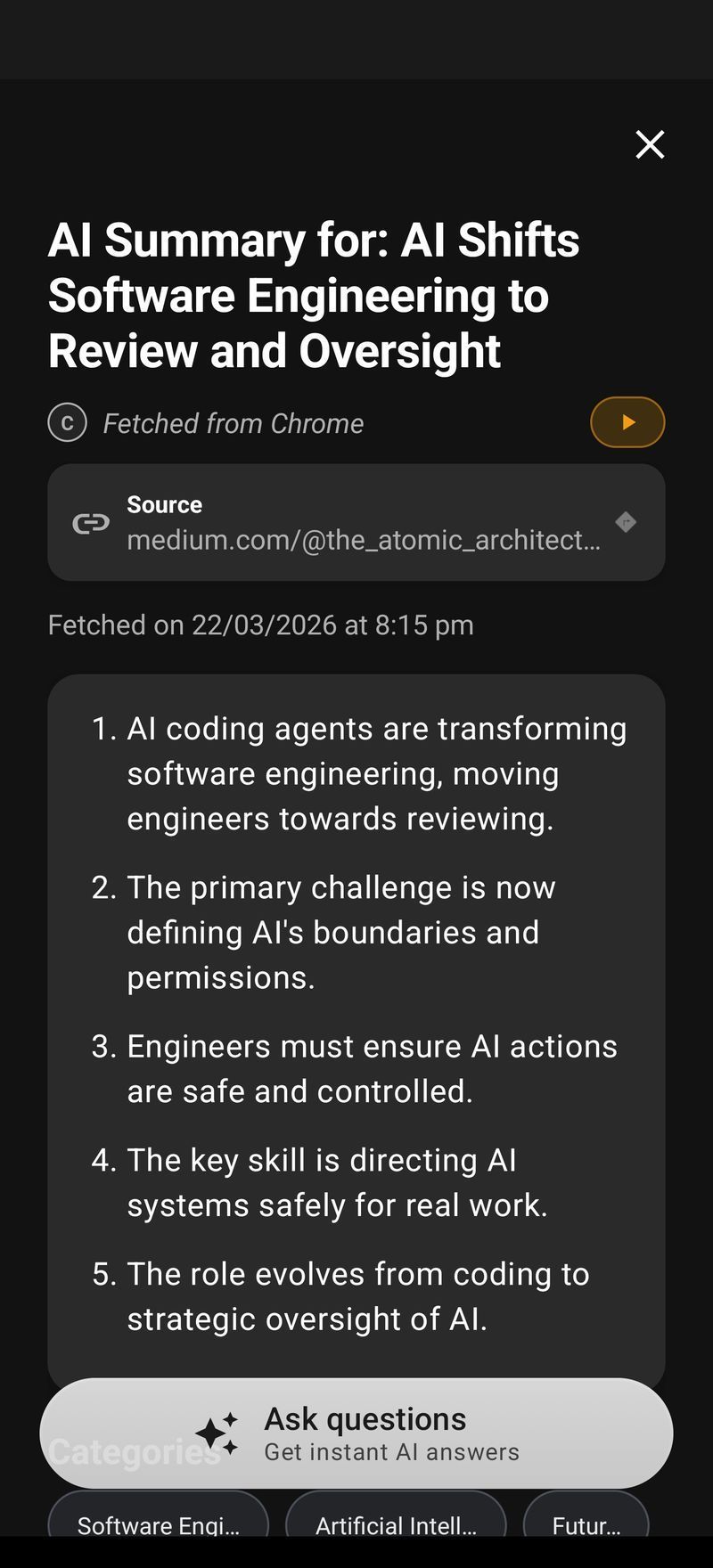
Raw reading is only half of it. When the screen is a 4,000-word review or a wall of terms and conditions, tap AI Summary first — Arc condenses it into key points — then hit Listen on the result. That’s the screen reader AI app Android workflow I personally use most: summarize, skim, listen to what matters. Saved summaries sit in your library, and queue playback moves from one item to the next, hands-free. You can chain the whole flow into a custom action — extract, summarize, read — with Arc’s AI workflow automation builder, or grab a ready-made one from the community actions library.
Who benefits most from a screen reader AI app
Three groups keep showing up in Arc’s reviews. Commuters who want the morning’s articles in their ears while the phone stays in a pocket. People with dyslexia or low vision who find listening dramatically easier than squinting at small text — for them, the adjustable rate and natural voices aren’t a luxury, they’re the whole point. And language learners who run foreign-language newsletters through Arc to hear correct pronunciation, then flashcard the saved text afterward. If you’re in any of those camps, a screen reader AI app Android can carry in a pocket — and run all day — pays for itself in the first week.
FAQ
Is there a free screen reader AI app for Android?
Yes. Arc is free to install from Google Play, and Android’s built-in Select to Speak and TalkBack are free system features. Import-based readers like Speechify are free to download but cap listening time in their free tiers. If you want a full screen reader AI app Android won’t cap after ten minutes, the overlay approach in Arc is the one to try first.
What’s the difference between TalkBack and an AI screen reader?
TalkBack navigates the interface without vision — buttons, menus, gestures. An AI screen reader narrates content — articles, emails, documents — with natural voices and background playback. They coexist fine: Arc works alongside TalkBack if you use both.
Can an AI screen reader read other languages?
Arc detects the language of the content on-device and auto-selects a matching voice — 100+ languages, including Hindi, Spanish, Chinese, and Arabic. You can pin a default voice in Speech Settings if you’d rather choose manually.
Does Arc work on Mac too?
Yes — Arc for Mac brings the same AI Read, AI Summary, and AI Writer tools behind a Control+Space shortcut, reading aloud whatever window you’re in. An iPhone version is in the works; you can join the waitlist on the iOS page.
If your reading list is winning and your eyes are losing, hand it to a screen reader AI app Android can run all day: Try Arc free on Google Play and have your first screen read to you in under two minutes. Mac user? Download Arc free from arcassistant.app/macos/.