
AI Reply Generator Android: Reply to Any Message in 10s
A message lands on your phone. You read it twice, start typing a reply, delete half of it, retype, and it still doesn’t sound right. Meanwhile there are nine more notifications stacked behind it. This is the exact problem an AI reply generator Android users actually keep using has to solve — and most of them don’t, because they only solve half of it.
I build Arc, a screen assistant for Android, and reply generation is the feature people use most. In this post I’ll show you what separates an AI reply generator Android keeps on the home screen from one it deletes in a week, why the popular web tools fall short, and how to generate a reply from any app on your phone in about ten seconds.
What an AI Reply Generator Android Users Actually Need
Generating text is the easy part — any chatbot can do that. For an AI reply generator Android users will still be using a month later, three things have to work:
- The real conversation as context. “Sounds good, see you then” only makes sense if the tool knows someone asked about coffee at 3pm. Paste-the-message web tools generate replies to a single message with amnesia about everything before it.
- Sender awareness. The reply has to be written from your perspective. If the tool can’t tell which side of the thread you’re on, you get answers addressed to the wrong person.
- Delivery where you’re already typing. A reply buried in a browser tab still has to be copied and pasted manually. On a phone keyboard, that’s where the workflow dies.
Miss any of the three and you’re doing more work than just typing the reply yourself.
Where Most Reply Generators Fall Short
Search AI reply generator Android in Google and you’ll mostly find two things: web tools like Planable or QuillBot’s response generator, and standalone chat apps. The web tools are decent for social media comments — paste a comment, pick a tone, get a response. But they can’t see the WhatsApp thread you’re sitting in, they don’t know it’s your manager asking versus a random number, and the reply lives in their tab until you shuttle it back.
Standalone chatbot apps have the same gap in the other direction: you leave your messaging app, paste the conversation into a chat, explain who said what, copy the answer, switch back, paste. Four app switches per message. Nobody keeps that habit for long.
The fix isn’t a better text generator. It’s an AI reply generator Android can run inside every app you already type in.
An AI Reply Generator Android Can Run in Every App
That’s the approach I took with Arc. It’s a floating sidebar that sits over any app on your Android phone — WhatsApp, Gmail, Instagram DMs, LinkedIn, SMS, your banking app’s support chat. Open the sidebar, tap AI Writer, and the Reply mode reads the screen you’re already on.
Arc checks more than replies, by the way. It summarizes and reads text aloud, rewrites anything you select, and runs custom one-tap actions — it’s an AI screen assistant for Android rather than a single-purpose tool. The Arc for Android page covers the full feature set; this post is about the reply part.
Here’s the flow, step by step.
How to Generate a Reply with an AI Reply Generator Android App in Four Steps
Step 1: Open the chat, expand the sidebar
Stay in the conversation. Tap the text field if you want (helps Arc grab your draft, but not required), then expand the Arc floating sidebar from the edge of the screen. No switching apps, no sharing the screen, no copy-paste.
Step 2: Tap AI Writer and let it read the conversation
Tap AI Writer and switch to the Reply tab. This is where Arc does the part other tools skip: smart context extraction. It pulls the visible thread and identifies who said what — you versus the other person — so the reply is written from your side of the conversation.
It handles the messy cases too: multi-message threads, email threading with quoted replies, nested comment threads, and right-to-left conversations in Arabic, Hebrew, Urdu, or Persian. A context preview shows you exactly what it read before anything gets generated — tap it to expand if you want to check.
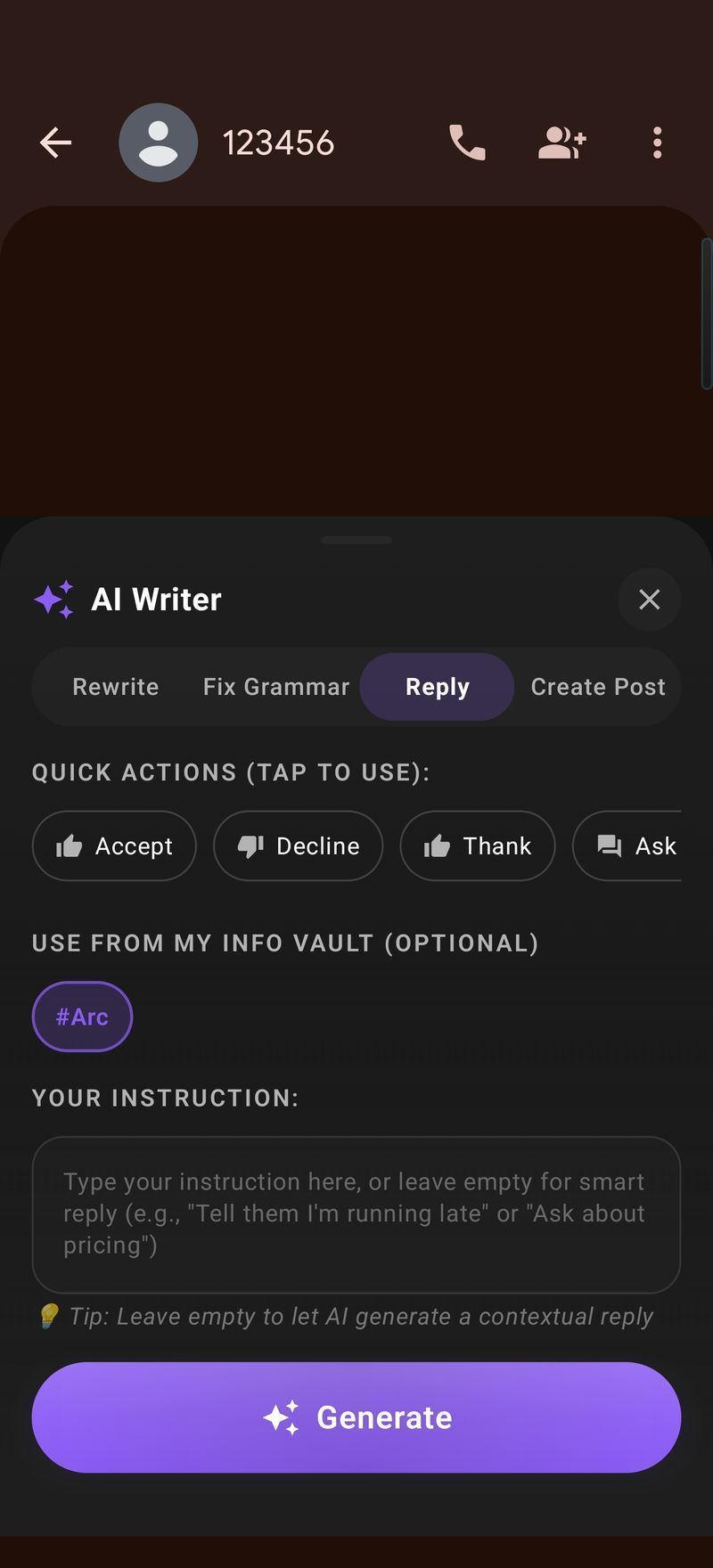
Step 3: Pick a reply type — or write your own instruction
The full AI reply generator page documents every option; here is the short version. Reply mode gives you four options:
- Yes / Agree — accepts, confirms, agrees
- No / Decline — turns it down politely
- Not Interested — for cold pitches and spam you don’t want to encourage
- Custom — your own instructions, typed in plain language
The pre-defined types are one tap each. Custom is where this AI reply generator Android app gets genuinely personal, because you say what you’d say if you had the patience:
- “Tell him I’m running 15 minutes late”
- “Decline politely, I have a conflict, suggest next Tuesday afternoon”
- “Ask for more details about the project before committing”
Step 4: Generate, copy, send
Tap Generate. Two to three seconds later you have a reply that references the actual question, in your voice, ready to copy and paste right back into the input field you started in. Send. Done — the whole thing never left the app.
Real Replies the AI Reply Generator Android App Produced This Week
A coffee invite on WhatsApp: Arc read “Want to grab coffee at 3pm today?” plus the earlier back-and-forth, I tapped Yes / Agree, and got back “Yes, perfect! I’ll be there at 3pm. See you then!” — with the coffee emoji included, which is a level of social awareness I don’t always hit myself.
A meeting invite in Gmail where I actually had a conflict: I picked Custom with “Decline politely, I have a conflict but suggest next Tuesday.” The reply that came out was exactly the email I would have written if I’d had ten minutes: thanks for the invitation, prior commitment, would next Tuesday work, available in the afternoon.
A LinkedIn sales pitch: Not Interested, one tap. “Thank you for reaching out. I appreciate the offer, but I’m not interested at this time. I wish you the best of luck with your services.” Polite, final, zero time spent composing a rejection I’ve written a hundred times.
Making the Replies Sound Like You
Quick answers are the easy case. Two things make an AI reply generator Android users trust for the messages that matter:
Custom instructions carry your tone. The reply generator follows your instruction, so “keep it short and warm”, “sound professional but not stiff”, or “match their energy” all work. If a generated draft is close but not quite right, Arc’s rewrite tools in AI Writer adjust the tone in one tap:
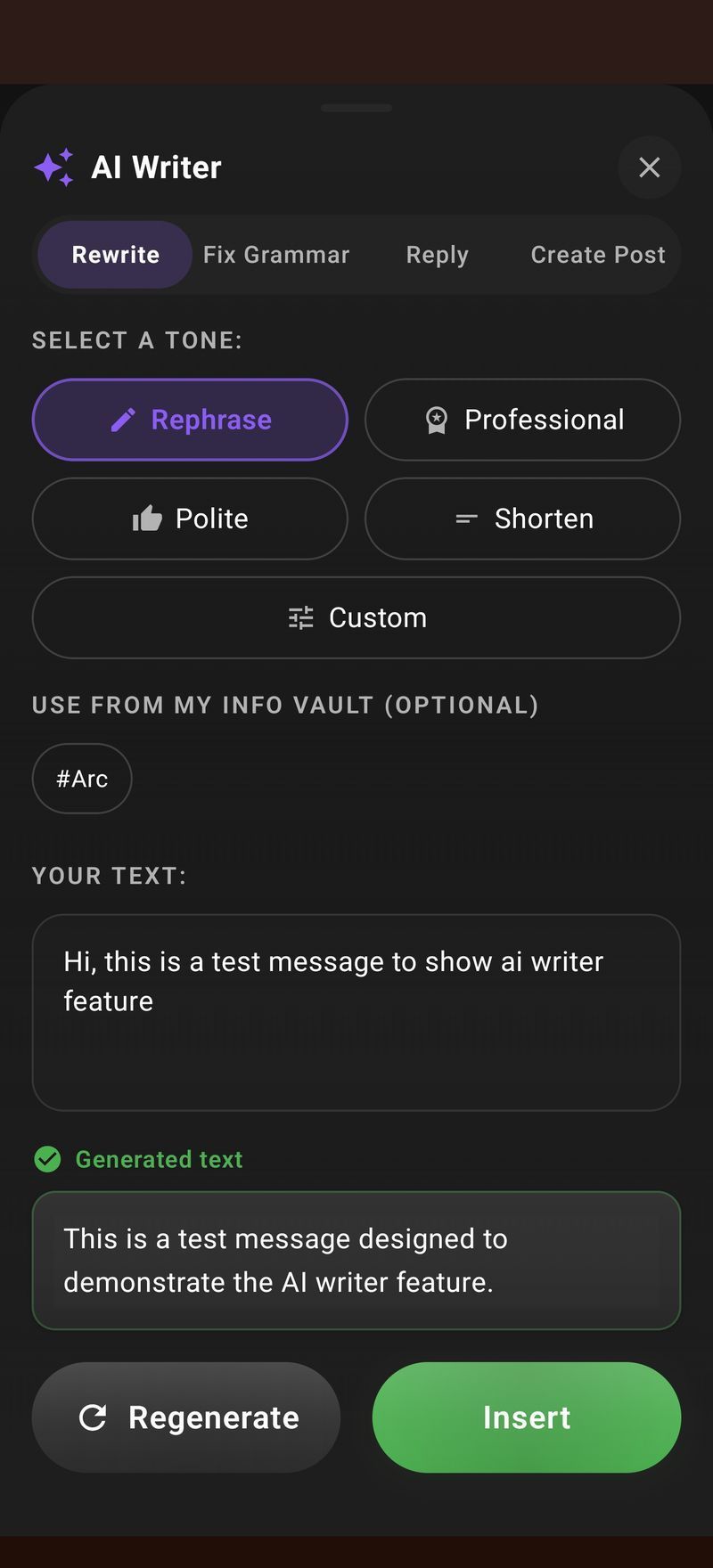
And Fix Grammar cleans up anything you typed by hand before it goes out the door.
My Info Vault personalizes automatically. Arc can pull saved details about you — name, job, how you introduce yourself — into replies. On a LinkedIn connection request, Reply mode with Vault selected wrote an acceptance that mentioned my role and asked about the sender’s work. That’s the difference between a generic “Sure, happy to connect!” and a reply that actually sounds like mine.
Arc also keeps your previous generations, so the phrasing that landed well last week is still around to reuse.
Why This Beats a Chatbot App for Replies
The generator behind Arc is comparable to the big chatbots. The difference is entirely about where it runs. A chatbot app can’t read the thread you’re looking at — you become the context courier, pasting messages and explaining relationships. An AI reply generator Android keeps one tap away does that automatically from the screen, every time, in every app. On a phone, where half your typing happens one-handed on a bus, that’s not a nice-to-have. It’s the whole product.
If you do the same kind of reply over and over — client follow-ups, RSVPs, vendor rejections — you can go one step further and build a custom action that chains your preferred prompt and tone into a single tap. The AI Workflow Automation side of Arc handles that, and the community library has ready-made actions to start from.
Replies on Mac Too
The same AI reply generator Android users get also runs on macOS. On a Mac, Arc is an overlay you summon over any window with Control+Space — Gmail in Chrome, a note app, anything — and Reply works the same way: it reads the visible thread, you pick a type, copy the result. Windows and iOS versions are in the works, and the Arc for Mac page covers the desktop flow in detail.
FAQ
Is this AI reply generator Android app free?
Yes — Arc is free to download from Google Play, and reply generation works on the free tier. It runs entirely as an overlay over apps you already use, with no per-reply limits baked into the free experience.
Can it match my tone — funny, flirty, formal?
Through Custom instructions, yes. The reply generator writes in whatever register you describe: “keep it playful”, “make it formal”, “short and warm”. It’s a text instruction, so the range is wide — people use it for dating app replies, rizz-adjacent banter, and stiff corporate emails alike.
Which apps does the AI reply generator Android version support?
Everything with a text conversation: WhatsApp, Instagram DMs, Telegram, SMS, LinkedIn, Gmail. Arc’s context extraction adapts to each app’s layout, including threaded email and nested comment sections.
Does the AI reply generator read my whole conversation?
It reads the visible thread on your screen so the reply fits the context — who asked what, and how the conversation has been going. The context preview is expandable, so you see exactly what was captured before you generate anything. Nothing gets sent until you tap Generate.
Can it write replies in other languages?
Yes. AI Writer supports multiple languages and handles right-to-left scripts like Arabic, Hebrew, Urdu, and Persian correctly — the sender identification works the same way regardless of script direction.
Reply generation is the feature I’d point anyone to first, because it saves time on something you do twenty times a day. Try Arc free on Google Play — the AI reply generator Android has been waiting for.