
AI Automation App Android: Build Custom AI Actions
You automate your alarms, your screen brightness, maybe your morning Do Not Disturb. Then the workday starts and 90% of what you actually do — replying, translating, checking, extracting — happens inside apps that no automation tool can touch. An AI automation app Android users can rely on has to work on the screen itself: wherever the content is, whatever app it lives in.
That’s what I built Arc, an AI screen assistant for Android (and Mac). Its take on AI workflow automation is not “if X then Y” triggers. It’s custom AI actions that run on whatever text is in front of you — a WhatsApp thread, a Gmail compose box, a news article, a product page. One tap from the floating sidebar, result in 3-5 seconds.
In this guide I’ll show you both sides of Android AI automation, then walk through building your first AI action in under two minutes.
Why Rule-Based Automation Can’t Touch Your Daily Apps
Android’s powerhouses — Tasker, MacroDroid, Automate — are excellent at what they do. They turn radios on and off, they send SMS on schedules, they chain app launches. Automate alone has over 400 building blocks, and Tasker can automate almost anything a system API exposes.
Here’s the catch: their automations mostly trigger on device events — time, location, battery state, incoming notifications. Getting them to act on the content inside an app means screen scraping with simulated taps, and even then the flow is rigid: tap here, wait 2 seconds, tap there. One app update breaks the flow.
But the repetitive work worth automating on a phone is mostly language work:
- writing the same style of reply 30 times a day
- translating a message so you can act on it
- checking claims in what you’re reading
- pulling action items out of a long email
That work needs an AI that reads the current screen, applies an instruction, and hands you the result inline — no flowchart, no simulated taps. That’s the job description of an AI automation app Android actually needs, and almost nothing in the Play Store did it well when I started building Arc.
What Makes a Great AI Automation App for Android
Whatever tool you pick, an AI automation app Android users will still be using six months later has to clear four bars:
- It works inside every app. Automation that requires pasting text into a separate AI chatbot isn’t automation — it’s extra steps. The AI has to read the screen you’re already on.
- The workflow is repeatable. Build the instruction once, reuse it a hundred times. Retyping the same prompt into a chat window every time is the opposite of automation.
- Context, not just text. Screenshots, charts, menus — real content isn’t always plain text, so the automation should be able to see too.
- Fast and one-tap. On a phone, a five-tap routine dies in a week. A floating sidebar button survives it.
Arc’s approach as an AI automation app Android treats seriously is built around exactly these four. Here’s how it fits together.
How Arc Runs AI Workflows on Any Screen
Arc is a screen assistant: a small floating sidebar that sits over every app. It reads the visible text through Android’s Accessibility Service, so the AI sees exactly what you see. That’s the core of an AI automation app Android can run in every app, not just its own. On top of it sit two layers:
Ready-made AI actions
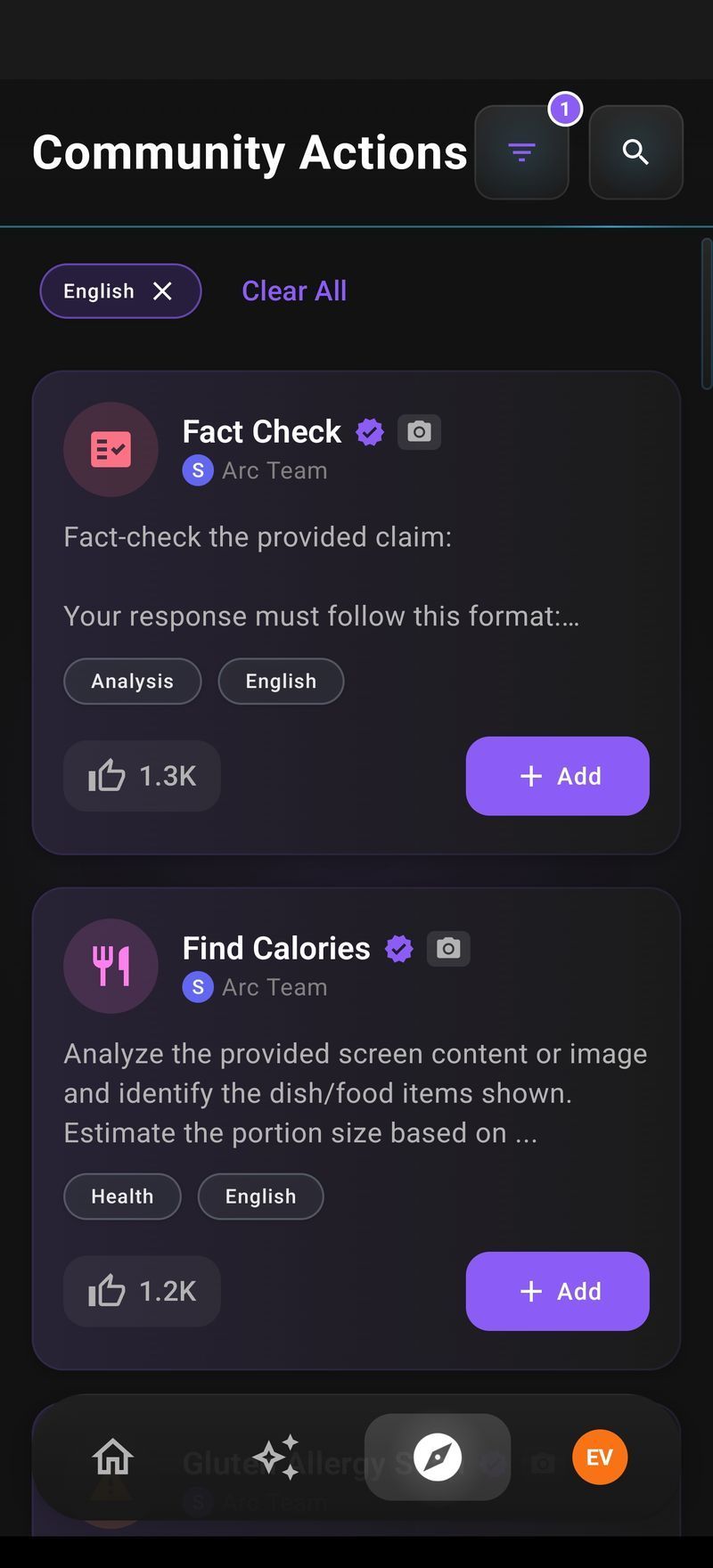
Open Arc’s Community Actions browser and you’ll find 250 system actions built by our team, in 10 languages: Fact Check (verdict, reasoning, source links), Smart Reply, ELI5, Math Solver, Find Calories, Find Cheaper Alternatives, Conflict Cooler and more. One tap adds any of them to your sidebar.
Your own workflows: Custom Actions
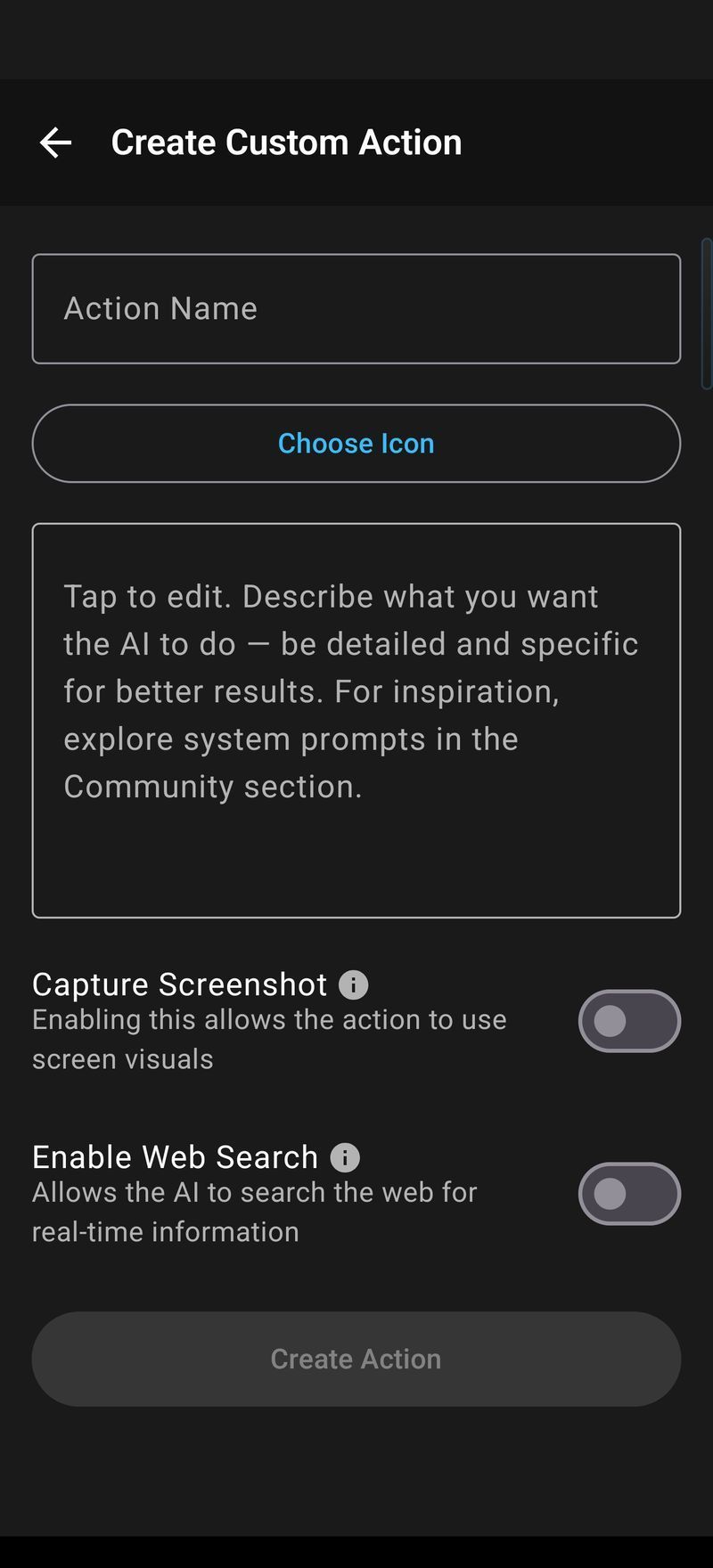
Anything the 250 don’t cover, you build yourself as a Custom Action — write a name, pick an icon, write a prompt, done. The prompt field takes up to 40,000 characters, so multi-step instructions fit in one action. Every custom action can also:
- capture screenshots — for charts, menus, photos, anything the AI should look at, not just read
- use web search — for actions that need current information, like fact-checking or price comparison
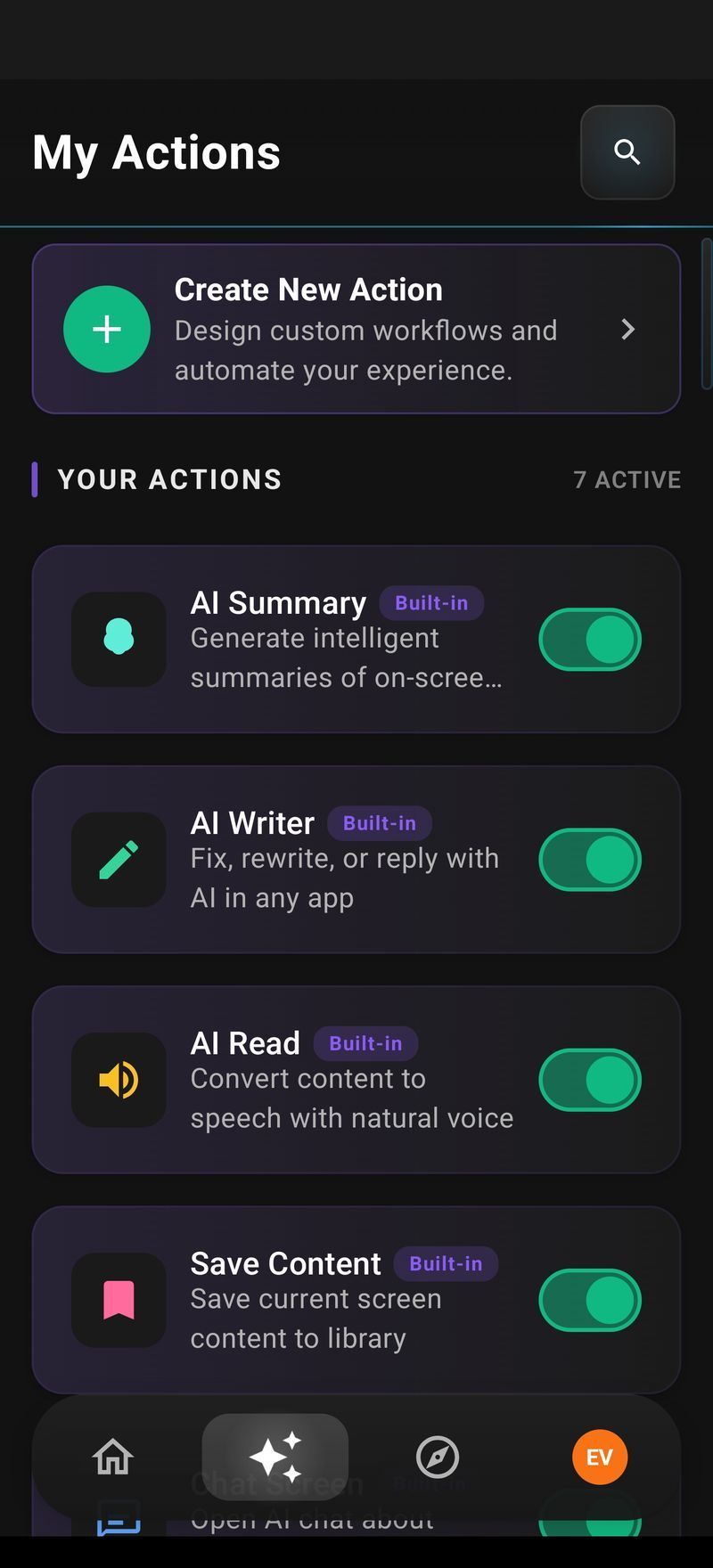
Your actions appear in the floating sidebar as one-tap buttons. No flowchart to maintain, no triggers to babysit. I break down the whole system — including how community sharing works — on the AI Workflow Automation page.
The anatomy of a custom AI action
Every custom action has the same anatomy, which is what makes the workflow repeatable:
- A name and icon you’ll recognize instantly in the sidebar
- A prompt of up to 40,000 characters — short for simple jobs, long enough for structured, multi-part output
- Optional screenshot capture, when the content you automate includes charts, menus, or photos
- Optional web search, when the answer needs to be current, not memorized
Once saved, the action is one tap away in every app. That single property — build once, run anywhere on the screen — is what separates genuine AI automation from a chatbot with extra steps.
Example AI Automations You Can Build in Minutes
Concrete recipes make this real. Each of these is one Custom Action — name, icon, prompt, save.
1. Reply generator. Prompt: “You are replying as me. Draft a short, natural reply to this message keeping my tone. Match the language the message is written in.” Runs on any thread, in any chat app. Pairs well with Arc’s AI Writer, which rewrites and inserts text.
2. Fact checker. Name it “Verify Facts”, enable Web Search. Prompt: “Analyze this text, list every factual claim, mark each true/false/unverifiable, and cite sources.” Run it on any news article or viral post and Arc returns a verdict with links. This is the one people build after their first too-good-to-be-true forward.
3. Meeting-to-tasks extractor. Prompt: “Extract every action item, deadline and owner from this text as a checklist.” Run it on a long email or meeting recap and get an actionable list instead of 800 words.
4. Screenshot-based data extractor. Enable Screenshot. Point it at a shopping screenshot: “List every product, price and rating in this screenshot as a table.” The AI reads the image, so menus, charts and product grids all work.
Three of the four took me less than a minute to write. That’s the difference between AI automation and automating a robot’s schedule.
How to Build Your First AI Action (2-Minute Tutorial)
Let’s build the fact-checker end to end:
- Open Arc → Custom Actions tab → tap the + button.
- Name it “Fact Check v1” and pick the ✓ icon.
- Prompt: “Analyze this text. List each factual claim, mark it true / false / unverifiable, and give one source per settled claim.”
- Enable Web Search — fact-checking needs real-time information, not the model’s memory.
- Save. The action appears immediately in the floating sidebar.
Now open any article in Chrome, expand the sidebar, tap Fact Check v1, and wait about 3-5 seconds. Two minutes of setup and your AI automation app Android lives in every browser tab, chat thread and inbox you have. You get the claim-by-claim verdict. Tap Copy to share it, or Ask Questions to drill deeper in a chat that already has the article as context. If the verdict surprises you, hit Regenerate.
Screenshot-enabled actions work the same way but ask you to drag a selection box over the region first — use it when the answer is inside a chart or menu and plain text isn’t the whole story.
Tuning Your AI Automation App Setup for Speed
A few habits from running these myself:
- Keep prompts specific about output format. “As a checklist with owners in bold” beats “summarize the tasks” every time — you stop re-reading walls of text.
- Disable web search unless the action needs it. It roughly doubles the wait, so reserve it for fact-checking and price work.
- One screen, one action. If an action needs to see a chart, enable screenshot and drag the region over just the chart — cleaner results than a whole-screen capture.
- Reorder your sidebar monthly. Drag-to-reorder puts your top three actions at the top; everything else can sit behind it.
Tuned like this, most AI actions return in 3-5 seconds, which is fast enough to run mid-conversation without losing the thread.
AI Automation on Android vs Mac
Everything above is identical on desktop: Arc’s Mac app runs the same AI actions with a Control+Space shortcut over any window — the sidebar just becomes a menu bar panel. If you want one AI automation app Android and Mac both cover, Arc is exactly that. I covered the Mac side in my guide to AI workflow automation on Mac. Same actions, same 250-action library; build an action once and your phone and laptop behave the same.
FAQ
Can AI automation apps run tasks without opening the app?
Yes, but with a clear split: device-level automation (Wi-Fi toggles, scheduled SMS) belongs to rule-based apps like Tasker or Automate. AI actions that work on screen content run with you present — you’re on a screen, you tap the action. That’s by design: the AI works on precisely the content you’re looking at, in the app you’re in, and you can copy, share, or insert the result wherever it’s needed.
What are some real AI automation examples on Android?
The three most-used in Arc: drafting replies (Smart Reply on 10+ messengers a day), fact-checking forwarded messages before reacting, and extracting action items from long emails. Students lean on ELI5 and Math Solver, shoppers on Find Cheaper Alternatives with web search.
What should an AI automation app Android handle first?
Yes — Arc is free to download from Google Play, and free actions cover custom + built-in AI actions like summary, translation, Math Solver and Fact Check. If your workflow needs a heavier model or many actions per day, Arc Premium unlocks it — no paywall on the core AI workflow automation.
Is Arc the best Tasker alternative for AI work?
Different categories, different winners. Tasker remains the tool for device triggers (Wi-Fi, Bluetooth, time-based flows). For language-heavy work — replies, translation, fact checks, extraction on whatever is on screen — an AI automation app Android is the better fit. Many power users, myself included, run both.
Can custom AI actions use screenshots or the web?
Yes. Any custom action can capture a screenshot (with a drag-selection region you control) or use web search. The app tells you up front which community actions do either: a camera badge for screenshots, a globe badge for web search.
Ready to see it: Try Arc free on Google Play and build your first custom AI action in two minutes. If you’ve been hunting for an AI automation app Android doesn’t trap inside one tool, this is it — Mac works the same, and every action runs in the apps you already use, from WhatsApp to Chrome to Gmail.