
AI Rewrite Text Android App: Fix Any Text In-Place
You already wrote the text. An email that reads too stiff, a WhatsApp message that sounds cold, a caption that rambles. The fix takes thirty seconds when you’re at a laptop — open a rewriter in a tab, paste, tweak, copy back. On a phone, that same fix costs you four app switches and usually just doesn’t happen.
That gap is why most people search for an AI rewrite text Android app and end up disappointed. The top results are browser tools designed for a desktop workflow. I build Arc, a screen assistant for Android, and its AI Writer mode was made for exactly this job: rewriting the text that’s already on your screen, inside whatever app you’re in. Here’s what a mobile rewriter actually needs to be useful, where the popular options fall short, and how to rewrite any text on your phone in under fifteen seconds.
What an AI Rewrite Text Android App Needs to Get Right
Rewriting is the easy part. Turning out a second version of a paragraph is something every language model can do. What separates an AI rewrite text app Android users keep from one they delete after a week is everything around the rewrite:
- It sees the text you already have. You shouldn’t have to select, copy, and paste the draft into a separate app. The rewriter should read what’s on the screen — the email draft in Gmail, the message in WhatsApp, the paragraph in your notes app — and work on that directly.
- It knows where the text is going. A rewrite of a text message should be short and casual. A rewrite of a LinkedIn post should keep paragraphs. Context changes the output more than any tone picker does, and paste-into-a-box tools throw that context away.
- It puts the result back where you’re typing. If the rewritten version lands in some other window, you’re doing a copy-paste shuttle anyway — and on a phone keyboard, that’s where the whole workflow falls apart.
If a rewriter misses any of these, you spend more effort moving text around than you saved on the rewrite itself.
Where the Popular AI Rewrite Text Android Apps Fall Short
Search for a free AI rewrite text Android app and you’ll find QuillBot, Grammarly, Monica, and a handful of Play Store rewriter apps. They’re fine tools — I use QuillBot’s desktop site myself for long documents. But they share the same architecture: a browser page with an input box. You paste text in, it rewrites, you copy the result out.
On Android that architecture breaks down. Every rewrite becomes: leave the app you were in → open Chrome or the rewriter app → find the text you left behind → paste → wait → copy → switch back → paste over the original → realize the tone is off → do it again. That’s five or six interactions for a two-line fix, and app-switching is exactly what makes people abandon these tools.
The Play Store rewriter apps have their own weakness: they live in their own app with their own editor. Useful when you’re rewriting something self-contained, useless when the text lives inside Gmail, Slack, Instagram, or a Google Doc — which is where most of the text you actually care about lives.
The real fix isn’t a better rewriter in a separate window. It’s an AI rewriter that runs over the app you’re already using — which is what we built Arc’s AI Writer mode to be.
How to Rewrite Any Text on Android in 3 Steps
Arc is a screen assistant that floats as a small sidebar over whatever app you’re in — an AI rewrite text Android app that reads the visible screen as context, so you never paste anything. Here’s the full rewrite workflow:
Step 1: Open the app with the draft
Stay where the text is. Email draft in Gmail, half-written caption in Instagram, awkward paragraph in your notes — doesn’t matter. Arc works on top of any app.
Step 2: Invoke Arc and pick Rewrite
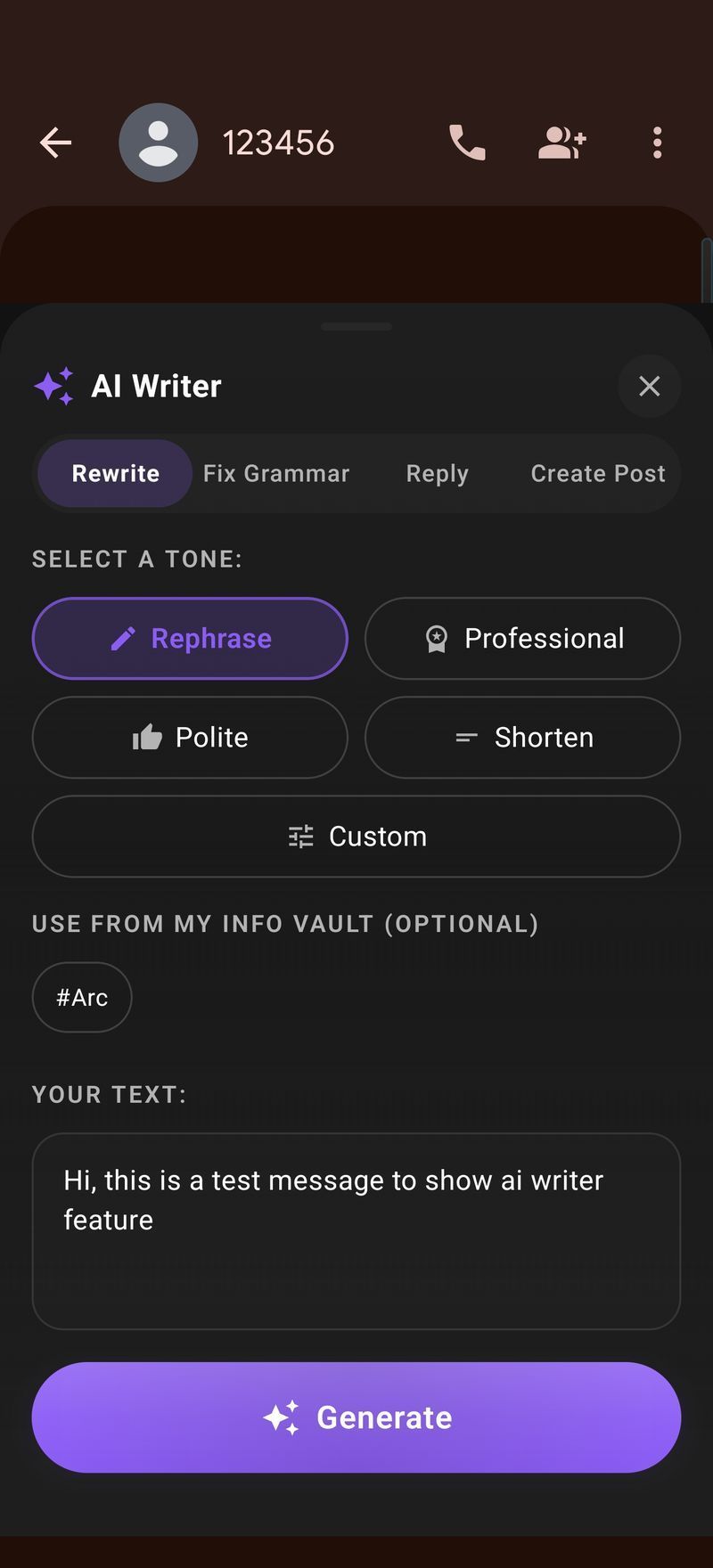
Pull up the Arc sidebar. It already knows what’s on your screen, so there’s nothing to select or paste. Open AI Writer and choose Rewrite mode — you’ll see the captured text from your screen at the top of the panel.
Step 3: Pick a tone and insert the result
Choose how you want it to sound: professional, casual, shorter, friendlier. Arc generates the rewrite, you review it in the panel, and one tap inserts it back into the exact place you were editing. No clipboard involved.
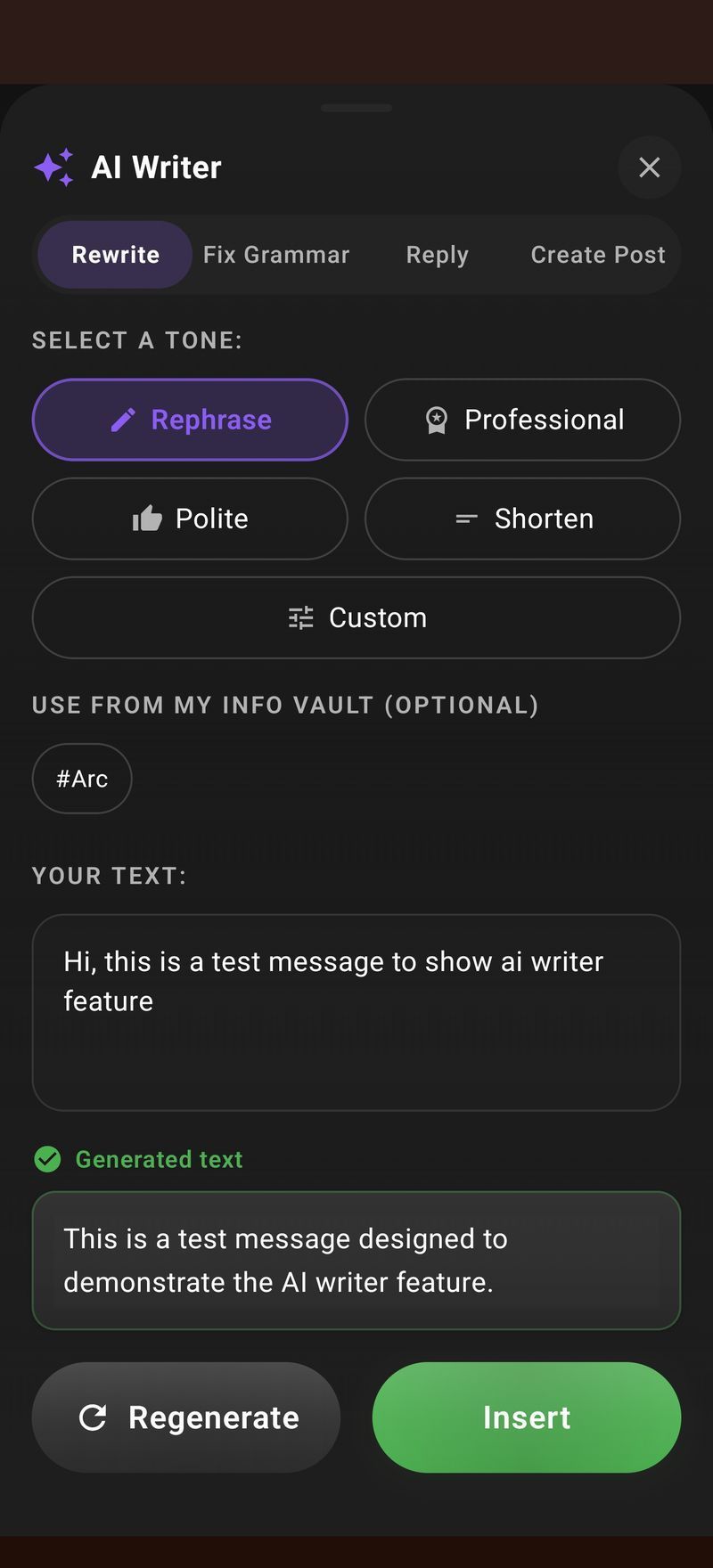
That’s the whole loop: invoke, rewrite, insert. It works identically in Gmail, WhatsApp, Chrome, Docs, Telegram, or any app with an editable text field — because Arc isn’t inside any one app, it’s over all of them.
Rewrite Tones That Cover 90% of Real Fixes
Most rewrites aren’t creative; they’re adjustments. These are the ones I use daily on my own phone, because a good AI rewrite text Android app earns its place by handling these small adjustments:
- Shorter. Cut the rambling. A five-line message becomes two lines that still land.
- Professional. Your quick informal draft becomes something safe to send to a client or your manager.
- Casual / friendlier. The inverse — soften a message that reads curt, especially over text where tone has no voice to carry it.
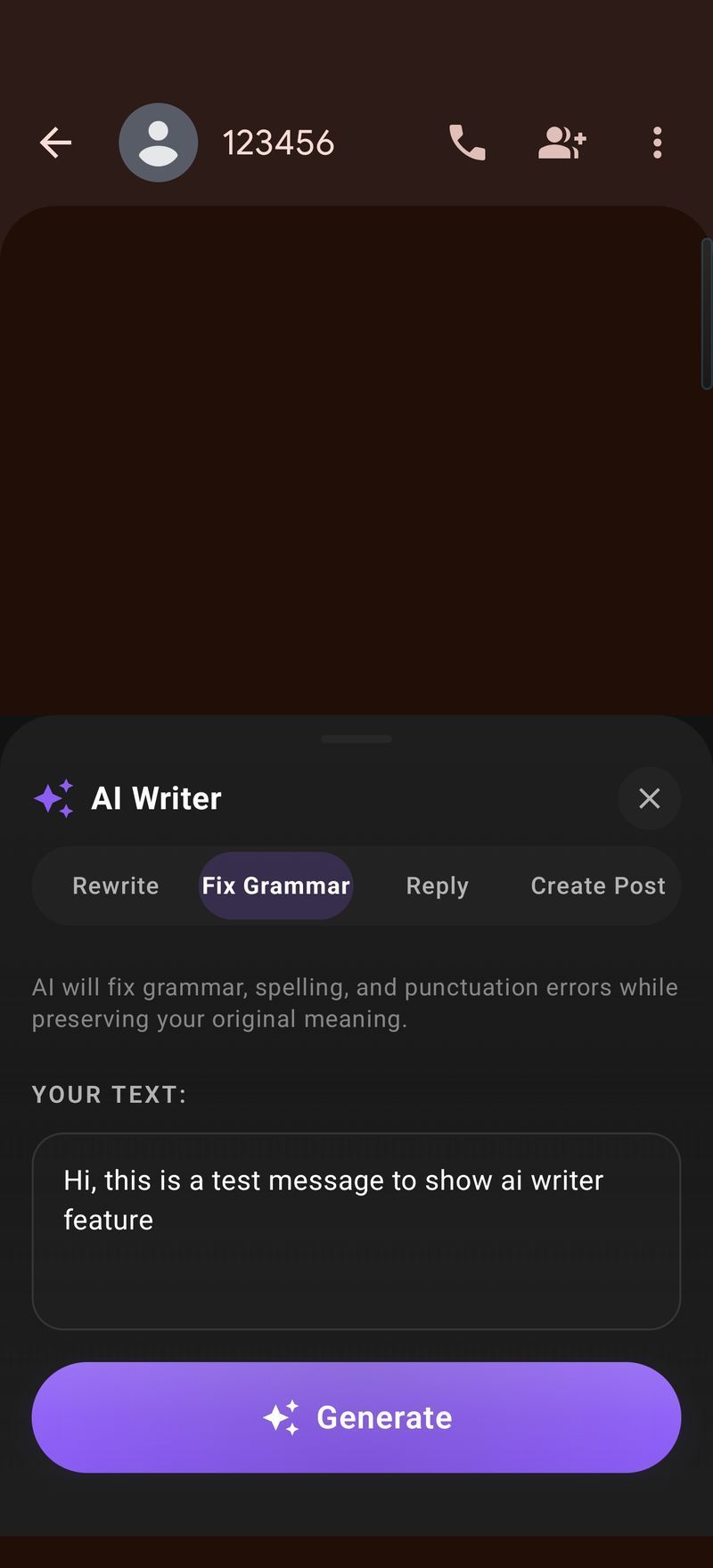
- Fix grammar along the way. Rewriting and cleanup are one pass, not two. (If the text only needs grammar fixes with your phrasing intact, the dedicated Fix Grammar mode does exactly that without changing your voice.)
One practical tip: rewrite before you get attached to the draft. Take the two-minute version Arc produces, read it once, and send. Perfectionist re-editing is where messages die unsent.
Custom AI Actions: Personalize Your AI Rewrite Text Android App
The built-in tones cover common cases, but anyone who uses an AI rewrite text Android app as a daily driver ends up with a handful of rewrites they run constantly. Mine: “shorten to one line for status updates” and “make this sound confident but not aggressive” for team chats.
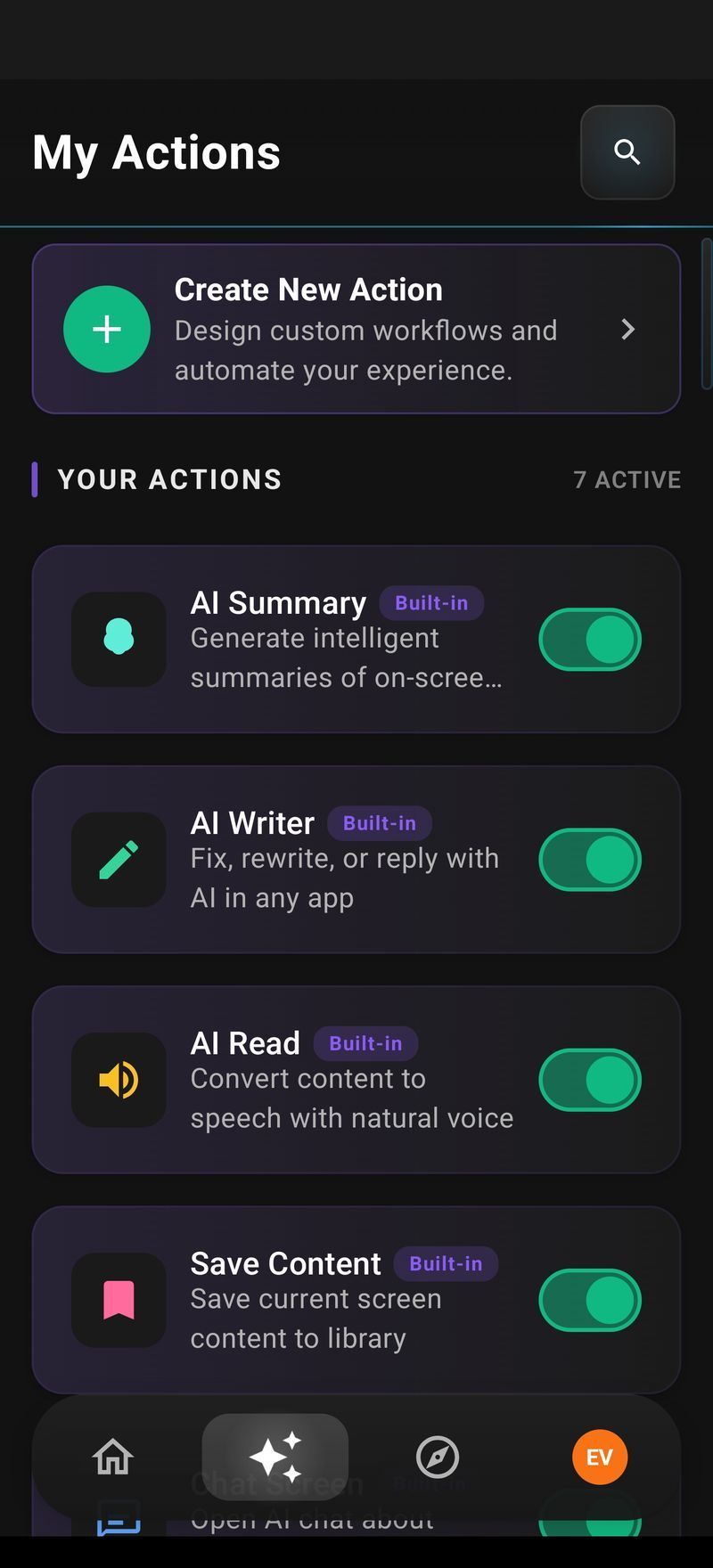
Arc’s AI workflow automation handles this with custom actions — you define the instruction once (for example, “rewrite this as a three-bullet update, lead with the outcome”) and it becomes a one-tap button inside your rewrite options. Set it up once, then every rewrite of that style is a single tap instead of retyping the instruction.
There’s also a community library of pre-made actions — tone presets, formatting rewrites, summarizing styles like the ones in our AI Summary & Reader feature — you can add to your sidebar without writing anything yourself.
This is the part paste-into-a-browser rewriters structurally can’t do: your personal rewrite presets, living at the exact moment you need them, on the text already in front of you.
Rewriting Beyond the Message: Reply Mode and Create Mode
Rewrite mode is one of three ways Arc’s AI Writer works with on-screen text, and once the workflow clicks, the other two slot right into the same habit:
- Reply — instead of rewriting your own text, have Arc read an incoming message or email and draft the reply. This is the AI reply generator side of the same tool, and it saves the most time in busy inboxes.
- Create post — turn rough notes on your screen into a structured post: LinkedIn update, caption, short article. You write the messy version; Arc gives it a shape worth publishing.
The common thread: Arc works on whatever text is currently visible, in whatever app you have open. Android and a floating panel are a genuinely good match for this — the phone screen is small, context-switching is expensive, and a rewrite that requires leaving the app simply won’t get used.
Is Arc the Best Free AI Rewrite App for Android?
Free to download from Google Play, and every core rewrite feature is usable before you pay. QuillBot and Grammarly remain good choices if your text mostly lives in a desktop browser. But if you want an AI rewrite text Android app that works inside WhatsApp, Gmail, and every other app you type in — reading your screen, no pasting, results inserted where you were already editing — Arc is the tool built for exactly that. The same AI Writer ships on our Mac app with a dedicated rewrite mode, so your rewrite habit works the same on both platforms.
FAQ
Is there a free AI rewrite text app for Android?
Yes. Arc is a free AI rewrite text Android app you can install from Google Play, and rewriting text on your screen works right away. The Pro subscription adds higher usage limits and extras; you’ll hit that only if you run a lot of rewrites daily.
Can an AI rewriter rewrite a text message without ruining the tone?
That’s the #1 use case. Pick the friendly/casual tone for personal chats and Arc keeps it conversational while cleaning up phrasing. Because Arc sees the whole conversation context on your screen (who wrote what, how formal it is), the result sounds like a text — not an essay.
Can you rewrite AI-generated text to sound human?
Yes — this is a common pattern when a draft came from a chatbot and reads robotic. Capture it in Arc’s Rewrite mode with a casual or friendly tone, and the stiff phrasing gets reworked into plainer language. For a full edit pass, Fix Grammar keeps your wording and only repairs the errors.
Does Arc re-write text it can’t select or copy?
Mostly, yes. Arc reads the visible screen rather than the clipboard, so text that’s awkward to select on Android — a preview pane, a PDF viewer, part of a web page — is still workable. Very long documents are better handled by capturing the relevant section or using AI Summary & Reader to condense first.
Is there an AI rewriter like this on Mac too?
Yes. Arc for Mac has the same AI Writer with Rewrite mode, invoked from any window with Control+Space — the same AI rewrite text Android experience carried over to the desktop. The rewrite presets and custom actions are nearly identical, so Android and Mac both get the same workflow. Try Arc free on Google Play and see how fast a rewrite can be when the tool comes to your text instead of the other way around.