
AI Screen Reader for Android: Make Any App Talk
You want your phone to read things to you. Maybe you’re commuting, cooking, or your eyes get tired faster than they used to. Maybe reading long text on a small screen is just hard. So you search for a screen reader — and Google hands you TalkBack, a tool built for blind users to navigate a phone by touch. That’s not what you asked for.
What you actually want is an AI screen reader for Android: something that looks at whatever is on your screen, grabs the real content, skips the junk, and reads it to you in a natural voice. That’s a genuinely different job, and until recently nobody built it properly. I built Arc because I couldn’t find it either.
What Is an AI Screen Reader for Android?
Android has shipped a screen reader for over a decade. TalkBack is genuinely great at its job: it announces every button, label, and UI element so a blind user can operate the phone without seeing it. To use it, you have to change how you touch your phone — swipe gestures replace taps, and everything slows down on purpose.
An AI screen reader for Android solves a different problem. Instead of announcing the interface, it reads the content:
- It reads meaning, not UI. An article gets read as an article. Ad banners, cookie popups, and menu buttons get filtered out automatically instead of being announced one by one.
- It uses a natural voice. Modern neural text-to-speech instead of the flat robotic voice older TTS engines shipped with.
- It can shorten before speaking. A 4,000-word article can be condensed to a 30-second summary first, and you can dive in only if you want the full text.
- It works the same in every app. Browser, Gmail, PDF viewer, Reddit — the reader doesn’t care which app is in the foreground.
The “AI” part is what makes the filtering possible. A classic screen reader reads everything linearly because it can’t tell an ad from a paragraph. An AI screen reader reads the screen the way you do — with comprehension.
TalkBack vs an AI Screen Reader: Which One Do You Need?
This trips a lot of people up, because both are called “screen readers.” They’re complements, not competitors:
Use TalkBack if you can’t see the screen at all. Its whole model is eyes-free navigation — gestures to move focus, spoken announcements for every element. Nothing else does this job as well.
Use an AI screen reader if you can see the screen but would rather listen. That covers a lot of situations: low vision, dyslexia, eye strain, hands-busy multitasking, or simply preferring audio for long content. I’m in the last group — I listen to long-form articles while making coffee.
The quick test: if the goal is operating the phone without looking, TalkBack. If the goal is having content read to you, an AI screen reader for Android. The two also coexist fine. Arc is built screen-reader-compatible, so if you currently run TalkBack you can keep it for navigation and use Arc’s reading and summarization features for content. One handles the interface, the other handles the reading.
Set Up Arc as Your Android AI Screen Reader in 2 Minutes
Here’s the whole setup. There’s nothing to configure before your first use.
Step 1: Install Arc and grant one permission. Arc is free on Google Play. On first launch it asks for Accessibility permission — that’s what lets it read on-screen text. You grant it once in Android settings and never think about it again.
Step 2: Find the floating sidebar. Arc adds a small handle that floats over every app. Swipe it open and you get a compact panel of actions. It works over Chrome, Gmail, a PDF in Drive, a Reddit thread — any app with text.
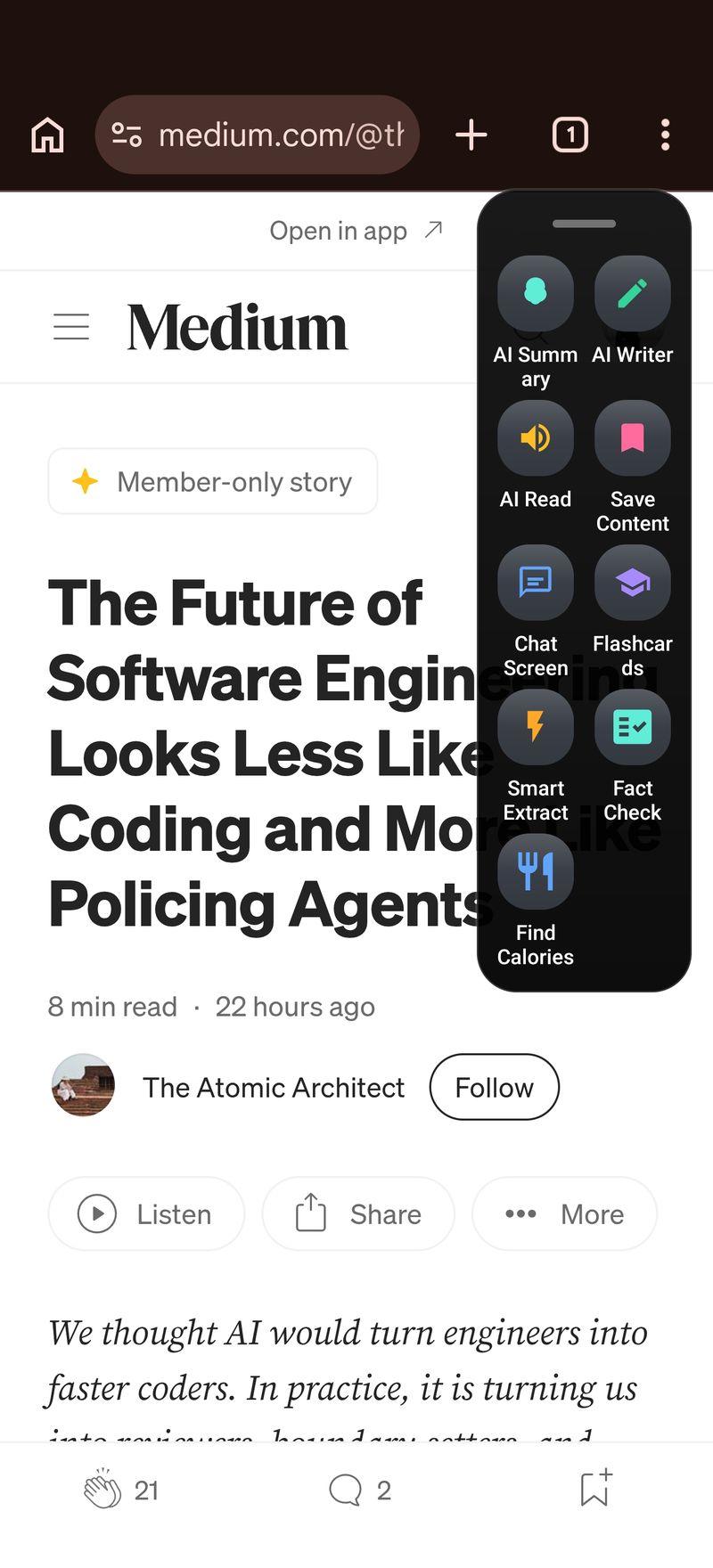
Step 3: Tap AI Read. Open any content you’d like to hear, expand the sidebar, tap AI Read. Within roughly a second, a natural voice starts reading the screen’s content. Playback controls appear, and a media notification drops into your shade so you can pause or stop from anywhere.
That’s genuinely the whole flow: open the thing you want read, tap the button, listen.
How the AI Screen Reader Actually Reads a Screen
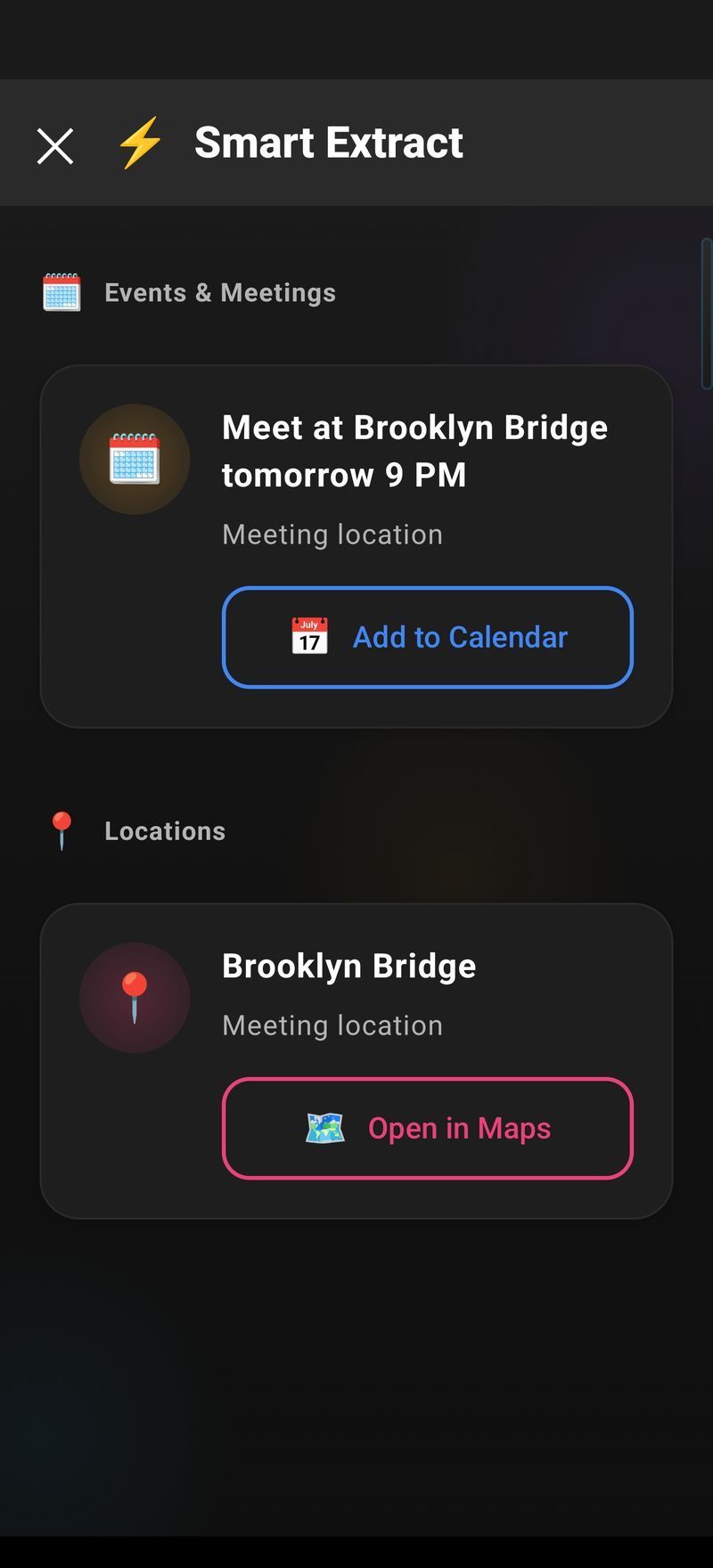
When you tap AI Read, Arc extracts the readable text from the current screen using the Accessibility Service, then filters it. Articles, email bodies, message threads, and document text make the cut. Navigation bars, buttons, ads, headers, and footers get dropped. What’s left is cleaned up, the language is detected, and a matching voice is picked before playback starts.
Two design decisions matter most in daily use, and both separate Arc from older read-aloud utilities.
Direct read vs summary-first in the Android AI screen reader
AI Read speaks the full content. If you’d rather hear the condensed version — say, for a long news piece — tap AI Summary instead and then hit Listen on the result. Same screen, two different outputs: full narration when you want detail, a 30-second listen when you want the gist. Most people settle on a rhythm within a week: summaries for feeds and newsletters, full reads for essays and docs.
How Arc extracts text without copy-paste
Older read-it-later apps and TTS utilities make you select text, copy it to the clipboard, and paste it into a reader window. Arc reads whatever is on the screen directly. That single difference is why people who abandon other text-to-speech tools stick with an AI screen reader built this way — the friction of copy-paste is exactly what kills the habit.
Summarize First, Listen to the Short Version
Some content deserves the full read. A newsletter you subscribed to usually doesn’t. This is where an AI screen reader for Android starts pulling double duty as a reading assistant.
Arc’s AI Summary & Reader generates a summary of the screen in 2–3 seconds, auto-detects whether it’s looking at an article, email, social post, or document, and gives you a short version you can actually act on. Tap Listen on that summary and you’re out the door in 30 seconds instead of eight minutes.
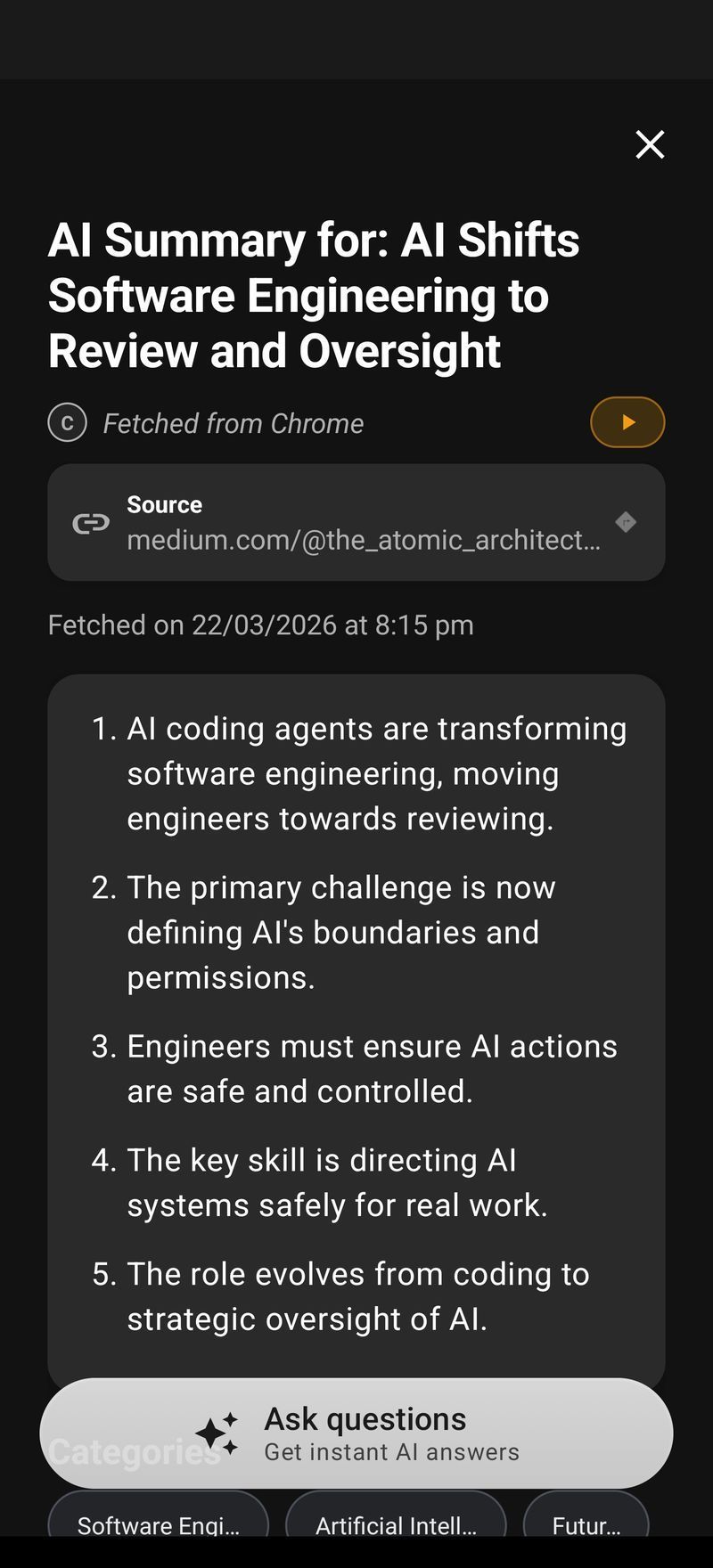
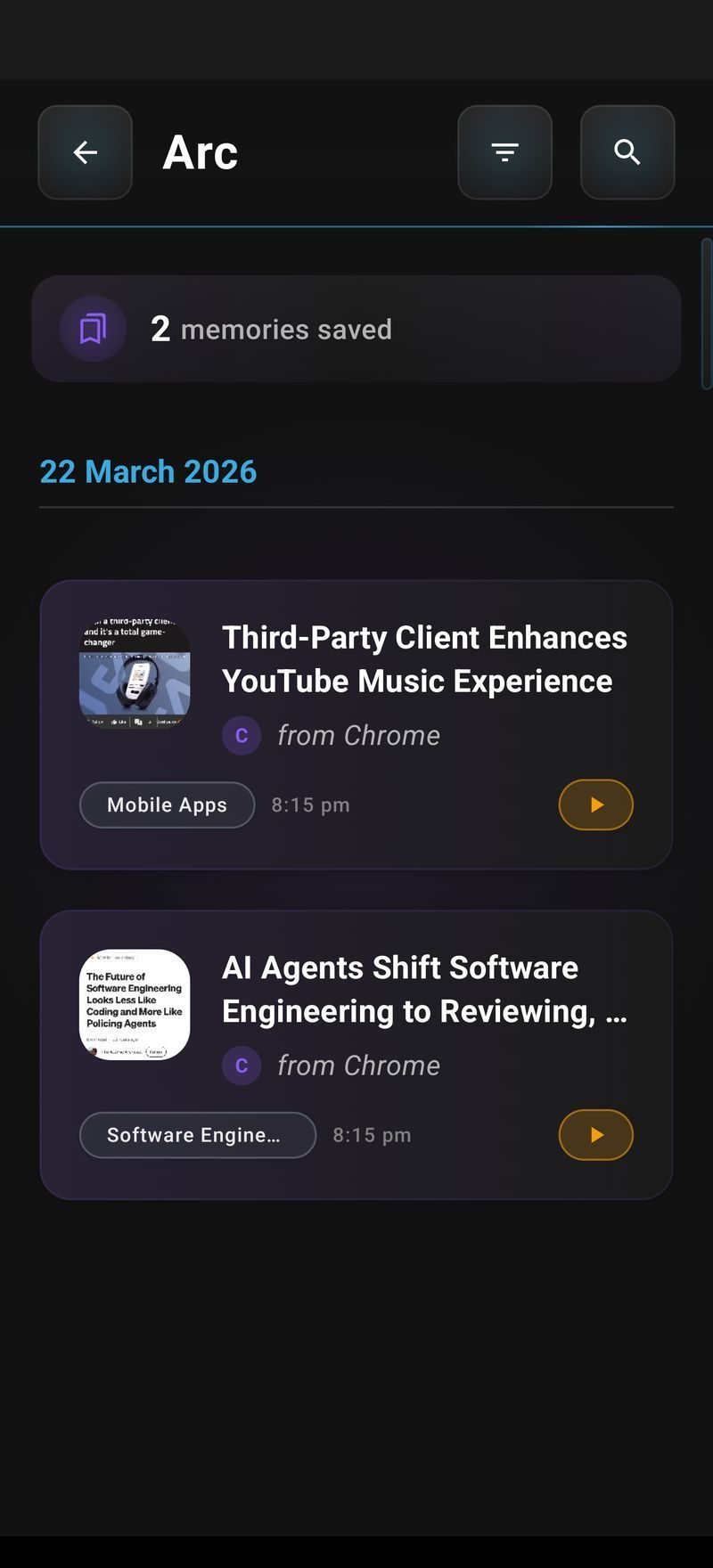
Everything you summarize gets saved to a library, so if you start an audiobook-style habit you don’t lose anything. Saved summaries can be listened to straight from the list — tap the speaker icon on a card and playback starts without opening the detail view.
If reading long threads or docs is a daily thing for you, it’s worth looking at the broader reading toolkit — the AI Summary & Reader page covers the full picture.
Control Playback From Anywhere
An AI screen reader for Android is only useful if it doesn’t lock your phone down while it talks. Arc runs playback as a foreground service, which means:
- Background listening. Start AI Read, switch to another app, or turn the screen off — narration continues.
- Notification controls. Play, pause, and stop sit in a standard Android media notification, including on the lock screen.
- Bluetooth controls. Headset buttons pause and resume like any music player, so your phone stays a proper AI screen reader during a walk, not just at a desk.
- Queue playback. In your saved-content queue, items auto-advance — the notification tells you “playing 2 of 5,” which is nice for commutes.
One honest limitation: high-quality neural voices need an internet connection. If you go offline, Arc falls back to the device’s system TTS voice — robotic but functional — so the reader never just refuses to work.
Voices, Speed, and Languages
A good AI screen reader for Android shouldn’t demand tweaks first — the default voice is already natural, but the settings go further:
- Auto voice selection picks the right voice for the detected language. A Spanish article gets a Spanish voice; a Hindi message gets a Hindi voice. It handles 100+ languages this way, no manual switching.
- Speech rate runs from 0.5x to 2x. I keep long articles at 1.5x and dense documentation at 1x.
- Pitch and voice choice are there if you care; preview samples let you test before committing.
If you use TalkBack, it can announce these sliders too — Arc’s settings screens are labeled for full accessibility compliance.
Tips for Getting the Most Out of an AI Screen Reader for Android
After months of living with this feature, a few habits stuck:
- Summaries for triage, full reads for keepers. Skim by ear with AI Summary on newsletters and feeds; switch to AI Read for actual long-form pieces you care about. It takes a week before the pattern becomes automatic.
- Save while listening. Tap Save on anything you might want later — the search in the library is real-time and it indexes URLs and app names too, not just text.
- Use 1.5x for everything you’d skim. Counterintuitively, faster narration is easier to follow for fluff content because there’s less time for your mind to wander.
- Ask follow-up questions. On any summary, tap Ask Questions to open a chat with the article as context — useful when a summary skips the detail you actually needed.
- Chain it with automated actions. Arc’s custom actions — part of AI Workflow Automation — let you combine summarize-then-read into a single tap if you do it often.
And if you use a mix of devices, the same reading workflow exists on the Mac app — Arc’s Android app and the Mac version share the same feature set, so what you learn on one transfers to the other.
FAQ
How do I turn on the screen reader on Android? The built-in one: Settings → Accessibility → TalkBack → toggle on. For an AI screen reader that reads content instead of navigating UI, install Arc, grant its Accessibility permission, and use the AI Read button in the floating sidebar.
What’s the difference between TalkBack and an AI screen reader? TalkBack announces every UI element and controls navigation by gesture — designed for eyes-free use. An AI screen reader like Arc extracts the actual content on screen, filters out interface clutter, and reads it naturally. Many people run both.
Does the AI screen reader work in every app? Yes. Arc was designed as an AI screen reader for Android that works at the screen level, not per app. Arc reads any app that renders text on screen — browsers, email, PDFs, messaging apps, Reddit, news apps. Content extraction and filtering happen at the screen level, not per-app.
Can it read content in other languages? It detects the language automatically and selects a matching voice, supporting 100+ languages. You can turn off auto voice selection and pin a default in Speech Settings if you prefer.
Is there a free AI screen reader for Android? Arc is free to download and use on Google Play, with high-quality offline fallback if you lose connection. TalkBack is also free and pre-installed, but as covered above it solves a different problem.
Try Arc free on Google Play — setup takes about two minutes, and your first AI Read is thirty seconds away.