
AI Screen Reader macOS: Read and Understand Any Window
Someone told you your Mac already has a screen reader, and they were right — VoiceOver ships with every Mac, and it changed computing for a lot of people. But here’s what usually happens next: you press the keys, VoiceOver starts announcing “Safari, toolbar, tab group, address field…” and you realize it was built to navigate the interface, not to read content the way you wanted. You wanted your Mac to make sense of a page for you. You got a cursor trainer.
Both Apple routes stop at raw playback. Spoken Content voices a selection in a voice nobody wants to hear for an hour, and VoiceOver narrates the interface structure. Neither one reads a window and tells you what matters in it. That gap is exactly why I built Arc, and why the phrase “AI screen reader macOS” finally means something in 2026: a reader that sees the window in front of you, speaks it in a voice you can live with, and — this is the part the others still don’t do — understands the text enough to summarize it, answer questions about it, and turn it into study material.
Arc is an AI screen assistant that works over every app on your Mac: Safari, Chrome, Mail, Preview, Obsidian, Slack, whatever is frontmost. If you want the feature overview first, the AI Summary & Reader page documents the reading side in detail. This post is the practical walkthrough — install, first read, and the habits that make it stick.
What “AI Screen Reader macOS” Actually Means in Practice
The term gets used loosely, so let me pin down the difference, because it decides which tool you keep.
A classic screen reader like VoiceOver:
- Announces interface elements and reads text line by line as you move a cursor
- Requires learning a whole chord-keyboard language before it’s useful
- Treats the window as a grid of widgets to traverse
- Never answers questions about what it just read
An AI screen reader macOS users actually keep installed flips that model:
- Grabs the real text from the frontmost window. No selecting, no copying, no pasting into a second app. The reader comes to your screen.
- Speaks it like a person. Natural AI voices — paragraphs that flow, not a voice spelling out every UI label as it goes.
- Understands the content. Summarize a 4,000-word page into 300, ask “what’s the refund window in this policy?” and get an answer grounded in the text on your screen.
- Keeps what it read. Save any passage or summary into a library, with a screenshot of the source, so you can find it again in three weeks.
That last two are the entire difference. Narration is a solved problem — even for free. Comprehension is what was missing on the Mac until now, and it’s why I’d separate the two categories completely when you choose a tool.
Step 1: Install Arc and Grant Screen Access
Download Arc free from arcassistant.app/macos/ and drag it into Applications. First launch asks for two macOS permissions, and the AI screen reader macOS setup is really just these two buttons:
The Two Permissions, Decoded
- Screen Recording — this is how Arc reads the text in the frontmost window. The name sounds alarming; it grants reading access to window contents so the AI screen reader can pull text without you selecting anything. Nothing is uploaded — capture and processing happen in the running session on your Mac.
- Accessibility — lets Arc interact with windows cleanly and place its panel beside whatever you’re reading.
Grant both in System Settings when prompted. It takes under a minute, there’s no account to create, and nothing else in the setup needs a decision.
Step 2: Press Control+Space and Hear the Window
Open any article in Safari — or Chrome, anything — and press Control+Space. That’s the global shortcut. The AI screen reader macOS panel appears beside the page, already loaded with the text pulled from that window.
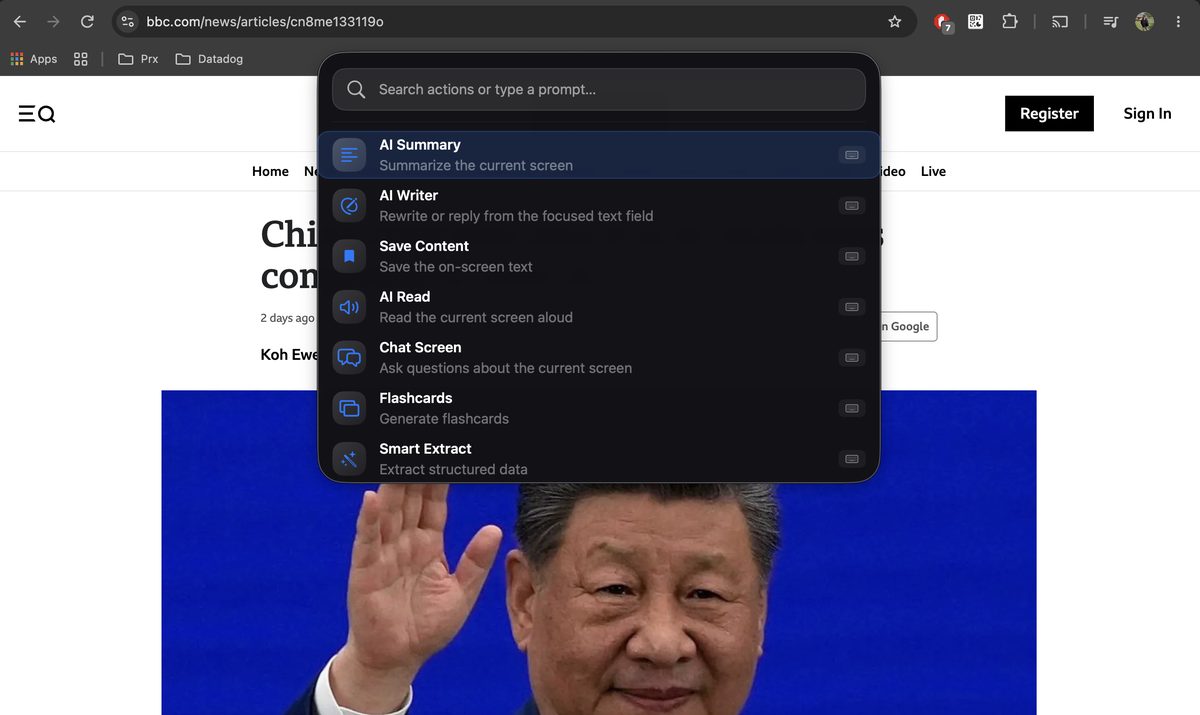
No copy-paste, no “share to app” sheet, no dragging the article anywhere. The reader came to the text instead of making the text come to it — the single biggest reason upload-a-file readers get abandoned.
Read Aloud or Summarize — Choose per Window
The panel gives you both paths from the same capture, and knowing which to pick is the entire skill:
- Read aloud. Arc speaks the on-screen text in a natural voice. Long-form journalism, documentation, a friend’s 2,000-word email — anything worth hearing in full.
- Summarize. The same window, condensed to the parts that matter, in seconds. This is the AI screen reader part doing what no classic reader can: deciding what the text says, not just reciting it letter by letter.
- Chat about it. After a read or a summary, type follow-up questions in the same panel. “What does this clause commit me to?” gets an answer pulled from the text on screen, not from the open internet.

I use both on the same article constantly: summarize first, scan the bullets, then hit read-aloud only on the section that actually matters. On a typical 15-minute read that saves me ten minutes, and the summary takes about five seconds to generate.
Step 3: Put the AI Screen Reader macOS Workflow to Work
Two minutes into setup you’ll hit the moment this tool earns its keep — the reading you’ve been putting off.
PDFs in Preview, Without Uploads
Open the PDF, press Control+Space, and the AI screen reader macOS app captures what’s visible — no OCR dance, no dragging a contract into a web app, no wondering who else now has a copy. A 60-page vendor agreement I read last week came back in about ten seconds as five bullets covering term, price, and renewal. One click saved it, with a screenshot of the source page attached.
That’s the saved items library in the screenshot below: every capture filed with its source, so the clause you half-remember is findable weeks later without re-opening anything.

Turn Reading Into Studying
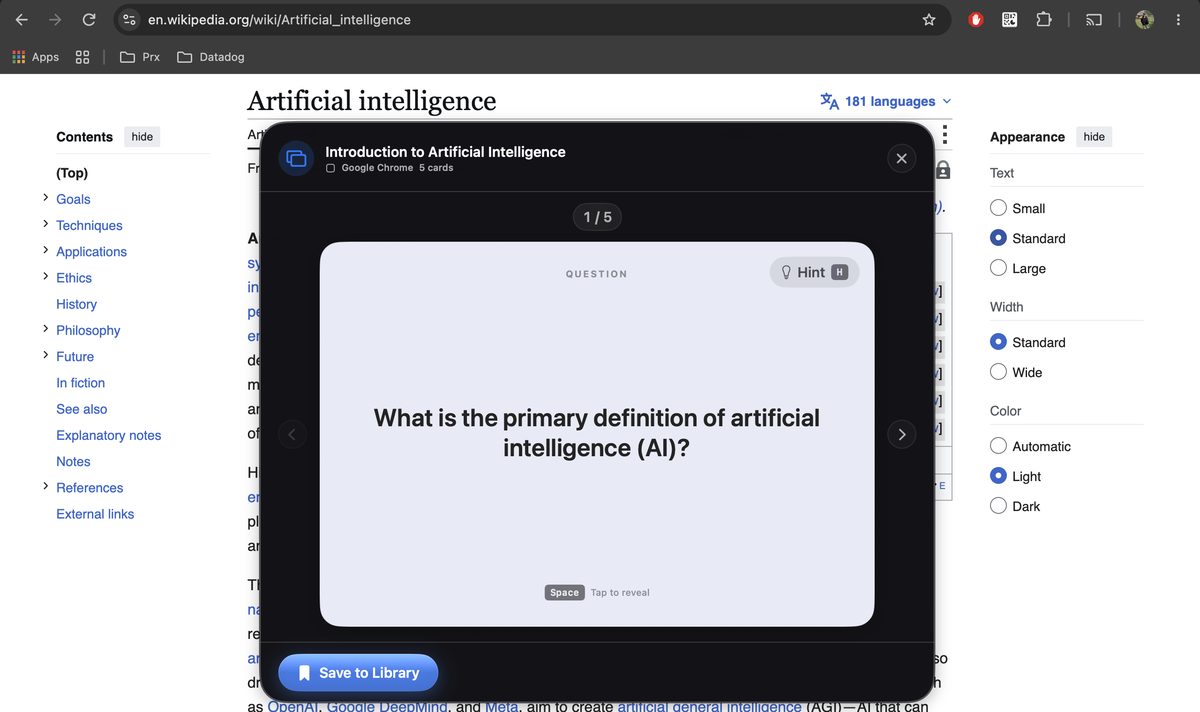
Press Control+Space over study notes and Arc converts them into flashcards — question on the front, answer on the back — filed into decks you review later. Listening is passive; flashcards are active recall, which is the difference between having heard your notes and knowing them.
Reading Into Writing
The reader doesn’t have to be the end of the workflow. Arc’s AI Writer runs on the same capture — when an email thread you just had read aloud needs a reply, the Writer drafts it in context and inserts it where you’re typing. Read in one ear, send from the other.
How It Compares to VoiceOver and the Other Options
Straight comparison from someone who ships a competing product:
- VoiceOver. Unmatched as a navigation tool for people who need full non-visual control of macOS — genuinely great at its actual job. As a listening reader it requires a learning curve measured in days, and it has no summary, no questions, no memory. Different category, different goal.
- Built-in Spoken Content (Option+Esc). Select text, hear it read. Free and instant — and the voice is why you’re still searching. Use it for a single paragraph in a pinch.
- Speechify and premium-voice apps. Polished voices, high-speed playback, mobile apps. Subscription pricing, and the text has to flow through their app or extension rather than being read from whatever window is already in front of you.
- Library readers (Speech Central, Voice Dream-style). Strong for ingesting documents and ebooks you import. Same limitation: your text must come to them.
The screen-aware category is the only one that treats your current window as the input — and when you want something read aloud, you almost always want it now, mid-window, not after locating a copy button.
FAQ
What is the best AI screen reader macOS users can install in 2026?
For listening to and understanding any window, Arc: press Control+Space, choose read-aloud or summarize, ask follow-up questions in the same panel. It’s system-wide, free to start, and the only one that pairs natural-voice narration with AI comprehension. If you need full non-visual navigation of the OS itself, keep VoiceOver — the two solve different problems.
How do I use a screen reader on my Mac at all?
The built-in route: System Settings → Accessibility → VoiceOver → enable it, then learn the VO keys (or take Apple’s free tutorial). It’s powerful but front-loads a steep learning curve. If your goal is having content read and explained rather than navigating blind, an AI screen reader like Arc needs no training at all — one shortcut over any window.
How do I get text read to me on a Mac?
Fastest built-in way: select text anywhere, press Option+Esc (Spoken Content). For reading without selecting anything, an AI screen reader macOS app like Arc reads the frontmost window whole on Control+Space — pages, PDFs, email — and can summarize instead of narrating when the text is too long to hear in full.
Is there a free text to speech option for Mac worth using?
Yes, two. Apple’s Spoken Content is free and built in — fine for short selections if you tolerate the voice. Arc is free to start and covers the whole loop: capture any window, hear it in a natural voice, summarize it, save it. That’s usually the deciding trade-off: a few minutes of setup versus a voice you’ll mute after a page.
Which tool should I choose for long articles: summarize or listen?
My rule after a year of daily use: if knowing the gist decides what you do next (email triage, contract review, research scanning), summarize first and read-aloud only the sections that matter. If the prose is the point — essays, fiction, documentation you must internalize — skip the summary and listen in full. The AI screen reader macOS app gives you both from one keystroke, so the choice costs nothing.
Your Two-Minute Setup
Install Arc, grant two permissions, press Control+Space over any window, and pick read-aloud or summarize. That’s the whole curve. Since I made this my default, the queue of “I’ll read it later” links has basically stopped growing, because reading now fits in the gaps — coffee, waiting rooms, eye-breaks — instead of demanding a desk and thirty quiet minutes.
Download Arc for Mac free from arcassistant.app/macos/ — Control+Space turns any window on your screen into something your Mac can read and explain. Arc also runs on Android: the same floating assistant reads and summarizes any phone screen, and it’s on Google Play today.