
Read Screen Aloud Mac: 4 Ways to Hear Any Window
You open a 30-page PDF, a dense newsletter, or a Slack thread that somehow became a novel, and your eyes are done for the day. You want your Mac to read screen aloud instead — ideally with one shortcut, in whatever app you’re already in. macOS can do this. Apple ships a genuinely good screen reader and a decent selection reader, but both are buried in System Settings, and neither will tell you what the text actually means.
I build Arc, an AI screen assistant for Mac and Android, and read-aloud is one of the top three things people install it for. In this guide I’ll walk through every way to set up a read screen aloud Mac workflow — the free built-in routes first, because they’re honest options — then the AI overlay route that handles the “any window, no selecting, and summarize it too” case.
Option 1: Speak Selection — the built-in read screen aloud Mac tool
This is the feature most people actually want. You select text, press a shortcut, and macOS reads it aloud in a decent voice. Setup takes two minutes:
- Open System Settings → Accessibility → Read & Speak.
- Turn on “Speak selection.”
- Click Show details to set the default shortcut — it’s Option+Esc out of the box.
- Optional but recommended: check “Speak selection” in the menu bar so a speaker icon lands at the top of your screen with Start/Stop controls.
Now select any text — in Safari, Mail, Notes, a PDF in Preview — and press Option+Esc. The Mac reads screen aloud until you press the shortcut again or the selection ends. You get a little controller with playback speed, and a sentence-advance button for skipping around. Once it’s set up, this is the fastest way to read screen aloud on a Mac for short passages, because there’s no app to launch: select, shortcut, listen.
Upgrade the built-in voice first
The default voice is the reason most people quit this feature after one paragraph. Go to System Settings → Accessibility → Read & Speak → System voice → Manage voices…, pick your language, and download one of the Enhanced or Premium voices (Ava, Zoe, Tom on recent macOS). The Enhanced voices are nearly indistinguishable from a human at normal speed, and they make Listen-to-everything sessions bearable for more than a minute.
Where Speak Selection falls short:
- You must select text first. No selection, no speech — so long scrolling feeds and chat windows become a drag.
- It reads only within the focused window’s selection context. It won’t follow you across apps.
- There’s no comprehension layer. It reads a 2,000-word article word for word when you may only want the gist.
Option 2: VoiceOver — when you want the whole interface read
VoiceOver is Apple’s full screen reader (Cmd+F5 toggles it). It doesn’t just read screen content — it reads the entire interface: what’s focused, what buttons exist, where you are on the page. For blind and low-vision users it’s essential, and the gestures-rotor system is superb.
For listening to text while multitasking, VoiceOver is honestly overkill — it will read screen aloud nonstop, including UI chrome you don’t care about, and it expects you to navigate with its own command set. You’re now operating the Mac by keyboard commands you didn’t previously know, and casual use takes a day to learn. Keep it in your toolkit if your eyes are permanently strained or you’re setting up a Mac for someone who needs it. Otherwise, Speak Selection (or Option 4) fits better.
Option 3: Safari and Preview speech commands
If your reading life happens mostly in Safari, there’s a hidden menu path that needs zero setup:
- Safari: Select text, then Edit → Speech → Start Speaking (or add Speech commands to the toolbar via View → Customize Toolbar). Works without touching System Settings at all.
- Preview (PDFs): Same path — Edit → Speech → Start Speaking, and Preview reads the whole document, not just the selection.
The catch is that this is per-app, so it’s a partial way to read screen aloud across a workday. Mail, Chrome, Slack, Obsidian — every other app is on its own. If Safari is 90% of your reading, this is the lightest solution on this list.
Option 4: Arc — the read screen aloud Mac shortcut for any window
Everything above shares one limitation: your Mac reads what you point at, inside one app, and that’s where the intelligence stops. Arc takes the screen-first approach — the Mac app is a global overlay you summon over whatever window you’re in, with Control+Space.
Setup:
- Download Arc from arcassistant.app/macos/ and sign in.
- Grant Screen Recording and Accessibility permissions when prompted — that’s what lets Arc capture the window you’re on. Nothing is sent anywhere without an action from you.
- Assign a global shortcut in Settings → Shortcuts (Control+Space by default).
From there, the read screen aloud Mac flow collapses to one gesture: sit on any screen — a PDF, an inbox, a recipe, a Google Doc — hit Control+Space, and tap Read Aloud. Arc captures the whole visible window itself, so there’s no selection, no copy-paste, and no app switch. It reads screen aloud across every app you own, because the overlay lives above every app.
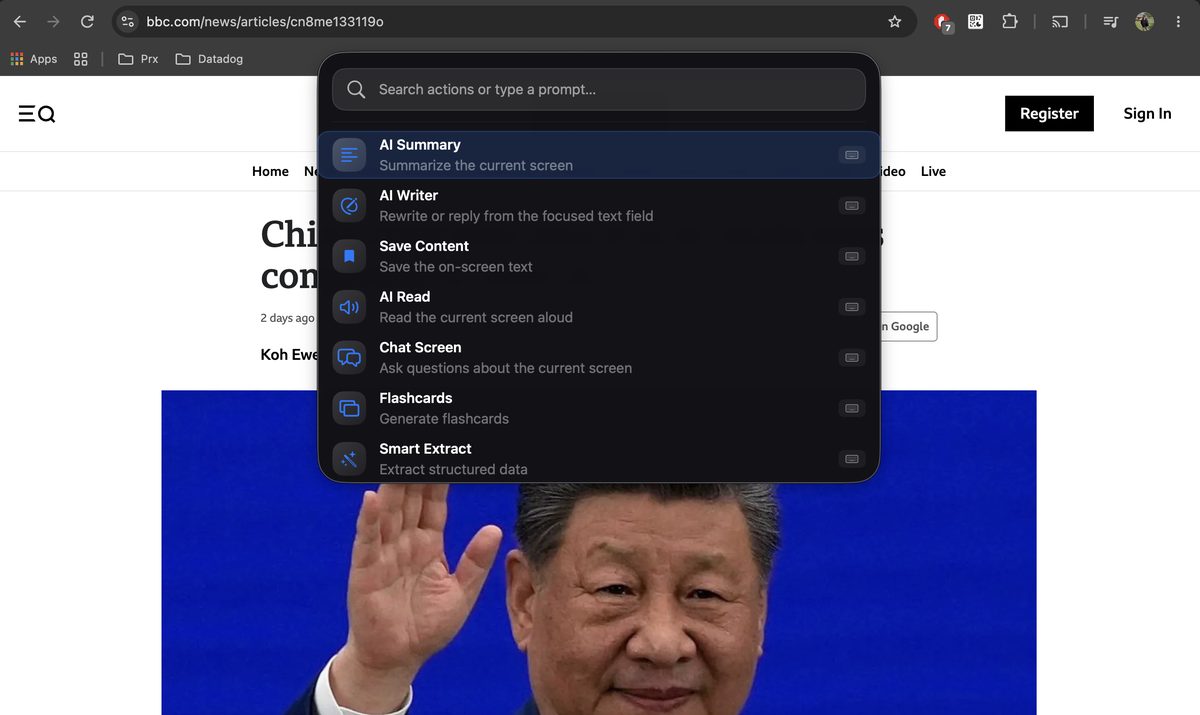
The part I think matters most: after the reading, Arc still has the parsed text in context, so you can follow up without re-capturing. Ask it to summarize the article it just read, and you get the six-sentence version in the same panel — which is usually what you wanted all along when you asked your Mac to read the screen aloud. That pairing (listen to the start, summarize the rest) is how I get through long reports now. It saves its summary straight into the AI Summary & Reader library, keyed to the source screenshot.

Every capture is saved with its screenshot, so you can reopen and re-read it later — useful for anything you might want to hear again, like a meeting thread you’re prepping responses for.

Which read screen aloud Mac setup should you pick?
- Selected text, occasional use, zero installs: Speak Selection with an Enhanced voice. It reads screen aloud wherever selection works, it’s free, and it’s already on your Mac.
- Full accessibility navigation: VoiceOver. Different job, best in class.
- Safari-only reading: the Edit → Speech menu path. Lightest option in this whole read screen aloud Mac comparison.
- Any window, any app, plus summaries: Arc — the read screen aloud Mac option for people who hate selecting text. One shortcut, and the AI actually reduces what you have to listen to; the tools in the first three options can’t do that last part.
Four read-aloud habits that make it stick
- Proofread by ear. Run the read screen aloud voice over your own draft before sending. Your ears catch double words, homophone swaps, and broken sentences your eyes have learned to skip.
- Listen first, then summarize. For long pieces, let the voice read the first few paragraphs while you decide whether it deserves a full read — if not, jump straight to the AI summary.
- Chunk long documents. Read-aloud quality collapses when you try to hear 90 minutes straight. Treat it like a podcast: a chapter at a time.
- Bind the shortcut into muscle memory. Whichever read screen aloud Mac tool you pick, it only sticks if invoking it costs zero thought — Option+Esc or Control+Space, one motion, every time.
FAQ
How do I make my Mac read screen aloud with no installs at all?
Enable System Settings → Accessibility → Read & Speak → “Speak selection”, select text anywhere, and press Option+Esc. That’s the complete built-in read screen aloud Mac flow — no third-party app needed.
What is the MacBook read text aloud shortcut?
Option+Esc for Speak Selection ( customizable in the Read & Speak settings) and Cmd+F5 to toggle VoiceOver. Arc adds its own global overlay shortcut — Control+Space by default — which you can rebind to anything you like.
Can my Mac read screen aloud without me selecting text first?
With built-in tools, only Preview does full-document read screen aloud duty for PDFs via Edit → Speech. For any app — Chrome, Mail, Slack, anything — Arc’s overlay captures the entire visible window on Control+Space and reads it, no selection required.
What’s better for long articles, read-aloud or an AI summary?
Use both: read-aloud to stay hands-free while you’re cooking or walking, AI summary when the goal is deciding fast whether an article is worth your attention. Arc does both from the same capture — the voice reading is the input, the summary workflow is the shortcut out.
Does this work on phones too?
Yes — Arc’s Android app has read the screen aloud through the same floating-sidebar overlay since launch: it works in any Android app, not just browsers. The Mac version mirrors it with Control+Space. iOS and Windows versions are in development.
Hear your screen today
Start with the built-in — enable Speak Selection and download an Enhanced voice; it might be all you need. On Android instead? Try Arc free on Google Play — the floating sidebar reads any app the same way. If you want the full read screen aloud Mac setup — every app covered, no selecting, with the option to summarize instead of listen — try Arc free on your Mac, hit Control+Space, and let it take it from there.