
AI Overlay Assistant Mac: Any App, One Keystroke
Copy the text, switch to a chat tab, paste it, wait, copy the answer, switch back — unless an AI overlay assistant already sits over the window. That is the tax every chatbot charges, and you pay it every single time you use one. The fix is not a better chatbot — it is an AI overlay assistant: a small floating panel that appears over whatever app you are already in, reads the window behind it, and hands back the answer in place. On Android, Arc does this as a floating sidebar over any app; on Mac, it does it from a panel you summon with Control+Space — an AI overlay assistant Mac users invoke the same way, on a bigger screen. This guide is about what an AI overlay assistant on Mac should do, and how Arc does it. I’m Mamata — I build Arc, and the overlay pattern is the one thing users kept asking for since the Android app launched in 2024: ‘don’t make me come to the AI, let the AI come to my screen.’
What an AI Overlay Assistant for Mac Actually Is
The definition is simple, and most people get it slightly wrong.
So: what is an AI overlay assistant for Mac, exactly? An AI overlay assistant is not a chat app with a nice theme. It is a layer on top of your desktop: you summon it over any window, and it can act on that window’s content — summarize a PDF, read an article aloud, rewrite a reply sitting in Gmail, extract the deadlines from a project page — without you copying anything anywhere.
Overlay Assistant vs. Chat Tab vs. Sidebar Extension
Three kinds of tools get called “AI assistants on Mac,” and only one is actually an overlay. Knowing which is which saves you an install:
- Chat tabs (ChatGPT or Claude in a browser) — the AI lives somewhere else; you commute to it. Six steps per question: select, copy, switch, paste, wait, copy back.
- Sidebar extensions — the AI lives in one app, usually the browser. Great in Chrome, literally absent in Mail, Preview, and Slack.
- Overlay assistants — the AI lives over every app at once. Safari, Mail, Preview, Notion, Slack: the same one-keystroke Control+Space panel works on all of them, because macOS shows it the frontmost window instead of the contents of one app.
That third kind is the one worth having, because your work does not happen in one app. Arc is built as an AI overlay assistant first: the floating panel is the product, and the full app window behind it is just where your saved summaries and custom actions live.
Arc: One Overlay for Every Mac App
Arc started on Android as a floating sidebar that could read whatever was on the phone screen. The AI overlay assistant Mac version does the desktop equivalent. It is free to start, notarized by Apple, ships as a universal binary (Apple Silicon and Intel, macOS 14 or later), and takes about two minutes from download to first result. If you want the platform overview first, start with Arc for Mac. The rest of this guide stays on the overlay itself.
Control+Space: One AI Overlay Assistant, Every Window
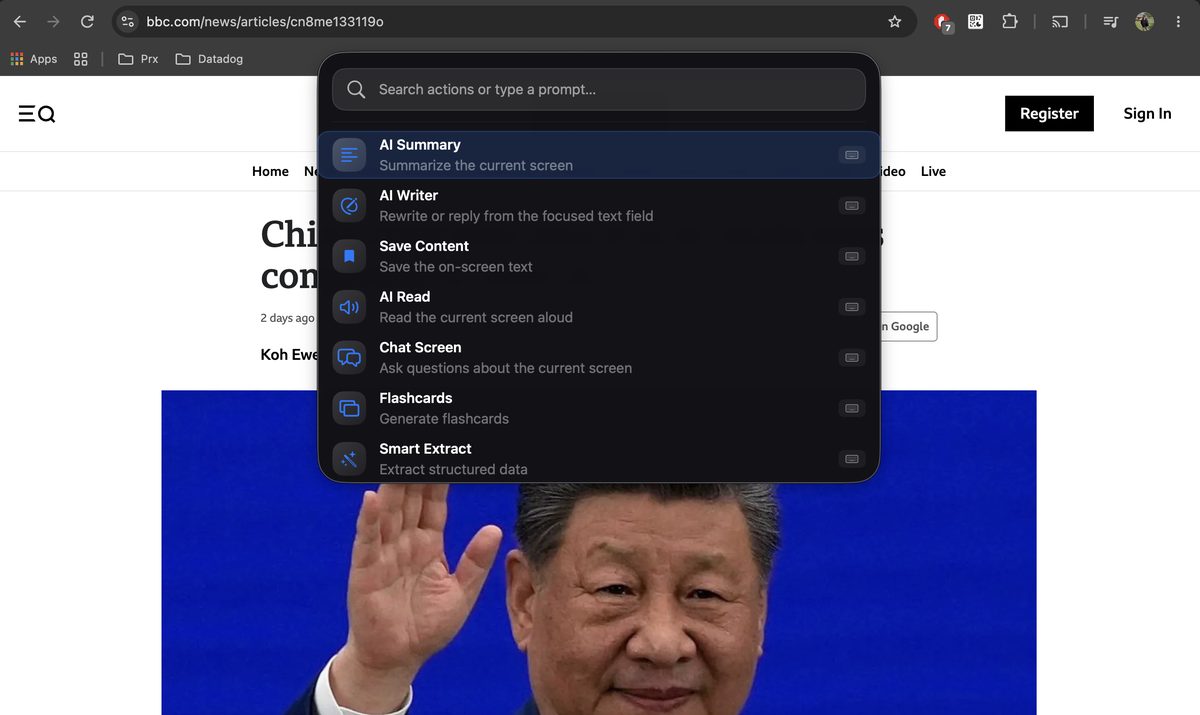
Press Control + Space anywhere in macOS and the AI overlay assistant panel slides over the active window. Pick an action — summarize, read aloud, rewrite, ask — and Arc reads the frontmost window through the same accessibility APIs VoiceOver uses. The result lands in the panel. Press Esc and the AI overlay collapses; your window is exactly where you left it. The shortcut is remappable, and a menu bar icon opens the same panel by mouse if you prefer. It is the interaction model of Spotlight, pointed at your content instead of your apps.
The AI Overlay Assistant Mac App Only Reads When You Ask
Because “it can see my screen” deserves a straight answer: an AI overlay assistant Mac users can trust should read nothing until invoked, and this one does exactly that. The panel reads the frontmost window for the duration of one action — a summary takes 3–6 seconds — then goes dormant. No background watching, no keylogging, password fields skipped automatically. Screen Recording permission is only needed for screenshot-based actions; plain text reading needs Accessibility only. The app is notarized, and every permission request comes with a plain-language reason.
What the Overlay Can Do With the Window Behind It
Summarize Any Window With the Overlay Assistant
Long article in Safari, 40-page PDF in Preview, an email thread with fourteen replies — the AI overlay assistant Mac approach is identical: summon the panel over Preview, choose Summarize, and a tight summary appears without you leaving the app. Save it to your Library so it survives the restart. The engine is the same one behind our AI Summary & Reader; the overlay simply aims it at the window in front of you.

Rewrite and Reply In Place
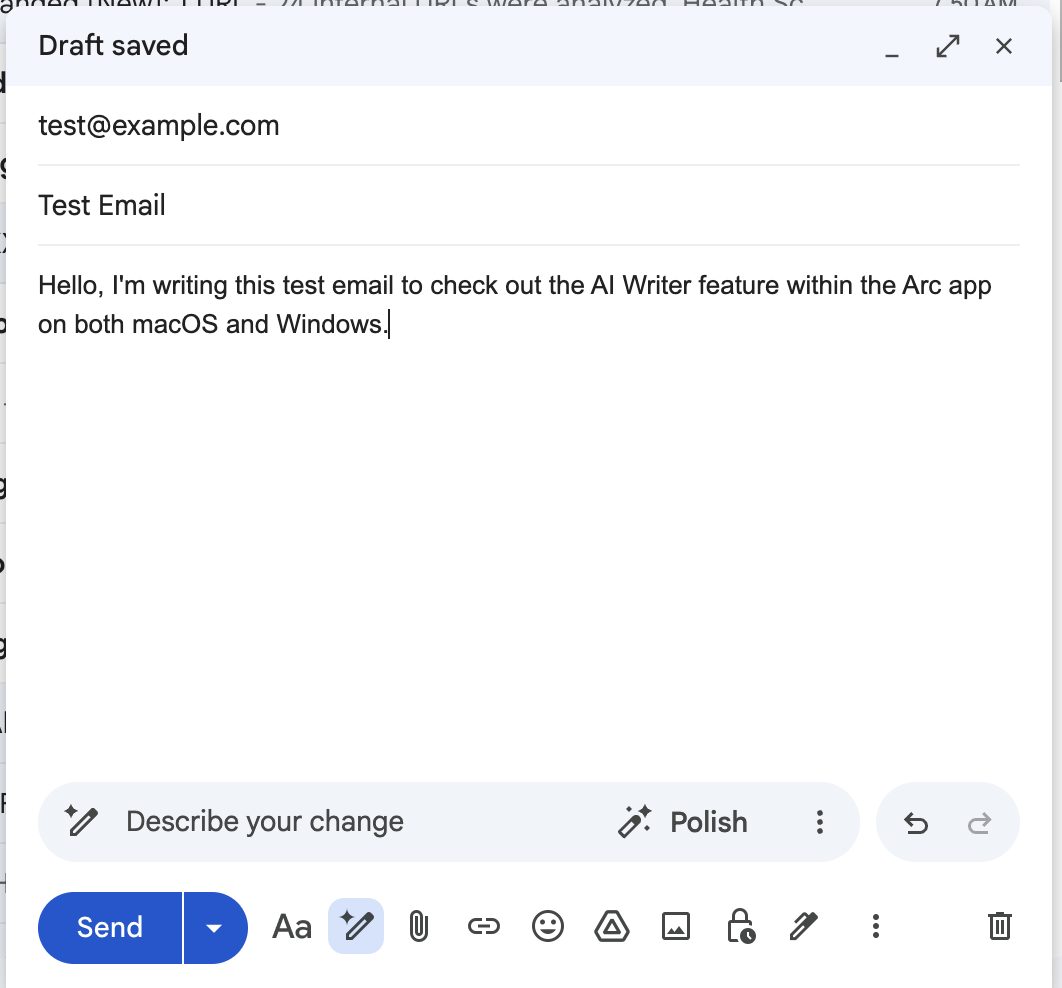
Half the text on a Mac screen is text you are expected to answer. With the AI overlay assistant Mac panel over a Gmail draft, choose Reply or Rewrite and Arc’s AI Writer puts the finished text back into the field you were editing — no clipboard shuttle, no formatting cleanup. It fixes grammar, adjusts tone, translates, and answers for you, inside the app you were already typing in.
Ask Your Screen a Question Through the Overlay
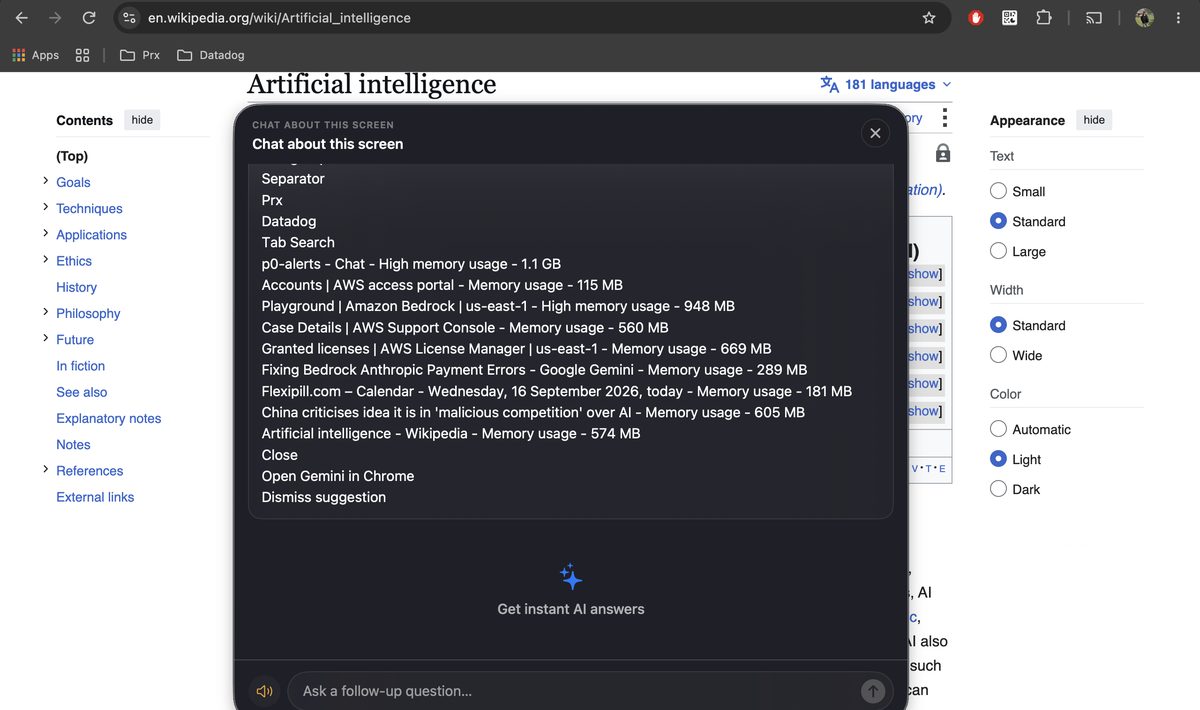
When the AI overlay is open over a page, you can interrogate the window underneath: which of these 90 comments actually answers the question, what did I just agree to on this terms page, does this clause contradict the email above it. Answers are grounded in the live screen content, not in a generic model’s guess about what you meant.
Actions of Your Own, Plus 500+ From the Community
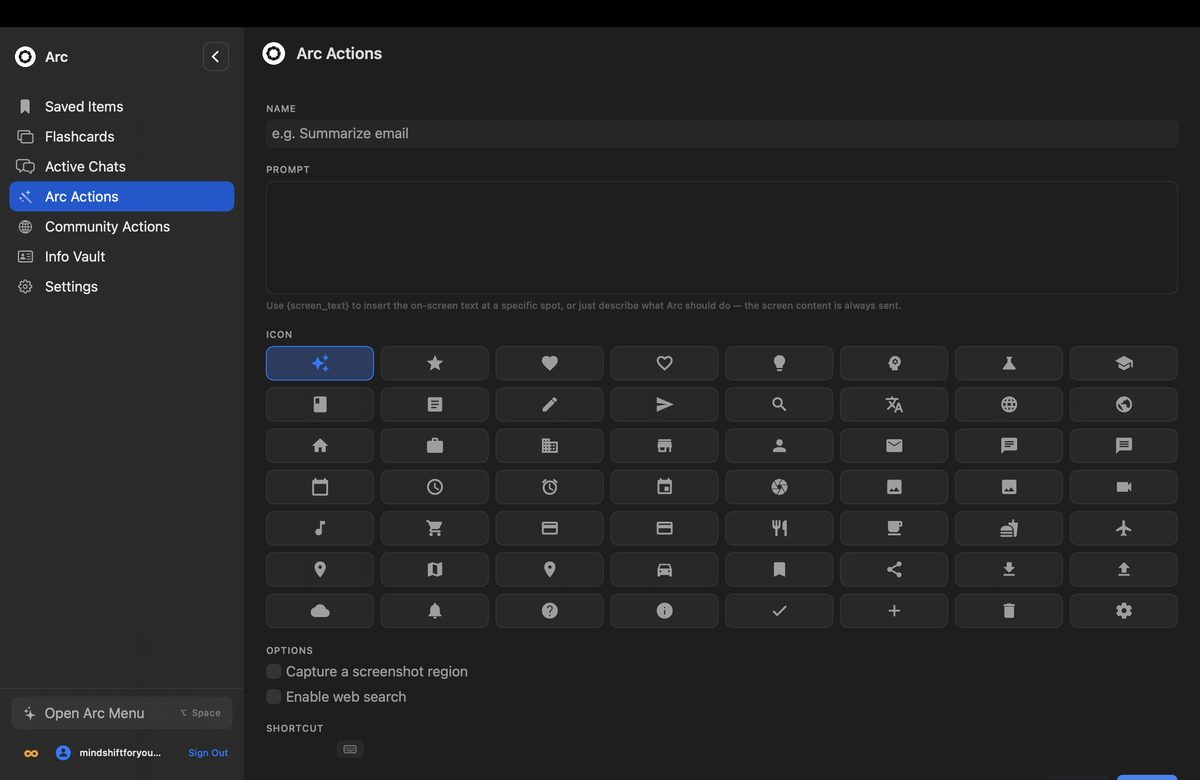
The overlay assistant’s action list is not fixed. Write a prompt once — “reply politely and decline,” “turn these deadlines into a checklist” — bind it to a hotkey, and it becomes a permanent button in the AI overlay assistant’s panel. Arc users share 500+ ready-made actions you can install in one click, and the patterns for chaining them into repeatable workflows are covered on AI Workflow Automation.
Quiet Extras in the Overlay That Earn Their Keep
Smart Extract pulls structure from a messy window — dates, contacts, prices, action items — into a clean list in one press (an events page with 20 scattered details becomes a 6-line list). Flashcards turn whatever you are studying into a review deck — invoke over a lecture PDF, get question cards from the actual content. Saved Items keep screenshots and clippings in a searchable library that can back up to Google Drive if you want it to.
How the AI Overlay Assistant Fits a Real Workday
- 9:00 — 40 pages of a PDF before a 9:15 call. Overlay assistant over Preview, Summarize, an 8-line digest on screen in under 10 seconds.
- 11:30 — A thread with fourteen replies in Mail. Overlay assistant over the thread, Reply, a draft tuned to the thread’s tone, sent in one pass.
- 14:00 — Terms page you refuse to read fully. Ask the overlay assistant what the data-sharing clause says.
- 16:00 — Slack message that needs a diplomatic answer. AI overlay assistant over the message, Rewrite, soften, send.
Nothing above requires switching apps a single time. That is the whole point of an AI overlay assistant: the AI is measured in keystrokes, not context switches.
The Same AI Overlay Assistant in Your Pocket
Arc on Android is the same AI overlay assistant idea: a floating sidebar over any app on your phone, doing summaries, read-aloud, and replies on the small screen. One account covers both — saved content, custom actions, and subscription carry across. The Android app is on Google Play, and the Arc AI Screen Assistant homepage covers everything both platforms share.
Getting Arc’s AI Overlay Assistant Running in Two Minutes
- Download the DMG from Arc for Mac (about 40 MB), open it, drag Arc into Applications.
- Launch and grant the Accessibility permission — that is what lets the AI overlay assistant read the active window. No restart needed.
- Press Control + Space over whatever is already open and pick Summarize. From download to first summary: about two minutes, three inputs of yours.
No account required to start. The AI overlay assistant asks for nothing else — basic features include 7 free requests per week, no ads, no trial clock.
What Arc’s Overlay Deliberately Does Not Do
An honest list, because every overlay on the Mac has tradeoffs:
- No background automation. Arc does nothing between keystrokes. If you want unattended, scheduled automation, an overlay assistant is the wrong tool — it works when you invoke it, by design.
- No multi-window context in one action. Summarize works on the frontmost window. Cross-referencing two documents means two invocations; the chat-about-screen action only sees what is live under the panel.
- It does not edit files. The rewrite lands in the field you’re in, or on the clipboard — it will not go reorganize a folder or refactor your repo.
- It is not offline. The summary and rewrite models run server-side, so a dead Wi-Fi cabin means the read-aloud basics only.
Several of these limits are load-bearing. The no-background rule is the same one that keeps the privacy story simple: no invocation, no reading. I would rather ship an assistant that is quiet than one that is always listening.
FAQ
What is an AI overlay assistant for Mac?
It is a floating panel — an AI overlay assistant Mac app can run over any window — that appears over whatever app you are using and acts on that window’s content — summarizing it, reading it aloud, rewriting text in it, or answering questions about it — with no copy-paste. Arc is the AI overlay assistant Mac users get with one keystroke: press Control+Space on macOS 14 or later, and a slim overlay opens over the active window, ready to work on whatever is behind it.
How is an overlay assistant different from ChatGPT on Mac?
A chat app works on what you paste into it. An AI overlay assistant works on what is already on your screen — the PDF you have open, the draft you are writing — and returns the result in place. With Arc, the difference is one keystroke versus six steps of copy-paste, and the panel works in every app, not just the one that hosts a sidebar extension.
Does the AI overlay read my screen all the time?
No. Arc reads the frontmost window only at the moment you invoke an action, using the same accessibility APIs VoiceOver uses. It does not watch in the background, does not record keystrokes, and skips password managers automatically. Screen Recording permission is requested only if you use screenshot-based actions.
Will an overlay assistant slow my Mac down?
Barely. The AI overlay assistant Mac build is a lightweight window that does not exist at all until you summon it, and the heavy work happens in the cloud, not on your CPU. On an M1 MacBook Air it appears instantly and leaves no residue when collapsed.
Can I use the same overlay assistant on Android too?
Yes. Arc runs on Android as a floating sidebar with the same summarize, read-aloud, and rewrite actions, plus the same Library and custom actions. Sign in on both and your subscription carries across — the Android app is a free download on Google Play, and the Mac app starts free with 7 requests per week.
Try the Overlay Yourself
Download the AI overlay assistant Mac free from arcassistant.app/macos/, grant Accessibility, and press Control + Space over any window. Arc, the AI overlay assistant Mac users have been piecing together from chat tabs and browser extensions, is one keystroke away — and it works in every app on your screen.
Further reading: Apple’s Accessibility framework · Google’s Gemini developer docs.