
Summarize Text macOS: 5 Ways That Work on Any Mac
It is 8:55 on a Tuesday, a 40-page PDF sits open in Preview, your call is at 9:00, and you want the gist in ten lines. If you search how to summarize text macOS gives you, the answers split awkwardly by hardware generation: half of them assume you own an M1 Mac running macOS 15.1 with Apple Intelligence, and the other half point at a Safari Summarize feature Apple removed years ago. Nobody writes for the person with a 2019 Intel MacBook Pro, or for the person who just wants to summarize a window that is not a web page — a PDF in Preview, a thread in Mail, a spec in Slack. Ask how to summarize text macOS actually supports on your machine and you have to piece the map together yourself. This post is that map: every method that works in 2026, which hardware each one needs, and the one-keystroke option I use daily as Arc’s developer. I’m Mamata — I build Arc, and summarize-on-screen is the single most-used feature in the app, so this is not an abstract rundown.
Why Summarizing Text on a Mac Is Confusing Right Now
A decade ago the Mac shipped a Summarize service and a Safari button for it. Between 2013 and 2016 Apple quietly deprecated both, kept the service limping along in System Settings, and then shipped Apple Intelligence in 2024 as the modern replacement — exclusive to M-series Macs, with text features arriving in macOS 15.1. The result in 2026: the advice to summarize text macOS searchers find was written for Macs that barely exist anymore, while Macs that do exist get told to buy new silicon.
So before any method, get the lay of the land: the ways to summarize text macOS has shipped over the years split into four generations, and each one is still the right answer for somebody.
The 5 Ways to Summarize Text macOS on Your Machine
Method 1: Apple Intelligence Writing Tools (M1 and later)
If your Mac has an M1 chip or later and runs macOS 15.1 or newer, the cleanest built-in way to summarize text macOS offers is Writing Tools.
- Select the text — in an article, a document, a chat draft, anywhere you can highlight.
- Right-click the selection and choose Writing Tools.
- Click Summarize. You can also pick Key Points for a bulleted digest or Table if the source text is structured.
It works well on prose — a 2,000-word article collapses into a short paragraph in a few seconds — and because it is system-level, the summarize option shows up in most text-bearing apps, not just Safari.
The catch is coverage, not quality: no Intel Mac gets it, M1 users on macOS 14 are out, and the action only ever sees the text you selected. It cannot summarize the window you are looking at, and it does not save a history of what it summarized.
Method 2: The old Summarize service (older Macs, TextEdit)
Before Apple Intelligence there was a Summarize service — on some older macOS versions you may still find it under System Settings → Keyboard → Keyboard Shortcuts → Services → Text, where enabling it adds TextEdit’s Summarize menu item. Highlight text in TextEdit, choose Summarize, drag the slider, and a condensed version appears in its own window.
If you find it on your Mac, treat it as a curiosity: Apple deprecated it years ago, removed it from Safari long before that, and newer macOS versions ship without it at all. It is the historical answer to summarize text macOS questions, not the 2026 one.
Method 3: Copy into a chatbot
The default answer everywhere: select, copy, open ChatGPT or Claude in a browser tab, paste, type “summarize this,” wait, copy the result back if you need it.
It works, and the summaries are good. But it is a six-step commute — select, copy, switch, paste, prompt, switch back — every single time, and the text has to leave the app you were reading it in. For a one-off long article that cost is fine. When the habit is daily, the switching tax becomes the reason you stop bothering. That is the failure mode I built Arc to remove, and it is the same complaint Android users had before the phone version appeared.
Method 4: Reader modes and extensions
Safari’s Reader view cleans up a page but summarizes nothing. Reader-mode extensions and “read-it-later” apps can add article digests, but they only operate inside the browser — the moment your text lives in Preview, Mail, or Slack, the extension is useless. Browser-bound tools replicate Method 3’s core limitation from the other direction: the tool is present in exactly one app.
Method 5: Arc — summarize any window with one keystroke
The method I use every day, and the reason this post exists. Arc is a screen-aware assistant: it reads the frontmost window — any app, not a specific one — and summarizes what it sees, in place. To summarize text macOS keeps anywhere on screen, you do not select anything, copy anything, or switch anything. This is the same engine the Android floating sidebar uses, brought to the desktop; the features live on AI Summary & Reader if you want the full tour.
Summarize Text macOS Every Day: Arc in Three Steps
Step 1: Install and grant one permission
Download Arc for Mac free from arcassistant.app/macos/ — it is notarized, ships as a universal binary for Apple Silicon and Intel, and needs macOS 14 or later. On first launch it asks for Accessibility permission, the same API layer VoiceOver uses, so it can read window text. That is the only permission needed for summaries; an Intel MacBook Pro from 2019 runs it identically to an M3.
Step 2: Press Control+Space over any window
Leave the PDF, article, or email exactly where it is and press Control + Space. A slim panel slides over the active window, and Arc reads the frontmost window’s text through the accessibility layer — no selection, no clipboard.
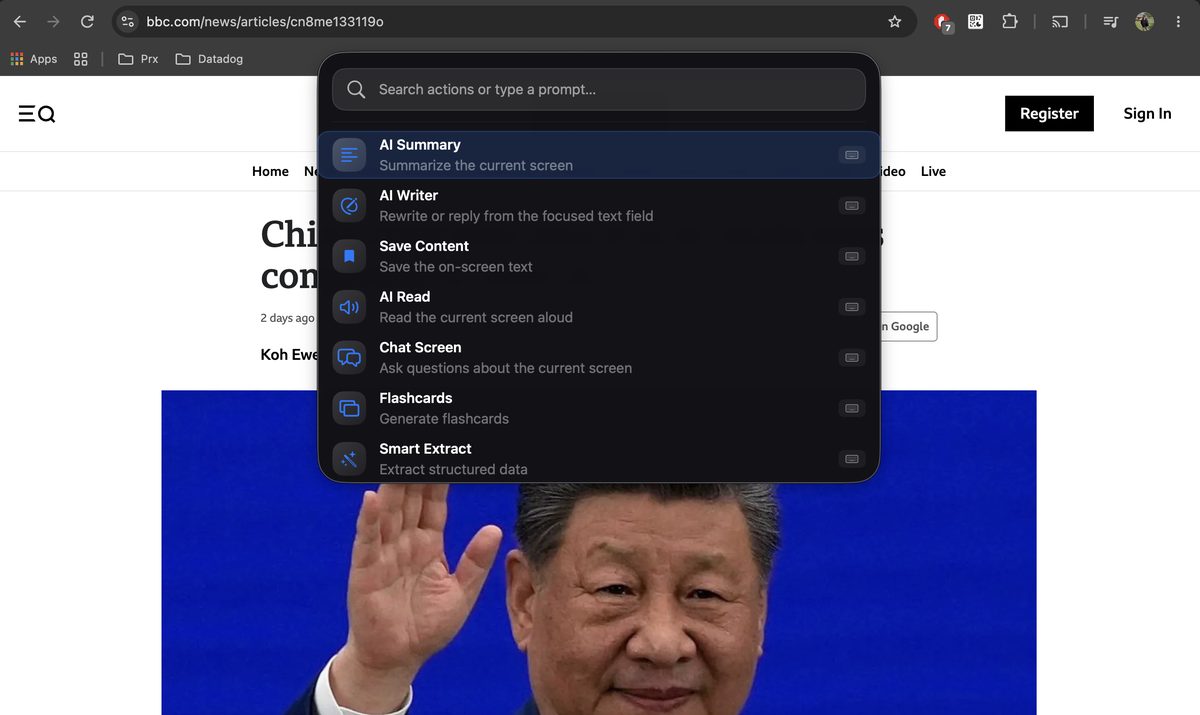
Step 3: Choose Summarize and read the result in place
Click Summarize. A tight digest of the window appears in the panel in about 3–6 seconds — built for the stuff you actually face: articles, PDFs, email threads, docs in apps with no AI anything. The prompt is tuned to summarize text macOS users meet all day: it keeps numbers, names, and deadlines rather than washing them into vague prose. Press Esc and the panel collapses; your window is untouched.

Two follow-ups earn their keep:
- Save it. One click files the summary into Arc’s Library with the source screenshot attached, so the digest of that 40-page PDF survives the restart. Your summaries collect into a searchable history — saved items and their snapshots stay retrievable months later.
- Extract, don’t just summarize. Smart Extract pulls structure instead of prose: the events page with twenty scattered dates becomes a clean list in one press.
Step 4 (optional): Make your own summarize button
Any action in Arc can be customized, and I keep one called Executive brief: “Summarize the screen as ten bullets, bold the deadlines, note every number.” It took two minutes to write and it outperforms the generic summarize for my taste. From there the chaining patterns — summarize, then turn the digest into flashcards before an exam, or into a checklist before a standup — are covered on AI Workflow Automation.
Which Method Fits Which Job
- One article a week, M1 Mac: Writing Tools is fine — right-click, Summarize, done.
- You need it now on an Intel Mac or macOS 14: Arc is the option that works on the machine you already own; nothing else on this list runs system-wide text summarization there.
- Text lives in Preview, Mail, or Slack: Writing Tools and browser tools both tap out; only a screen-level tool sees those windows. When you summarize text macOS scatters across six apps a day, the panel pays for itself.
- You want summaries to persist: Arc’s Library keeps every digest with its source screenshot — chatbots and Writing Tools forget instantly.
- Reading, not summarizing? If your eyes are the bottleneck rather than the length, Arc also reads windows aloud — that flow is on Arc for Mac.
An honest limit, because I would rather say it than have you find out: Arc summarizes the window in front of you, not two documents at once — cross-referencing means two invocations. It needs a connection, since the models run server-side. Basic use is free (7 requests per week), with more headroom if you need it. And it reads nothing until you invoke it — no invocation, no reading. No background watching, no keystroke logging, password fields skipped automatically; Screen Recording permission is only requested for screenshot-based actions.
FAQ
How do you summarize text on a MacBook?
Everything above applies directly. On an M1 MacBook running macOS 15.1+, select text and right-click → Writing Tools → Summarize. To summarize text macOS MacBook Air M1 users on older macOS versions or any Intel model own, install Arc and press Control+Space over the window — the shortcut works the same on Air, Pro, and desktops.
What is the fastest way to summarize text macOS gives you for free?
Speed test, honest numbers: Writing Tools takes one right-click plus a few seconds, but only on M1+ and only on selected text. The fastest free way to summarize text macOS offers on any machine — Intel included — is Arc: Control+Space, click Summarize, 3–6 seconds over the whole window, free at 7 requests per week with no account needed to start.
What happened to the Summarize feature in Safari?
Apple removed it years ago — the right-click Summarize button and the underlying service were deprecated; newer macOS versions do not ship them. The Reddit threads hunting for the missing shortcut are finding a grave. Apple Intelligence’s Writing Tools is the official successor, on M1 Macs only.
Can I summarize a PDF on a Mac without Apple Intelligence?
Yes. Open the PDF, press Control+Space with Arc installed, and the panel reads the PDF’s text whether Preview shows it or another viewer does — no M1 chip, no macOS 15.1 requirement.
Does the same summarizer exist on my phone?
Yes — Arc for Android (free on Google Play) has the same summarize engine as a floating sidebar over any app, plus the same custom actions and Library. Sign in on both and your setup carries across. An iOS version is in development, and Windows is coming soon for the desktop side.
Try It on Your Mac
Pick by your hardware: M1 and later get Writing Tools in one right-click; every other Mac — and every Mac that wants window-level summaries with a saved history — gets Arc AI Screen Assistant. Download Arc for Mac free from arcassistant.app/macos/, grant Accessibility, press Control + Space over whatever is open, and let it do the reading. The next 40-page PDF on a deadline takes 3–6 seconds instead of 40 minutes.