
AI Automation Mac: Run Real AI Actions in Any App
You bought the Mac that Apple markets as a machine for automating busywork, and six months later you are still the automation. You copy a customer message, paste it into a chat tab, describe what a polite reply looks like, wait, copy the answer, paste it back, fix the formatting. Twelve clicks of human labor to make one AI call. The actual promise of AI automation Mac — build something once, trigger it forever — never arrives, because the chatbot has to be babysat every single time. The fix is a two-layer stack: an assistant that performs AI actions on whatever window you’re in, invoked exactly when you want it, plus macOS Shortcuts as the glue that binds those actions to hotkeys and sequences. Arc started as this pattern on Android — a floating sidebar that reads the screen behind it — and the Mac app brings the same engine to the desktop with Control+Space. I’m Mamata, I build Arc, and this is a practical guide to getting AI automation running on your Mac the way that actually sticks: actions you define once and fire for months.
What AI Automation on Mac Means (and What It Doesn’t)
There are two very different products being sold under the label “AI automation” right now, and the difference decides whether the purchase changes your day. The first kind is the background agent: a tool with permission to move your cursor, click through your apps, and execute scheduled jobs while you’re not watching. It’s the version everyone demos in viral videos. The second kind — which I’d argue is the one you’ll actually use — is invoked automation: the AI is standing by over your screen, does real work in one keystroke, and then goes quiet.
The honest case for the second kind is simple. Every invocation is one action — this window, summarized, rewritten, extracted, or answered — under 10 seconds, and you saw it happen before anything left your machine’s focus. There’s no surprise in the audit log because nothing runs in the background. That’s the layer Arc automates. What it deliberately doesn’t automate is the “watch my screen and act on its own” part, and I’ll explain why later — because this distinction is what makes AI automation Mac setups reliable instead of chaotic.
The Four Layers of Mac Automation
A quick map before the setup, because “AI automation” gets used for everything:
- Native scripting — AppleScript, Shortcuts, shell scripts. Rock solid, zero intelligence. The glue layer.
- App-locked AI — Apple Intelligence or a browser extension. Works inside one ecosystem per action, stops at the app boundary.
- Invoked AI actions — one keystroke over whatever window is open, the AI reads that window and returns a finished result. Arc’s layer.
- Background agents — the AI drives itself. Powerful for demos, risky in real workflows, and the layer that asks for the most trust.
Layers 1 and 3 compose beautifully, and that composition — Arc actions bound into Shortcuts flows — is where the real productivity comes from. Layer 4 can wait until layers 1-3 have earned their keep.
Arc: The AI Automation Mac App That Lives Over Your Windows
Arc is built as an AI automation Mac app in the literal sense: it exists as a panel over whatever app you’re using, reads the frontmost window on demand, and hands back a finished result. Summarize a PDF in Preview. Rewrite a reply inside Gmail’s compose box. Pull every deadline off a project page into a checklist. The window never has to be a browser tab, the work never has to be copied anywhere, and the same panel works in Mail, Safari, Slack, Notion, and Preview alike.
On Android, the same product runs as a floating sidebar over any app — the Arc AI Screen Assistant homepage covers everything both platforms share — and one account carries your saved summaries, custom actions, and subscription across. On Mac, you summon it with Control+Space on macOS 14 or later. If you want the broader picture first, start with Arc for Mac; the rest of this guide is about the automation machinery specifically.
How an Action Actually Fires
Press Control+Space and a slim panel appears over the active window. Pick an action — Summarize, Read Aloud, Rewrite, Ask — and Arc reads the window content through the same accessibility APIs VoiceOver uses, then renders the result in the panel in 3-6 seconds. Esc closes it. Nothing was copied, nothing was scheduled, and the AI touched exactly one window for exactly one action. That is the atomic unit of AI automation Mac setups are built from: called an action.
Building Your First Custom AI Action
Every installed action starts as a prompt you write once. This is where AI automation stops being a purchased tool and starts being yours. Open the Actions tab, tap the plus button, and get three fields:
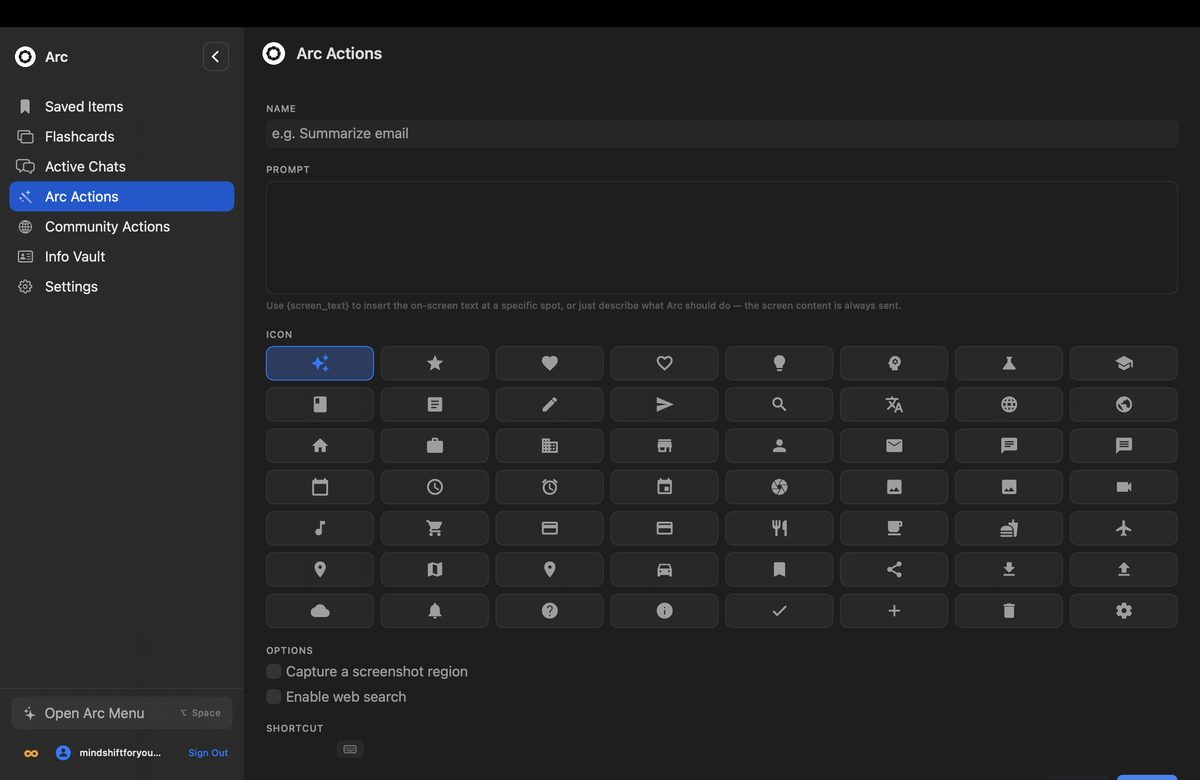
- Name — what the button says in the panel. “Reply politely and decline.”
- Prompt — the instruction the AI follows when the action fires on the frontmost window.
- Input mode — how the surrounding screen reaches the model: full visible text, selection only, or manual paste for text that lives inside an image.
Underneath, three prompt-level controls do most of the engineering for you. Tone sets the register (professional, casual, direct). Length forces short outputs for chat-sized tasks or long ones for drafts. Language lets one action respond in your customer’s language instead of yours. Those three knobs replace maybe forty words of prompt engineering on every action you build.
Three actions worth writing on day one:
- “Triage inbox” — “List the five most urgent threads in this mailbox with one line each.”
- “Extract action items” — “List every task someone assigned in this thread, with the owner’s name.”
- “Polite decline” — “Write a warm, two-sentence reply declining this request, then offer one alternative time.”
Write them once and they are buttons forever — that is the whole trick of AI automation Mac style: your judgment encoded, then invoked by reflex.
Turning Actions Into AI Automation With Hotkeys and Shortcuts
An action in a panel is a click saved. A bound action is a habit. Arc’s shortcut system assigns a global hotkey to any action, so your custom flows become muscle memory with zero clicks.
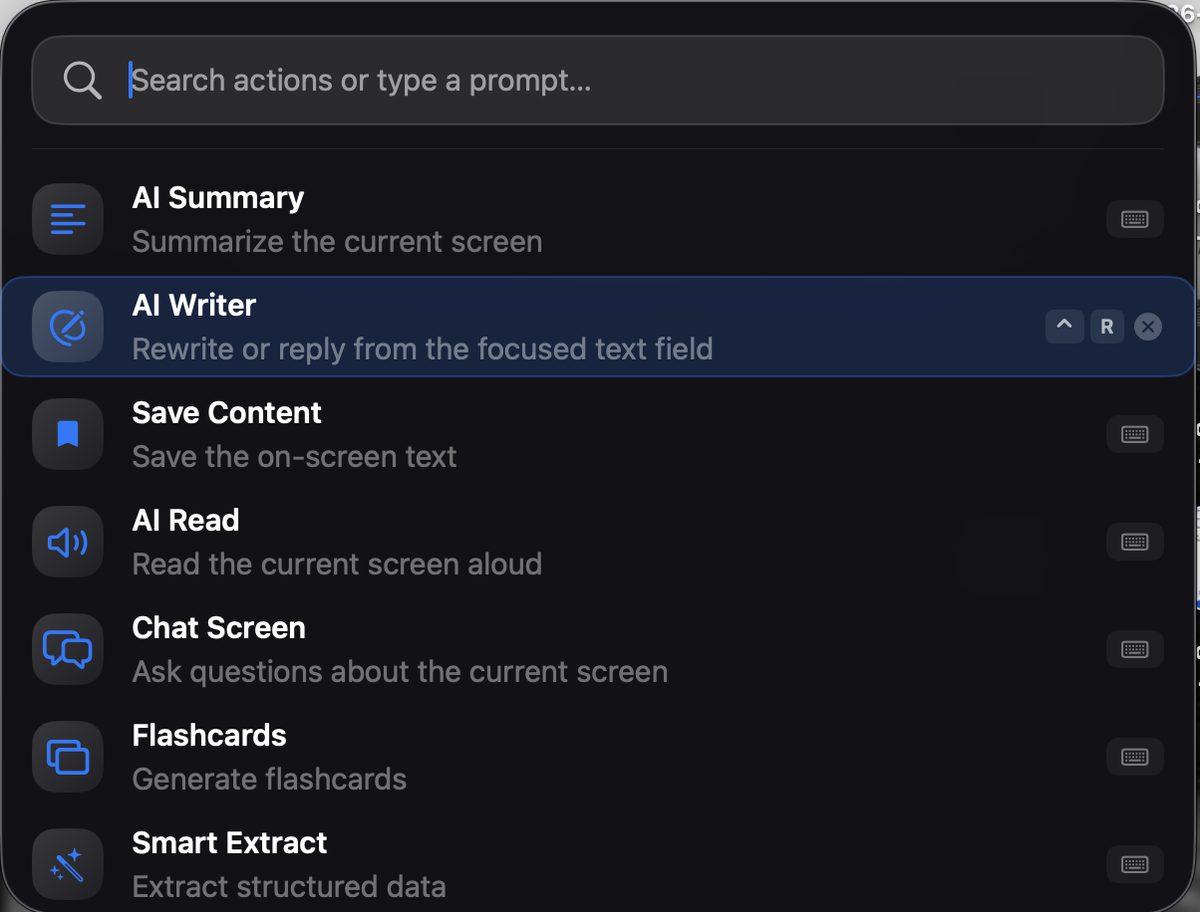
Two binding styles cover nearly every use:
- Direct hotkey in Arc — open Settings → Shortcuts, choose the action, press your key combo. Now Rewrite is Option+R in every app that takes text, because the panel can work on whatever window is focused.
- Shortcut app bridge — macOS’s own Shortcut editor can trigger Arc actions as steps in a bigger chain. That chaining is the difference between a single button and a workflow: open URL → wait → trigger Arc action → paste result into a specific field. Your AI step inherits everything macOS Shortcuts already does well.
The bridge matters more than it sounds. Apple Shortcuts owns the scheduling, clipboard, and file system; Arc owns the understanding-the-screen part. Together they are AI automation Mac power users actually keep installed past the first week.
Don’t Build These From Scratch: 500+ Community Actions
There’s a reasonable chance the workflow you’re inventing is already written. Arc ships with a Community Actions browser of contributed prompts, and at current count it carries 500+ ready-made actions you can install in one click.
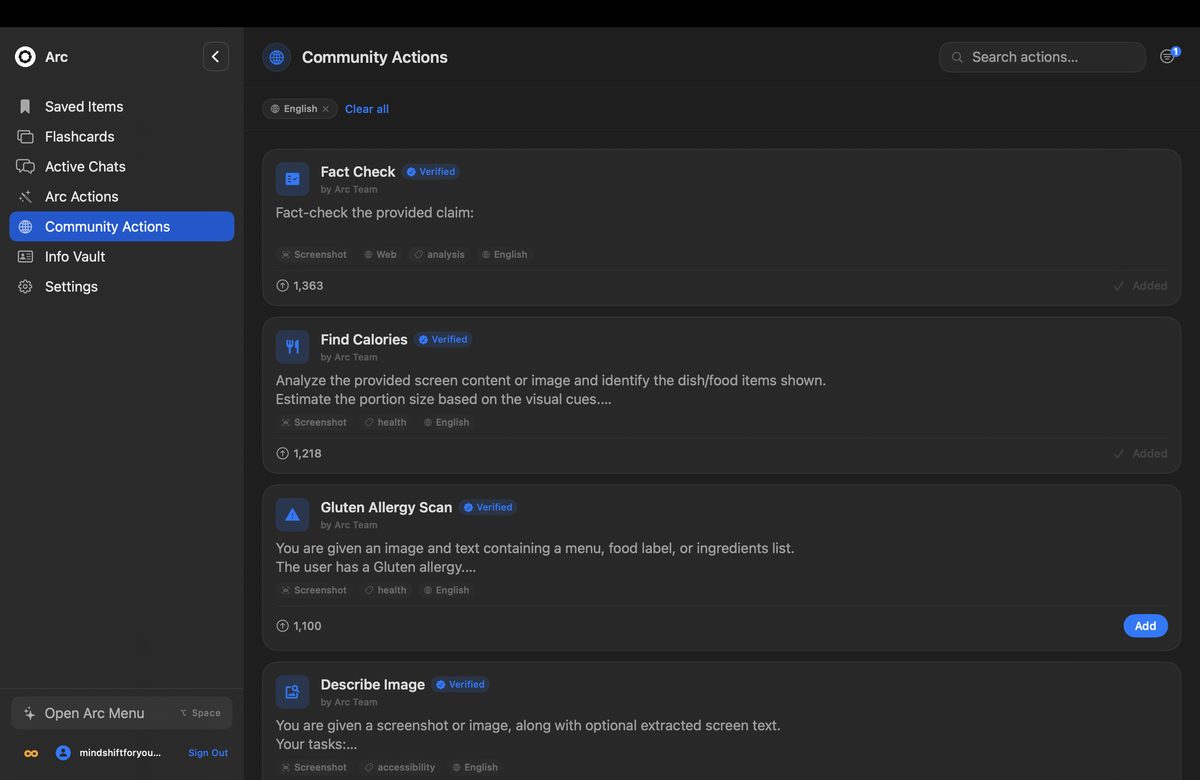
Filter by category — email, study, writing, meetings — preview the prompt text before installing, and start from something close to your need. Rewriting an existing prompt stays faster than writing one cold, and the same browser exists on the Android app with the same library.
AI Automation Mac Workflows: A Real Day
Abstract features don’t carry a pitch; concrete workflows do. Here’s a day where the stack earns its name — with timestamps, real actions, and no background agent doing anything you didn’t invoke:
- 8:45 — Inbox triage. Over Mail: the “Triage inbox” custom action lists the five threads that matter before the coffee finishes. Roughly 10 seconds instead of a scroll-and-anxiety loop.
- 9:30 — Reply to a delicate customer message. Direct hotkey fires Rewrite inside Gmail’s compose field, the rewritten text lands in place, send. No clipboard shuttle required.
- 11:00 — Terms of service page you’re not reading manually. Ask-the-screen action answers “what does this say about data sharing?” grounded in the live page, not a memory of something similar.
- 14:00 — A project page with 22 scattered dates and owners. Extract-structured-data action turns it into a clean checklist. Paste into Notes, close the loop.
- 16:30 — Long PDF before tomorrow’s review. The summarize engine — the same one behind AI Summary & Reader — compresses it to a paginated brief in the panel, saved to your Library so it survives the restart.
Every step above is a single invocation. That restraint is the difference between AI automation you trust and AI automation you babysit — and the text-dense parts of that list, replies and rewrites, come from AI Writer, the same rewrite engine the panel exposes.
How This Compares to ChatGPT on Mac and the Agent Apps
The honest comparison, because it’s the obvious question:
- ChatGPT desktop — a strong chat client whose context is a hotkey away, but the AI only knows what you paste; every use is still select-copy-switch-paste-wait-copy-back.
- Browser AI sidebars — smart inside the tab, absent everywhere else. Mail, Preview, and Slack are where half the work lives.
- Background agents for macOS — the layer-4 tools from earlier. Impressive when they work, dangerous at the moment they click the wrong thing, and they ask you to watch them, which reintroduces human attention as the bottleneck.
- Arc — layer 3. The AI reads the window you’re actually in, on your keystroke, in any app, and composes with Shortcuts for anything deeper than one action. One keystroke versus the six-step copy-paste tax.
If your day is a browser and a chat window, any of these work. If your day is twenty windows across nine apps, an assistant that comes to every window wins — that’s the population we built Arc for.
What Arc’s AI Automation Deliberately Does Not Do
An honest list, because the pattern only works if its limits are stated up front:
- No unattended runs. Arc does nothing between keystrokes. If you need something that runs overnight with no human near the machine, an overlay assistant is the wrong layer — pair Arc with Shortcuts automation, or take a real background agent and accept the audit obligations that come with it.
- No cursor hijacking. Arc never clicks for you, never types into another app, and never moves your windows. Your hands stay on the wheel; the panel changes text, not state.
- No cross-window reasoning in a single call. One action sees one frontmost window. Cross-referencing two documents is two invocations.
- Not offline. The models run server-side. Airplane mode leaves you with the read-aloud basics.
The no-unattended rule isn’t a missing feature to apologize for — it’s the reason the privacy story stays one sentence long. Arc reads one window when you invoke it, and nothing otherwise. Password fields are skipped automatically, no keylogging, no background watching. If a screenshot-based action needs screen-recording permission, the app asks why. That constraint is what lets me offer AI automation Mac users will actually keep enabled — because it never asks them to hand over more attention than the task earns.
Pairing Arc With Shortcuts: The Real AI Automation Mac Setup
If you want the full power move, this is the configuration worth your twenty minutes:
- Write the action in Arc — “Extract every deadline from this window into a dated checklist” — and test it once manually.
- Bind it to a hotkey in Arc’s Shortcuts settings for the muscle-memory case.
- Wrap it in a Shortcut for anything multi-step: e.g. open Notion → wait 2 seconds → fire the Arc action → paste the output into a Notes draft.
Now you have a workflow with two authors: Apple’s glue handles choreography, Arc’s AI handles understanding. More patterns for chaining actions into repeatable flows — triggers, multi-step chains, team-ready recipes — live on AI Workflow Automation. This is AI automation Mac setups arrive at after they’ve outgrown single actions — and it needs no permissions beyond the two the app itself already asks for.
FAQ
What is AI automation on Mac?
Automating knowledge work with AI, in whatever app the work lives in. On macOS that ranges from Apple Intelligence inside single apps to background agents that click around. Arc takes the invoked-action path — an AI automation Mac app that reads the frontmost window on demand under Control+Space, carries out custom prompt actions, and composes with Shortcuts — so you get repeatable AI results in Mail, Safari, Slack, Notion, and Preview alike, without a background watcher.
Is it safe to let AI act on my Mac?
Depends entirely on which automation layer you use. Background agents that move your cursor and click need audit logging and supervision — that’s the riskiest layer, and useful mostly on throwaway machines. Invoked actions like Arc’s are the safer layer: the AI reads one window you summoned it over, returns a result to a panel you can inspect, never clicks anything, and stays dormant between uses. If you stay on layers 1-3, AI automation Mac setups stay comfortably inside what you can audit manually.
How is Arc different from ChatGPT on Mac?
ChatGPT’s desktop app works on what you paste into it. Arc works on what’s already on your screen: it reads the frontmost window through accessibility APIs at invocation time, so the AI sees the actual PDF or the actual inbox thread, then returns the result in place — in the compose field, in the panel, or saved to your Library. Same models, different relationship to your screen.
Can Arc run scheduled background AI jobs?
Not as a background watcher — that’s the deliberate limit above. What it can do is sit inside scheduled Shortcut chains you run manually, where macOS’s own automation handles timing and scheduling and Arc provides the AI step. That split keeps every invocation human-triggered, which is the tradeoff we chose for privacy and auditability over fully hands-off runs.
Does Arc’s AI automation work on Apple Silicon and Intel Macs?
Both. Arc ships as a universal binary for macOS 14 and later, runs identically on M-series and Intel machines, and the heavy inference happens server-side so an M1 MacBook Air gives the same 3-6 second results as a Mac Studio. The same account also carries your actions to the Android floating-sidebar app, so a workflow you build at your desk follows you onto the phone.
Try Arc’s AI Automation on Your Mac
Download Arc for Mac free from arcassistant.app/macos/, grant Accessibility, press Control+Space over whatever you’re working on, and write one custom action for the chore you repeat most. AI automation Mac users keep, long-term, is the kind where the AI earns a hotkey — and that takes about twenty minutes to set up. Prefer working from your phone? The same actions run as a floating sidebar on Android, free on Google Play.
Further reading: Apple Shortcuts on Mac · macOS Accessibility APIs.